

The natural language and image search feature enables users to enter descriptive queries in everyday language, such as “images that contain baseball items”. The system intelligently processes the query and retrieves images that match the description. This feature simplifies and greatly enhances the search experience within Encord, allowing you to find relevant images without the need for specific keywords or complex search parameters.Documentation Index
Fetch the complete documentation index at: https://docs.encord.com/llms.txt
Use this file to discover all available pages before exploring further.
The natural language search feature is available with Encord Active’s embeddings or with your own custom embeddings.
Active
To use natural language or image search in Active:- Log in to the Encord platform. The landing page for the Encord platform appears.
- Click Active in the main menu. The landing page for Active appears.
-
Click the Project.
The landing page for the Project appears with the Explorer tab selected.
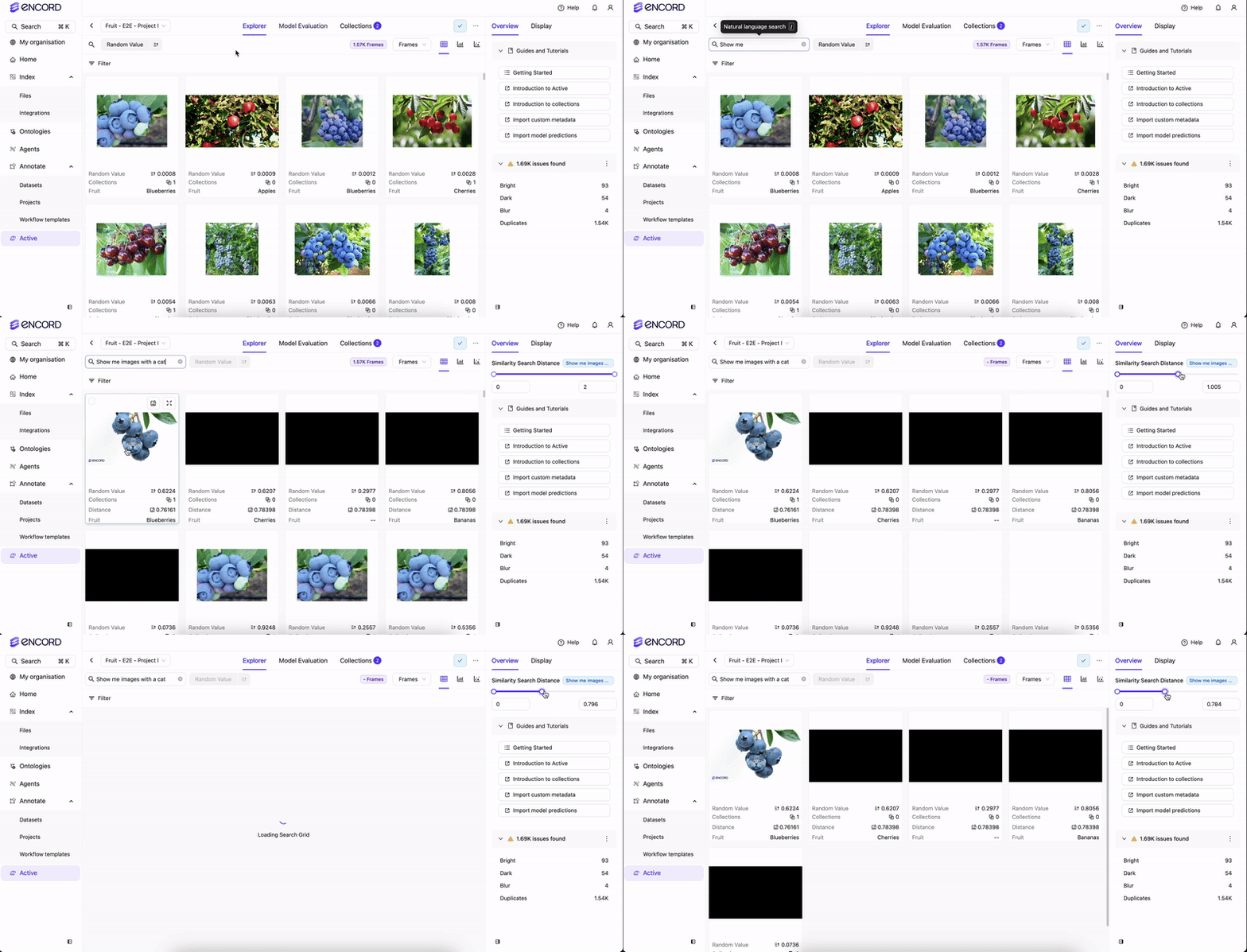
- Select Data, Labels, or Predictions.
- Type a search query or upload an image. The text or image query returns results in the Explorer workspace.
- Click Filter.
- Adjust the Distance to fit your requirements.
Annotate
Prerequisites
Before you can use natural language search in Annotate, calculations must be performed using Encord default embeddings or using your own custom embeddings.- Log in to the Encord platform. The Encord home page appears.
- Click Projects. The Projects page appears displaying all Projects you have access to.
- Click a Project.
- Click Explore.
- Click Metrics & Embeddings.
- Click Compute for either option.
-
Specify the following:
- Similarity & Natural language search and quality metrics: Enable to compute embeddings and quality metrics. Access quality metrics for filtering and sorting.
- Select embeddings: Default embeddings are computed by Encord. Alternatively, import and select your own custom embeddings.
- Embeddings plot, Diversity and Uniqueness metrics: Enable to compute UMAP reduction to generate 2D embeddings plots to visualize your data. Also access diversity and uniqueness metrics for curation.
- Click Start computation.
Use Natural Language Search
To use natural language or image search in Annotate:
- Log in to the Encord platform. The landing page for the Encord platform appears.
- Click Annotate > Projects in the main menu. The Project list page appears.
- Click a Project. The landing page for the Project appears.
- Click Explore.
- Select Video, Frames, or Labels.
- Type a search query or upload an image. The text or image query returns results in the Explorer workspace.
- Click Filter.
- Adjust the Distance to fit your requirements.