

Customize Channels in the Editor
Use the channel controls to show or hide channels, choose colors, switch between lines and points, and adjust line width or point size. For a chart tile, open Time series style settings in its toolbar.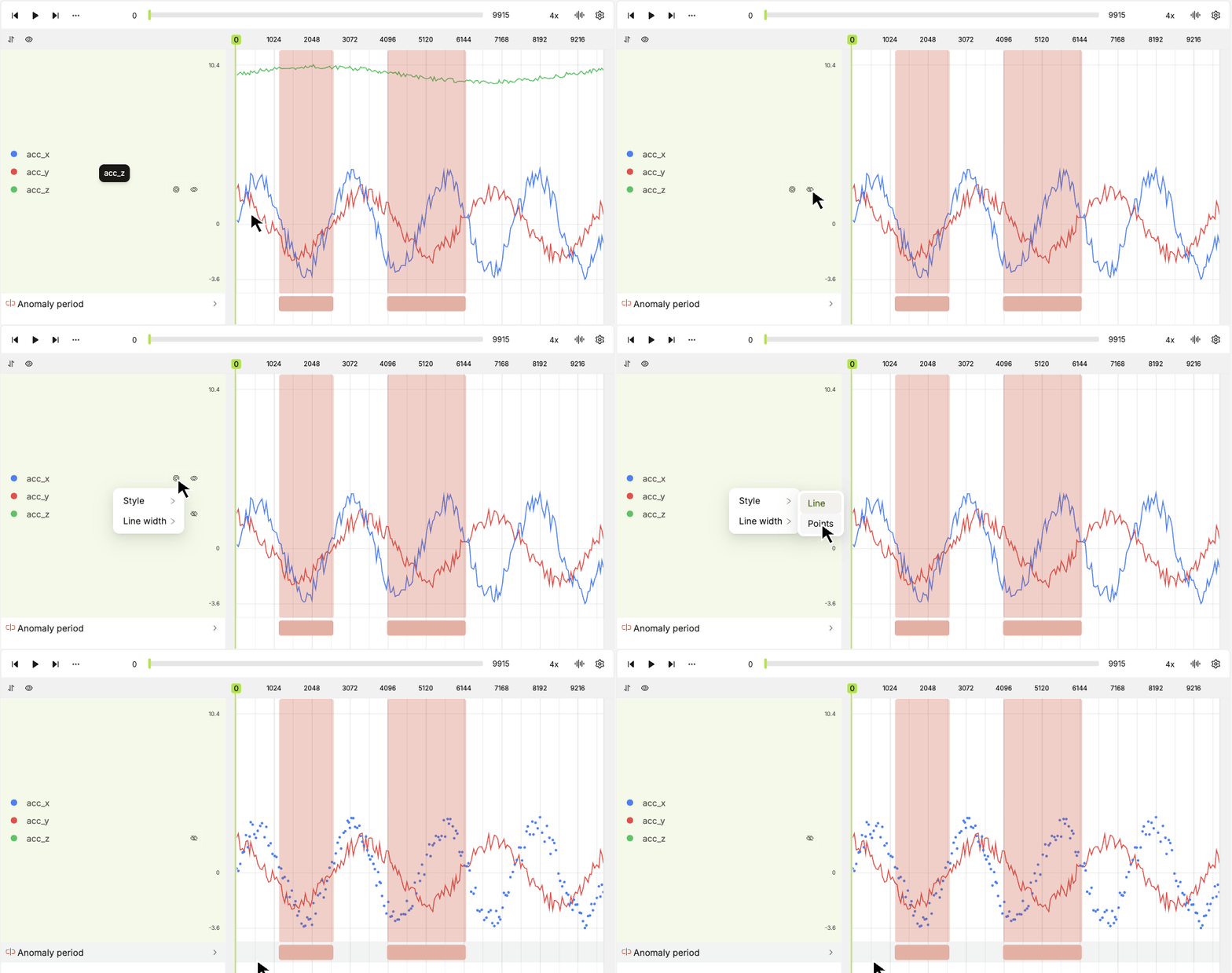
Configure Channels in Upload JSON
Register CSV files with thetime_series top-level key in your upload JSON. Add optional settings to set channel labels, colors, visibility, and rendering styles before annotators open the file.
Time series upload JSON
settings object is optional, and channels you omit use the default appearance. Use CSV header names such as acc_x as channel keys. With SDK v0.1.205 or later, label and color are optional; omitted values use the header name and the editor’s palette. See channel view settings for defaults.
Use lineWidth from 0.5 to 6 for a line channel, or pointRadius from 1 to 8 for a points channel. Set hidden to true to hide a channel initially.
Register the JSON through Manual Data Registration or the SDK registration flow.
Build the Upload with SDK Classes
You can build the same registration payload with SDK classes instead of writing JSON. Replace the private key, folder, and integration placeholders with your own values. See SDK authentication for client setup.style value automatically. Inspect the returned status and any upload errors. If registration is still pending, poll the same job again.
Update Channel Settings with the SDK
UseStorageItem.update(timeseries_settings=...) to change the saved settings of an existing time series file. To retain other configured channels, include their existing settings in the update:
TimeSeriesViewSettings object as settings to StorageFolder.upload_time_series(). See the SDK upload and configuration guide for a complete example.