

The overview shortcuts for Data, Labels, and Predictions in the Overview tab are generalized. Contact us if you want personalized shortcuts populating the Overview tab.
Data Issue Shortcuts
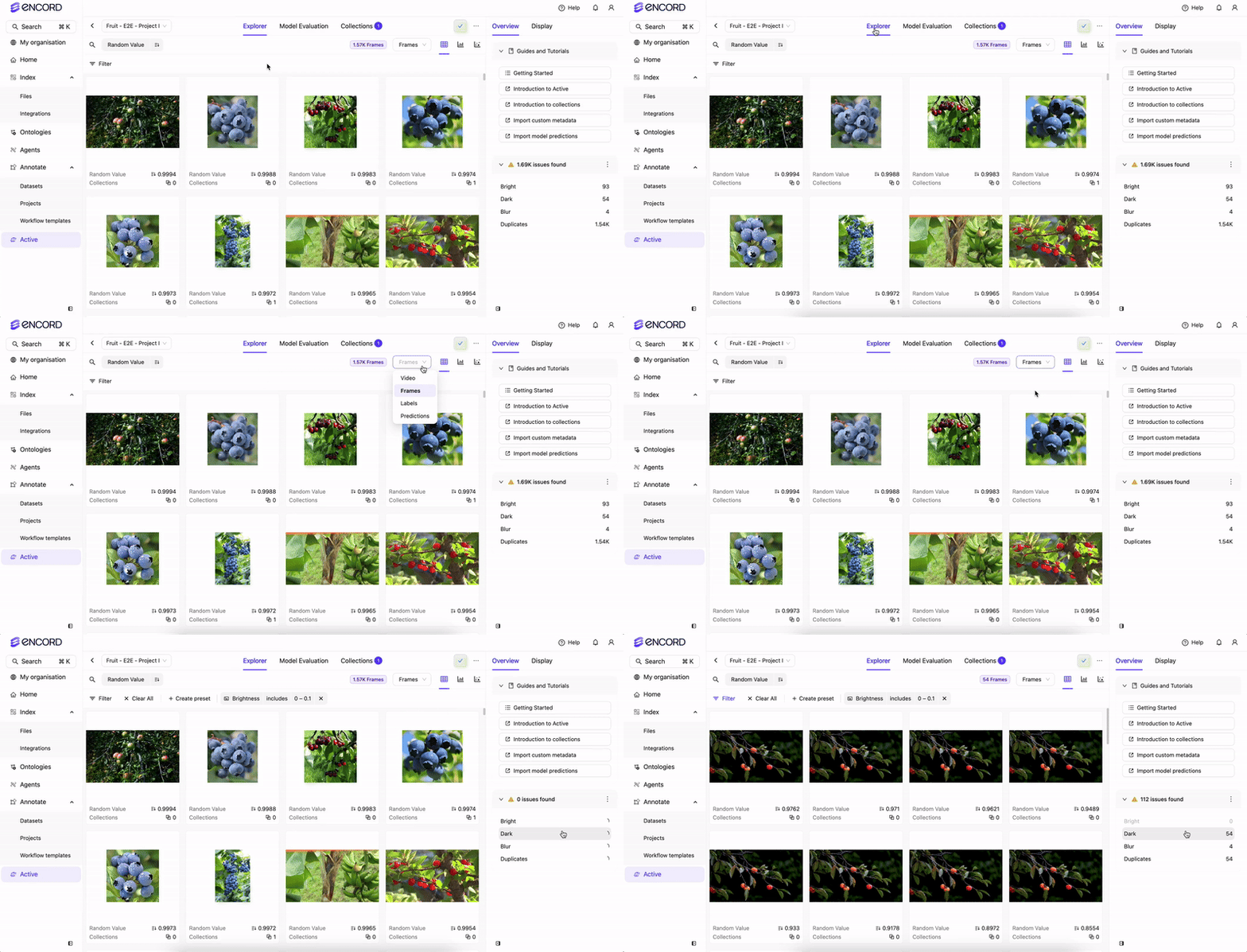 Data Issues Overview
Label Issue Shortcuts
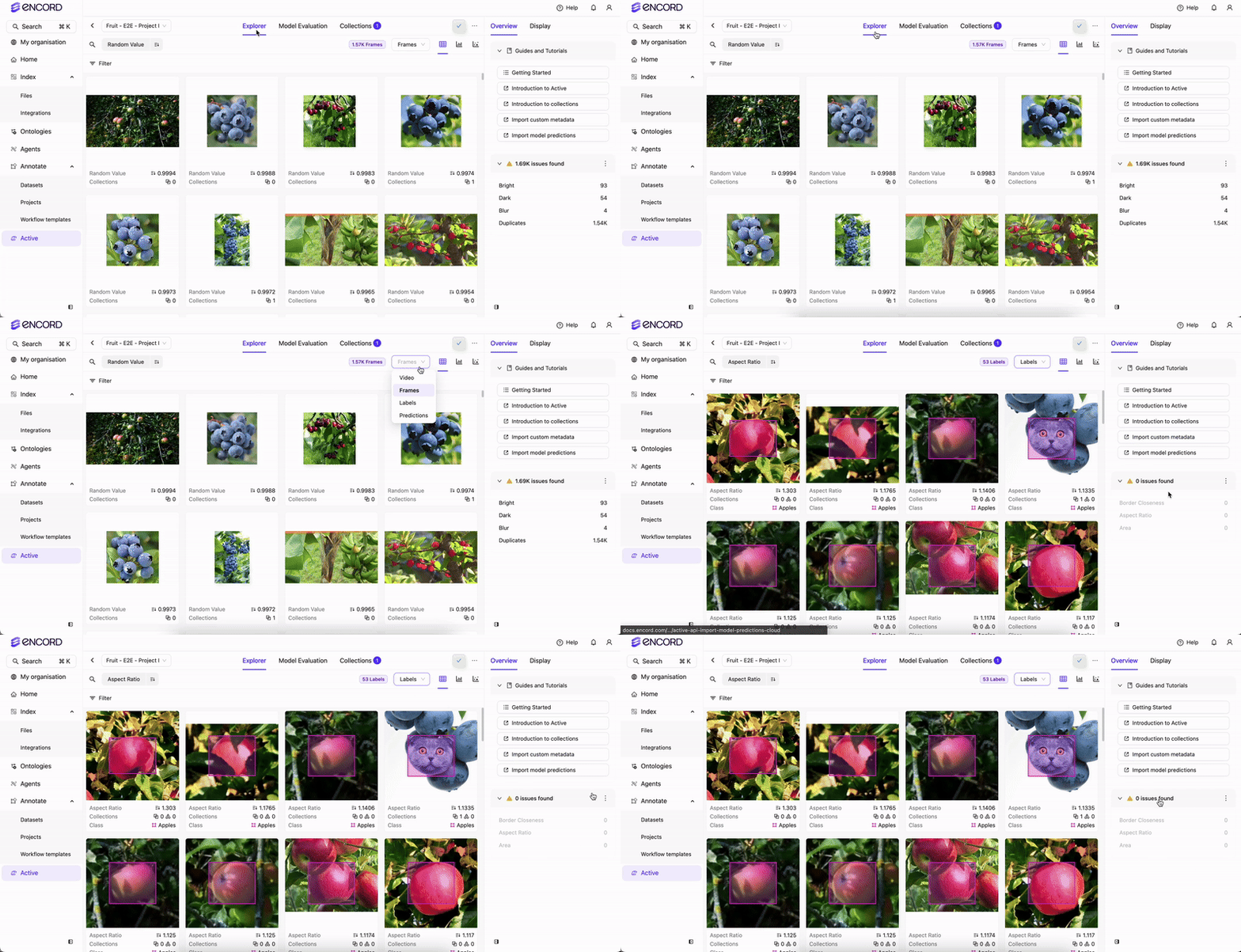 Label Issues Overview
Viewer Role Access
Users with the Viewer role on Workflow Projects can access the Explore tab and browse the Explorer in read-only mode. Viewers can use the grid, analytics, and embeddings views, and apply existing filters — but Encord hides all mutation controls for Viewers. The following actions are not available to Viewers in the Explorer:- Bulk actions (priority, collections, bulk classify, change class, delete labels, export CSV)
- Collection management (create, edit, delete, convert, send to Annotate, bulk classify, add to dataset)
- Adding or removing items from collections in the item preview (collection tags remain visible)
- Creating, editing, deleting, or saving filter presets (the
Alt+Pshortcut is also disabled) - The prediction set Manage button (import/delete)
The Explore tab is not available to Viewers on ManualQA Projects. This applies to Workflow Projects only.
Prediction Issues and Types
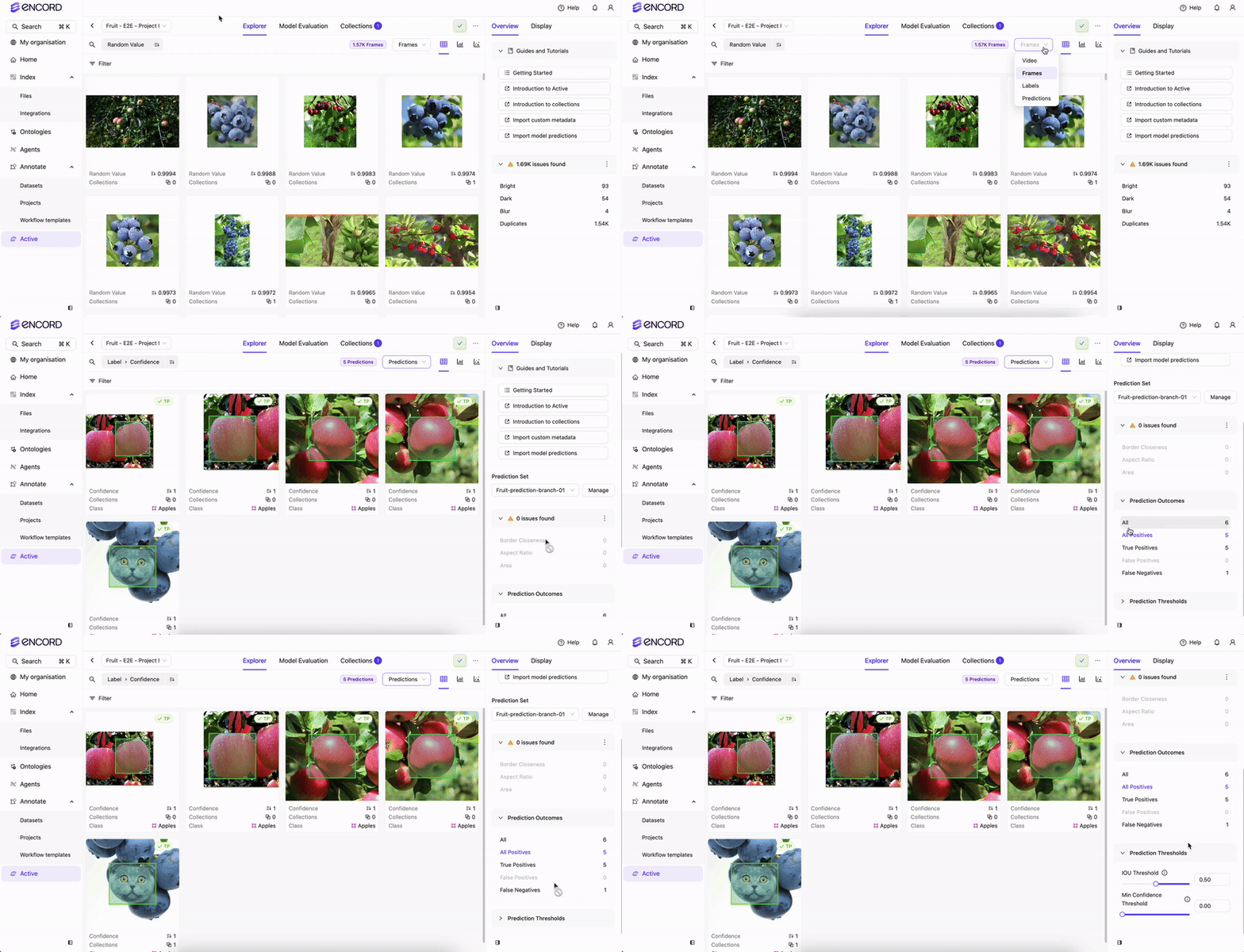 Prediction Issues Overview
Prediction Types
Use Issue and Prediction Type shortcuts
This process assumes that there is already one or more Projects with Explorer enabled. To use Issue and Prediction Type shortcuts:- Log in to the Encord platform. The landing page for the Encord platform appears.
- Click Projects in the main menu. The Projects page appears.
- Click a Project. The Project opens.
-
Click the Explore tab.
The Explorer page for the Project appears.
If Explorer is not enabled for the Project, click Enable Explorer.
- Click Data, Labels, or Predictions. The Explorer workspace changes based on what you clicked. The Overview tab displays with the shortcuts.
- Click a shortcut. A filter is applied to the images. The images appearing in the Explorer workspace changes depending on which shortcut you click.
- Click Filter if you want to modify the filter settings.
- Further search, sort, and filter the data.
- Create a Collection based on the results.
- Create a Dataset (and Project) and send that Dataset to Annotate.
- Further annotate your data.
- Rinse and repeat until you have the dataset you need for optimal model performance.