

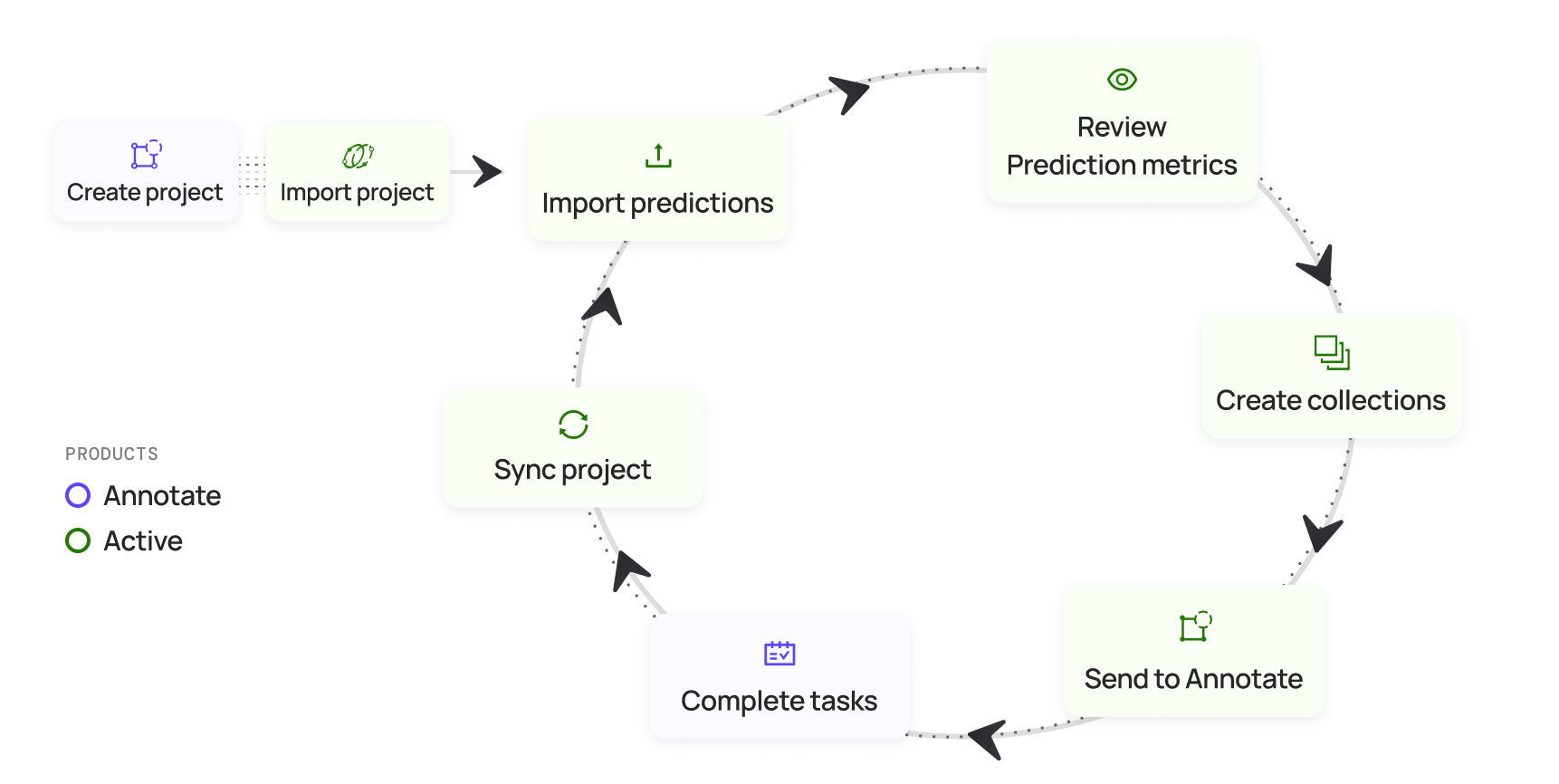
 Now you want to compare your model’s performance before using Encord (or maybe after running a number of data curation and label validation cycles). Encord supports direct model prediction performance comparison from within your Project.
To compare your model's performance:
To compare your model's performance:
This process assumes you have already imported your model’s predictions into your Project at least twice.
- Click Projects in the main menu.
- Click a Project.
- Click the Model Evaluation tab. The Model Evaluation page appears with Summary displaying.
- Select an entry from the dropdown under Prediction Set under Overview.
- Select an entry from the dropdown under Compare against under Overview.
- Click through the various entries on the left side of the Model Evaluation page to view the comparison.
- Add more data and start the data curation, label validation, and model optimization cycles until the model reaches a performance level that you require.
To compare your model's performance from scratch:
To compare your model's performance from scratch:
This process assumes you are just getting started with Encord. You have not trained your model yet. You are using Encord to prepare your data for annotation, annotating your data, labeling your data, validating your labels, fixing any label issues, then training your model.
- Click Projects in the main menu.
- Click a Project.
- Click the Model Evaluation tab. The Model Evaluation page appears with Summary displaying.
- Import a Prediction Set.
- [Perform data curation on your Project in the Project Explorer](/platform-documentation/Validation/validation-tutorials/validation- use-cases#data-cleansingcuration).
- Label and review your data in Annotate.
- Confirm the updated labels have synced to the Project Explorer (the Overview tab shows Data synced).
- Perform label validation on your updated and synced Project.
- Send the Project to Annotate.
- Label and review your data in Annotate.
- Retrain your model using the curated and validated data/labels.
- Open the Project.
- Click the Model Evaluation tab. The Model Evaluation page appears.
- Import the updated Prediction Set.
- Select an entry from the dropdown under Prediction Set under Overview.
- Select an entry from the dropdown under Compare against under Overview.
- Click through the various entries on the left side of the Model Evaluation page to view the comparison.
- Add more data and start the data curation, label validation, and model optimization cycles until the model reaches a performance level that you require.