

Users with the Viewer role on Workflow projects can post comments and raise issues in the Explorer. This is an explicit exception to their otherwise read-only access — Viewers cannot create or modify collections, filter presets, or prediction sets, and cannot perform bulk actions.
Add comments in the Project Explorer
Issues and comments in the Project Explorer can be added to individual frames within a Project or to all frames within a Collection.To add issues / comments to an individual frame in the Project Explorer:
To add issues / comments to an individual frame in the Project Explorer:
- Log in to the Encord platform. The Encord UI appears.
- Click Projects in the main menu. The Projects page appears.
- Click a Project. The Project opens.
-
Click the Explore tab.
The Explorer page for the Project appears.
If Explorer is not enabled for the Project, click Enable Explorer.
- Filter, sort, and search for the frame/image you want to add comments to.
-
Mouseover the image you want to add a comment to.
A few actionable icons appear.
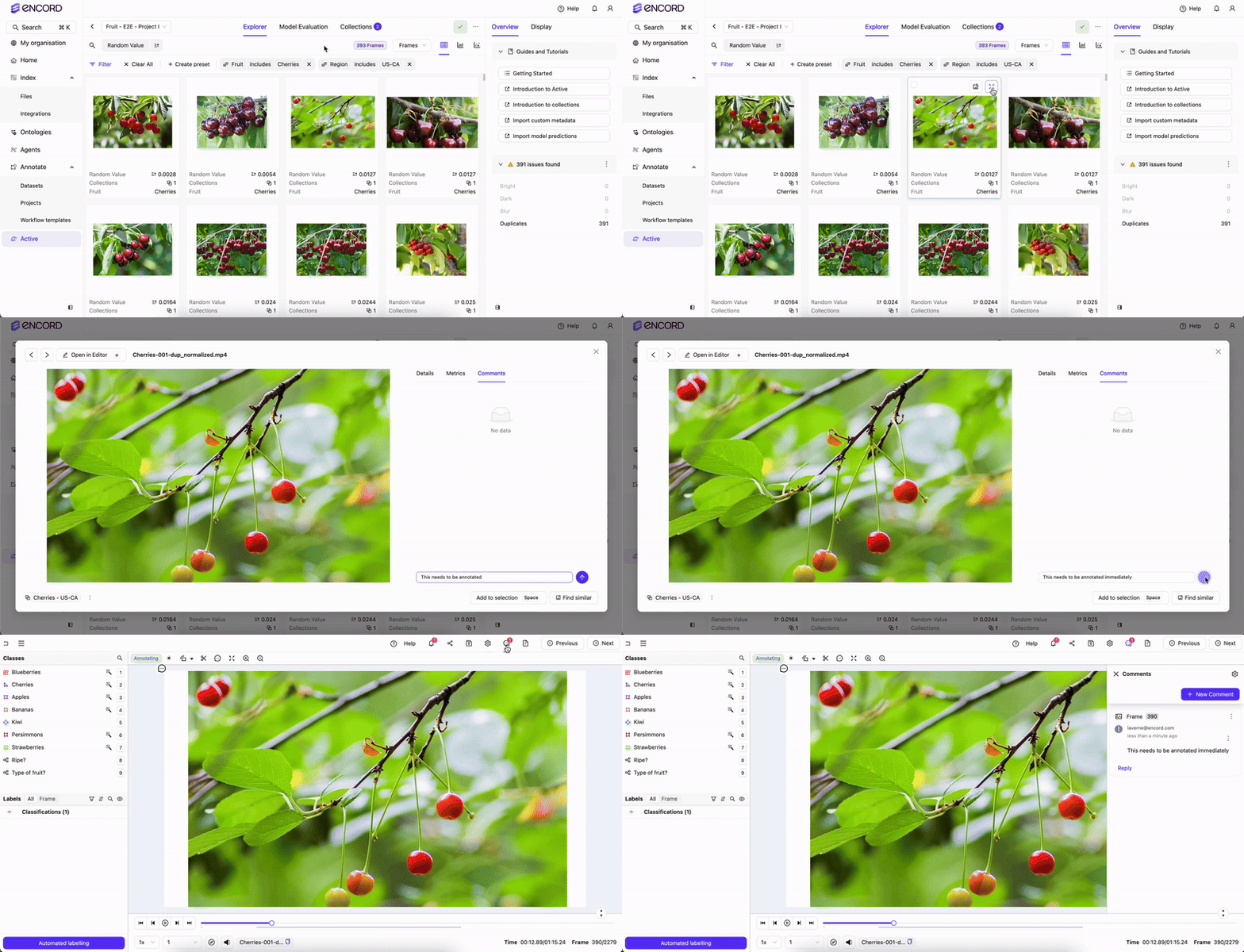
- Click the Expand image icon. A larger view of the image appears.
- Click Comments. The Comments tab appears.
- Provide a comment.
- Add/remove the frame/image to/from a Collection.
- View the frame/image in Annotate.
- Perform a similarity search on the image/frame.
- Add comments to other frames/images as needed.
- Add those frames/images to the Collection.
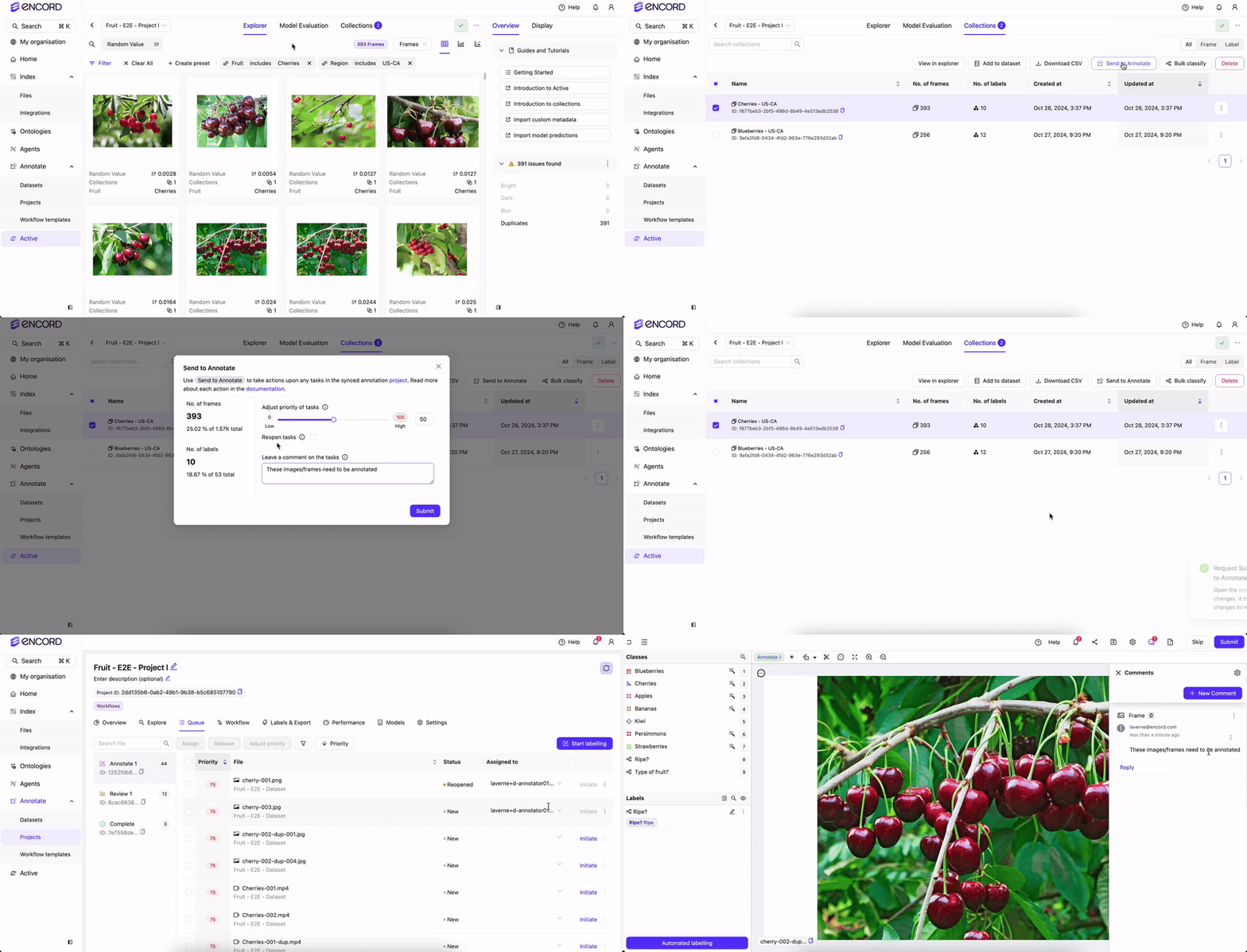
To add issues / comments to a Collection:
To add issues / comments to a Collection:
Comments made when sending a Collection to Annotate appear in every frame in a Collection.
- Log in to the Encord platform. The Encord UI appears.
- Click Projects in the main menu. The Projects page appears.
- Click a Project. The Project opens.
-
Click the Explore tab.
The Explorer page for the Project appears.
If Explorer is not enabled for the Project, click Enable Explorer.
-
Create a Collection.
View Annotate Issues in the Project Explorer
Project data, including issues and comments created in the Label Editor, syncs to the Project Explorer automatically.To check that Annotate issues have synced:
To check that Annotate issues have synced:
- Log in to the Encord platform. The Encord UI appears.
- Click Projects in the main menu. The Projects page appears.
- Click a Project. The Overview tab for the Project appears.
- Check the sync status next to the Project’s datasets. Data synced means all the Project data (including comments) is available in the Project Explorer.