

Users with the Viewer role on Workflow Projects can access the Explorer and filter by existing collections, and collection tags remain visible on items in the item preview. However, Viewers cannot create, edit, delete, or convert collections, and the options to add or remove items from a collection are hidden. All other collection management actions — including bulk classify, send to annotate, and add to dataset — are also hidden for Viewers. For the full permissions matrix, see Roles and permissions.
blueberries or cherries).
In Encord, creating Collections provides several advantages:
- Organization: Allows you to organize your data effectively within the platform. By assigning Collection tags to your data points, you can group and categorize data based on common characteristics, making it easier to manage and navigate large subsets of the dataset.
- Enhanced search and filtering: Collections in Encord enable powerful search and filtering capabilities. You can search for specific data points or filter data based on tags, narrowing down your focus to the relevant information you need.
- Customizable metadata: Collection tags serve as customizable metadata that can provide additional context and information about your data. You can define and assign tags that align with your specific project requirements, providing meaningful insights and annotations for efficient data analysis.
- Collaboration and knowledge sharing: Tagging promotes collaboration and knowledge sharing among team members in Project Explorer. With consistent tagging conventions, team members can easily understand and access tagged data, facilitating efficient collaboration and ensuring everyone is on the same page.
- Performing bulk actions: Tagging allows the performing of bulk actions on groups of data units or labels. For example, you can modify data units with incorrect labels at the push of a button.
- Navigate to Projects and click the Project.
- Open the Explore tab of the Project.
-
Select Labels.
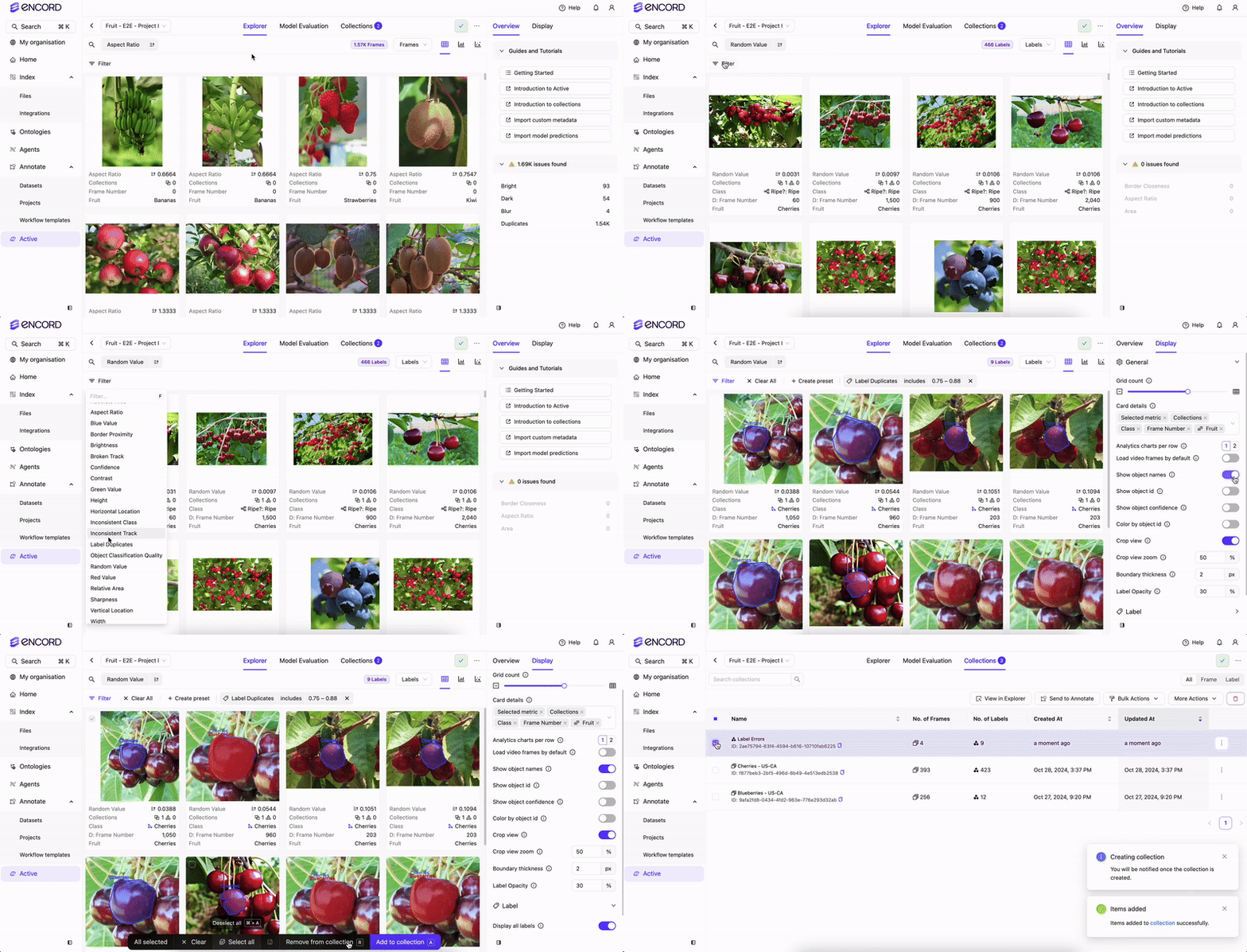
- Search, sort, and filter your labels until you have the subset of the data you need.
- Select one or more of the images. A ribbon appears at the bottom of the Explorer workspace.
- Click Select all to select all the images in the subset.
- Click Add to a Collection.
- Click New Collection.
- Specify the Collection type as Label.
-
Specify a meaningful title and description for the Collection.
The title specified here applies as a tag/label to every selected image.
- Click Collections to verify the Collection appears in the Collections list.
Collection actions menu
Each collection in the Explorer filter panel has a … (horizontal dots) button that opens a collection actions submenu. This submenu provides quick access to collection-specific actions without leaving the Explorer.Collection ID
The submenu header displays the collection name in bold at the top, with the collection’s unique ID shown beneath it. Click the copy icon next to the ID to copy it to your clipboard.The copyable collection ID and grouped actions menu described here apply only to the … submenu in the Explorer filter panel. The collections table row menu is unchanged.
Grouped actions
Actions in the submenu are organized into sections separated by dividers, making it easier to find the right action:- Navigate — Go to the collection in Explorer.
- Manage — Edit collection details.
- Data — Add to a dataset or download a CSV.
- Workflow — Task actions, bulk classify, convert collection, edit object class, and edit object attributes (available for Project domains only).
- Danger — Delete the collection.