

Everything in the FastAPI examples can also be done using Modal, as Modal acts as a wrapper around FastAPI.
STEP 1: Authentication
You need to authenticate with Encord first. Once you have a private access key (preferably corresponding to a service account), you must also ensure that you have signed up for Modal. Now you can configure the secret:- Go to
https://modal.com/secrets. - Click “Create new secret”.
- Choose the “Custom” option.
- Name it
encord-ssh-key(you can choose the name but it needs to match the name in the code below). - Add an environment variable names
ENCORD_SSH_KEYwith the content of your private access key file. Similar to the figure below.
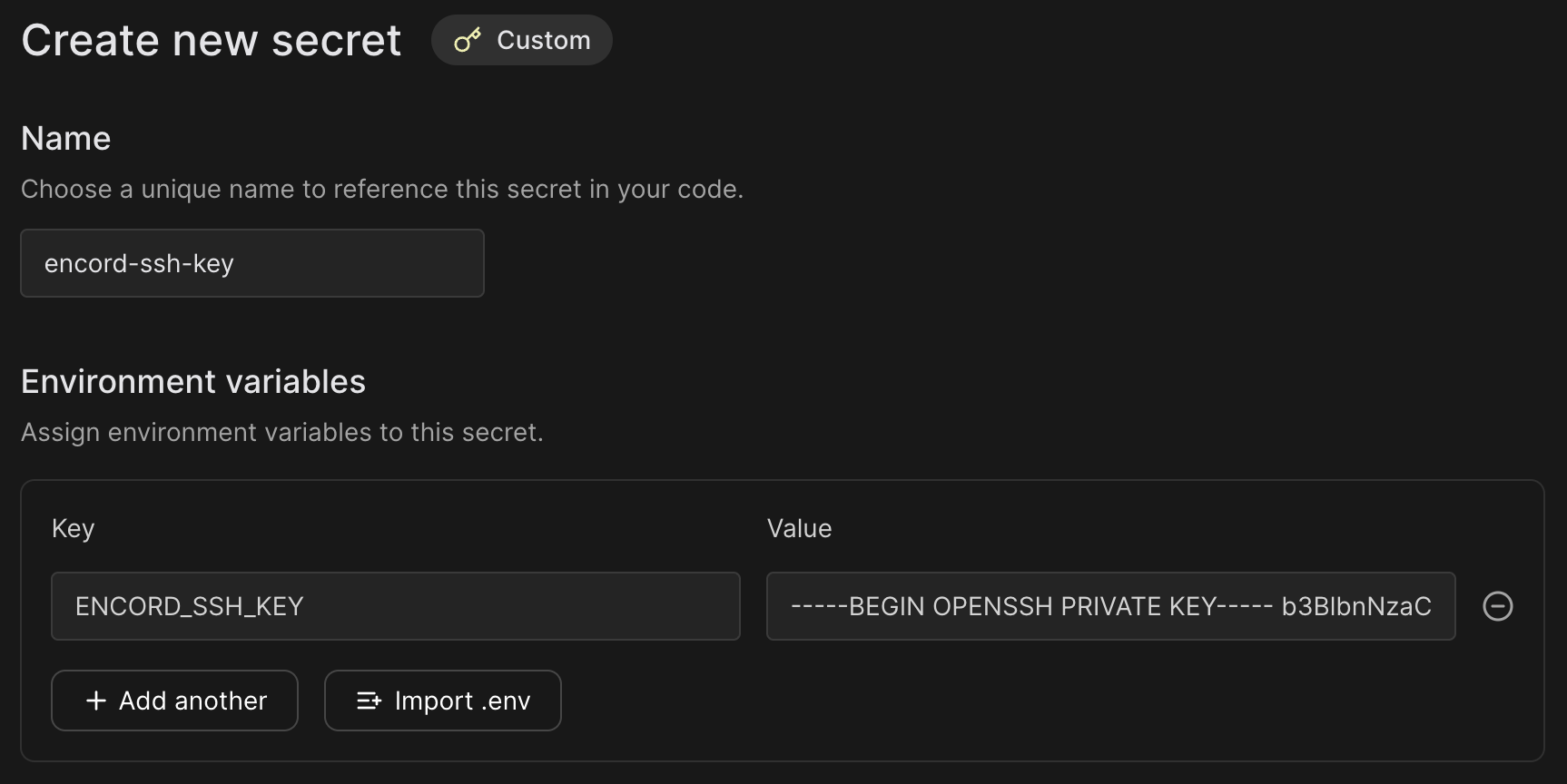 This setup allows
 encord-agents to authenticate with Encord using the provided key.
STEP 2: Installation
Ensure that you have installedencord-agents and modal:
STEP 3: Inspecting the Modal Template
Now you need a template for creating an endpoint that can be used for defining a Custom Agent. The following example:-
Creates a Docker Image – We define a container that includes all necessary dependencies:
encord-agents: The library for building agentsmodal: For hosting the agentlibgl: Required byopencv
- Defines an App – We create a FastAPI application to manage the agent’s endpoints.
-
Sets Up Authentication – We add an endpoint that uses an access key for authentication.
- The access key should be stored as
ENCORD_SSH_KEY. encord-agentsautomatically detects this key and use it to authenticate with the Encord SDK.
- The access key should be stored as
-
Implements the Agent Logic – defines what the agent should do when triggered.
- Check out these examples to see different ways to customize your agent.
encord_agents.fastapi.dependencies to simplify your setup.
STEP 4: Defining the Agent
The following example adds a circular bitmask in the middle of the current frame. However, it could easily be running your own model (even on the GPU). In the function definition of your route, add the following code to:- Ensure that the Project’s Ontology has a bitmask object. If it does not, there’s nothing to do here.
- Ensure that the task is a visual data unit (an image, image group, image sequence, or video).
- Places a bitmask with the appropriate shape and fills in a sphere.
- Adds the bitmask to the label row.
- Saves the labels.
encord_agents library sends a 200 response to the Label Editor, causing the editor to refresh its state. The result is a sphere in the middle of the image.
STEP 5: Testing the Agent
To test the agent, there is a dedicated CLI tool. You must first run the agent locally (with your Python environment sourced). Assuming that the python file you created is namedexample.py, you can run:
<agent_url>.
Now, go to the Encord Label Editor in your browser, viewing an asset for which you would like to test your agent.
Copy the url; let’s call it <editor_url>.
It should follow this pattern:
<agent_url> and the <editor_url> with the relevant urls.
You should see a green box detaining the request and the response.
If the status code is 200, refresh your browser to see the new bitmask in the Label Editor.