

Agent Catalog
The Agents Catalog is the central place to discover, configure, and deploy agents in Encord — from off-the-shelf integrations to fully Custom Agents.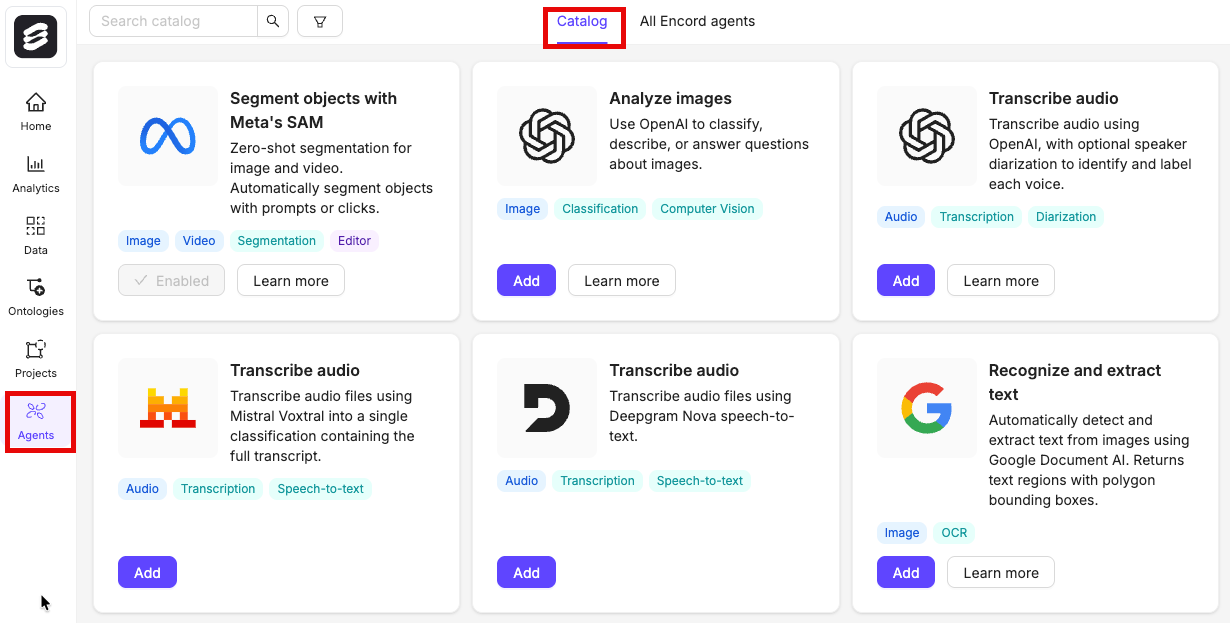
Agent Types
- Catalog agents: Built-in agents that you configure in a few simple steps (for example, OpenAI or Google Document AI). See available Agents for a full list.
- Custom agents: Configured using the Agents Catalog. See Custom Agents for details.
Enable Agents
- Navigate to Agents in the left-hand navigation. The Agents catalog tab opens by default.
- Browse or search for agents:
- Built-in agents are shown as tiles you can configure with API keys and simple options.
- The Custom agent tile lets you register your own HTTPS endpoint as an agent.
- A Request agent tile lets you ask Encord to add a new integration.
- Click Add to enable an agent.
- Give the Agent a meaningful name.
- Add Ontology and label target information, and any required external credentials if necessary.
- Click Add agent to save the configuration and enable the agent for use in your Projects.

External Credentials
Many catalog agents require external credentials, such as OpenAI API keys or Google service accounts. You can add and manage these credentials in two ways:- While creating an agent: When you configure a catalog agent, you can choose or create the required external credential directly in the form.
- From workspace settings: Go to Workspace settings > External credentials to create, reuse, or revoke credentials across agents.
Ontology & Label Targets
- Ontology - The Ontology the Agent uses.
- Label Targets - The specific classes within the Ontology that the Agent writes its output to. Only classes that the Agent template supports as outputs are available for selection.
The Agent can only be attached to projects that use the same Ontology. When creating an Agent directly from a Workflow stage, the Project’s Ontology is pre-filled automatically.
Repeatable Ontology Feature Requirements
Some agent templates declare one or more Ontology feature requirements as repeatable. A repeatable requirement lets you assign multiple Ontology features to a single role. For example, selecting several source object classes for an agent that merges or compares multiple class types simultaneously. When a requirement is repeatable, the agent configuration form displays a multi-select picker instead of the standard single-select dropdown. You can search and select as many eligible features as the template allows. Validation rules for repeatable requirements:- The template defines a minimum number of features you must select (default: 1). The form prevents submission until this minimum is met.
- If the template defines a maximum, the picker disables further selection once you reach that limit.
Source Object Classes: [ClassA] [ClassB] [ClassC]Ontology compatibility: When selecting an Ontology for an agent with repeatable requirements, Encord automatically excludes ontologies that do not contain enough eligible features to satisfy the minimum selection count for each repeatable requirement.