Why do this?
Quick way to get going with Encord using cloud data using the Encord SDK.
If you intend to use Encord at scale, consider curating your data after importing/registering your data.
Pros and Cons
| Pros | Cons |
|---|
- Simple way to get data into Encord using the SDK
- Able to sync your cloud data with Encord easily
|
- Requires a little bit of technical knowledge to set integrations
- No data management or curation (custom metadata needs to be imported separately)
|
Import/Register Data
We’re going to register our Dataset of fruit by connecting the cloud storage directly to a Cloud-synced Folder. The dataset is a mixture of images and videos of the following types of fruit:
- Apples
- Bananas
- Blueberries
- Cherries
- Kiwi
- Persimmons
- Strawberries
Create Integration
Select your cloud provider. Import Data to Cloud Storage
Import the contents of Fruit-images-videos.zip into your cloud storage.
Create Cloud-synced Folder
Create Cloud-synced Folder
from uuid import UUID
from encord import EncordUserClient
from encord.orm.storage import CloudSyncedFolderParams

# User input
SSH_PATH = "/Users/chris-encord/ssh-private-key.txt" # Specify the file path to your access key
CLOUD_SYNCED_FOLDER_NAME = "E2E - Fruit - Images and Videos - Cloud-synced Folders" # Specify a meaningful name for your Cloud-synced Folder
CLOUD_SYNCED_FOLDER_DESCRIPTION = "A folder to store my files" # Specify a meaningful description for your Cloud-synced Folder
INTEGRATION_UUID = "3b6299c3-f8c8-4755-ae26-d9144b215920" # Specify the unique id for your integration
REMOTE_URL = "gs://my-gcp-bucket/" # Specify the storage/file path to your cloud storage

# Authenticate with Encord using the path to your private key
user_client: EncordUserClient = EncordUserClient.create_with_ssh_private_key(
    ssh_private_key_path=SSH_PATH,
    domain="https://api.encord.com",
)

# Create cloud synced folder params
cloud_synced_folder_params = CloudSyncedFolderParams(
    integration_uuid=UUID(INTEGRATION_UUID),
    remote_url=REMOTE_URL,
)

# Create the storage folder
folder_name = CLOUD_SYNCED_FOLDER_NAME
folder_description = CLOUD_SYNCED_FOLDER_DESCRIPTION
folder_metadata = {"my": "folder_metadata"}

storage_folder = user_client.create_storage_folder(
    name=folder_name,
    description=folder_description,
    client_metadata=folder_metadata,
    cloud_synced_folder_params=cloud_synced_folder_params,
)
Find File/Storage Path
Finding the Storage path for your folder or object varies across Cloud Storage platforms.AWS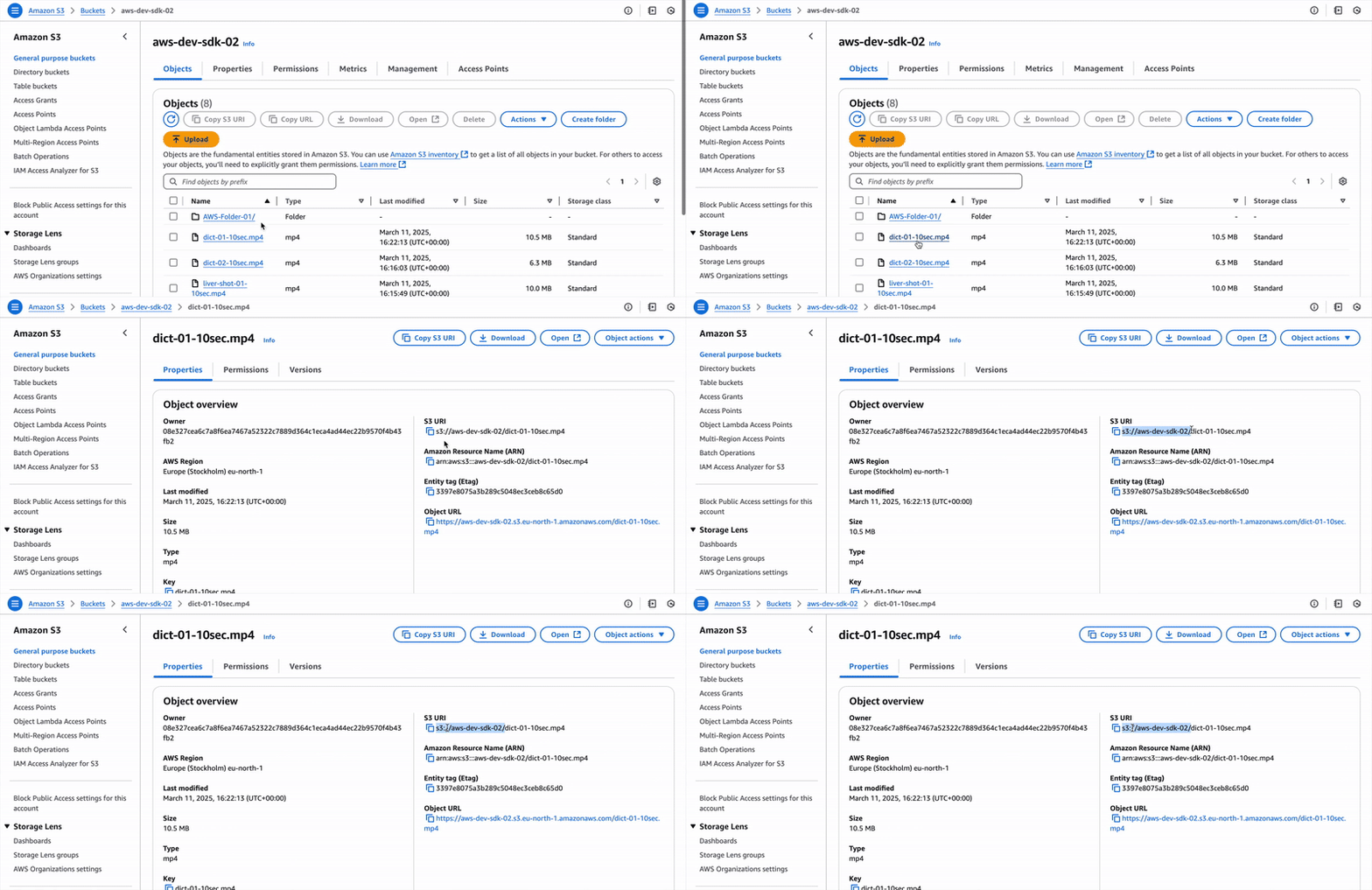 GCP
GCP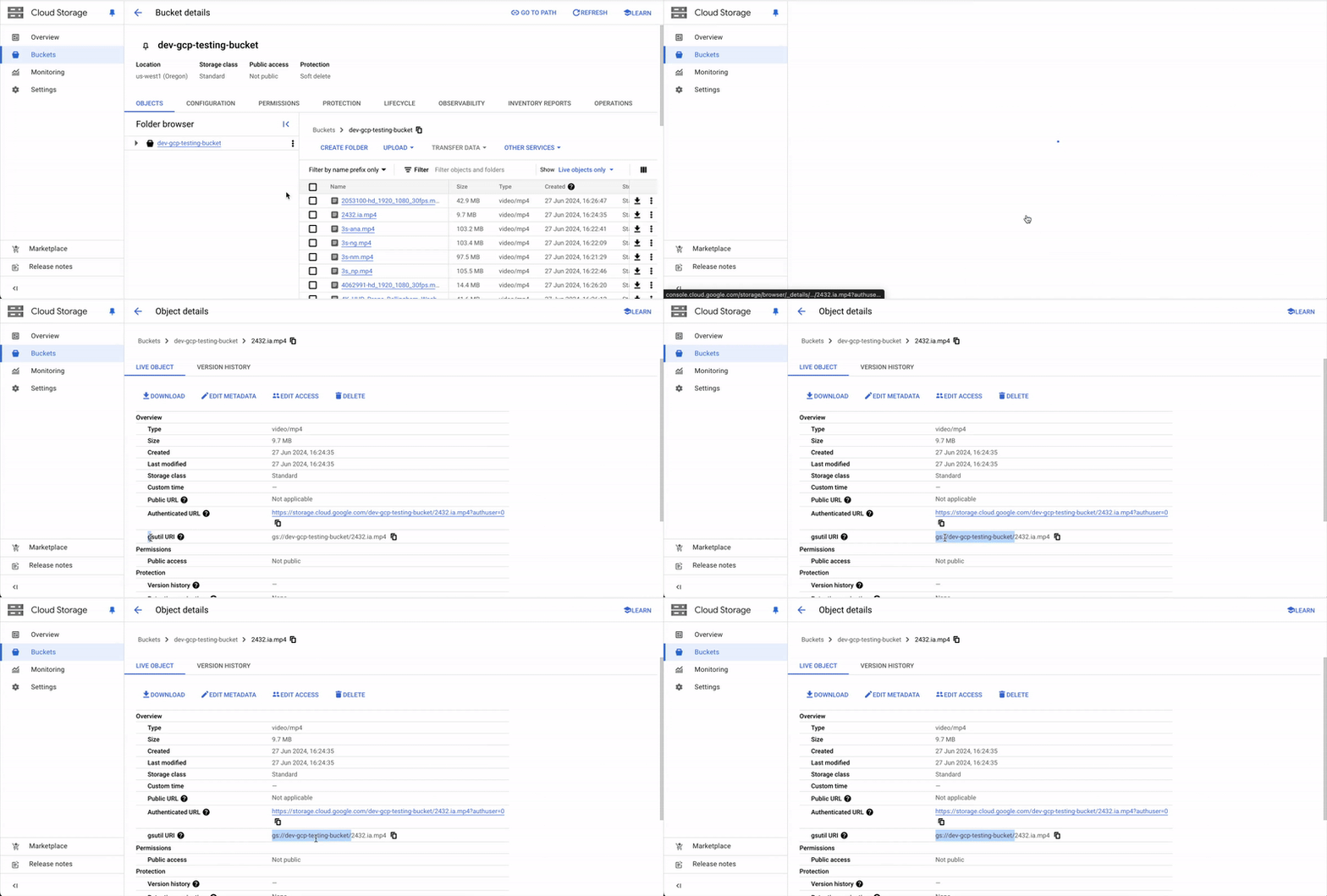
Sync Data Between Encord and Cloud Storage
The following code syncs a Cloud-sync Folder with the cloud storage bucket.The sync_private_data_with_cloud_synced_folder_get_result time out value can be adjusted to your needs.
from uuid import UUID
from encord import EncordUserClient
from encord.orm.storage import SyncPrivateDataWithCloudSyncedFolderStatus
from encord.storage import FoldersSortBy

# User input
SSH_PATH = "/Users/chris-encord/ssh-private-key.txt" # Specify the file path to your access key
CLOUD_SYNCED_FOLDER_NAME = "E2E - Fruit - Images and Videos - Cloud-synced Folders" # Specify the name of your Cloud-synced Folder

# Authenticate with Encord
user_client: EncordUserClient = EncordUserClient.create_with_ssh_private_key(
    ssh_private_key_path=SSH_PATH,
    domain="https://api.encord.com",
)

# Option 1: Use UUID directly
# storage_folder = user_client.get_storage_folder(CLOUD_SYNCED_FOLDER_ID)

# Option 2: Look up folder by name
folders = list(user_client.find_storage_folders(search=CLOUD_SYNCED_FOLDER_NAME))
if not folders:
    print("Folder not found")
    exit()

storage_folder = folders[0]

# Start sync job
sync_job_uuid = storage_folder.sync_private_data_with_cloud_synced_folder_start()

# Wait for result
result = storage_folder.sync_private_data_with_cloud_synced_folder_get_result(
    sync_job_uuid, timeout_seconds=300  # You can adjust this
)

print(f"Sync job finished with status: {result.status}")

if result.status == SyncPrivateDataWithCloudSyncedFolderStatus.DONE:
    print("Sync completed successfully.")
    if result.unit_errors:
        print("Some items failed to sync:")
        for err in result.unit_errors:
            print(err.object_urls)
elif result.status == SyncPrivateDataWithCloudSyncedFolderStatus.PENDING:
    print("Sync is still in progress. Try polling later.")
else:
    print(f"Sync failed or cancelled. Errors: {result.errors}")
Re-encode Videos
We strongly recommend re-encoding any imported videos with issues. Re-encoding your videos ensures the best performance when annotating your data.
from encord import EncordUserClient
from uuid import UUID

# User input
SSH_PATH = "/Users/chris-encord/ssh-private-key.txt" # Specify the file path to your access key
CLOUD_SYNCED_FOLDER_NAME = "E2E - Fruit - Images and Videos - Cloud-synced Folders" # Specify a meaningful name for your Cloud-synced Folder

# Authenticate with Encord
user_client: EncordUserClient = EncordUserClient.create_with_ssh_private_key(
  ssh_private_key_path=SSH_PATH,
  domain="https://api.encord.com",
)

# Find the storage folder by name
folder_name = CLOUD_SYNCED_FOLDER_NAME
folders = list(user_client.find_storage_folders(search=folder_name, page_size=1))

if folders:
  storage_folder = folders[0]

  # List of video UUIDs to re-encode
  video_uuids = [UUID("<video_uuid_1>"), UUID("<video_uuid_2>")]

  # Re-encode the videos
  process_id = storage_folder.re_encode_videos(
      storage_items=video_uuids,
      process_title="My re-encoding process",
      force_full_reencoding=False  # Set to True for full re-encoding
  )

  print(f"Re-encoding process ID: {process_id}")
else:
  print("Folder not found.")
Create Project
Once all the videos are re-encoded you are ready to create an Annotate Project. Once you create a Project and you and your team are ready to begin annotating the data.Performing ANY of these tasks results in creating the Project E2E Fruit Project to annotate.
- The Ontology is the same for ALL tasks.
- The Workflow varies depending on the task.

Create Project - UI
Create Projects (Ontologies, Workflows, and Projects) using the Encord UI.

Create Project - SDK
Create Projects (Ontologies, Workflows, and Projects) using the SDK.
Create Consensus Project - UI
Create Consensus Projects (Ontologies, Workflows, and Projects) using the UI.

Create Consensus Project - SDK
Create Consensus Projects (Ontologies, Workflows, and Projects) using the UI.
Create Project - Import Labels
Create Projects (Ontologies, Workflows, and Projects) for use with your own labels.
Create Project - Import Predictions
Create Projects (Ontologies, Workflows, and Projects) for use with your own model predictions.
Create Project - Task Agents
Create Projects (Ontologies, Workflows, and Projects) for use with Task Agents.

