

Before reading any further, we recommend familiarizing yourself with custom metadata.
Format
You can specify key frames, but you can also specify custom metadata and embeddings on each frame.- “config” is optional.
- Custom metadata and embeddings on each frame is optional.
- Custom metadata on the entire video is optional.
DEPRECATED FORMAT
keyframes is a reserved keyword, in custom metadata, for use with frames of interest in videos. Specifying keyframes on specific frames ensures that those frames import into Data > Explore and Project > Explore. That means frames specified using keyframes are available to filter your frames and for calculating embeddings on your data.
keyframes while importing your videos or after you import your videos.
Import key frames to specific data units in a folder
This code allows you to import key frames on specific videos in Data > Explore. This code DOES NOT OVERWRITE all existing custom metadata on a data unit. It does overwrite custom metadata with existing values and adds new custom metadata to the data unit.Frame 0 can never be excluded from a video. This is because frame 0 is the first frame in the video and all customizations are based on frame 0.
Boilerplate
Filter by keyframes
Data > Explore supports filtering video frames by key frames. This speeds up curation of your videos by focusing on frames of interest within your videos. To filter data by key frames:-
Log in to the Encord platform.
The landing page for the Encord platform appears. -
Navigate to Data > Explore.
The All folders page appears with a list of all folders in Encord. - Open a folder.
- Click Filter. The Filter tab displays.
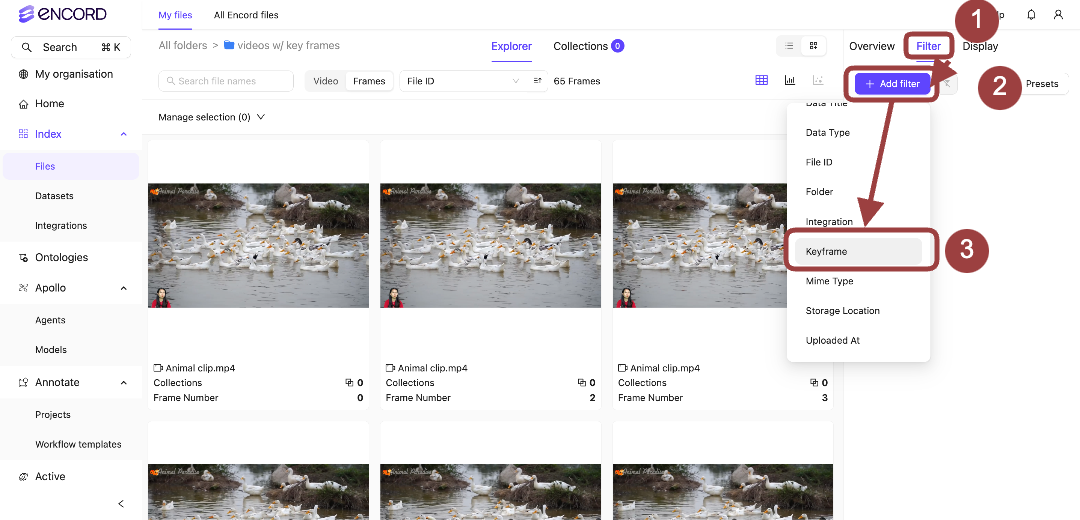
- Click Add filter. A menu appears.
- Select Keyframe from the menu. The Keyframe filter appears in the filter list.
-
Select True.
The video frames with
keyframesspecified appear in the Explorer workspace.
Browse videos by keyframes
You can use key frames to sort your data in the Frames Grid view, but you can also use key frames to filter the frames displayed in the Videos view. To filter videos by keyframes:-
Log in to the Encord platform.
The landing page for the Encord platform appears. -
Navigate to Data > Explore.
The All folders page appears with a list of all folders in Encord. - Open a folder.
- Click Video. All videos in the Folder/Folders appear as a grid of compact cards.
- Click + N frames on the video card you want to inspect. The video expands in place into a full-width frame-strip row, with its controls in the row header.
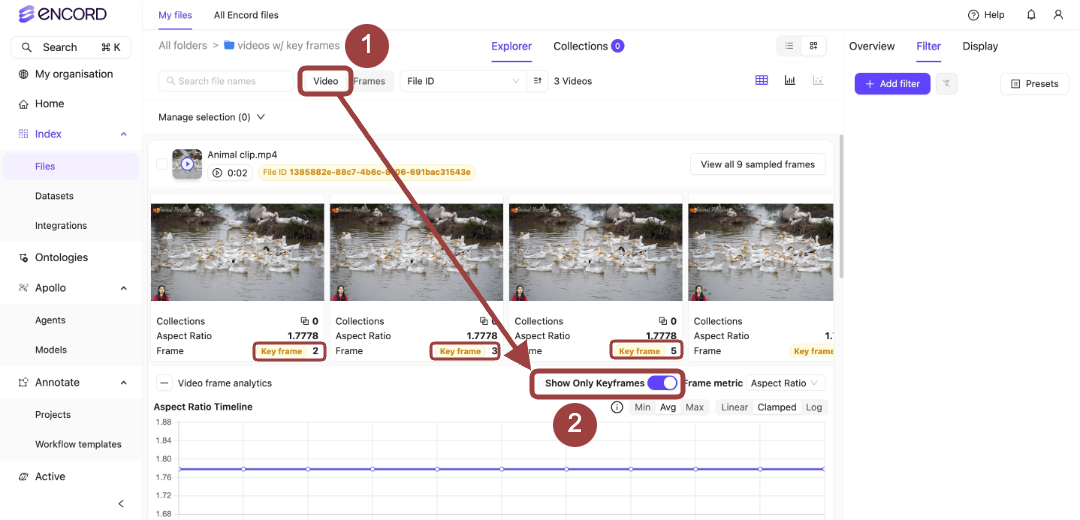
- Toggle Show only Keyframes in the expanded row header.
Only video frames with
keyframesappear when moving through the video.
The Show only Keyframes toggle is only available once a video is expanded.