> ## Documentation Index
> Fetch the complete documentation index at: https://docs.encord.com/llms.txt
> Use this file to discover all available pages before exploring further.
# Data Annotation
***
## STEP 1: Import Your Files to Encord
### Create a Cloud Integration
Select your cloud provider.
***
### Create a Folder
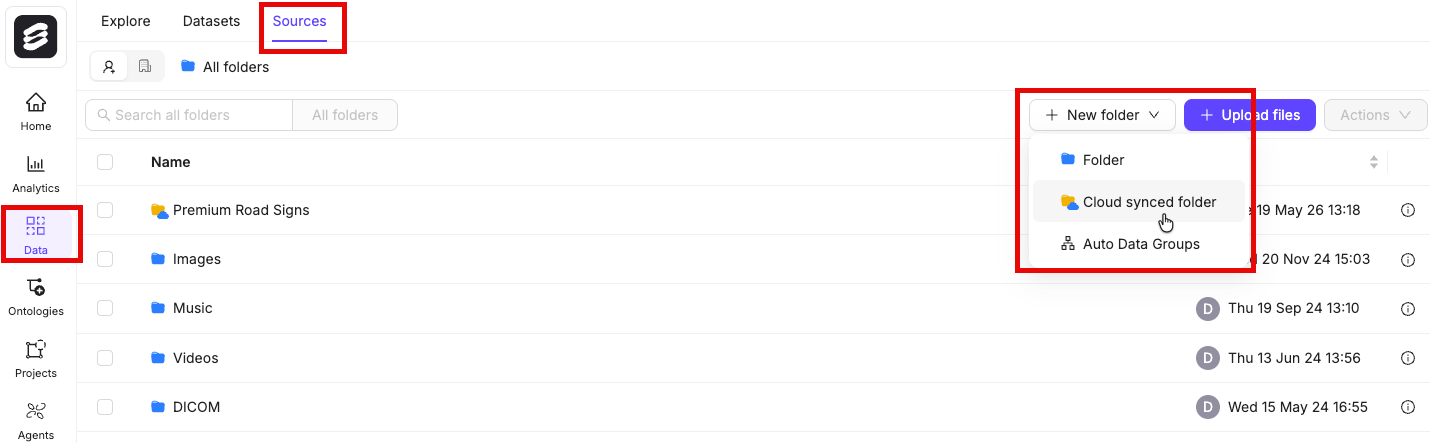
You must create a folder in Index to store your files.
1. Navigate to **Data** > **Files & Folders**
2. Click the **+ New folder** button to create a new folder. Select the type of folder you want to create.
3. Give the folder a meaningful name and description.
4. Click **Create** to create the folder.
The folder is listed in **Files & Folders**.
***
### Create JSON or CSV for Registration
To register files from cloud storage with Encord, you must create a JSON or CSV file specifying the files you want to register.
Find helpful scripts for creating JSON and CSV files for the data registration process [here](/platform-documentation/Curate/add-files/index-register-cloud-data#helpful-scripts-and-examples).
All types of data (videos, images, image groups, image sequences, and DICOM) from a private cloud are added to a Dataset in the same way, by using a JSON or CSV file. The file includes links to all images, image groups, videos and DICOM files in your cloud storage.
For a list of supported file formats for each data type, go [here](/platform-documentation/General/general-supported-data)Encord supports file names up to 300 characters in length for any file or video for upload.
Encord enforces the following upload limits for each JSON file used for file registration:
* Up to 1 million URLs
* A maximum of 500,000 items (e.g. images, image groups, videos, DICOMs)
* URLs can be up to 16 KB in size
Optimal upload chunking can vary depending on your data type and the amount of associated metadata. For tailored recommendations, contact Encord support. We recommend starting with smaller uploads and gradually increasing the size based on how quickly jobs are processed. Generally, smaller chunks result in faster data reflection within the platform.
BEST PRACTICE: If you want to use Index or Active with your video data, we STRONGLY RECOMMEND using custom metadata (`clientMetadata`) to specify key frames, custom metadata, and custom embeddings. For more information go [here](/platform-documentation/Curate/custom-metadata/import-custom-metadata) or [here for information on using the SDK](/sdk-documentation/index-sdk/custom-metadata/sdk-import-custom-metadata).
#### Create JSON file for Registration
For detailed information about the JSON file format used for import go [here](/platform-documentation/Curate/add-files/index-register-cloud-data#json-format).
The information provided about each of the following data types is designed to get you up and running as quickly as possible without going too deeply into the why or how. Look at the template for each data type, then the examples, and adjust the examples to suit your needs.
If `skip_duplicate_urls` is set to `true`, all object URLs that exactly match existing images/videos in the dataset are skipped.
#### AWS JSON
#### [Videos](#videos)
**Video Metadata**
When the `videoMetadata` flag is present in the JSON file, we directly use the supplied metadata without performing any additional validation, and do not store the file on our servers.
To guarantee accurate labels, it is crucial that the `videoMetadata` provided is accurate.
```json Template theme={"dark"}
{
"videos": [
{
"objectUrl": "cloud-path-to-your-video-1"
},
{
"objectUrl": "cloud-path-to-your-video-2",
"videoMetadata": {
"fps": frames-per-second,
"duration": duration-in-seconds,
"width": frame-width,
"height": frame-height,
"file_size": file-size-in-bytes,
"mime_type": "MIME-file-type-extension"
}
}
],
"skip_duplicate_urls": true
}
```
```json Data theme={"dark"}
{
"videos": [
{
"objectUrl": "https://encord-integration.s3.eu-west-2.amazonaws.com/videos/BerghouseLeopardJog.mp4"
},
{
"objectUrl": "https://encord-integration.s3.eu-west-2.amazonaws.com/videos/blue_bus_video.mp4"
},
{
"objectUrl": "https://encord-integration.s3.eu-west-2.amazonaws.com/videos/bluemlisalphutte_flyover.mp4"
},
{
"objectUrl": "https://encord-integration.s3.eu-west-2.amazonaws.com/videos/boat_lake_normalized.mp4"
},
{
"objectUrl": "https://encord-integration.s3.eu-west-2.amazonaws.com/videos/boat_lake.MP4"
},
{
"objectUrl": "https://encord-integration.s3.eu-west-2.amazonaws.com/videos/boat_lake.MP4"
},
{
"objectUrl": "https://encord-integration.s3.eu-west-2.amazonaws.com/videos/snow_sled.MOV"
},
{
"objectUrl": "https://encord-integration.s3.eu-west-2.amazonaws.com/videos/cyclists.MP4"
}
],
"skip_duplicate_urls": true
}
```
```json Video Metadata theme={"dark"}
{
"videos": [
{
"objectUrl": "https://encord-integration.s3.eu-west-2.amazonaws.com/videos/video_file.mp4",
"videoMetadata": {
"fps": 23.98,
"duration": 29.09,
"width": 1280,
"height": 720,
"file_size": 5468354,
"mime_type": "video/mp4"
}
}
],
"skip_duplicate_urls": true
}
```
#### [Audio Files](#audio-files)
The following is an example JSON file for uploading two audio files to Encord.
Waveform generation for long audio files can cause lag. To avoid this, generate the waveform offline and upload it with the audio file. For more information go [here](/platform-documentation/Curate/index-audio#long-audio-files).
* **Template:** Imports audio files with an Encord title.
* **Audio Metadata:** Imports one audio file with the `audiometadata` flag. When the `audiometadata` flag is present in the JSON file, we directly use the supplied metadata without performing any additional validation, and do not store the file on our servers. To guarantee accurate labels, it is crucial that the metadata you provide is accurate.
```json Template theme={"dark"}
{
"audio": [
{
"objectUrl": "
#### [PDFs](#pdfs)
The following are example JSON files for uploading PDFs to Encord.
```json Template theme={"dark"}
{
"pdfs": [
{
"objectUrl": "
#### [Text Files](#text-files)
The following are example JSON files for uploading text files to Encord.
```json Template theme={"dark"}
{
"text": [
{
"objectUrl": "
#### [Single Images](#single-images)
For detailed information about the JSON file format used for import go [here](/platform-documentation/Curate/add-files/index-register-cloud-data#json-format).
The JSON structure for single images parallels that of videos.
**Template:** Provides the proper JSON format to import images into Encord.
**Examples:**
* **Data** Imports the images only.
```json Template theme={"dark"}
{
"images": [
{
"objectUrl": "file/path/to/images/file-name-01.file-extension"
},
{
"objectUrl": "file/path/to/images/file-name-02.file-extension"
},
{
"objectUrl": "file/path/to/images/file-name-03.file-extension",
"title": "image-title.file-extension"
}
],
"skip_duplicate_urls": true
}
```
```json Data theme={"dark"}
{
"images": [
{
"objectUrl": "https://encord-integration.s3.eu-west-2.amazonaws.com/images/0001.jpg"
},
{
"objectUrl": "https://encord-integration.s3.eu-west-2.amazonaws.com/images/0002.jpg"
},
{
"objectUrl": "https://encord-integration.s3.eu-west-2.amazonaws.com/images/0003.jpg"
},
{
"objectUrl": "https://encord-integration.s3.eu-west-2.amazonaws.com/images/DALL%C2%B7E+2022-09-08+18.53.25+-+firefighter+extinguishing+flames+around+computer+in+software+office+overgrown+by+foliage.png"
},
{
"objectUrl": "https://encord-integration.s3.eu-west-2.amazonaws.com/images/DALL%C2%B7E+2022-12-08+22.16.52+-+steampunk+combustion+engine+that+is+fueled+by+data+and+produces+computer+vision+algorithms.png"
},
{
"objectUrl": "https://encord-integration.s3.eu-west-2.amazonaws.com/images/large_images/pexels-ivo-rainha-00057.png"
}
]
}
```
```json Image Metadata theme={"dark"}
{
"images": [
{
"objectUrl": "https://encord-integration.s3.eu-west-2.amazonaws.com/images/my_image.jpg",
"imageMetadata": {
"mimeType": "image/jpg",
"fileSize": 124,
"width": 640,
"height": 480
}
}
],
"skip_duplicate_urls": true
}
```
#### [Image groups](#image-groups)
For detailed information about the JSON file format used for import go [here](/platform-documentation/Curate/add-files/index-register-cloud-data#json-format).
* Image groups are collections of images that are processed as one annotation task.
* Images within image groups remain unaltered, meaning that images of different sizes and resolutions can form an image group without the loss of data.
* Image groups do NOT require 'write' permissions to your cloud storage.
* If `skip_duplicate_urls` is set to `true`, all URLs exactly matching existing image groups in the dataset are skipped.
The position of each image within the sequence needs to be specified in the key (`objectUrl_{position_number}`).
**Template:** Provides the proper JSON format to import image groups into Encord.
**Examples:**
* **Data:** Imports the image groups only.
```json Template theme={"dark"}
{
"image_groups": [
{
"title": "",
"createVideo": false,
"objectUrl_0": "file/path/to/images/file-name-01.file-extension",
"objectUrl_1": "file/path/to/images/file-name-02.file-extension",
"objectUrl_2": "file/path/to/images/file-name-03.file-extension",
},
{
"title": "<title 2>",
"createVideo": false,
"objectUrl_0": "file/path/to/images/file-name-01.file-extension",
"objectUrl_1": "file/path/to/images/file-name-02.file-extension",
"objectUrl_2": "file/path/to/images/file-name-03.file-extension"
}
],
"skip_duplicate_urls": true
}
```
```json Data theme={"dark"}
{
"image_groups": [
{
"title": "Image group 01",
"createVideo": false,
"objectUrl_0": "https://encord-integration.s3.eu-west-2.amazonaws.com/images/0001.jpg",
"objectUrl_1": "https://encord-integration.s3.eu-west-2.amazonaws.com/images/0002.jpg",
"objectUrl_2": "https://encord-integration.s3.eu-west-2.amazonaws.com/images/DALL%C2%B7E+2022-09-08+18.53.25+-+firefighter+extinguishing+flames+around+computer+in+software+office+overgrown+by+foliage.png"
},
{
"title": "Image group 02",
"createVideo": false,
"objectUrl_0": "https://encord-integration.s3.eu-west-2.amazonaws.com/images/thing-0001.jpg",
"objectUrl_1": "<https://encord-integration.s3.eu-west-2.amazonaws.com/images/thing-0002.jpg",
"objectUrl_2": "https://encord-integration.s3.eu-west-2.amazonaws.com/images/thing-0003.jpg"
}
],
"skip_duplicate_urls": true
}
```
</CodeGroup>
</Accordion>
</AccordionGroup>
<AccordionGroup>
<Accordion title="Image sequences">
#### [Image sequences](#image-sequences)
For detailed information about the JSON file format used for import go [here](/platform-documentation/Curate/add-files/index-register-cloud-data#json-format).
* Image sequences are collections of images that are processed as one annotation task and represented as a video.
* Images within image sequences may be altered as images of varying sizes and resolutions are made to match that of the first image in the sequence.
* Creating Image sequences from cloud storage requires 'write' permissions, as new files have to be created in order to be read as a video.
* Each object in the `image_groups` array with the `createVideo` flag set to `true` represents a single image sequence.
* If `skip_duplicate_urls` is set to `true`, all URLs exactly matching existing image sequences in the dataset are skipped.
<Tip> The only difference between adding image groups and image sequences using a JSON file is that image sequences require the `createVideo` flag to be set to `true`. Both use the key `image_groups`.</Tip>
<Note>The position of each image within the sequence needs to be specified in the key (`objectUrl_{position_number}`).</Note>
<Info>Encord supports up to 32,767 entries (21:50 minutes) for a single image sequence. We recommend up to 10,000 to 15,000 entries for a single image sequence for best performance. If you need a longer sequence, we recommend using video instead of an image sequence.</Info>
**Template:** Provides the proper JSON format to import image groups into Encord.
**Examples:**
* **Data:** Imports the images groups only.
<CodeGroup>
```json Template theme={"dark"}
{
"image_groups": [
{
"title": "<title 1>",
"createVideo": true,
"objectUrl_0": "<object url>"
},
{
"title": "<title 2>",
"createVideo": true,
"objectUrl_0": "<object url>",
"objectUrl_1": "<object url>",
"objectUrl_2": "<object url>"
}
],
"skip_duplicate_urls": true
}
```
```json Data theme={"dark"}
{
"image_groups": [
{
"title": "Image sequence 001",
"createVideo": true,
"objectUrl_0": "https://encord-integration.s3.eu-west-2.amazonaws.com/images/01.jpg",
"objectUrl_1": "https://encord-integration.s3.eu-west-2.amazonaws.com/images/02.jpg",
"objectUrl_2": "https://encord-integration.s3.eu-west-2.amazonaws.com/images/DALL%C2%B7E+2022-09-08+18.53.25+-+firefighter+extinguishing+flames+around+computer+in+software+office+overgrown+by+foliage.png"
},
{
"title": "Image sequence 002",
"createVideo": true,
"objectUrl_0": "https://encord-integration.s3.eu-west-2.amazonaws.com/images/thing-01.jpg",
"objectUrl_1": "<https://encord-integration.s3.eu-west-2.amazonaws.com/images/thing-02.jpg",
"objectUrl_2": "https://encord-integration.s3.eu-west-2.amazonaws.com/images/thing-03.jpg"
}
],
"skip_duplicate_urls": true
}
```
</CodeGroup>
</Accordion>
</AccordionGroup>
<AccordionGroup>
<Accordion title="DICOM">
#### [DICOM](#dicom)
For detailed information about the JSON file format used for import go [here](/platform-documentation/Curate/add-files/index-register-cloud-data#json-format).
* Each `dicom_series` element can contain one or more DICOM series.
* Each series requires a title and at least one object URL, as shown in the example below.
* If `skip_duplicate_urls` is set to `true`, all object URLs exactly matching existing DICOM files in the dataset will be skipped.
<Note>Custom metadata is distinct from patient metadata, which is included in the `.dcm` file and does not have to be specific during the upload to Encord. </Note>
The following is an example JSON for uploading three DICOM series belonging to a study. Each title and object URL correspond to individual DICOM series.
* The first series contains only a single object URL, as it is composed of a single file.
* The second series contains 3 object URLs, as it is composed of three separate files.
* The third series contains 2 object URLs, as it is composed of two separate files.
<Info>
For each DICOM upload, an additional `DicomSeries` file is created. This file represents the series file-set. Only `DicomSeries` are displayed in the Encord application.
</Info>
```json Template theme={"dark"}
{
"dicom_series": [
{
"title": "Series-1",
"objectUrl_0": "https://encord-integration.s3.eu-west-2.amazonaws.com/images/study1-series1-file.dcm"
},
{
"title": "Series-2",
"objectUrl_0": "https://encord-integration.s3.eu-west-2.amazonaws.com/images/study1-series2-file1.dcm",
"objectUrl_1": "https://encord-integration.s3.eu-west-2.amazonaws.com/images/study1-series2-file2.dcm",
"objectUrl_2": "https://encord-integration.s3.eu-west-2.amazonaws.com/images/study1-series2-file3.dcm",
},
{
"title": "Series-3",
"objectUrl_0": "https://encord-integration.s3.eu-west-2.amazonaws.com/images/study1-series3-file1.dcm",
"objectUrl_1": "https://encord-integration.s3.eu-west-2.amazonaws.com/images/study1-series3-file2.dcm",
}
],
"skip_duplicate_urls": true
}
```
</Accordion>
</AccordionGroup>
<AccordionGroup>
<Accordion title="NIfTI">
#### [NIfTI](#nifti)
The following is an example JSON file for uploading two NIfTI files to Encord.
```json Template theme={"dark"}
{
"nifti": [
{
"title": "<file-1>",
"objectUrl": "https://my-bucket/.../nifti-file1.nii"
},
{
"title": "<file-2>",
"objectUrl": "https://my-bucket/.../nifti-file2.nii.gz"
}
],
"skip_duplicate_urls": true
}
```
</Accordion>
</AccordionGroup>
<AccordionGroup>
<Accordion title=" Multiple file types ">
You can upload multiple file types using a single JSON file. The example below shows 1 image, 2 videos, 2 image sequences, and 1 image group.
```json Multiple file types theme={"dark"}
{
"images": [
{
"objectUrl": "https://encord-integration.s3.eu-west-2.amazonaws.com/images/Image1.png"
}
],
"videos": [
{
"objectUrl": "https://encord-integration.s3.eu-west-2.amazonaws.com/videos/Cooking.mp4"
},
{
"objectUrl": "https://encord-integration.s3.eu-west-2.amazonaws.com/videos/Oranges.mp4"
}
],
"image_groups": [
{
"title": "apple-samsung-light",
"createVideo": true,
"objectUrl_0": "https://encord-integration.s3.eu-west-2.amazonaws.com/images/1+(32).jpg",
"objectUrl_1": "https://encord-integration.s3.eu-west-2.amazonaws.com/images/1+(33).jpg",
"objectUrl_2": "https://encord-integration.s3.eu-west-2.amazonaws.com/images/1+(34).jpg",
"objectUrl_3": "https://encord-integration.s3.eu-west-2.amazonaws.com/images/1+(35).jpg"
},
{
"title": "apple-samsung-dark",
"createVideo": true,
"objectUrl_0": "https://encord-integration.s3.eu-west-2.amazonaws.com/images/2+(32).jpg",
"objectUrl_1": "https://encord-integration.s3.eu-west-2.amazonaws.com/images/2+(33).jpg",
"objectUrl_2": "https://encord-integration.s3.eu-west-2.amazonaws.com/images/2+(34).jpg",
"objectUrl_3": "https://encord-integration.s3.eu-west-2.amazonaws.com/images/2+(35).jpg"
}
],
"image_groups": [
{
"title": "apple-ios-light",
"createVideo": false,
"objectUrl_0": "https://encord-integration.s3.eu-west-2.amazonaws.com/images/3+(32).jpg",
"objectUrl_1": "https://encord-integration.s3.eu-west-2.amazonaws.com/images/3+(33).jpg"
}
],
"skip_duplicate_urls": true
}
```
</Accordion>
</AccordionGroup>
</Accordion>
<Accordion title="JSON for GCP">
#### GCP JSON
<AccordionGroup>
<Accordion title="Videos">
#### [Videos](#videos)
**Video Metadata**
When the `videoMetadata` flag is present in the JSON file, we directly use the supplied metadata without performing any additional validation, and do not store the file on our servers.
<Warning>To guarantee accurate labels, it is crucial that the `videoMetadata` provided is accurate.</Warning>
<CodeGroup>
```json Template theme={"dark"}
{
"videos": [
{
"objectUrl": "cloud-path-to-your-video-1"
},
{
"objectUrl": "cloud-path-to-your-video-2",
"videoMetadata": {
"fps": frames-per-second,
"duration": duration-in-seconds,
"width": frame-width,
"height": frame-height,
"file_size": file-size-in-bytes,
"mime_type": "MIME-file-type-extension"
}
}
],
"skip_duplicate_urls": true
}
```
```json Data theme={"dark"}
{
"videos": [
{
"objectUrl": "https://storage.cloud.google.com/encord-image-bucket/eLeopardJog.mp4"
},
{
"objectUrl": "https://storage.cloud.google.com/encord-image-bucket/_video.mp4"
},
{
"objectUrl": "https://storage.cloud.google.com/encord-image-bucket/bluemlisalphutte_flyover.mp4"
},
{
"objectUrl": "https://storage.cloud.google.com/encord-image-bucket/boat_lake_normalized.mp4"
},
{
"objectUrl": "https://storage.cloud.google.com/encord-image-bucket/boat_lake.MP4"
},
{
"objectUrl": "https://storage.cloud.google.com/encord-image-bucket/boat_lake.MP4"
},
{
"objectUrl": "https://storage.cloud.google.com/encord-image-bucket/snow_sled.MOV"
},
{
"objectUrl": "https://storage.cloud.google.com/encord-image-bucket/cyclists.MP4"
}
],
"skip_duplicate_urls": true
}
```
```json Video Metadata theme={"dark"}
{
"videos": [
{
"objectUrl": "https://storage.cloud.google.com/encord-image-bucket/es/video_file.mp4",
"videoMetadata": {
"fps": 23.98,
"duration": 29.09,
"width": 1280,
"height": 720,
"file_size": 5468354,
"mime_type": "video/mp4"
}
}
],
"skip_duplicate_urls": true
}
```
</CodeGroup>
</Accordion>
</AccordionGroup>
<AccordionGroup>
<Accordion title="Audio files">
#### [Audio Files](#audio-files)
The following is an example JSON file for uploading two audio files to Encord.
<Tip>
Waveform generation for long audio files can cause lag. To avoid this, generate the waveform offline and upload it with the audio file. For more information go [here](/platform-documentation/Curate/index-audio#long-audio-files).
</Tip>
* Example 1 imports audio files with an Encord title.
* Example 2 imports one audio file with the `audiometadata` flag. When the `audiometadata` flag is present in the JSON file, we directly use the supplied metadata without performing any additional validation, and do not store the file on our servers. To guarantee accurate labels, it is crucial that the metadata you provide is accurate.
<CodeGroup>
```json Template theme={"dark"}
{
"audio": [
{
"objectUrl": "<object url_1>"
},
{
"objectUrl": "<object url_2>",
"title": "my-custom-audio-file-title.mp3"
}
],
"skip_duplicate_urls": true
}
```
```json Audio Metadata theme={"dark"}
{
"audio": [
{
"objectUrl": "https://storage.cloud.google.com/encord-image-bucket/images/audio_file.mp3",
"audioMetadata": {
"duration": 23.98,
"file_size": 2900000,
"mime_type": "audio/mp3",
"sample_rate": 44100,
"bit_depth": 24,
"codec": "mp3",
"num_channels": 2
}
}
],
"skip_duplicate_urls": true
}
```
</CodeGroup>
</Accordion>
</AccordionGroup>
<AccordionGroup>
<Accordion title="PDFs">
#### [PDFs](#pdfs)
The following are example JSON files for uploading PDFs to Encord.
<CodeGroup>
```json Template theme={"dark"}
{
"pdfs": [
{
"objectUrl": "<object url_1>"
},
{
"objectUrl": "<object url_2>",
"title": "my-document-02.pdf"
},
{
"objectUrl": "<object url_3>",
"title": "my-document-03.pdf",
"pdfMetadata": {
"fileSize": 300,
"numPages": 5
}
}
],
"skip_duplicate_urls": true
}
```
```json Data theme={"dark"}
{
"pdfs": [
{
"objectUrl": "https://storage.cloud.google.com/encord-image-bucket/my-document-01.pdf",
},
{
"objectUrl": "https://storage.cloud.google.com/encord-image-bucket/my-document-02.pdf",
"title": "my-document-02.pdf"
},
{
"objectUrl": "https://storage.cloud.google.com/encord-image-bucket/my-document-03.pdf",
"title": "my-document-03.pdf",
"pdfMetadata": {
"fileSize": 300,
"numPages": 5
}
}
],
"skip_duplicate_urls": true
}
```
</CodeGroup>
</Accordion>
</AccordionGroup>
<AccordionGroup>
<Accordion title="Text Files">
#### [Text Files](#text-files)
The following are example JSON files for uploading text files to Encord.
<CodeGroup>
```json Template theme={"dark"}
{
"text": [
{
"objectUrl": "<object url_1>"
},
{
"objectUrl": "<object url_2>",
"title": "my-file.html"
},
{
"objectUrl": "<object url_3>",
"title": "my-plain-text-file.txt",
"textMetadata": {
"fileSize": 200,
"mime_type": "text/plain"
}
},
{
"objectUrl": "<object url_4>",
"title": "my-csv-file.csv",
"textMetadata": {
"fileSize": 250,
"mime_type": "text/csv"
}
},
{
"objectUrl": "<object url_5>",
"title": "my-xml-file.xml",
"textMetadata": {
"fileSize": 300,
"mime_type": "application/xml"
}
},
{
"objectUrl": "<object url_6>",
"title": "my-html-file.html",
"textMetadata": {
"fileSize": 400,
"mime_type": "text/html"
}
}
],
"skip_duplicate_urls": true
}
```
```json Data theme={"dark"}
{
"text": [
{
"objectUrl": "https://storage.cloud.google.com/encord-image-bucket/my-file-01.html"
},
{
"objectUrl": "https://storage.cloud.google.com/encord-image-bucket/my-plain-text-file-01.txt",
"title": "my-plain-text-file-01.txt"
},
{
"objectUrl": "https://storage.cloud.google.com/encord-image-bucket/my-plain-text-file-02.txt",
"title": "my-plain-text-file-02.txt",
"textMetadata": {
"fileSize": 200,
"mime_type": "text/plain"
}
},
{
"objectUrl": "https://storage.cloud.google.com/encord-image-bucket/my-csv-file-01.csv",
"title": "my-csv-file-01.csv",
"textMetadata": {
"fileSize": 250,
"mime_type": "text/csv"
}
},
{
"objectUrl": "https://storage.cloud.google.com/encord-image-bucket/my-xml-file-01.xml",
"title": "my-xml-file-01.xml",
"textMetadata": {
"fileSize": 300,
"mime_type": "application/xml"
}
},
{
"objectUrl": "https://storage.cloud.google.com/encord-image-bucket/my-html-file-01.html",
"title": "my-html-file-01.html",
"textMetadata": {
"fileSize": 400,
"mime_type": "text/html"
}
}
],
"skip_duplicate_urls": true
}
```
</CodeGroup>
</Accordion>
</AccordionGroup>
<AccordionGroup>
<Accordion title="Single images">
#### [Single Images](#single-images)
For detailed information about the JSON file format used for import go [here](/platform-documentation/Curate/add-files/index-register-cloud-data#json-format).
The JSON structure for single images parallels that of videos.
**Template:** Provides the proper JSON format to import images into Encord.
**Examples:**
* **Data** Imports the images only.
* **Image Metadata:** Imports images with image metadata. This improves the import speed for your images.
<CodeGroup>
```json Template theme={"dark"}
{
"images": [
{
"objectUrl": "file/path/to/images/file-name-01.file-extension"
},
{
"objectUrl": "file/path/to/images/file-name-02.file-extension"
},
{
"objectUrl": "file/path/to/images/file-name-03.file-extension",
"title": "image-title.file-extension"
}
],
"skip_duplicate_urls": true
}
```
```json Data theme={"dark"}
{
"images": [
{
"objectUrl": "https://storage.cloud.google.com/encord-image-bucket/es/0001.jpg"
},
{
"objectUrl": "https://storage.cloud.google.com/encord-image-bucket/images/0002.jpg"
},
{
"objectUrl": "https://storage.cloud.google.com/encord-image-bucket/images/0003.jpg"
},
{
"objectUrl": "https://storage.cloud.google.com/encord-image-bucket/images/DALL%C2%B7E+2022-09-08+18.53.25+-+firefighter+extinguishing+flames+around+computer+in+software+office+overgrown+by+foliage.png"
},
{
"objectUrl": "https://storage.cloud.google.com/encord-image-bucket/images/DALL%C2%B7E+2022-12-08+22.16.52+-+steampunk+combustion+engine+that+is+fueled+by+data+and+produces+computer+vision+algorithms.png"
},
{
"objectUrl": "https://storage.cloud.google.com/encord-image-bucket/images/large_images/pexels-ivo-rainha-00057.png"
}
],
"skip_duplicate_urls": true
}
```
```json Image Metadata theme={"dark"}
{
"images": [
{
"objectUrl": "https://storage.cloud.google.com/encord-image-bucket/images/my_image.jpg",
"imageMetadata": {
"mimeType": "image/jpg",
"fileSize": 124,
"width": 640,
"height": 480
}
}
],
"skip_duplicate_urls": true
}
```
</CodeGroup>
</Accordion>
</AccordionGroup>
<AccordionGroup>
<Accordion title="Image groups">
#### [Image groups](#image-groups)
For detailed information about the JSON file format used for import go [here](/platform-documentation/Curate/add-files/index-register-cloud-data#json-format).
* Image groups are collections of images that are processed as one annotation task.
* Images within image groups remain unaltered, meaning that images of different sizes and resolutions can form an image group without the loss of data.
* Image groups do NOT require 'write' permissions to your cloud storage.
* If `skip_duplicate_urls` is set to `true`, all URLs exactly matching existing image groups in the dataset are skipped.
<Note>The position of each image within the sequence needs to be specified in the key (`objectUrl_{position_number}`).</Note>
**Template:** Provides the proper JSON format to import image groups into Encord.
**Examples:**
* **Data:** Imports the image groups only.
<CodeGroup>
```json Template theme={"dark"}
{
"image_groups": [
{
"title": "<title 1>",
"createVideo": false,
"objectUrl_0": "file/path/to/images/file-name-01.file-extension",
"objectUrl_1": "file/path/to/images/file-name-02.file-extension",
"objectUrl_2": "file/path/to/images/file-name-03.file-extension",
},
{
"title": "<title 2>",
"createVideo": false,
"objectUrl_0": "file/path/to/images/file-name-01.file-extension",
"objectUrl_1": "file/path/to/images/file-name-02.file-extension",
"objectUrl_2": "file/path/to/images/file-name-03.file-extension"
}
],
"skip_duplicate_urls": true
}
```
```json Data theme={"dark"}
{
"image_groups": [
{
"title": "Image group 01",
"createVideo": false,
"objectUrl_0": "https://storage.cloud.google.com/encord-image-bucket/images/0001.jpg",
"objectUrl_1": "https://storage.cloud.google.com/encord-image-bucket/images/0002.jpg",
"objectUrl_2": "https://storage.cloud.google.com/encord-image-bucket/images/DALL%C2%B7E+2022-09-08+18.53.25+-+firefighter+extinguishing+flames+around+computer+in+software+office+overgrown+by+foliage.png"
},
{
"title": "Image group 02",
"createVideo": false,
"objectUrl_0": "https://storage.cloud.google.com/encord-image-bucket/images/thing-0001.jpg",
"objectUrl_1": "<https://storage.cloud.google.com/encord-image-bucket/images/thing-0002.jpg",
"objectUrl_2": "https://storage.cloud.google.com/encord-image-bucket/images/thing-0003.jpg"
}
],
"skip_duplicate_urls": true
}
```
</CodeGroup>
</Accordion>
</AccordionGroup>
<AccordionGroup>
<Accordion title="Image sequences">
#### [Image sequences](#image-sequences)
For detailed information about the JSON file format used for import go [here](/platform-documentation/Curate/add-files/index-register-cloud-data#json-format).
* Image sequences are collections of images that are processed as one annotation task and represented as a video.
* Images within image sequences may be altered as images of varying sizes and resolutions are made to match that of the first image in the sequence.
* Creating Image sequences from cloud storage requires 'write' permissions, as new files have to be created in order to be read as a video.
* Each object in the `image_groups` array with the `createVideo` flag set to `true` represents a single image sequence.
* If `skip_duplicate_urls` is set to `true`, all URLs exactly matching existing image sequences in the dataset are skipped.
<Tip> The only difference between adding image groups and image sequences using a JSON file is that image sequences require the `createVideo` flag to be set to `true`. Both use the key `image_groups`.</Tip>
<Note>The position of each image within the sequence needs to be specified in the key (`objectUrl_{position_number}`).</Note>
<Info>Encord supports up to 32,767 entries (21:50 minutes) for a single image sequence. We recommend up to 10,000 to 15,000 entries for a single image sequence for best performance. If you need a longer sequence, we recommend using video instead of an image sequence.</Info>
**Template:** Provides the proper JSON format to import image groups into Encord.
**Examples:**
* **Data:** Imports the images groups only.
<CodeGroup>
```json Template theme={"dark"}
{
"image_groups": [
{
"title": "<title 1>",
"createVideo": true,
"objectUrl_0": "<object url>"
},
{
"title": "<title 2>",
"createVideo": true,
"objectUrl_0": "<object url>",
"objectUrl_1": "<object url>",
"objectUrl_2": "<object url>"
}
],
"skip_duplicate_urls": true
}
```
```json Data theme={"dark"}
{
"image_groups": [
{
"title": "Image sequence 001",
"createVideo": true,
"objectUrl_0": "https://storage.cloud.google.com/encord-image-bucket/images/01.jpg",
"objectUrl_1": "https://storage.cloud.google.com/encord-image-bucket/images/02.jpg",
"objectUrl_2": "https://storage.cloud.google.com/encord-image-bucket/images/DALL%C2%B7E+2022-09-08+18.53.25+-+firefighter+extinguishing+flames+around+computer+in+software+office+overgrown+by+foliage.png"
},
{
"title": "Image sequence 002",
"createVideo": true,
"objectUrl_0": "https://storage.cloud.google.com/encord-image-bucket/images/thing-01.jpg",
"objectUrl_1": "<https://storage.cloud.google.com/encord-image-bucket/images/thing-02.jpg",
"objectUrl_2": "https://storage.cloud.google.com/encord-image-bucket/images/thing-03.jpg"
}
],
"skip_duplicate_urls": true
}
```
</CodeGroup>
</Accordion>
</AccordionGroup>
<AccordionGroup>
<Accordion title="DICOM">
#### [DICOM](#dicom)
For detailed information about the JSON file format used for import go [here](/platform-documentation/Curate/add-files/index-register-cloud-data#json-format).
* Each `dicom_series` element can contain one or more DICOM series.
* Each series requires a title and at least one object URL, as shown in the example below.
* If `skip_duplicate_urls` is set to `true`, all object URLs exactly matching existing DICOM files in the dataset will be skipped.
<Note>Custom metadata is distinct from patient metadata, which is included in the `.dcm` file and does not have to be specific during the upload to Encord. </Note>
The following is an example JSON for uploading three DICOM series belonging to a study. Each title and object URL correspond to individual DICOM series.
* The first series contains only a single object URL, as it is composed of a single file.
* The second series contains 3 object URLs, as it is composed of three separate files.
* The third series contains 2 object URLs, as it is composed of two separate files.
<Info>
For each DICOM upload, an additional `DicomSeries` file is created. This file represents the series file-set. Only `DicomSeries` are displayed in the Encord application.
</Info>
```json JSON for DICOM theme={"dark"}
{
"dicom_series": [
{
"title": "Series-1",
"objectUrl_0": "https://storage.cloud.google.com/encord-image-bucket/images/study1-series1-file.dcm"
},
{
"title": "Series-2",
"objectUrl_0": "https://storage.cloud.google.com/encord-image-bucket/images/study1-series2-file1.dcm",
"objectUrl_1": "https://storage.cloud.google.com/encord-image-bucket/images/study1-series2-file2.dcm",
"objectUrl_2": "https://storage.cloud.google.com/encord-image-bucket/images/study1-series2-file3.dcm",
},
{
"title": "Series-3",
"objectUrl_0": "https://storage.cloud.google.com/encord-image-bucket/images/study1-series3-file1.dcm",
"objectUrl_1": "https://storage.cloud.google.com/encord-image-bucket/images/study1-series3-file2.dcm",
}
],
"skip_duplicate_urls": true
}
```
</Accordion>
</AccordionGroup>
<AccordionGroup>
<Accordion title="NIfTI">
#### [NIfTI](#nifti)
The following is an example JSON file for uploading two NIfTI files to Encord.
```json theme={"dark"}
{
"nifti": [
{
"title": "<file-1>",
"objectUrl": "https://my-bucket/.../nifti-file1.nii"
},
{
"title": "<file-2>",
"objectUrl": "https://my-bucket/.../nifti-file2.nii.gz"
}
],
"skip_duplicate_urls": true
}
```
</Accordion>
</AccordionGroup>
<AccordionGroup>
<Accordion title=" Multiple file types ">
You can upload multiple file types using a single JSON file. The example below shows 1 image, 2 videos, 2 image sequences, and 1 image group.
```json Multiple file types theme={"dark"}
{
"images": [
{
"objectUrl": "https://storage.cloud.google.com/encord-image-bucket/images/Image1.png"
}
],
"videos": [
{
"objectUrl": "https://storage.cloud.google.com/encord-image-bucket/videos/Cooking.mp4"
},
{
"objectUrl": "https://storage.cloud.google.com/encord-image-bucket/videos/Oranges.mp4"
}
],
"image_groups": [
{
"title": "apple-samsung-light",
"createVideo": true,
"objectUrl_0": "https://storage.cloud.google.com/encord-image-bucket/images/1+(32).jpg",
"objectUrl_1": "https://encord-integration.s3.eu-west-2.amazonaws.com/images/1+(33).jpg",
"objectUrl_2": "https://encord-integration.s3.eu-west-2.amazonaws.com/images/1+(34).jpg",
"objectUrl_3": "https://encord-integration.s3.eu-west-2.amazonaws.com/images/1+(35).jpg"
},
{
"title": "apple-samsung-dark",
"createVideo": true,
"objectUrl_0": "https://storage.cloud.google.com/encord-image-bucket/images/2+(32).jpg",
"objectUrl_1": "https://storage.cloud.google.com/encord-image-bucket/images/2+(33).jpg",
"objectUrl_2": "https://storage.cloud.google.com/encord-image-bucket/images/2+(34).jpg",
"objectUrl_3": "https://storage.cloud.google.com/encord-image-bucket/images/2+(35).jpg"
}
],
"image_groups": [
{
"title": "apple-ios-light",
"createVideo": false,
"objectUrl_0": "https://storage.cloud.google.com/encord-image-bucket/images/3+(32).jpg",
"objectUrl_1": "https://storage.cloud.google.com/encord-image-bucket/images/3+(33).jpg"
}
],
"skip_duplicate_urls": true
}
```
</Accordion>
</AccordionGroup>
</Accordion>
<Accordion title="JSON for Azure">
#### Azure JSON
<AccordionGroup>
<Accordion title="Videos">
#### [Videos](#videos)
**Video Metadata**
When the `videoMetadata` flag is present in the JSON file, we directly use the supplied metadata without performing any additional validation, and do not store the file on our servers.
<Warning>To guarantee accurate labels, it is crucial that the `videoMetadata` provided is accurate.</Warning>
<CodeGroup>
```json Template theme={"dark"}
{
"videos": [
{
"objectUrl": "cloud-path-to-your-video-1"
},
{
"objectUrl": "cloud-path-to-your-video-2",
"videoMetadata": {
"fps": frames-per-second,
"duration": duration-in-seconds,
"width": frame-width,
"height": frame-height,
"file_size": file-size-in-bytes,
"mime_type": "MIME-file-type-extension"
}
}
{
"objectUrl": "cloud-path-to-your-video-3",
"title": "title-for-your-video-3"
}
],
"skip_duplicate_urls": true
}
```
```json Data theme={"dark"}
{
"videos": [
{
"objectUrl": "https://myaccount.blob.core.windows.net/encordcontainer/BerghouseLeopardJog.mp4"
},
{
"objectUrl": "https://myaccount.blob.core.windows.net/encordcontainer/blue_bus_video.mp4"
},
{
"objectUrl": "https://myaccount.blob.core.windows.net/encordcontainer/bluemlisalphutte_flyover.mp4"
},
{
"objectUrl": "https://myaccount.blob.core.windows.net/encordcontainer/boat_lake_normalized.mp4"
},
{
"objectUrl": "https://myaccount.blob.core.windows.net/encordcontainer/boat_lake.MP4"
},
{
"objectUrl": "https://myaccount.blob.core.windows.net/encordcontainer/boat_lake.MP4"
},
{
"objectUrl": "https://myaccount.blob.core.windows.net/encordcontainer/snow_sled.MOV"
},
{
"objectUrl": "https://myaccount.blob.core.windows.net/encordcontainer/cyclists.MP4"
}
],
"skip_duplicate_urls": true
}
```
```json Video Metadata theme={"dark"}
{
"videos": [
{
"objectUrl": "https://myaccount.blob.core.windows.net/encordcontainer/video_file.mp4",
"videoMetadata": {
"fps": 23.98,
"duration": 29.09,
"width": 1280,
"height": 720,
"file_size": 5468354,
"mime_type": "video/mp4"
}
}
],
"skip_duplicate_urls": true
}
```
</CodeGroup>
</Accordion>
</AccordionGroup>
<AccordionGroup>
<Accordion title="Audio files">
#### [Audio Files](#audio-files)
The following is an example JSON file for uploading two audio files to Encord.
<Tip>
Waveform generation for long audio files can cause lag. To avoid this, generate the waveform offline and upload it with the audio file. For more information go [here](/platform-documentation/Curate/index-audio#long-audio-files).
</Tip>
* **Template:** Imports audio files with an Encord title.
* **Audio Metadata:** Imports one audio file with the `audiometadata` flag. When the `audiometadata` flag is present in the JSON file, we directly use the supplied metadata without performing any additional validation, and do not store the file on our servers. To guarantee accurate labels, it is crucial that the metadata you provide is accurate.
<CodeGroup>
```json Template theme={"dark"}
{
"audio": [
{
"objectUrl": "<object url_1>"
},
{
"objectUrl": "<object url_2>",
"title": "my-custom-audio-file-title.mp3"
}
],
"skip_duplicate_urls": true
}
```
```json Audio Metadata theme={"dark"}
{
"audio": [
{
"objectUrl": "https://myaccount.blob.core.windows.net/encordcontainer/audio_file.mp3",
"audioMetadata": {
"duration": 23.98,
"file_size": 2900000,
"mime_type": "audio/mp3",
"sample_rate": 44100,
"bit_depth": 24,
"codec": "mp3",
"num_channels": 2
}
}
],
"skip_duplicate_urls": true
}
```
</CodeGroup>
</Accordion>
</AccordionGroup>
<AccordionGroup>
<Accordion title="PDFs">
#### [PDFs](#pdfs)
The following are example JSON files for uploading PDFs to Encord.
<CodeGroup>
```json Template theme={"dark"}
{
"pdfs": [
{
"objectUrl": "<object url_1>"
},
{
"objectUrl": "<object url_2>",
"title": "my-document-02.pdf"
},
{
"objectUrl": "<object url_3>",
"title": "my-document-03.pdf",
"pdfMetadata": {
"fileSize": 300,
"numPages": 5
}
}
],
"skip_duplicate_urls": true
}
```
```json Data theme={"dark"}
{
"pdfs": [
{
"objectUrl": "https://myaccount.blob.core.windows.net/encordcontainer/my-document-01.pdf",
},
{
"objectUrl": "https://myaccount.blob.core.windows.net/encordcontainer/my-document-02.pdf",
"title": "my-document-02.pdf"
},
{
"objectUrl": "https://myaccount.blob.core.windows.net/encordcontainer/my-document-03.pdf",
"title": "my-document-03.pdf",
"pdfMetadata": {
"fileSize": 300,
"numPages": 5
}
}
],
"skip_duplicate_urls": true
}
```
</CodeGroup>
</Accordion>
</AccordionGroup>
<AccordionGroup>
<Accordion title="Text Files">
#### [Text Files](#text-files)
The following are example JSON files for uploading text files to Encord.
<CodeGroup>
```json Template theme={"dark"}
{
"text": [
{
"objectUrl": "<object url_1>"
},
{
"objectUrl": "<object url_2>",
"title": "my-file.html"
},
{
"objectUrl": "<object url_3>",
"title": "my-plain-text-file.txt",
"textMetadata": {
"fileSize": 200,
"mime_type": "text/plain"
}
},
{
"objectUrl": "<object url_4>",
"title": "my-csv-file.csv",
"textMetadata": {
"fileSize": 250,
"mime_type": "text/csv"
}
},
{
"objectUrl": "<object url_5>",
"title": "my-xml-file.xml",
"textMetadata": {
"fileSize": 300,
"mime_type": "application/xml"
}
},
{
"objectUrl": "<object url_6>",
"title": "my-html-file.html",
"textMetadata": {
"fileSize": 400,
"mime_type": "text/html"
}
}
],
"skip_duplicate_urls": true
}
```
```json Data theme={"dark"}
{
"text": [
{
"objectUrl": "https://myaccount.blob.core.windows.net/encordcontainer/my-file-01.html"
},
{
"objectUrl": "https://myaccount.blob.core.windows.net/encordcontainer/my-plain-text-file-01.txt",
"title": "my-plain-text-file-01.txt"
},
{
"objectUrl": "https://myaccount.blob.core.windows.net/encordcontainer/my-plain-text-file-02.txt",
"title": "my-plain-text-file-02.txt",
"textMetadata": {
"fileSize": 200,
"mime_type": "text/plain"
}
},
{
"objectUrl": "https://myaccount.blob.core.windows.net/encordcontainer/my-csv-file-01.csv",
"title": "my-csv-file-01.csv",
"textMetadata": {
"fileSize": 250,
"mime_type": "text/csv"
}
},
{
"objectUrl": "https://myaccount.blob.core.windows.net/encordcontainer/my-xml-file-01.xml",
"title": "my-xml-file-01.xml",
"textMetadata": {
"fileSize": 300,
"mime_type": "application/xml"
}
},
{
"objectUrl": "https://myaccount.blob.core.windows.net/encordcontainer/my-html-file-01.html",
"title": "my-html-file-01.html",
"textMetadata": {
"fileSize": 400,
"mime_type": "text/html"
}
}
],
"skip_duplicate_urls": true
}
```
</CodeGroup>
</Accordion>
</AccordionGroup>
<AccordionGroup>
<Accordion title="Single images">
#### [Single Images](#single-images)
For detailed information about the JSON file format used for import go [here](/platform-documentation/Curate/add-files/index-register-cloud-data#json-format).
The JSON structure for single images parallels that of videos.
**Template:** Provides the proper JSON format to import images into Encord.
**Examples:**
* **Data** Imports the images only.
* **Image Metadata:** Imports images with image metadata. This improves the import speed for your images.
<CodeGroup>
```json Template theme={"dark"}
{
"images": [
{
"objectUrl": "file/path/to/images/file-name-01.file-extension"
},
{
"objectUrl": "file/path/to/images/file-name-02.file-extension"
},
{
"objectUrl": "file/path/to/images/file-name-03.file-extension",
"title": "image-title.file-extension"
}
],
"skip_duplicate_urls": true
}
```
```json Data theme={"dark"}
{
"images": [
{
"objectUrl": "https://myaccount.blob.core.windows.net/encordcontainer/0001.jpg"
},
{
"objectUrl": "https://myaccount.blob.core.windows.net/encordcontainer/0002.jpg"
},
{
"objectUrl": "https://myaccount.blob.core.windows.net/encordcontainer/0003.jpg"
},
{
"objectUrl": "https://myaccount.blob.core.windows.net/encordcontainer/DALL%C2%B7E+2022-09-08+18.53.25+-+firefighter+extinguishing+flames+around+computer+in+software+office+overgrown+by+foliage.png"
},
{
"objectUrl": "https://myaccount.blob.core.windows.net/encordcontainer/DALL%C2%B7E+2022-12-08+22.16.52+-+steampunk+combustion+engine+that+is+fueled+by+data+and+produces+computer+vision+algorithms.png"
},
{
"objectUrl": "https://myaccount.blob.core.windows.net/encordcontainer/large_images/pexels-ivo-rainha-00057.png"
}
],
"skip_duplicate_urls": true
}
```
```json Image Metadata theme={"dark"}
{
"images": [
{
"objectUrl": "https://myaccount.blob.core.windows.net/encordcontainer/my_image.jpg",
"imageMetadata": {
"mimeType": "image/jpg",
"fileSize": 124,
"width": 640,
"height": 480
}
}
],
"skip_duplicate_urls": true
}
```
</CodeGroup>
</Accordion>
</AccordionGroup>
<AccordionGroup>
<Accordion title="Image groups">
#### [Image groups](#image-groups)
For detailed information about the JSON file format used for import go [here](/platform-documentation/Curate/add-files/index-register-cloud-data#json-format).
* Image groups are collections of images that are processed as one annotation task.
* Images within image groups remain unaltered, meaning that images of different sizes and resolutions can form an image group without the loss of data.
* Image groups do NOT require 'write' permissions to your cloud storage.
* If `skip_duplicate_urls` is set to `true`, all URLs exactly matching existing image groups in the dataset are skipped.
<Note>The position of each image within the sequence needs to be specified in the key (`objectUrl_{position_number}`).</Note>
**Template:** Provides the proper JSON format to import image groups into Encord.
**Examples:**
* **Data:** Imports the image groups only.
<CodeGroup>
```json Template theme={"dark"}
{
"image_groups": [
{
"title": "<title 1>",
"createVideo": false,
"objectUrl_0": "file/path/to/images/file-name-01.file-extension",
"objectUrl_1": "file/path/to/images/file-name-02.file-extension",
"objectUrl_2": "file/path/to/images/file-name-03.file-extension"
},
{
"title": "<title 2>",
"createVideo": false,
"objectUrl_0": "file/path/to/images/file-name-01.file-extension",
"objectUrl_1": "file/path/to/images/file-name-02.file-extension",
"objectUrl_2": "file/path/to/images/file-name-03.file-extension"
}
],
"skip_duplicate_urls": true
}
```
```json Data theme={"dark"}
{
"image_groups": [
{
"title": "Image group 01",
"createVideo": false,
"objectUrl_0": "https://myaccount.blob.core.windows.net/encordcontainer/0001.jpg",
"objectUrl_1": "https://myaccount.blob.core.windows.net/encordcontainer/0002.jpg",
"objectUrl_2": "https://myaccount.blob.core.windows.net/encordcontainer/DALL%C2%B7E+2022-09-08+18.53.25+-+firefighter+extinguishing+flames+around+computer+in+software+office+overgrown+by+foliage.png"
},
{
"title": "Image group 02",
"createVideo": false,
"objectUrl_0": "https://myaccount.blob.core.windows.net/encordcontainer/images/thing-0001.jpg",
"objectUrl_1": "https://myaccount.blob.core.windows.net/encordcontainer/images/thing-0002.jpg",
"objectUrl_2": "https://myaccount.blob.core.windows.net/encordcontainer/thing-0003.jpg"
}
],
"skip_duplicate_urls": true
}
```
</CodeGroup>
</Accordion>
</AccordionGroup>
<AccordionGroup>
<Accordion title="Image sequences">
#### [Image sequences](#image-sequences)
For detailed information about the JSON file format used for import go [here](/platform-documentation/Curate/add-files/index-register-cloud-data#json-format).
* Image sequences are collections of images that are processed as one annotation task and represented as a video.
* Images within image sequences may be altered as images of varying sizes and resolutions are made to match that of the first image in the sequence.
* Creating Image sequences from cloud storage requires 'write' permissions, as new files have to be created in order to be read as a video.
* Each object in the `image_groups` array with the `createVideo` flag set to `true` represents a single image sequence.
* If `skip_duplicate_urls` is set to `true`, all URLs exactly matching existing image sequences in the dataset are skipped.
<Tip> The only difference between adding image groups and image sequences using a JSON file is that image sequences require the `createVideo` flag to be set to `true`. Both use the key `image_groups`.</Tip>
<Note>The position of each image within the sequence needs to be specified in the key (`objectUrl_{position_number}`).</Note>
<Info>Encord supports up to 32,767 entries (21:50 minutes) for a single image sequence. We recommend up to 10,000 to 15,000 entries for a single image sequence for best performance. If you need a longer sequence, we recommend using video instead of an image sequence.</Info>
**Template:** Provides the proper JSON format to import image groups into Encord.
**Examples:**
* **Data:** Imports the images groups only.
<CodeGroup>
```json Template theme={"dark"}
{
"image_groups": [
{
"title": "<title 1>",
"createVideo": true,
"objectUrl_0": "<object url>"
},
{
"title": "<title 2>",
"createVideo": true,
"objectUrl_0": "<object url>",
"objectUrl_1": "<object url>",
"objectUrl_2": "<object url>"
}
],
"skip_duplicate_urls": true
}
```
```json Data theme={"dark"}
{
"image_groups": [
{
"title": "Image sequence 001",
"createVideo": true,
"objectUrl_0": "https://myaccount.blob.core.windows.net/encordcontainer/01.jpg",
"objectUrl_1": "https://myaccount.blob.core.windows.net/encordcontainer/02.jpg",
"objectUrl_2": "https://myaccount.blob.core.windows.net/encordcontainer/DALL%C2%B7E+2022-09-08+18.53.25+-+firefighter+extinguishing+flames+around+computer+in+software+office+overgrown+by+foliage.png"
},
{
"title": "Image sequence 002",
"createVideo": true,
"objectUrl_0": "https://myaccount.blob.core.windows.net/encordcontainer/thing-01.jpg",
"objectUrl_1": "<https://myaccount.blob.core.windows.net/encordcontainer/thing-02.jpg",
"objectUrl_2": "https://myaccount.blob.core.windows.net/encordcontainer/thing-03.jpg"
}
],
"skip_duplicate_urls": true
}
```
</CodeGroup>
</Accordion>
</AccordionGroup>
<AccordionGroup>
<Accordion title="DICOM">
#### [DICOM](#dicom)
For detailed information about the JSON file format used for import go [here](/platform-documentation/Curate/add-files/index-register-cloud-data#json-format).
* Each `dicom_series` element can contain one or more DICOM series.
* Each series requires a title and at least one object URL, as shown in the example below.
* If `skip_duplicate_urls` is set to `true`, all object URLs exactly matching existing DICOM files in the dataset will be skipped.
<Note>Custom metadata is distinct from patient metadata, which is included in the `.dcm` file and does not have to be specific during the upload to Encord. </Note>
The following is an example JSON for uploading three DICOM series belonging to a study. Each title and object URL correspond to individual DICOM series.
* The first series contains only a single object URL, as it is composed of a single file.
* The second series contains 3 object URLs, as it is composed of three separate files.
* The third series contains 2 object URLs, as it is composed of two separate files.
<Info>
For each DICOM upload, an additional `DicomSeries` file is created. This file represents the series file-set. Only `DicomSeries` are displayed in the Encord application.
</Info>
```json Template theme={"dark"}
{
"dicom_series": [
{
"title": "Series-1",
"objectUrl_0": "https://myaccount.blob.core.windows.net/encordcontainer/study1-series1-file.dcm"
},
{
"title": "Series-2",
"objectUrl_0": "https://myaccount.blob.core.windows.net/encordcontainer/study1-series2-file1.dcm",
"objectUrl_1": "https://myaccount.blob.core.windows.net/encordcontainer/study1-series2-file2.dcm",
"objectUrl_2": "https://myaccount.blob.core.windows.net/encordcontainer/study1-series2-file3.dcm",
},
{
"title": "Series-3",
"objectUrl_0": "https://myaccount.blob.core.windows.net/encordcontainer/study1-series3-file1.dcm",
"objectUrl_1": "https://myaccount.blob.core.windows.net/encordcontainer/study1-series3-file2.dcm",
}
],
"skip_duplicate_urls": true
}
```
</Accordion>
</AccordionGroup>
<AccordionGroup>
<Accordion title="NIfTI">
#### [NIfTI](#nifti)
The following is an example JSON file for uploading two NIfTI files to Encord.
```json Template theme={"dark"}
{
"nifti": [
{
"title": "<file-1>",
"objectUrl": "https://my-bucket/.../nifti-file1.nii"
},
{
"title": "<file-2>",
"objectUrl": "https://my-bucket/.../nifti-file2.nii.gz"
}
],
"skip_duplicate_urls": true
}
```
</Accordion>
</AccordionGroup>
<AccordionGroup>
<Accordion title=" Multiple file types ">
You can upload multiple file types using a single JSON file. The example below shows 1 image, 2 videos, 2 image sequences, and 1 image group.
```json theme={"dark"}
{
"images": [
{
"objectUrl": "https://myaccount.blob.core.windows.net/encordcontainer/Image1.png"
}
],
"videos": [
{
"objectUrl": "https://myaccount.blob.core.windows.net/encordcontainer/Cooking.mp4"
},
{
"objectUrl": "https://myaccount.blob.core.windows.net/encordcontainer/Oranges.mp4"
}
],
"image_groups": [
{
"title": "apple-samsung-light",
"createVideo": true,
"objectUrl_0": "https://myaccount.blob.core.windows.net/encordcontainer/1-Samsung-S4-Light+Environment/1+(32).jpg",
"objectUrl_1": "https://myaccount.blob.core.windows.net/encordcontainer/1-Samsung-S4-Light+Environment/1+(33).jpg",
"objectUrl_2": "https://myaccount.blob.core.windows.net/encordcontainer/1-Samsung-S4-Light+Environment/1+(34).jpg",
"objectUrl_3": "https://myaccount.blob.core.windows.net/encordcontainer/1-Samsung-S4-Light+Environment/1+(35).jpg"
},
{
"title": "apple-samsung-dark",
"createVideo": true,
"objectUrl_0": "https://myaccount.blob.core.windows.net/encordcontainer/2-samsung-S4-Dark+Environment/2+(32).jpg",
"objectUrl_1": "https://myaccount.blob.core.windows.net/encordcontainer/2-samsung-S4-Dark+Environment/2+(33).jpg",
"objectUrl_2": "https://myaccount.blob.core.windows.net/encordcontainer/2-samsung-S4-Dark+Environment/2+(34).jpg",
"objectUrl_3": "https://myaccount.blob.core.windows.net/encordcontainer/2-samsung-S4-Dark+Environment/2+(35).jpg"
}
],
"image_groups": [
{
"title": "apple-ios-light",
"createVideo": false,
"objectUrl_0": "https://myaccount.blob.core.windows.net/encordcontainer/3-IOS-4-Light+Environment/3+(32).jpg",
"objectUrl_1": "https://myaccount.blob.core.windows.net/encordcontainer/3-IOS-4-Light+Environment/3+(33).jpg"
}
],
"skip_duplicate_urls": true
}
```
</Accordion>
</AccordionGroup>
</Accordion>
<Accordion title="JSON for OTC">
#### OTC JSON
<AccordionGroup>
<Accordion title="Videos">
#### [Videos](#videos)
**Video Metadata**
When the `videoMetadata` flag is present in the JSON file, we directly use the supplied metadata without performing any additional validation, and do not store the file on our servers.
<Warning>To guarantee accurate labels, it is crucial that the `videoMetadata` provided is accurate.</Warning>
<CodeGroup>
```json Template theme={"dark"}
{
"videos": [
{
"objectUrl": "cloud-path-to-your-video-1"
},
{
"objectUrl": "cloud-path-to-your-video-2",
"videoMetadata": {
"fps": frames-per-second,
"duration": duration-in-seconds,
"width": frame-width,
"height": frame-height,
"file_size": file-size-in-bytes,
"mime_type": "MIME-file-type-extension"
}
}
],
"skip_duplicate_urls": true
}
```
```json Data theme={"dark"}
{
"videos": [
{
"objectUrl": "https://encord-bucket.obs.eu-de.otc.t-systems.com/og.mp4"
},
{
"objectUrl": "https://encord-bucket.obs.eu-de.otc.t-systems.com/videos/blue_bus_video.mp4"
},
{
"objectUrl": "https://encord-bucket.obs.eu-de.otc.t-systems.com/videos/bluemlisalphutte_flyover.mp4"
},
{
"objectUrl": "https://encord-bucket.obs.eu-de.otc.t-systems.com/videos/boat_lake_normalized.mp4"
},
{
"objectUrl": "https://encord-bucket.obs.eu-de.otc.t-systems.com/videos/boat_lake.MP4"
},
{
"objectUrl": "https://encord-bucket.obs.eu-de.otc.t-systems.com/videos/boat_lake.MP4"
},
{
"objectUrl": "https://encord-bucket.obs.eu-de.otc.t-systems.com/videos/snow_sled.MOV"
},
{
"objectUrl": "https://encord-bucket.obs.eu-de.otc.t-systems.com/videos/cyclists.MP4"
}
],
"skip_duplicate_urls": true
}
```
```json Video Metadata theme={"dark"}
{
"videos": [
{
"objectUrl": "https://encord-bucket.obs.eu-de.otc.t-systems.com/videos/video_file.mp4",
"videoMetadata": {
"fps": 23.98,
"duration": 29.09,
"width": 1280,
"height": 720,
"file_size": 5468354,
"mime_type": "video/mp4"
}
}
],
"skip_duplicate_urls": true
}
```
</CodeGroup>
</Accordion>
</AccordionGroup>
<AccordionGroup>
<Accordion title="Audio files">
#### [Audio Files](#audio-files)
The following is an example JSON file for uploading two audio files to Encord.
<Tip>
Waveform generation for long audio files can cause lag. To avoid this, generate the waveform offline and upload it with the audio file. For more information go [here](/platform-documentation/Curate/index-audio#long-audio-files).
</Tip>
* **Template:** Imports audio files with an Encord title.
* **Audio Metadata:** Imports one audio file with the `audiometadata` flag. When the `audiometadata` flag is present in the JSON file, we directly use the supplied metadata without performing any additional validation, and do not store the file on our servers. To guarantee accurate labels, it is crucial that the metadata you provide is accurate.
<CodeGroup>
```json Template theme={"dark"}
{
"audio": [
{
"objectUrl": "<object url_1>"
},
{
"objectUrl": "<object url_2>",
"title": "my-custom-audio-file-title.mp3"
}
],
"skip_duplicate_urls": true
}
```
```json Audio Metadata theme={"dark"}
{
"audio": [
{
"objectUrl": "https://encord-bucket.obs.eu-de.otc.t-systems.com/audio/audio_file.mp3",
"audioMetadata": {
"duration": 23.98,
"file_size": 2900000,
"mime_type": "audio/mp3",
"sample_rate": 44100,
"bit_depth": 24,
"codec": "mp3",
"num_channels": 2
}
}
],
"skip_duplicate_urls": true
}
```
</CodeGroup>
</Accordion>
</AccordionGroup>
<AccordionGroup>
<Accordion title="PDFs">
#### [PDFs](#pdfs)
The following are example JSON files for uploading PDFs to Encord.
<CodeGroup>
```json Template theme={"dark"}
{
"pdfs": [
{
"objectUrl": "<object url_1>"
},
{
"objectUrl": "<object url_2>",
"title": "my-document-02.pdf"
},
{
"objectUrl": "<object url_3>",
"title": "my-document-03.pdf",
"pdfMetadata": {
"fileSize": 300,
"numPages": 5
}
}
],
"skip_duplicate_urls": true
}
```
```json Data theme={"dark"}
{
"pdfs": [
{
"objectUrl": "https://encord-bucket.obs.eu-de.otc.t-systems.com/my-document-01.pdf",
},
{
"objectUrl": "https://encord-bucket.obs.eu-de.otc.t-systems.com/my-document-02.pdf",
"title": "my-document-02.pdf"
},
{
"objectUrl": "https://encord-bucket.obs.eu-de.otc.t-systems.com/my-document-3.pdf",
"title": "my-document-03.pdf",
"pdfMetadata": {
"fileSize": 300,
"numPages": 5
}
}
],
"skip_duplicate_urls": true
}
```
</CodeGroup>
</Accordion>
</AccordionGroup>
<AccordionGroup>
<Accordion title="Text Files">
#### [Text Files](#text-files)
The following are example JSON files for uploading text files to Encord.
<CodeGroup>
```json Template theme={"dark"}
{
"text": [
{
"objectUrl": "<object url_1>"
},
{
"objectUrl": "<object url_2>",
"title": "my-file.html"
},
{
"objectUrl": "<object url_3>",
"title": "my-plain-text-file.txt",
"textMetadata": {
"fileSize": 200,
"mime_type": "text/plain"
}
},
{
"objectUrl": "<object url_4>",
"title": "my-csv-file.csv",
"textMetadata": {
"fileSize": 250,
"mime_type": "text/csv"
}
},
{
"objectUrl": "<object url_5>",
"title": "my-xml-file.xml",
"textMetadata": {
"fileSize": 300,
"mime_type": "application/xml"
}
},
{
"objectUrl": "<object url_6>",
"title": "my-html-file.html",
"textMetadata": {
"fileSize": 400,
"mime_type": "text/html"
}
}
],
"skip_duplicate_urls": true
}
```
```json Data theme={"dark"}
{
"text": [
{
"objectUrl": "https://encord-bucket.obs.eu-de.otc.t-systems.com/my-file-01.html"
},
{
"objectUrl": "https://encord-bucket.obs.eu-de.otc.t-systems.com/my-plain-text-file-01.txt",
"title": "my-plain-text-file-01.txt"
},
{
"objectUrl": "https://encord-bucket.obs.eu-de.otc.t-systems.com/my-plain-text-file-02.txt",
"title": "my-plain-text-file-02.txt",
"textMetadata": {
"fileSize": 200,
"mime_type": "text/plain"
}
},
{
"objectUrl": "https://encord-bucket.obs.eu-de.otc.t-systems.com/my-csv-file-01.csv",
"title": "my-csv-file-01.csv",
"textMetadata": {
"fileSize": 250,
"mime_type": "text/csv"
}
},
{
"objectUrl": "https://encord-bucket.obs.eu-de.otc.t-systems.com/my-xml-file-01.xml",
"title": "my-xml-file-01.xml",
"textMetadata": {
"fileSize": 300,
"mime_type": "application/xml"
}
},
{
"objectUrl": "https://encord-bucket.obs.eu-de.otc.t-systems.com/my-html-file-01.html",
"title": "my-html-file-01.html",
"textMetadata": {
"fileSize": 400,
"mime_type": "text/html"
}
}
],
"skip_duplicate_urls": true
}
```
</CodeGroup>
</Accordion>
</AccordionGroup>
<AccordionGroup>
<Accordion title="Single images">
#### [Single Images](#single-images)
For detailed information about the JSON file format used for import go [here](/platform-documentation/Curate/add-files/index-register-cloud-data#json-format).
The JSON structure for single images parallels that of videos.
**Template:** Provides the proper JSON format to import images into Encord.
**Examples:**
* **Data** Imports the images only.
* **Image Metadata:** Imports images with image metadata. This improves the import speed for your images.
<CodeGroup>
```json Template theme={"dark"}
{
"images": [
{
"objectUrl": "file/path/to/images/file-name-01.file-extension"
},
{
"objectUrl": "file/path/to/images/file-name-02.file-extension"
},
{
"objectUrl": "file/path/to/images/file-name-03.file-extension",
"title": "image-title.file-extension"
}
],
"skip_duplicate_urls": true
}
```
```json Data theme={"dark"}
{
"images": [
{
"objectUrl": "https://encord-bucket.obs.eu-de.otc.t-systems.com/images/0001.jpg"
},
{
"objectUrl": "https://encord-bucket.obs.eu-de.otc.t-systems.com/images/0002.jpg"
},
{
"objectUrl": "https://encord-bucket.obs.eu-de.otc.t-systems.com/images/0003.jpg"
},
{
"objectUrl": "https://encord-bucket.obs.eu-de.otc.t-systems.com/images/DALL%C2%B7E+2022-09-08+18.53.25+-+firefighter+extinguishing+flames+around+computer+in+software+office+overgrown+by+foliage.png"
},
{
"objectUrl": "https://encord-bucket.obs.eu-de.otc.t-systems.com/images/DALL%C2%B7E+2022-12-08+22.16.52+-+steampunk+combustion+engine+that+is+fueled+by+data+and+produces+computer+vision+algorithms.png"
},
{
"objectUrl": "https://encord-bucket.obs.eu-de.otc.t-systems.com/images/large_images/pexels-ivo-rainha-00057.png"
}
],
"skip_duplicate_urls": true
}
```
```json Image Metadata theme={"dark"}
{
"images": [
{
"objectUrl": "https://encord-bucket.obs.eu-de.otc.t-systems.com/my_image.jpg",
"imageMetadata": {
"mimeType": "image/jpg",
"fileSize": 124,
"width": 640,
"height": 480
}
}
],
"skip_duplicate_urls": true
}
```
</CodeGroup>
</Accordion>
</AccordionGroup>
<AccordionGroup>
<Accordion title="Image groups">
#### [Image groups](#image-groups)
For detailed information about the JSON file format used for import go [here](/platform-documentation/Curate/add-files/index-register-cloud-data#json-format).
* Image groups are collections of images that are processed as one annotation task.
* Images within image groups remain unaltered, meaning that images of different sizes and resolutions can form an image group without the loss of data.
* Image groups do NOT require 'write' permissions to your cloud storage.
* If `skip_duplicate_urls` is set to `true`, all URLs exactly matching existing image groups in the dataset are skipped.
<Note>The position of each image within the sequence needs to be specified in the key (`objectUrl_{position_number}`).</Note>
**Template:** Provides the proper JSON format to import image groups into Encord.
**Examples:**
* **Data:** Imports the image groups only.
<CodeGroup>
```json Template theme={"dark"}
{
"image_groups": [
{
"title": "<title 1>",
"createVideo": false,
"objectUrl_0": "file/path/to/images/file-name-01.file-extension",
"objectUrl_1": "file/path/to/images/file-name-02.file-extension",
"objectUrl_2": "file/path/to/images/file-name-03.file-extension",
},
{
"title": "<title 2>",
"createVideo": false,
"objectUrl_0": "file/path/to/images/file-name-01.file-extension",
"objectUrl_1": "file/path/to/images/file-name-02.file-extension",
"objectUrl_2": "file/path/to/images/file-name-03.file-extension",
"clientMetadata": {"optional": "metadata"}
}
],
"skip_duplicate_urls": true
}
```
```json Data theme={"dark"}
{
"image_groups": [
{
"title": "Image group 01",
"createVideo": false,
"objectUrl_0": "https://encord-bucket.obs.eu-de.otc.t-systems.com/images/0001.jpg",
"objectUrl_1": "https://encord-bucket.obs.eu-de.otc.t-systems.com/images/0002.jpg",
"objectUrl_2": "https://encord-bucket.obs.eu-de.otc.t-systems.com/images/DALL%C2%B7E+2022-09-08+18.53.25+-+firefighter+extinguishing+flames+around+computer+in+software+office+overgrown+by+foliage.png"
},
{
"title": "Image group 02",
"createVideo": false,
"objectUrl_0": "https://encord-bucket.obs.eu-de.otc.t-systems.com/images/thing-0001.jpg",
"objectUrl_1": "<https://encord-bucket.obs.eu-de.otc.t-systems.com/images/thing-0002.jpg",
"objectUrl_2": "https://encord-bucket.obs.eu-de.otc.t-systems.com/images/thing-0003.jpg"
}
],
"skip_duplicate_urls": true
}
```
</CodeGroup>
</Accordion>
</AccordionGroup>
<AccordionGroup>
<Accordion title="Image sequences">
#### [Image sequences](#image-sequences)
For detailed information about the JSON file format used for import go [here](/platform-documentation/Curate/add-files/index-register-cloud-data#json-format).
* Image sequences are collections of images that are processed as one annotation task and represented as a video.
* Images within image sequences may be altered as images of varying sizes and resolutions are made to match that of the first image in the sequence.
* Creating Image sequences from cloud storage requires 'write' permissions, as new files have to be created in order to be read as a video.
* Each object in the `image_groups` array with the `createVideo` flag set to `true` represents a single image sequence.
* If `skip_duplicate_urls` is set to `true`, all URLs exactly matching existing image sequences in the dataset are skipped.
<Tip> The only difference between adding image groups and image sequences using a JSON file is that image sequences require the `createVideo` flag to be set to `true`. Both use the key `image_groups`.</Tip>
<Note>The position of each image within the sequence needs to be specified in the key (`objectUrl_{position_number}`).</Note>
<Info>Encord supports up to 32,767 entries (21:50 minutes) for a single image sequence. We recommend up to 10,000 to 15,000 entries for a single image sequence for best performance. If you need a longer sequence, we recommend using video instead of an image sequence.</Info>
**Template:** Provides the proper JSON format to import image groups into Encord.
**Examples:**
* **Data:** Imports the images groups only.
<CodeGroup>
```json Template theme={"dark"}
{
"image_groups": [
{
"title": "<title 1>",
"createVideo": true,
"objectUrl_0": "<object url>"
},
{
"title": "<title 2>",
"createVideo": true,
"objectUrl_0": "<object url>",
"objectUrl_1": "<object url>",
"objectUrl_2": "<object url>"
}
],
"skip_duplicate_urls": true
}
```
```json Data theme={"dark"}
{
"image_groups": [
{
"title": "Image sequence 001",
"createVideo": true,
"objectUrl_0": "https://encord-bucket.obs.eu-de.otc.t-systems.com/images/01.jpg",
"objectUrl_1": "https://encord-bucket.obs.eu-de.otc.t-systems.com/images/02.jpg",
"objectUrl_2": "https://encord-bucket.obs.eu-de.otc.t-systems.com/images/DALL%C2%B7E+2022-09-08+18.53.25+-+firefighter+extinguishing+flames+around+computer+in+software+office+overgrown+by+foliage.png"
},
{
"title": "Image sequence 002",
"createVideo": true,
"objectUrl_0": "https://encord-bucket.obs.eu-de.otc.t-systems.com/images/thing-01.jpg",
"objectUrl_1": "<https://encord-bucket.obs.eu-de.otc.t-systems.com/images/thing-02.jpg",
"objectUrl_2": "https://encord-bucket.obs.eu-de.otc.t-systems.com/images/thing-03.jpg"
}
],
"skip_duplicate_urls": true
}
```
</CodeGroup>
</Accordion>
</AccordionGroup>
<AccordionGroup>
<Accordion title="DICOM">
#### [DICOM](#dicom)
For detailed information about the JSON file format used for import go [here](/platform-documentation/Curate/add-files/index-register-cloud-data#json-format).
* Each `dicom_series` element can contain one or more DICOM series.
* Each series requires a title and at least one object URL, as shown in the example below.
* If `skip_duplicate_urls` is set to `true`, all object URLs exactly matching existing DICOM files in the dataset will be skipped.
<Note>Custom metadata is distinct from patient metadata, which is included in the `.dcm` file and does not have to be specific during the upload to Encord. </Note>
The following is an example JSON for uploading three DICOM series belonging to a study. Each title and object URL correspond to individual DICOM series.
* The first series contains only a single object URL, as it is composed of a single file.
* The second series contains 3 object URLs, as it is composed of three separate files.
* The third series contains 2 object URLs, as it is composed of two separate files.
<Info>
For each DICOM upload, an additional `DicomSeries` file is created. This file represents the series file-set. Only `DicomSeries` are displayed in the Encord application.
</Info>
```json JSON for DICOM theme={"dark"}
{
"dicom_series": [
{
"title": "Series-1",
"objectUrl_0": "https://encord-bucket.obs.eu-de.otc.t-systems.com/images/study1-series1-file.dcm"
},
{
"title": "Series-2",
"objectUrl_0": "https://encord-bucket.obs.eu-de.otc.t-systems.com/images/study1-series2-file1.dcm",
"objectUrl_1": "https://encord-bucket.obs.eu-de.otc.t-systems.com/images/study1-series2-file2.dcm",
"objectUrl_2": "https://encord-bucket.obs.eu-de.otc.t-systems.com/images/study1-series2-file3.dcm",
},
{
"title": "Series-3",
"objectUrl_0": "https://encord-bucket.obs.eu-de.otc.t-systems.com/images/study1-series3-file1.dcm",
"objectUrl_1": "https://encord-bucket.obs.eu-de.otc.t-systems.com/images/study1-series3-file2.dcm",
}
],
"skip_duplicate_urls": true
}
```
</Accordion>
</AccordionGroup>
<AccordionGroup>
<Accordion title="NIfTI">
#### [NIfTI](#nifti)
The following is an example JSON file for uploading two NIfTI files to Encord.
```json theme={"dark"}
{
"nifti": [
{
"title": "<file-1>",
"objectUrl": "https://my-bucket/.../nifti-file1.nii"
},
{
"title": "<file-2>",
"objectUrl": "https://my-bucket/.../nifti-file2.nii.gz"
}
],
"skip_duplicate_urls": true
}
```
</Accordion>
</AccordionGroup>
<AccordionGroup>
<Accordion title=" Multiple file types ">
You can upload multiple file types using a single JSON file. The example below shows 1 image, 2 videos, 2 image sequences, and 1 image group.
```json Multiple file types theme={"dark"}
{
"images": [
{
"objectUrl": "https://encord-bucket.obs.eu-de.otc.t-systems.com/images/Image1.png"
}
],
"videos": [
{
"objectUrl": "https://encord-bucket.obs.eu-de.otc.t-systems.com/videos/Cooking.mp4"
},
{
"objectUrl": "https://encord-bucket.obs.eu-de.otc.t-systems.com/videos/Oranges.mp4"
}
],
"image_groups": [
{
"title": "apple-samsung-light",
"createVideo": true,
"objectUrl_0": "https://encord-bucket.obs.eu-de.otc.t-systems.com/images/1+(32).jpg",
"objectUrl_1": "https://encord-bucket.obs.eu-de.otc.t-systems.com/images/1+(33).jpg",
"objectUrl_2": "https://encord-bucket.obs.eu-de.otc.t-systems.com/images/1+(34).jpg",
"objectUrl_3": "https://encord-bucket.obs.eu-de.otc.t-systems.com/images/1+(35).jpg"
},
{
"title": "apple-samsung-dark",
"createVideo": true,
"objectUrl_0": "https://encord-bucket.obs.eu-de.otc.t-systems.com/images/2+(32).jpg",
"objectUrl_1": "https://encord-bucket.obs.eu-de.otc.t-systems.com/images/2+(33).jpg",
"objectUrl_2": "https://encord-bucket.obs.eu-de.otc.t-systems.com/images/2+(34).jpg",
"objectUrl_3": "https://encord-bucket.obs.eu-de.otc.t-systems.com/images/2+(35).jpg"
}
],
"image_groups": [
{
"title": "apple-ios-light",
"createVideo": false,
"objectUrl_0": "https://encord-bucket.obs.eu-de.otc.t-systems.com/images/3+(32).jpg",
"objectUrl_1": "https://encord-bucket.obs.eu-de.otc.t-systems.com/images/3+(33).jpg"
}
],
"skip_duplicate_urls": true
}
```
</Accordion>
</AccordionGroup>
</Accordion>
<Accordion title="JSON for AWS Multi-Region Access Point">
#### Use a Multi-Region Access Point
When using a Multi-Region Access Point for your AWS S3 buckets the JSON file has to be slightly different from the examples provided. Instead of an object's URL, objects are specified using the ARN of the Multi-Region Access Point followed by the object name. The example below shows how video files from a Multi-Region Access Point would be specified.
```json theme={"dark"}
{
"videos": [
{
"objectUrl": "Multi-Region-Access-Point-ARN + <object name_1>"
},
{
"objectUrl": "Multi-Region-Access-Point-ARN + <object name_2>",
"title": "my-custom-video-title.mp4"
}
],
"skip_duplicate_urls": true
}
```
```json MRAP Example theme={"dark"}
{
"videos": [
{
"objectUrl": "https://arn:aws:s3::123123123:accesspoint/frf28frarf9.mrap.s3-accesspoint.amazonaws.com/Videos/2022/video_1.mp4"
},
{
"objectUrl": "https://arn:aws:s3::123123123:accesspoint/frf28frarf9.mrap.s3-accesspoint.amazonaws.com/Videos/2022/video_2.mp4",
"title": "many-cute-cats.mp4"
}
],
"skip_duplicate_urls": true
}
```
</Accordion>
</Accordion>
</AccordionGroup>
<AccordionGroup>
<Accordion title="CSV Format">
#### Create CSV File for Registration
In the CSV file format, the column headers specify which type of data is being uploaded. You can add and single file format at a time, or combine multiple data types in a single CSV file.
Details for each data format are given in the sections below.
<Info>Encord supports up to 10,000 entries for upload in the CSV file.</Info>
<Warning>
* Object URLs can't contain whitespace.
* For backwards compatibility reasons, a single column CSV is supported. A file with the single `ObjectUrl` column is interpreted as a request for video upload. If your objects are of a different type (for example, images), this error displays: "Expected a video, got a file of type XXX".
</Warning>
<AccordionGroup>
<Accordion title="Videos">
#### Videos
A CSV file containing videos should contain two columns with the following mandatory column headings:\
'ObjectURL' and 'Video title'. All headings are case-insensitive.
* The 'ObjectURL' column containing the `objectUrl`. This field is mandatory for each file, as it specifies the full URL of the video resource.
* The 'Video title' column containing the `video_title`. If left blank, the original file name is used.
In the example below files 1, 2 and 4 will be assigned the names in the title column, while file 3 will keep its original file name.
| ObjectUrl | Video title |
| ----------------------------------- | ----------- |
| path/to/storage-location/frame1.mp4 | Video 1 |
| path/to/storage-location/frame2.mp4 | Video 2 |
| path/to/storage-location/frame3.mp4 | |
| path/to/storage-location/frame4.mp4 | Video 3 |
</Accordion>
</AccordionGroup>
<AccordionGroup>
<Accordion title="Single images">
A CSV file containing single images should contain two columns with the following mandatory headings:\
'ObjectURL' and 'Image title'. All headings are case-insensitive.
* The 'ObjectURL' column containing the `objectUrl`. This field is mandatory for each file, as it specifies the full URL of the image resource.
* The 'Image title' column containing the `image_title`. If left blank, the original file name is used.
In the example below files 1, 2 and 4 will be assigned the names in the title column, while file 3 will keep its original file name.
| ObjectUrl | Image title |
| ----------------------------------- | ----------- |
| path/to/storage-location/frame1.jpg | Image 1 |
| path/to/storage-location/frame2.jpg | Image 2 |
| path/to/storage-location/frame3.jpg | |
| path/to/storage-location/frame4.jpg | Image 3 |
</Accordion>
</AccordionGroup>
<AccordionGroup>
<Accordion title="Image groups">
#### Image groups
A CSV file containing image groups should contain three columns with the following mandatory headings:\
'ObjectURL', 'Image group title', and 'Create video'. All three headings are case-insensitive.
* The 'ObjectURL' column containing the `objectUrl`. This field is mandatory for each file, as it specifies the full URL of the resource.
* The 'Image group title' column containing the `image_group_title`. This field is mandatory, as it determines which image group a file will be assigned to.
In the example below the first two URLs are grouped together into 'Group 1', while the following two files are grouped together into 'Group 2'.
| ObjectUrl | Image group title | Create video |
| ----------------------------------- | ----------------- | ------------ |
| path/to/storage-location/frame1.jpg | Group 1 | false |
| path/to/storage-location/frame2.jpg | Group 1 | false |
| path/to/storage-location/frame3.jpg | Group 2 | false |
| path/to/storage-location/frame4.jpg | Group 2 | false |
<Note>Image groups do not require 'write' permissions.</Note>
</Accordion>
</AccordionGroup>
<AccordionGroup>
<Accordion title="Image sequences">
#### Image sequences
A CSV file containing image sequences should contain three columns with the following mandatory headings: 'ObjectURL', 'Image group title', and 'Create video'. All three headings are case-insensitive.
* The 'ObjectURL' column containing the `objectUrl`. This field is mandatory for each file, as it specifies the full URL of the resource.
* The 'Image group title' column containing the `image_group_title`. This field is mandatory, as it determines which image sequence a file will be assigned to. The dimensions of the image sequence are determined by the first file in the sequence.
* The 'Create video' column. This can be left blank, as the default value is 'true'.
In the example below the first two URLs are grouped together into 'Sequence 1', while the second two files are grouped together into 'Sequence 2'.
| ObjectUrl | Image group title | Create video |
| ----------------------------------- | ----------------- | ------------ |
| path/to/storage-location/frame1.jpg | Sequence 1 | true |
| path/to/storage-location/frame2.jpg | Sequence 1 | true |
| path/to/storage-location/frame3.jpg | Sequence 2 | true |
| path/to/storage-location/frame4.jpg | Sequence 2 | true |
<Tip>Image groups and image sequences are only distinguished by the presence of the 'Create video' column.</Tip>
<Note>Image sequences require 'write' permissions against your storage bucket to save the compressed video.</Note>
</Accordion>
</AccordionGroup>
<AccordionGroup>
<Accordion title="DICOM">
A CSV file containing DICOM files should contain two columns with the following mandatory headings: 'ObjectURL' and 'Dicom title'. Both headings are case-insensitive.
* The 'ObjectURL' column containing the `objectUrl`. This field is mandatory for each file, as it specifies the full URL of the resource.
* The 'Series title' column containing the `dicom_title`. When two files are given the same title they are grouped into the same DICOM series. If left blank, the original file name is used.
In the example below the first two files are grouped into 'dicom series 1', the next two files are grouped into 'dicom series 2', while the final file will remain separated as 'dicom series 3'.
| ObjectUrl | Series title |
| ----------------------------------- | -------------- |
| path/to/storage-location/frame1.dcm | dicom series 1 |
| path/to/storage-location/frame2.dcm | dicom series 1 |
| path/to/storage-location/frame3.dcm | dicom series 2 |
| path/to/storage-location/frame4.dcm | dicom series 2 |
| path/to/storage-location/frame5.dcm | dicom series 3 |
</Accordion>
</AccordionGroup>
<AccordionGroup>
<Accordion title=" Multiple file types ">
#### Multiple file types
You can upload multiple file types with a single CSV file by using a new header each time there is a change of file type. Three headings will be required if image sequences are included.
<Warning>Since the 'Create video' column defaults to `true` all files that **are not** image sequences must contain the value `false`</Warning>
The example below shows a CSV file for the following:
* Two image sequences composed of 2 files each.
* One image group composed of 2 files.
* One single image.
* One video.
| ObjectUrl | Image group title | Create video |
| ----------------------------------- | ----------------- | ------------ |
| path/to/storage-location/frame1.jpg | Sequence 1 | true |
| path/to/storage-location/frame2.jpg | Sequence 1 | true |
| path/to/storage-location/frame3.jpg | Sequence 2 | true |
| path/to/storage-location/frame4.jpg | Sequence 2 | true |
| path/to/storage-location/frame5.jpg | Group 1 | false |
| path/to/storage-location/frame6.jpg | Group 1 | false |
| ObjectUrl | Image title | Create video |
| path/to/storage-location/frame1.jpg | Image 1 | false |
| ObjectUrl | Image title | Create video |
| full/storage/path/video.mp4 | Video 1 | false |
</Accordion>
</AccordionGroup>
</Accordion>
</AccordionGroup>
***
### Import your data
<AccordionGroup>
<Accordion title="Import cloud data">
#### Import Cloud Data
<Tip>To ensure smoother uploads and faster completion times, and avoid hitting absolute file limits, we recommend adding smaller batches of data. Limit uploads to 100 videos or up to 1,000 images at a time. You can also create multiple Datasets, all of which can be linked to a single Project. Familiarize yourself with our [limits and best practices for data import/registration](/platform-documentation/General/best-practices#import-into-encord) before adding data to Encord. </Tip>
1. Navigate to **Data** > **Files & Folders** in the Encord platform.
2. Click into a Folder.
3. Click **+ Upload files**.
A dialog appears.
<div class="flex justify-center">
<img src="https://storage.googleapis.com/docs-media.encord.com/static/img/upload-files-new.png" width="800" />
</div>
4. Click **Import from cloud data**.
<div class="flex justify-center">
<img src="https://storage.googleapis.com/docs-media.encord.com/static/img/Index/upload-data-dialog-04.png" width="550" />
</div>
<Tip>We recommend turning on the **Ignore individual file errors** feature. This ensures that individual file errors do not lead to the whole upload process being aborted. </Tip>
6. Click **Add JSON or CSV files** to add a [JSON](/platform-documentation/Curate/add-files/index-register-cloud-data#json-format) or [CSV](/platform-documentation/Curate/add-files/index-register-cloud-data#csv-format) file specifying cloud data that is to be added.
</Accordion>
</AccordionGroup>
<AccordionGroup>
<Accordion title="Import local data">
#### Import Local Data
<Tip>To ensure smoother uploads and faster completion times, and avoid hitting absolute file limits, we recommend adding smaller batches of data. Limit uploads to 100 videos or up to 1,000 images at a time. You can also create multiple Datasets, all of which can be linked to a single Project. Familiarize yourself with our [limits and best practices for data import/registration](/platform-documentation/General/best-practices#import-into-encord) before adding data to Encord. </Tip>
1. Navigate to **Data** > **Files & Folders** in the Encord platform.
2. Click into a Folder.
3. Click **+ Upload files**.
A dialog appears.
<img src="https://storage.googleapis.com/docs-media.encord.com/static/img/upload-files-new.png" width="600" />
4. Click one of the following:
* **Upload:** Upload images, videos, and audio files.

* **Batch images as:** Upload image batches as image groups or image sequences.

* **DICOM/NifTi:** Upload DICOM or NifTi series.
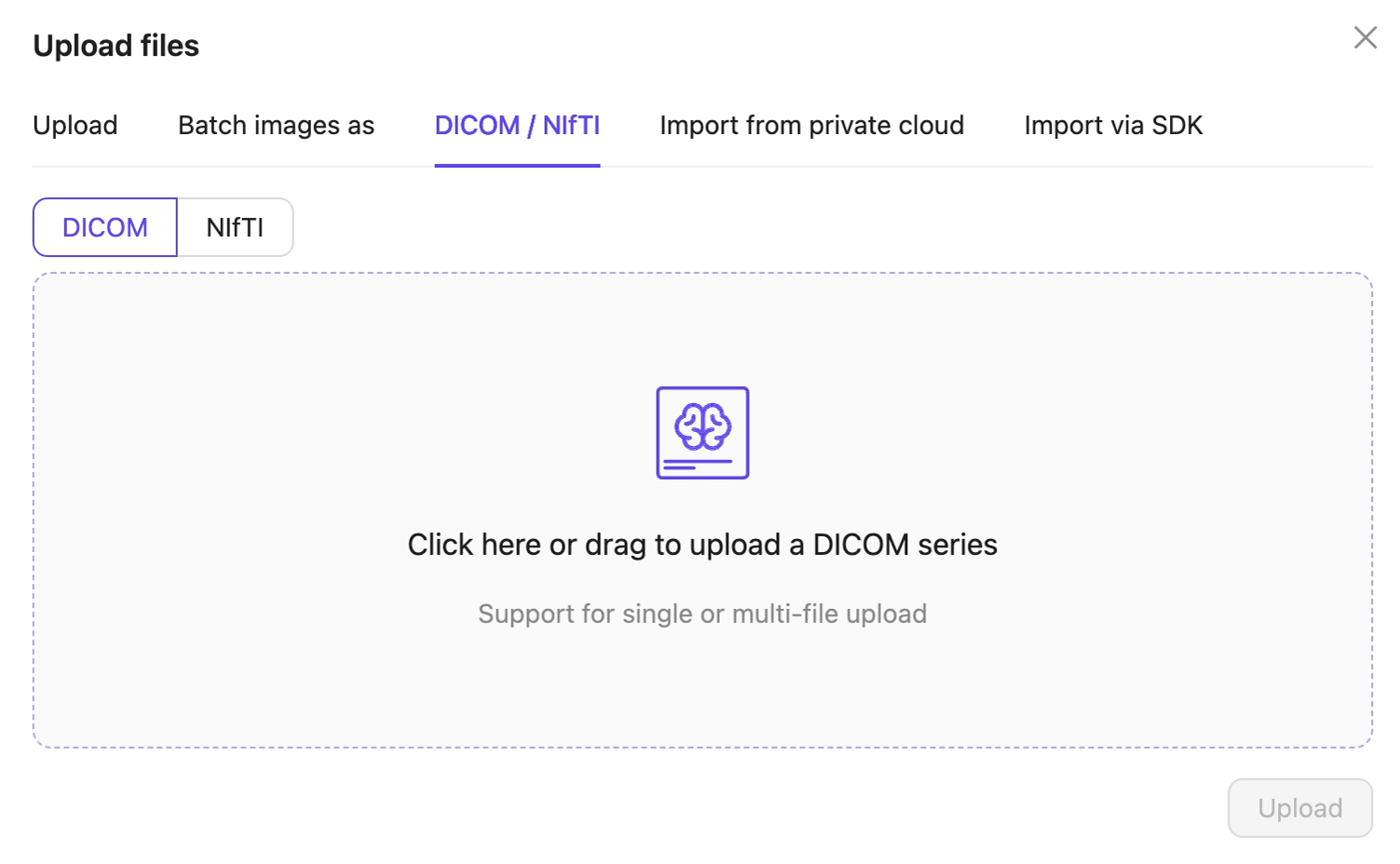
5. Click **Upload** after selecting your images or series.
Your files upload into the Folder in Encord.
</Accordion>
</AccordionGroup>
***
## STEP 2: Set Up Your Project
### Create a Dataset
A Dataset is a subset of files that can be attached to one or more Projects for annotation.
1. Click the **New dataset** button in the *Datasets* section in *Annotate*.
<div class="flex justify-center">
<img src="https://storage.googleapis.com/docs-media.encord.com/static/img/new-dataset-new.png" width="600" />
</div>
2. Give your Dataset a meaningful title and description. A clear title and description keeps your data organized.
<Tip>Toggle **Looking to create a mirrored dataset?** to create a [Mirrored Dataset](/platform-documentation/Annotate/annotate-datasets/annotate-datasets#mirrored-datasets). </Tip>
<div class="flex justify-center">
<img src="https://storage.googleapis.com/docs-media.encord.com/static/img/create-dataset.png" width="500" />
</div>
3. Click **Create dataset** to create the Dataset.
### Attach files
<Tip>[You can add data to Datasets from the **Files & Folders** or the *Datasets* screens](/platform-documentation/Curate/index-files#add-data-to-datasets).</Tip>
<Tip>To ensure smoother uploads and faster completion times, and avoid hitting absolute file limits, we recommend adding smaller batches of data. Limit uploads to 100 videos or up to 1,000 images at a time. You can also create multiple Datasets, all of which can be linked to a single Project. Familiarize yourself with our [limits and best practices for data import/registration](/platform-documentation/General/best-practices#import-into-encord) before adding data to Encord. </Tip>
1. Navigate to the *Datasets* section under the *Annotate* heading.
2. Click the Dataset you want to attach data to.
3. Click **+Attach existing files**.
<div class="flex justify-center">
<img src="https://storage.googleapis.com/docs-media.encord.com/static/img/attach-existing-files2.png" width="600" />
</div>
4. Select the folders containing the files you want to attach to the Dataset. To select individual files, double-click a folder to see its contents, and select the files you want to add to the Dataset.
5. Click **Attach data** to attach the selected files to the Dataset.
***
### Create an Ontology
An Ontology is a structured framework that defines the categories, labels, and relationships used to annotate data consistently and accurately. Ontologies define what you want labeled.
<Note>We recommend learning about [Ontology structure](/platform-documentation/Annotate/annotate-ontologies/annotate-ontologies) in Encord before creating Ontologies. </Note>
1. Click the **New ontology** button in the *Ontologies* section to create a new Ontology.
<div class="flex justify-center">
<img src="https://storage.googleapis.com/docs-media.encord.com/static/img/new-ontology-new.png" width="600" />
</div>
2. Give your Ontology a meaningful title and description. A clear title and description keeps your Ontologies organized.
3. Click **Next** to continue.
<div class="flex justify-center">
<img src="https://storage.googleapis.com/docs-media.encord.com/static/img/ontology-name.png" width="500" />
</div>
4. Define your Ontology structure. See our [documentation on Ontology structure](/platform-documentation/Annotate/annotate-ontologies/annotate-ontologies) for more information on the various types of objects, classifications, and attributes.
**To add objects:**
<Warning>Ensure that you add *Audio Region* objects for audio files and *Text Region* objects for text files.</Warning>
<div class="flex justify-center">
<img src="https://storage.googleapis.com/docs-media.encord.com/static/img/object-ontology.png" width="500" />
</div>
1. Click the **Add object** button.
2. Do one of the following:
* Select a **Shared class**
* Click **New Object**
<Note>
**Shared classes** cannot be edited while creating an Ontology. To edit a shared class go to the **Ontologies** > **Shared classes** page.
</Note>
3. To create a new object, give the object a name. For example "Apple".
4. Select a shape for the object. For example *polygon*.
5. Optionally, enable the **Required** toggle to mark the object as *Required*.
6. Optionally, add attributes to the object.
7. Repeat these steps for as many objects as necessary.
**To add attributes to an object**:
You can add attributes to objects that define the object's characteristics. For example the object "Apple" can have an attribute "Color".
<div class="flex justify-center">
<img src="https://storage.googleapis.com/docs-media.encord.com/static/img/add-attribute-obj.png" width="500" />
</div>
1. Click the arrow icon next to an object to add attributes to the object.
2. Give the attribute a name. For example "Color".
3. Click the attribute type to change the attribute type. The default attribute type is a text field.
4. Click **Add option** to add an option, if you have chosen a radio button or checklist attribute.
5. Enter a name for the attribute option. For example, the attribute "Color" can have the options "Red", "Green", and "Yellow".
6. Click the **Back to parent** button to return the Ontology creation view.
**To add a classification**:
<div class="flex justify-center">
<img src="https://storage.googleapis.com/docs-media.encord.com/static/img/classification-ontology.png" width="500" />
</div>
1. Click **Add classification**.
2. Do one of the following:
* Select a **Shared class**
* Click **New classification**
<Note>
**Shared classes** cannot be edited while creating an Ontology. To edit a shared class go to the **Ontologies** > **Shared classes** page.
</Note>
3. For a new classification, give the classification a name. For example, "Time of day".
4. Optionally, configure the classification. The default classification type is a text field.
5. Optionally, enable the **Required** toggle to mark the object as *Required*.
6. Repeat these steps for as many classifications as necessary.
**Configure classifications**:
You can configure classifications to change the classification type, and to add classification options to radio buttons and check lists.
<div class="flex justify-center">
<img src="https://storage.googleapis.com/docs-media.encord.com/static/img/arrow-icon-highlight.png" width="500" />
</div>
1. Click the arrow icon next to an object to configure the classification.
<div class="flex justify-center">
<img src="https://storage.googleapis.com/docs-media.encord.com/static/img/classification-options-2.png" width="500" />
</div>
2. Click the classification type to change the classification type. The default classification type is a text field.
3. Click **Add option** to add an option if you have selected a radio button or check list classification.
4. Enter a name for the classification option. For example, the classification "Time of day" can have the options "Night" and "Day".
5. Click the **Back to parent** button to return the Ontology creation view.
***
### Create an Agent
Agents enable you to set up custom actions like pre-labeling, leveraging foundation models such as GPT-4, automated quality assurance, or other tailored actions to suit your workflow.
Use the Encord SDK to configure your Advanced Custom Agent. The Agent executes the configured SDK script for all tasks that are routed through the Agent stage in your Workflow.
<AccordionGroup>
<Accordion title="General Example">
The General Example script shows how to configure a Workflow Agent with the name `Agent 1` and with a pathway called `continue to Review`.
<Tip>Agent nodes can be used in conjunction with bundles to [efficiently handle bulk actions](/sdk-documentation/general-sdk/sdk-bulk-action-best-practices)</Tip>
Ensure that you:
* Replace `<private_key_path>` with the path to your private key.
* Replace `<project_hash>` with the hash of your Project.
* Insert your custom logic where the comment instructs you to do so.
```python General Example theme={"dark"}
# Import dependencies
from encord.user_client import EncordUserClient
from encord.workflow import AgentStage
# Authenticate using the path to your private key
user_client = EncordUserClient.create_with_ssh_private_key(
ssh_private_key_path="<private_key_path>"
)
# Specify the Project that contains the agent. Replace <project_hash> with the hash of your Project
project = user_client.get_project(<project_hash>)
# Specify the Agent
agent_stage = project.workflow.get_stage(name="Agent 1", type_=AgentStage)
for task in agent_stage.get_tasks():
# Now you have the agent task containing the data hash
# Insert you custom logic here
# When the custom logic is completed, the task can be moved forward to the selected pathway
task.proceed(pathway_name="continue to Review")
```
</Accordion>
</AccordionGroup>
<AccordionGroup>
<Accordion title="Pre-Classification of Images Using GPT 4o">
```mermaid theme={"dark"}
sequenceDiagram
participant AWS as AWS (Image Storage)
participant Encord as Encord (Project)
participant Agent as Agent Node (In Encord)
participant Server as Your Server
participant OpenAI as OpenAI
AWS->>Encord: Send Signed Image URLs
Encord->>Agent: Add Signed Image URL to Agent node
Agent->>Server: Send Signed Image URL
Server->>OpenAI: Send Image Data + Prompt
OpenAI-->>Server: Return Classification
Server->>Server: Transform Classification to Encord label structure
Server->>Agent: Save Labels to Encord
Agent->>Encord: Classification Saved to Label Row
Encord->>Encord: Task Moved to Annotation Stage
```
<Note> See our [end-to-end guide](/agents-documentation/Task-Agents/GPT4PreClassificationImages) for Pre-Classification using GPT 4o for more detailed information.</Note>
The Pre-Classification script uses GPT 4o mini to route images to different annotation stages depending on what it is contained in the image. The Pre-Classification script applies to the following Workflow.
<div class="flex justify-center">
<img src="https://storage.googleapis.com/docs-media.encord.com/static/img/pre-classification-example.png" width="700" />
</div>
<Tip>Agent nodes can be used in conjunction with bundles to [efficiently handle bulk actions](/sdk-documentation/general-sdk/sdk-bulk-action-best-practices)</Tip>
In the following script:
* Replace `<private_key_path>` with the hash of your private key.
* Replace `<project_hash>` with the hash of your Project.
* Replace `Agent 1` with the name of your Agent stage.
<CodeGroup>
```python Pre-Classification for Images Example theme={"dark"}
# Import dependencies
from encord.user_client import EncordUserClient
from encord.workflow import AgentStage
import openai
import base64
import requests
import json
# Initialize your OpenAI client
openai.api_key = "<your_openai_api_key>"
def get_classification_from_the_model(media_content):
"""
Example function that passes media to OpenAI's ChatGPT API along with the prompt
and parses the result.
"""
prompt = """
You are an image analysis expert. You're working on a project that includes annotation of different pets images.
Your task is to assign one of the following tags to the image: "cat", "dog", "other".
Reply in JSON format of the following structure: { "classification": cat|dog|other }
"""
completion = openai.ChatCompletion.create(
model="gpt-4o-mini",
messages=[
ChatCompletionSystemMessageParam(role="system", content=prompt),
ChatCompletionUserMessageParam(
role="user",
content=[
ChatCompletionContentPartImageParam(
image_url=ImageURL(url=f"data:image/jpeg;base64,{media_content}", detail="auto"),
type="image_url",
)
]
),
],
response_format=ResponseFormat(type="json_object"),
max_tokens=1000,
)
raw_text_completion = completion.choices[0].message.content
try:
parsed_result = json.loads(raw_text_completion)
return parsed_result["classification"].lower()
except Exception as e:
print(f"Failed to process the model response: {e}")
return None
# Authenticate using the path to your private key
user_client = EncordUserClient.create_with_ssh_private_key(
ssh_private_key_path="<private_key_path>"
)
# Specify the Project that contains the agent. Replace <project_hash> with the hash of your Project
project = user_client.get_project("<project_hash>")
radio_classification = project.ontology_structure.get_child_by_title(
title="Animal",
type_=Classification,
)
cat_option = radio_ontology_classification.get_child_by_title(
title="Cat", type_=Option
)
dog_option = radio_ontology_classification.get_child_by_title(
title="Dog", type_=Option
)
# Specify the Agent
agent_stage = project.workflow.get_stage(name="Agent 1", type_=AgentStage)
for task in agent_stage.get_tasks():
# Got a task for the following data unit
print(f"{task.data_hash} -> {task.data_title}")
# Getting a label row for the data unit
label_row = project.list_label_rows_v2(data_hashes=[task.data_hash])[0]
label_row.initialise_labels(include_signed_url=True)
# Downloading the media:
media_response = requests.get(label_row.data_link)
media_content = base64.b64encode(media_response.content).decode("utf-8")
# Now we can send the media to OpenAI:
model_response = get_classification_from_the_model(media_content)
# And interpret the result:
match model_response:
case "cat":
# Create a classification instance
classification_instance = (
radio_ontology_classification.create_instance()
)
radio_classification_instance.set_answer(
answer=cat_option
)
label_row.add_classification_instance(radio_classification_instance)
label_row.save()
task.proceed(pathway_name="Cat")
case "dog":
# Create & save classification instance
classification_instance = (
radio_ontology_classification.create_instance()
)
radio_classification_instance.set_answer(
answer=dog_option
)
label_row.add_classification_instance(radio_classification_instance)
label_row.save()
task.proceed(pathway_name="Dog")
case _:
task.proceed(pathway_name="Other")
```
</CodeGroup>
</Accordion>
</AccordionGroup>
<AccordionGroup>
<Accordion title="Pre-Labeling Videos Using a Mock Model">
<Warning>
This guide makes the following assumptions:
* You have a model that takes video frames as an input and provides bounding box coordinates and confidence scores as an output.
* You have installed the `encord-agents` library using the following command:
```
python -m pip install encord-agents
```
</Warning>
The Pre-Labeling Script selects a random class from the Ontology, generates random bounding box labels, and applies random confidence scores for video frames before advancing the videos to the annotation stage (`Annotate 1`). Below is an example of a Workflow where the Pre-Labeling agent can be effectively utilized.
<div class="flex justify-center">
<img src="https://storage.googleapis.com/docs-media.encord.com/static/img/pre-labeling-workflow.png" width="600" />
</div>
<Warning>
To authenticate, you must set either of following environment variables in the environment that you plan to run your agents.
* ENCORD\_SSH\_KEY: Containing the raw private key file content
* ENCORD\_SSH\_KEY\_FILE: Containing the absolute path to the private key file
</Warning>
In the following script:
* Replace `<project_hash>` with the hash of your Project.
* Replace the mock model with your own model, and adapt the rest of the script according to your needs.
* If you choose to give your python file a different name, ensure you replace all references to `prelabel_video.py` with your new file name.
```python prelabel_video.py theme={"dark"}
#Import Dependencies
import random
from dataclasses import dataclass
from typing import Iterable
import numpy as np
from encord.objects.coordinates import BoundingBoxCoordinates
from encord.objects.ontology_labels_impl import LabelRowV2
from encord.project import Project
from encord_agents.core.data_model import Frame
from encord_agents.tasks import Depends, Runner
from encord_agents.tasks.dependencies import dep_video_iterator
from numpy.typing import NDArray
from typing_extensions import Annotated
# Set the Environment variable to authenticate with Encord
ENCORD_SSH_KEY_FILE="/path/to/file/" prelabel_video.py
runner = Runner(project_hash="<project_hash>")
# === BEGIN MOCK MODEL === #
@dataclass
class ModelPrediction:
label: int
coords: BoundingBoxCoordinates
conf: float
def fake_predict(image: NDArray[np.uint8]) -> list[ModelPrediction]:
return [
ModelPrediction(
label=random.choice(range(3)),
coords=BoundingBoxCoordinates(
top_left_x=random.random() * 0.5,
top_left_y=random.random() * 0.5,
width=random.random() * 0.5,
height=random.random() * 0.5,
),
conf=random.random() + 0.5,
)
for _ in range(10)
]
model = fake_predict
# === END MOCK MODEL === #
@runner.stage(stage="Pre-Labeling Agent")
def run_something(
lr: LabelRowV2,
project: Project,
frames: Annotated[Iterable[Frame], Depends(dep_video_iterator)],
) -> str:
ontology = project.ontology_structure
# Create an object instance for each frame in the video and save the labels.
for frame in frames:
outputs = model(frame.content)
for output in outputs:
ins = ontology.objects[output.label].create_instance()
ins.set_for_frames(
frames=frame.frame, coordinates=output.coords, confidence=output.conf
)
lr.add_object_instance(ins)
lr.save()
# Return the name of the stage the task should progress to
return "Annotate 1"
if __name__ == "__main__":
runner.run()
```
</Accordion>
</AccordionGroup>
***
### Create a Workflow
*Workflows* allow you to design and manage the flow of tasks through various stages of a Project. You have control over how tasks progress and how different stages interact.
<AccordionGroup>
<Accordion title="Video tutorial - Creating workflow templates">
<div
style={{
height: '0',
paddingBottom: '56.25%',
position: 'relative'
}}
>
<iframe
allowFullScreen
frameBorder="0"
mozallowfullscreen=""
src="https://www.loom.com/embed/dc0152c0cb8f481dac51c3a7eb1c5a0f?sid=f48a872a-f81f-4522-a904-199a9d306c40"
style={{
height: '100%',
left: '0',
position: 'absolute',
top: '0',
width: '100%'
}}
webkitallowfullscreen=""
/>
</div>
</Accordion>
</AccordionGroup>
To set up a Workflow template, navigate to the Project section of the Encord platform and select the **Templates** tab.
<div class="flex justify-center">
<img src="https://storage.googleapis.com/docs-media.encord.com/static/img/create-new-template.png" width="700" />
</div>
**1. Add users to the Workflow**:
Add users from your [Workspace](/platform-documentation/General/general-workspace-settings) to the Workflow by clicking **Invite collaborators**.
<div class="flex justify-center">
<img src="https://storage.googleapis.com/docs-media.encord.com/static/img/workflows/workflows-manage-collaborators-highlighted.png" width="600" />
</div>
* Collaborators are added based on their role within the project - select the role you would like the collaborator(s) to have.
* Start typing the email of a user you would like to add into the area highlighted on the image below, and select the user from the list that appears. Repeat this for every user that will have the same role.
* When you are done selecting users for this role, click **Add**.
<div class="flex justify-center">
<img src="https://storage.googleapis.com/docs-media.encord.com/static/img/workflows/workflows-manage-collaborators-add-users-highlighted.png" width="500" />
</div>
<Note>Learn more about managing collaborators in the [Managing collaborators](/platform-documentation/Annotate/annotate-projects/annotate-workflows-and-templates#managing-collaborators) section.</Note>
**2. Configure your Workflow**:
The canvas is populated with a simple Workflow by default.
Click the **Add stage** button to show all Workflow components.
<div class="flex justify-center">
<img src="https://storage.googleapis.com/docs-media.encord.com/static/img/workflows/workflows-add-stage.png" width="600" />
</div>
Customize your Workflow by pulling components onto the canvas.
<div class="flex justify-center">
<img src="https://storage.googleapis.com/docs-media.encord.com/static/img/workflows/workflows-drag-drop-components.gif" />
</div>
Add the stages and other components you require for your Workflow onto the canvas:
* All workflows must begin with the [**Start**](/platform-documentation/Annotate/annotate-projects/annotate-workflows-and-templates#start) stage.
* All workflows must contain an [**Annotate**](/platform-documentation/Annotate/annotate-projects/annotate-workflows-and-templates#annotate) stage.
* Add [routers](/platform-documentation/Annotate/annotate-projects/annotate-workflows-and-templates#routers) to your Project to determine different pathways through your Workflow a task can take.
* Add as many [**Review**](/platform-documentation/Annotate/annotate-projects/annotate-workflows-and-templates#review) stages as necessary.
* All workflows must end at a [**Complete**](/platform-documentation/Annotate/annotate-projects/annotate-workflows-and-templates#complete) stage.
* Link all components on the canvas by clicking and dragging from one connection point to another.
<div class="flex justify-center">
<img src="https://storage.googleapis.com/docs-media.encord.com/static/img/workflows/workflows-connecting-components.gif" />
</div>
All Workflows can be saved as a [template](/platform-documentation/Annotate/annotate-projects/annotate-workflows-and-templates#templates) by clicking the **Save as a new template** button.
<div class="flex justify-center">
<img src="https://storage.googleapis.com/docs-media.encord.com/static/img/save-as-new-template.png" width="200" />
</div>
**3. Configure the stages of your Workflow**:
After you arranged the stages in the composer, it is time to configure the details of each stage.
* Click an **Annotate** card on the canvas to start editing the [annotation stage](/platform-documentation/Annotate/annotate-projects/annotate-workflows-and-templates#annotate).
* Give the stage a descriptive name.
* Add annotators. If you'd like to specify annotators for this stage, add them as collaborators. For full details on how collaborators can work on tasks at each stage, see our section on [managing collaborators](/platform-documentation/Annotate/annotate-projects/annotate-workflows-and-templates#managing-collaborators).
* Optionally, add a [Webhook](/platform-documentation/Annotate/annotate-webhooks-notifications) to receive notifications when labels are submitted at this stage.
<Note>More details about configuring annotation stages can be found in the [**Annotate** section](/platform-documentation/Annotate/annotate-projects/annotate-workflows-and-templates#annotate) below</Note>
* Click a **Review** card on the canvas to start editing the [review stage](/platform-documentation/Annotate/annotate-projects/annotate-workflows-and-templates#review).
* Give the stage a descriptive name.
* Add reviewers. If you want to specify reviewers for this stage, add them as collaborators. For full details on how collaborators can work on tasks at each stage, see our section on [managing collaborators](/platform-documentation/Annotate/annotate-projects/annotate-workflows-and-templates#managing-collaborators).
<Note>More details about configuring review stages can be found in the [**Review** section](/platform-documentation/Annotate/annotate-projects/annotate-workflows-and-templates#review) below.</Note>
* Click a **Router** card on your canvas. See the [router section](/platform-documentation/Annotate/annotate-projects/annotate-workflows-and-templates#routers) for more details on how different types of routers can be configured.
* Optionally, add a Webhook to the **Complete** stage to receive a notification when a task has been completed.
* Optionally, add [*User assignment restrictions*](/platform-documentation/Annotate/annotate-projects/annotate-workflows-and-templates#user-assignment-restriction) if users in this node should be prevented from being assigned to tasks they completed in the nodes listed.
<Note>More details on routers can be found in the [router section](/platform-documentation/Annotate/annotate-projects/annotate-workflows-and-templates#routers) below.</Note>
### Create a Project
Projects in Encord bring together Datasets, Ontologies, and Workflows. Datasets are labeled according to the Ontology, while the Workflow defines how tasks progress through the Project from start to finish.
<Note>
Projects only require a **Title** to be saved.
</Note>
<iframe className="w-full aspect-video rounded-xl" src="https://www.loom.com/embed/0d4edcc18a354a7abb5d22f8b8dc9a96" title="YouTube video player" allow="accelerometer; autoplay; clipboard-write; encrypted-media; gyroscope; picture-in-picture" allowFullScreen />
1. Select **Projects** in the Encord platform.
2. Click the **+ New annotation project** button or use <kbd>CONTROL</kbd> / <kbd>CMD</kbd> + <kbd>ENTER</kbd> to create a new Project.
3. Give the Project a meaningful title and description.
<Note>
If you are part of an [Workspace](/platform-documentation/General/general-workspace-settings), an optional [Project tags](/platform-documentation/Annotate/annotate-projects/annotate-project-settings#project-tags) drop-down is visible. Project tags are useful for categorizing and finding your Projects. Select as many tags as are relevant for your Project.
</Note>
4. Apply any meaningful [**Project tags**](/platform-documentation/General/general-workspace-settings#project-tags) you need to the Project.
5. Specify the Workflow you want to use for the Project.
6. Click the **Templates** > **Load from template** to use a [Workflow template](/platform-documentation/Annotate/annotate-projects/annotate-workflows-and-templates#templates).
7. Select the template you want to use and click **Load template**.
8. Click the **Ontology** button.
9. Select an [Ontology](/platform-documentation/Annotate/annotate-ontologies/annotate-ontologies) from the list, or [create a new Ontology](/platform-documentation/Annotate/annotate-ontologies/annotate-create-ontologies) by clicking the **New ontology** button.
10. Click the **Datasets** button.
11. Select one or more [Datasets](/platform-documentation/Annotate/annotate-datasets/annotate-datasets) from the list, or create a new Dataset by clicking the **New Dataset** button.
12. Click **Collaborators**.
13. Specify the users and the roles they have in the Project.
14. Click **Create project** to finish creating the Project.
#### Add users to the Project
After creating a Project, invite users to act as annotators, reviewers, team managers, and admins. Collaborators can be added as individuals, or as part of [user groups](/platform-documentation/General/general-workspace-settings#user-groups).
<AccordionGroup>
<Accordion title="Invite individuals">
1. Navigate to **Projects** in the Encord app.
<div class="flex justify-center">
<img src="https://storage.googleapis.com/docs-media.encord.com/static/img/NavigateToProjects.png" width="600" />
</div>
2. Select the Project you want to add users to.
3. Navigate to the *Settings* tab.
4. Navigate to the *Team* pane.
5. Click **Invite collaborators**.
<div class="flex justify-center">
<img src="https://storage.googleapis.com/docs-media.encord.com/static/img/InviteCollaborators.png" width="600" />
</div>
6. Select the desired role for the users.
7. Enter the users' email addresses and choose the users to assign the selected role.
8. Click **Add** to include the selected users in the Project.
<div class="flex justify-center">
<img src="https://storage.googleapis.com/docs-media.encord.com/static/img/add-reviewers.png" width="400" />
</div>
9. Repeat this process for each required user role.
</Accordion>
</AccordionGroup>
<AccordionGroup>
<Accordion title="Invite user groups">
<Info>To invite [user groups](/platform-documentation/General/general-workspace-settings#user-groups) your Workspace must have user groups.</Info>
1. Navigate to **Projects** in the Encord app.
<div class="flex justify-center">
<img src="https://storage.googleapis.com/docs-media.encord.com/static/img/NavigateToProjects.png" width="600" />
</div>
2. Select the Project you want to add users to.
3. Navigate to the *Settings* tab.
4. Navigate to the *Team* pane.
5. Select the *Groups* tab.
6. Click **Manage**.
<div class="flex justify-center">
<img src="https://storage.googleapis.com/docs-media.encord.com/static/img/AddUserGroupsProject.png" width="600" />
</div>
7. Select a group from the dropdown.
8. Select the role you want the user group to have.
9. Click **Add** to add the user group to the Project.
<div class="flex justify-center">
<img src="https://storage.googleapis.com/docs-media.encord.com/static/img/AddUserGroup2.png" width="400" />
</div>
10. Repeat this process for each required user group and role.
</Accordion>
</AccordionGroup>
## STEP 3: Label your Data
Now you are ready to label your data. We recommend you and your team watch these introductory videos.
<Tip>For more details, see our comprehensive [tutorial on labeling here](/platform-documentation/GettingStarted/gettingstarted-labeling).</Tip>
<AccordionGroup>
<Accordion title="Video tutorial - Introduction to image annotation">
<div
style={{
height: '0',
paddingBottom: '56.25%',
position: 'relative'
}}
>
<iframe
allowFullScreen
frameBorder="0"
mozallowfullscreen=""
src="https://www.loom.com/embed/d42b8d02990f48a9a13e3a70b32e7f80?sid=34699e1e-4893-42e6-baa3-56b8a9f6c92f"
style={{
height: '100%',
left: '0',
position: 'absolute',
top: '0',
width: '100%'
}}
webkitallowfullscreen=""
/>
</div>
</Accordion>
</AccordionGroup>
<AccordionGroup>
<Accordion title="Video tutorial - Introduction to video annotation">
<div
style={{
height: '0',
paddingBottom: '56.25%',
position: 'relative'
}}
>
<iframe
allowFullScreen
frameBorder="0"
mozallowfullscreen=""
src="https://www.loom.com/embed/98c5f7e3a4244d1f82e97572bc368276?sid=6e30c3c4-546d-493e-9464-38f5e98441cc"
style={{
height: '100%',
left: '0',
position: 'absolute',
top: '0',
width: '100%'
}}
webkitallowfullscreen=""
/>
</div>
</Accordion>
</AccordionGroup>
## STEP 4: Export your Labels
<Info>Only Project admins can export labels</Info>
<Tip>Descriptions of all information contained in the export file can be found [in the export file reference](/platform-documentation/Annotate/annotate-export/annotate-export-json).</Tip>
<iframe className="w-full aspect-video rounded-xl" src="https://www.loom.com/embed/708cb13939294a049f4f1ed18fa6e67c?sid=118a9d01-df62-4bb4-b8da-54fba66a4f59" title="YouTube video player" frameBorder="0" allow="accelerometer; autoplay; clipboard-write; encrypted-media; gyroscope; picture-in-picture" allowFullScreen />
<Tip>
To export labels for specific tasks:
1. Select the tasks
2. Click **Bulk actions**
3. Select **Export**
</Tip>
1. Click **Export** while in a Project.
The *Export labels* dialog appears.
2. Specify the following:
* **Format:** Specify the format to export the labels (JSON or COCO).
* **Stage:** Specify the Workflow stage to export the labels from.
* **Generate signed URLs:** Specify whether to generate signed URLs for the data units that have labels.
<Note>
Enabling this option can significantly increase export times.
</Note>
* **Save as new version:** Specify to version the labels.
* Provide a meaningful name for the label version.
* **Labels to include:** Specify the labels to include. You can export all labels or select specific object or classification labels to export.
3. Click **Export**.
A *Labels export in progress* toast message appears.