> ## Documentation Index
> Fetch the complete documentation index at: https://docs.encord.com/llms.txt
> Use this file to discover all available pages before exploring further.
# Register AWS Data (SDK)
Using cloud storage data in Encord is a multi-step process:
1. Set up your cloud storage so Encord can access your data
2. Create a cloud storage integration on Encord to link to your cloud storage
3. Create a Dataset
4. Create a JSON or CSV file to register your data
5. Perform the registration using the JSON or CSV file
See our [AWS integration documentation](/platform-documentation/General/annotate-data-integrations/annotate-aws-integration) for a detailed guide to setting up an integration.
***
## Step 1: Set up AWS
Before you can do anything with the Encord platform and cloud storage, you need to configure your cloud storage to work with Encord. Once the integration between Encord and your cloud storage is complete, you can then use your data in Encord.
In order to integrate with AWS S3, you need to:
1. Create a permission policy for your resources that allows appropriate access to Encord.
2. Create a role for Encord and attach the policy so that Encord can access those resources.
3. Activate Cross-origin resource sharing which allows Encord to access those resources from a web browser.
4. Test the integration to make sure it works.
See our [AWS integration documentation](/platform-documentation/General/annotate-data-integrations/annotate-aws-integration) for a detailed explanation of setting up AWS to work with Encord.
You have the following options to integrate AWS and Encord:
## Step 2: Create AWS-Encord Integration
Create an S3 bucket to store your files if you haven't already. Your S3 bucket permissions should be set to be blocking all public access.
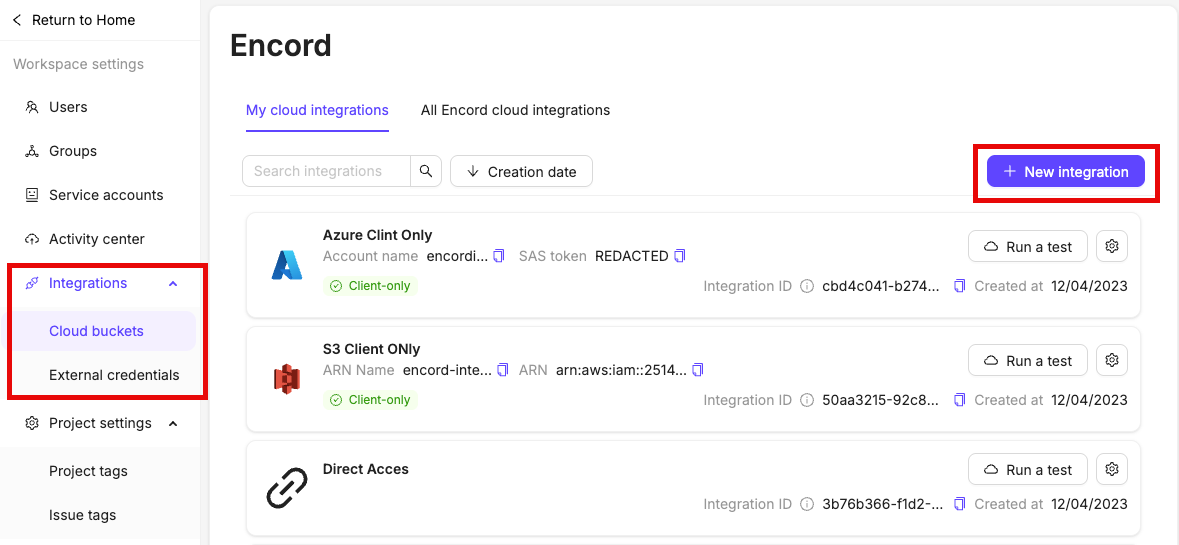
In the *Integrations* section of the Encord platform, click **+New integration** to create a new integration.
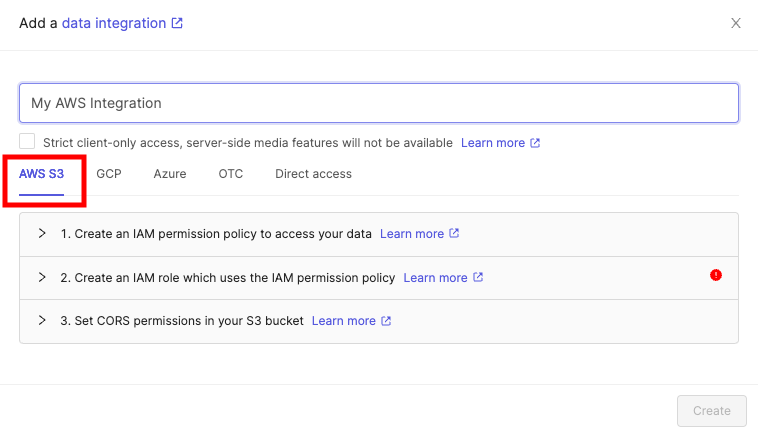
Select *AWS S3* at the top of the chooser.
It is essential you do not close this tab or window until you have finished the whole integration process. If you use the AWS UI for integration, we advise opening the AWS console in a separate tab.See our [AWS integration documentation](/platform-documentation/General/annotate-data-integrations/annotate-aws-integration) for a detailed explanation of how to set up the AWS integration.
## Step 3: Create JSON or CSV for Registration
For a list of supported file formats for each data type, go [here](/platform-documentation/General/general-supported-data).
All types of data (videos, images, image groups, image sequences, and DICOM) from a private cloud are added to a Dataset in the same way, by using a JSON or CSV file. The file includes links to all images, image groups, videos and DICOM files in your cloud storage.
For a list of supported file formats for each data type, go [here](/platform-documentation/General/general-supported-data)Encord supports file names up to 300 characters in length for any file or video for upload.
Encord enforces the following upload limits for each JSON file used for file registration:
* Up to 1 million URLs
* A maximum of 500,000 items (e.g. images, image groups, videos, DICOMs)
* URLs can be up to 16 KB in size
Optimal upload chunking can vary depending on your data type and the amount of associated metadata. For tailored recommendations, contact Encord support. We recommend starting with smaller uploads and gradually increasing the size based on how quickly jobs are processed. Generally, smaller chunks result in faster data reflection within the platform.
BEST PRACTICE: If you want to use Index or Active with your video data, we STRONGLY RECOMMEND using custom metadata (`clientMetadata`) to specify key frames, custom metadata, and custom embeddings. For more information go [here](/platform-documentation/Curate/custom-metadata/import-custom-metadata) or [here for information on using the SDK](/sdk-documentation/index-sdk/custom-metadata/sdk-import-custom-metadata).
### Create JSON file for Registration
For detailed information about the JSON file format used for import go [here](/platform-documentation/Curate/add-files/index-register-cloud-data#json-format).
The information provided about each of the following data types is designed to get you up and running as quickly as possible without going too deeply into the why or how. Look at the template for each data type, then the examples, and adjust the examples to suit your needs.
If `skip_duplicate_urls` is set to `true`, all object URLs that exactly match existing images/videos in the dataset are skipped.
***
#### [Videos](#videos)
**Video Metadata**
When the `videoMetadata` flag is present in the JSON file, we directly use the supplied metadata without performing any additional validation, and do not store the file on our servers.
To guarantee accurate labels, it is crucial that the `videoMetadata` provided is accurate.
```json Template theme={"dark"}
{
"videos": [
{
"objectUrl": "cloud-path-to-your-video-1"
},
{
"objectUrl": "cloud-path-to-your-video-2",
"videoMetadata": {
"fps": frames-per-second,
"duration": duration-in-seconds,
"width": frame-width,
"height": frame-height,
"file_size": file-size-in-bytes,
"mime_type": "MIME-file-type-extension"
}
}
],
"skip_duplicate_urls": true
}
```
```json Data theme={"dark"}
{
"videos": [
{
"objectUrl": "https://encord-integration.s3.eu-west-2.amazonaws.com/videos/BerghouseLeopardJog.mp4"
},
{
"objectUrl": "https://encord-integration.s3.eu-west-2.amazonaws.com/videos/blue_bus_video.mp4"
},
{
"objectUrl": "https://encord-integration.s3.eu-west-2.amazonaws.com/videos/bluemlisalphutte_flyover.mp4"
},
{
"objectUrl": "https://encord-integration.s3.eu-west-2.amazonaws.com/videos/boat_lake_normalized.mp4"
},
{
"objectUrl": "https://encord-integration.s3.eu-west-2.amazonaws.com/videos/boat_lake.MP4"
},
{
"objectUrl": "https://encord-integration.s3.eu-west-2.amazonaws.com/videos/boat_lake.MP4"
},
{
"objectUrl": "https://encord-integration.s3.eu-west-2.amazonaws.com/videos/snow_sled.MOV"
},
{
"objectUrl": "https://encord-integration.s3.eu-west-2.amazonaws.com/videos/cyclists.MP4"
}
],
"skip_duplicate_urls": true
}
```
```json Video Metadata theme={"dark"}
{
"videos": [
{
"objectUrl": "https://encord-integration.s3.eu-west-2.amazonaws.com/videos/video_file.mp4",
"videoMetadata": {
"fps": 23.98,
"duration": 29.09,
"width": 1280,
"height": 720,
"file_size": 5468354,
"mime_type": "video/mp4"
}
}
],
"skip_duplicate_urls": true
}
```
#### [Audio Files](#audio-files)
The following is an example JSON file for uploading two audio files to Encord.
Waveform generation for long audio files can cause lag. To avoid this, generate the waveform offline and upload it with the audio file. For more information go [here](/platform-documentation/Curate/index-audio#long-audio-files).
* **Template:** Imports audio files with an Encord title.
* **Audio Metadata:** Imports one audio file with the `audiometadata` flag. When the `audiometadata` flag is present in the JSON file, we directly use the supplied metadata without performing any additional validation, and do not store the file on our servers. To guarantee accurate labels, it is crucial that the metadata you provide is accurate.
```json Template theme={"dark"}
{
"audio": [
{
"objectUrl": "
#### [PDFs](#pdfs)
The following are example JSON files for uploading PDFs to Encord.
```json Template theme={"dark"}
{
"pdfs": [
{
"objectUrl": "
#### [Text Files](#text-files)
The following are example JSON files for uploading text files to Encord.
```json Template theme={"dark"}
{
"text": [
{
"objectUrl": "
#### [Single Images](#single-images)
For detailed information about the JSON file format used for import go [here](/platform-documentation/Curate/add-files/index-register-cloud-data#json-format).
The JSON structure for single images parallels that of videos.
**Template:** Provides the proper JSON format to import images into Encord.
**Examples:**
* **Data** Imports the images only.
```json Template theme={"dark"}
{
"images": [
{
"objectUrl": "file/path/to/images/file-name-01.file-extension"
},
{
"objectUrl": "file/path/to/images/file-name-02.file-extension"
},
{
"objectUrl": "file/path/to/images/file-name-03.file-extension",
"title": "image-title.file-extension"
}
],
"skip_duplicate_urls": true
}
```
```json Data theme={"dark"}
{
"images": [
{
"objectUrl": "https://encord-integration.s3.eu-west-2.amazonaws.com/images/0001.jpg"
},
{
"objectUrl": "https://encord-integration.s3.eu-west-2.amazonaws.com/images/0002.jpg"
},
{
"objectUrl": "https://encord-integration.s3.eu-west-2.amazonaws.com/images/0003.jpg"
},
{
"objectUrl": "https://encord-integration.s3.eu-west-2.amazonaws.com/images/DALL%C2%B7E+2022-09-08+18.53.25+-+firefighter+extinguishing+flames+around+computer+in+software+office+overgrown+by+foliage.png"
},
{
"objectUrl": "https://encord-integration.s3.eu-west-2.amazonaws.com/images/DALL%C2%B7E+2022-12-08+22.16.52+-+steampunk+combustion+engine+that+is+fueled+by+data+and+produces+computer+vision+algorithms.png"
},
{
"objectUrl": "https://encord-integration.s3.eu-west-2.amazonaws.com/images/large_images/pexels-ivo-rainha-00057.png"
}
]
}
```
```json Image Metadata theme={"dark"}
{
"images": [
{
"objectUrl": "https://encord-integration.s3.eu-west-2.amazonaws.com/images/my_image.jpg",
"imageMetadata": {
"mimeType": "image/jpg",
"fileSize": 124,
"width": 640,
"height": 480
}
}
],
"skip_duplicate_urls": true
}
```
#### [Image groups](#image-groups)
For detailed information about the JSON file format used for import go [here](/platform-documentation/Curate/add-files/index-register-cloud-data#json-format).
* Image groups are collections of images that are processed as one annotation task.
* Images within image groups remain unaltered, meaning that images of different sizes and resolutions can form an image group without the loss of data.
* Image groups do NOT require 'write' permissions to your cloud storage.
* If `skip_duplicate_urls` is set to `true`, all URLs exactly matching existing image groups in the dataset are skipped.
The position of each image within the sequence needs to be specified in the key (`objectUrl_{position_number}`).
**Template:** Provides the proper JSON format to import image groups into Encord.
**Examples:**
* **Data:** Imports the image groups only.
```json Template theme={"dark"}
{
"image_groups": [
{
"title": "",
"createVideo": false,
"objectUrl_0": "file/path/to/images/file-name-01.file-extension",
"objectUrl_1": "file/path/to/images/file-name-02.file-extension",
"objectUrl_2": "file/path/to/images/file-name-03.file-extension",
},
{
"title": "<title 2>",
"createVideo": false,
"objectUrl_0": "file/path/to/images/file-name-01.file-extension",
"objectUrl_1": "file/path/to/images/file-name-02.file-extension",
"objectUrl_2": "file/path/to/images/file-name-03.file-extension"
}
],
"skip_duplicate_urls": true
}
```
```json Data theme={"dark"}
{
"image_groups": [
{
"title": "Image group 01",
"createVideo": false,
"objectUrl_0": "https://encord-integration.s3.eu-west-2.amazonaws.com/images/0001.jpg",
"objectUrl_1": "https://encord-integration.s3.eu-west-2.amazonaws.com/images/0002.jpg",
"objectUrl_2": "https://encord-integration.s3.eu-west-2.amazonaws.com/images/DALL%C2%B7E+2022-09-08+18.53.25+-+firefighter+extinguishing+flames+around+computer+in+software+office+overgrown+by+foliage.png"
},
{
"title": "Image group 02",
"createVideo": false,
"objectUrl_0": "https://encord-integration.s3.eu-west-2.amazonaws.com/images/thing-0001.jpg",
"objectUrl_1": "<https://encord-integration.s3.eu-west-2.amazonaws.com/images/thing-0002.jpg",
"objectUrl_2": "https://encord-integration.s3.eu-west-2.amazonaws.com/images/thing-0003.jpg"
}
],
"skip_duplicate_urls": true
}
```
</CodeGroup>
</Accordion>
</AccordionGroup>
<AccordionGroup>
<Accordion title="Image sequences">
#### [Image sequences](#image-sequences)
For detailed information about the JSON file format used for import go [here](/platform-documentation/Curate/add-files/index-register-cloud-data#json-format).
* Image sequences are collections of images that are processed as one annotation task and represented as a video.
* Images within image sequences may be altered as images of varying sizes and resolutions are made to match that of the first image in the sequence.
* Creating Image sequences from cloud storage requires 'write' permissions, as new files have to be created in order to be read as a video.
* Each object in the `image_groups` array with the `createVideo` flag set to `true` represents a single image sequence.
* If `skip_duplicate_urls` is set to `true`, all URLs exactly matching existing image sequences in the dataset are skipped.
<Tip> The only difference between adding image groups and image sequences using a JSON file is that image sequences require the `createVideo` flag to be set to `true`. Both use the key `image_groups`.</Tip>
<Note>The position of each image within the sequence needs to be specified in the key (`objectUrl_{position_number}`).</Note>
<Info>Encord supports up to 32,767 entries (21:50 minutes) for a single image sequence. We recommend up to 10,000 to 15,000 entries for a single image sequence for best performance. If you need a longer sequence, we recommend using video instead of an image sequence.</Info>
**Template:** Provides the proper JSON format to import image groups into Encord.
**Examples:**
* **Data:** Imports the images groups only.
<CodeGroup>
```json Template theme={"dark"}
{
"image_groups": [
{
"title": "<title 1>",
"createVideo": true,
"objectUrl_0": "<object url>"
},
{
"title": "<title 2>",
"createVideo": true,
"objectUrl_0": "<object url>",
"objectUrl_1": "<object url>",
"objectUrl_2": "<object url>"
}
],
"skip_duplicate_urls": true
}
```
```json Data theme={"dark"}
{
"image_groups": [
{
"title": "Image sequence 001",
"createVideo": true,
"objectUrl_0": "https://encord-integration.s3.eu-west-2.amazonaws.com/images/01.jpg",
"objectUrl_1": "https://encord-integration.s3.eu-west-2.amazonaws.com/images/02.jpg",
"objectUrl_2": "https://encord-integration.s3.eu-west-2.amazonaws.com/images/DALL%C2%B7E+2022-09-08+18.53.25+-+firefighter+extinguishing+flames+around+computer+in+software+office+overgrown+by+foliage.png"
},
{
"title": "Image sequence 002",
"createVideo": true,
"objectUrl_0": "https://encord-integration.s3.eu-west-2.amazonaws.com/images/thing-01.jpg",
"objectUrl_1": "<https://encord-integration.s3.eu-west-2.amazonaws.com/images/thing-02.jpg",
"objectUrl_2": "https://encord-integration.s3.eu-west-2.amazonaws.com/images/thing-03.jpg"
}
],
"skip_duplicate_urls": true
}
```
</CodeGroup>
</Accordion>
</AccordionGroup>
<AccordionGroup>
<Accordion title="DICOM">
#### [DICOM](#dicom)
For detailed information about the JSON file format used for import go [here](/platform-documentation/Curate/add-files/index-register-cloud-data#json-format).
* Each `dicom_series` element can contain one or more DICOM series.
* Each series requires a title and at least one object URL, as shown in the example below.
* If `skip_duplicate_urls` is set to `true`, all object URLs exactly matching existing DICOM files in the dataset will be skipped.
<Note>Custom metadata is distinct from patient metadata, which is included in the `.dcm` file and does not have to be specific during the upload to Encord. </Note>
The following is an example JSON for uploading three DICOM series belonging to a study. Each title and object URL correspond to individual DICOM series.
* The first series contains only a single object URL, as it is composed of a single file.
* The second series contains 3 object URLs, as it is composed of three separate files.
* The third series contains 2 object URLs, as it is composed of two separate files.
<Info>
For each DICOM upload, an additional `DicomSeries` file is created. This file represents the series file-set. Only `DicomSeries` are displayed in the Encord application.
</Info>
```json Template theme={"dark"}
{
"dicom_series": [
{
"title": "Series-1",
"objectUrl_0": "https://encord-integration.s3.eu-west-2.amazonaws.com/images/study1-series1-file.dcm"
},
{
"title": "Series-2",
"objectUrl_0": "https://encord-integration.s3.eu-west-2.amazonaws.com/images/study1-series2-file1.dcm",
"objectUrl_1": "https://encord-integration.s3.eu-west-2.amazonaws.com/images/study1-series2-file2.dcm",
"objectUrl_2": "https://encord-integration.s3.eu-west-2.amazonaws.com/images/study1-series2-file3.dcm",
},
{
"title": "Series-3",
"objectUrl_0": "https://encord-integration.s3.eu-west-2.amazonaws.com/images/study1-series3-file1.dcm",
"objectUrl_1": "https://encord-integration.s3.eu-west-2.amazonaws.com/images/study1-series3-file2.dcm",
}
],
"skip_duplicate_urls": true
}
```
</Accordion>
</AccordionGroup>
<AccordionGroup>
<Accordion title="NIfTI">
#### [NIfTI](#nifti)
The following is an example JSON file for uploading two NIfTI files to Encord.
```json Template theme={"dark"}
{
"nifti": [
{
"title": "<file-1>",
"objectUrl": "https://my-bucket/.../nifti-file1.nii"
},
{
"title": "<file-2>",
"objectUrl": "https://my-bucket/.../nifti-file2.nii.gz"
}
],
"skip_duplicate_urls": true
}
```
</Accordion>
</AccordionGroup>
<AccordionGroup>
<Accordion title=" Multiple file types ">
You can upload multiple file types using a single JSON file. The example below shows 1 image, 2 videos, 2 image sequences, and 1 image group.
```json Multiple file types theme={"dark"}
{
"images": [
{
"objectUrl": "https://encord-integration.s3.eu-west-2.amazonaws.com/images/Image1.png"
}
],
"videos": [
{
"objectUrl": "https://encord-integration.s3.eu-west-2.amazonaws.com/videos/Cooking.mp4"
},
{
"objectUrl": "https://encord-integration.s3.eu-west-2.amazonaws.com/videos/Oranges.mp4"
}
],
"image_groups": [
{
"title": "apple-samsung-light",
"createVideo": true,
"objectUrl_0": "https://encord-integration.s3.eu-west-2.amazonaws.com/images/1+(32).jpg",
"objectUrl_1": "https://encord-integration.s3.eu-west-2.amazonaws.com/images/1+(33).jpg",
"objectUrl_2": "https://encord-integration.s3.eu-west-2.amazonaws.com/images/1+(34).jpg",
"objectUrl_3": "https://encord-integration.s3.eu-west-2.amazonaws.com/images/1+(35).jpg"
},
{
"title": "apple-samsung-dark",
"createVideo": true,
"objectUrl_0": "https://encord-integration.s3.eu-west-2.amazonaws.com/images/2+(32).jpg",
"objectUrl_1": "https://encord-integration.s3.eu-west-2.amazonaws.com/images/2+(33).jpg",
"objectUrl_2": "https://encord-integration.s3.eu-west-2.amazonaws.com/images/2+(34).jpg",
"objectUrl_3": "https://encord-integration.s3.eu-west-2.amazonaws.com/images/2+(35).jpg"
}
],
"image_groups": [
{
"title": "apple-ios-light",
"createVideo": false,
"objectUrl_0": "https://encord-integration.s3.eu-west-2.amazonaws.com/images/3+(32).jpg",
"objectUrl_1": "https://encord-integration.s3.eu-west-2.amazonaws.com/images/3+(33).jpg"
}
],
"skip_duplicate_urls": true
}
```
</Accordion>
</AccordionGroup>
***
#### Use a Multi-Region Access Point
When using a Multi-Region Access Point for your AWS S3 buckets the JSON file has to be slightly different from the examples provided. Instead of an object's URL, objects are specified using the ARN of the Multi-Region Access Point followed by the object name. The example below shows how video files from a Multi-Region Access Point would be specified.
```json theme={"dark"}
{
"videos": [
{
"objectUrl": "Multi-Region-Access-Point-ARN + <object name_1>"
},
{
"objectUrl": "Multi-Region-Access-Point-ARN + <object name_2>",
"title": "my-custom-video-title.mp4"
}
],
"skip_duplicate_urls": true
}
```
```json MRAP Example theme={"dark"}
{
"videos": [
{
"objectUrl": "https://arn:aws:s3::123123123:accesspoint/frf28frarf9.mrap.s3-accesspoint.amazonaws.com/Videos/2022/video_1.mp4"
},
{
"objectUrl": "https://arn:aws:s3::123123123:accesspoint/frf28frarf9.mrap.s3-accesspoint.amazonaws.com/Videos/2022/video_2.mp4",
"title": "many-cute-cats.mp4"
}
],
"skip_duplicate_urls": true
}
```
***
### Create CSV File for Registration
In the CSV file format, the column headers specify which type of data is being uploaded. You can add and single file format at a time, or combine multiple data types in a single CSV file.
Details for each data format are given in the sections below.
<Info>Encord supports up to 10,000 entries for upload in the CSV file.</Info>
<Warning>
* Object URLs can't contain whitespace.
* For backwards compatibility reasons, a single column CSV is supported. A file with the single `ObjectUrl` column is interpreted as a request for video upload. If your objects are of a different type (for example, images), this error displays: "Expected a video, got a file of type XXX".
</Warning>
<AccordionGroup>
<Accordion title="Videos">
#### Videos
A CSV file containing videos should contain two columns with the following mandatory column headings:\
'ObjectURL' and 'Video title'. All headings are case-insensitive.
* The 'ObjectURL' column containing the `objectUrl`. This field is mandatory for each file, as it specifies the full URL of the video resource.
* The 'Video title' column containing the `video_title`. If left blank, the original file name is used.
In the example below files 1, 2 and 4 will be assigned the names in the title column, while file 3 will keep its original file name.
| ObjectUrl | Video title |
| ----------------------------------- | ----------- |
| path/to/storage-location/frame1.mp4 | Video 1 |
| path/to/storage-location/frame2.mp4 | Video 2 |
| path/to/storage-location/frame3.mp4 | |
| path/to/storage-location/frame4.mp4 | Video 3 |
</Accordion>
</AccordionGroup>
<AccordionGroup>
<Accordion title="Single images">
A CSV file containing single images should contain two columns with the following mandatory headings:\
'ObjectURL' and 'Image title'. All headings are case-insensitive.
* The 'ObjectURL' column containing the `objectUrl`. This field is mandatory for each file, as it specifies the full URL of the image resource.
* The 'Image title' column containing the `image_title`. If left blank, the original file name is used.
In the example below files 1, 2 and 4 will be assigned the names in the title column, while file 3 will keep its original file name.
| ObjectUrl | Image title |
| ----------------------------------- | ----------- |
| path/to/storage-location/frame1.jpg | Image 1 |
| path/to/storage-location/frame2.jpg | Image 2 |
| path/to/storage-location/frame3.jpg | |
| path/to/storage-location/frame4.jpg | Image 3 |
</Accordion>
</AccordionGroup>
<AccordionGroup>
<Accordion title="Image groups">
#### Image groups
A CSV file containing image groups should contain three columns with the following mandatory headings:\
'ObjectURL', 'Image group title', and 'Create video'. All three headings are case-insensitive.
* The 'ObjectURL' column containing the `objectUrl`. This field is mandatory for each file, as it specifies the full URL of the resource.
* The 'Image group title' column containing the `image_group_title`. This field is mandatory, as it determines which image group a file will be assigned to.
In the example below the first two URLs are grouped together into 'Group 1', while the following two files are grouped together into 'Group 2'.
| ObjectUrl | Image group title | Create video |
| ----------------------------------- | ----------------- | ------------ |
| path/to/storage-location/frame1.jpg | Group 1 | false |
| path/to/storage-location/frame2.jpg | Group 1 | false |
| path/to/storage-location/frame3.jpg | Group 2 | false |
| path/to/storage-location/frame4.jpg | Group 2 | false |
<Note>Image groups do not require 'write' permissions.</Note>
</Accordion>
</AccordionGroup>
<AccordionGroup>
<Accordion title="Image sequences">
#### Image sequences
A CSV file containing image sequences should contain three columns with the following mandatory headings: 'ObjectURL', 'Image group title', and 'Create video'. All three headings are case-insensitive.
* The 'ObjectURL' column containing the `objectUrl`. This field is mandatory for each file, as it specifies the full URL of the resource.
* The 'Image group title' column containing the `image_group_title`. This field is mandatory, as it determines which image sequence a file will be assigned to. The dimensions of the image sequence are determined by the first file in the sequence.
* The 'Create video' column. This can be left blank, as the default value is 'true'.
In the example below the first two URLs are grouped together into 'Sequence 1', while the second two files are grouped together into 'Sequence 2'.
| ObjectUrl | Image group title | Create video |
| ----------------------------------- | ----------------- | ------------ |
| path/to/storage-location/frame1.jpg | Sequence 1 | true |
| path/to/storage-location/frame2.jpg | Sequence 1 | true |
| path/to/storage-location/frame3.jpg | Sequence 2 | true |
| path/to/storage-location/frame4.jpg | Sequence 2 | true |
<Tip>Image groups and image sequences are only distinguished by the presence of the 'Create video' column.</Tip>
<Note>Image sequences require 'write' permissions against your storage bucket to save the compressed video.</Note>
</Accordion>
</AccordionGroup>
<AccordionGroup>
<Accordion title="DICOM">
A CSV file containing DICOM files should contain two columns with the following mandatory headings: 'ObjectURL' and 'Dicom title'. Both headings are case-insensitive.
* The 'ObjectURL' column containing the `objectUrl`. This field is mandatory for each file, as it specifies the full URL of the resource.
* The 'Series title' column containing the `dicom_title`. When two files are given the same title they are grouped into the same DICOM series. If left blank, the original file name is used.
In the example below the first two files are grouped into 'dicom series 1', the next two files are grouped into 'dicom series 2', while the final file will remain separated as 'dicom series 3'.
| ObjectUrl | Series title |
| ----------------------------------- | -------------- |
| path/to/storage-location/frame1.dcm | dicom series 1 |
| path/to/storage-location/frame2.dcm | dicom series 1 |
| path/to/storage-location/frame3.dcm | dicom series 2 |
| path/to/storage-location/frame4.dcm | dicom series 2 |
| path/to/storage-location/frame5.dcm | dicom series 3 |
</Accordion>
</AccordionGroup>
<AccordionGroup>
<Accordion title=" Multiple file types ">
#### Multiple file types
You can upload multiple file types with a single CSV file by using a new header each time there is a change of file type. Three headings will be required if image sequences are included.
<Warning>Since the 'Create video' column defaults to `true` all files that **are not** image sequences must contain the value `false`</Warning>
The example below shows a CSV file for the following:
* Two image sequences composed of 2 files each.
* One image group composed of 2 files.
* One single image.
* One video.
| ObjectUrl | Image group title | Create video |
| ----------------------------------- | ----------------- | ------------ |
| path/to/storage-location/frame1.jpg | Sequence 1 | true |
| path/to/storage-location/frame2.jpg | Sequence 1 | true |
| path/to/storage-location/frame3.jpg | Sequence 2 | true |
| path/to/storage-location/frame4.jpg | Sequence 2 | true |
| path/to/storage-location/frame5.jpg | Group 1 | false |
| path/to/storage-location/frame6.jpg | Group 1 | false |
| ObjectUrl | Image title | Create video |
| path/to/storage-location/frame1.jpg | Image 1 | false |
| ObjectUrl | Image title | Create video |
| full/storage/path/video.mp4 | Video 1 | false |
</Accordion>
</AccordionGroup>
***
## Step 4: Register Data with Encord
To use your data in Encord, it must be uploaded to the Encord **Files & Folders** storage. Once uploaded, your data can be reused across multiple Projects and contain no labels or annotations themselves. **Files & Folders** stores your data, while *Projects* store your labels. The following script creates a folder in **Files & Folders** and uses your AWS integration to register data in that folder.
The following script creates a new folder in **Files & Folders** and initiates uploads from AWS. It works for all file types.
<Tip>If `Upload is still in progress, try again later!` is returned, use the
[script to check the upload status](/sdk-documentation/getting-started-sdk/sdk-register-data-aws#step-5-check-data-upload) to see whether the upload has finished.</Tip>
Ensure that you:
* Replace `<private_key_path>` with the path to your private key.
* Replace `<integration_title>` with the title of the integration you want to use.
* Replace `<folder_name>` with the folder name. The scripts assume that the specified folder name is unique.
* Replace `path/to/json/file.json` with the path to a [JSON file specifying which cloud storage files should be uploaded](/platform-documentation/Curate/add-files/index-register-cloud-data#json-format).
* Replace `A folder to store my files` with a meaningful description for your folder.
* Replace `"my": "folder_metadata"` with any metadata you want to add to the folder.
The script has several possible outputs:
* "Upload is still in progress, try again later!": The registration has not finished. Run this script again later to check if the data registration has finished.
* "Upload completed": The registration completed. If any files failed to upload, the URLs are listed.
* "Upload failed": The entire registration failed, and not just individual files. Ensure your [JSON file](/platform-documentation/Curate/add-files/index-register-cloud-data#json-format) is formatted correctly.
<CodeGroup>
```python Create folder and register cloud data theme={"dark"}
# Import dependencies
from encord import EncordUserClient
from encord.orm.dataset import LongPollingStatus # Ensure correct import path
# Instantiate user client. Replace <private_key_path> with the path to your private key
user_client = EncordUserClient.create_with_ssh_private_key(
ssh_private_key_path="<private_key_path>"
)
# Specify the integration you want to use
integrations = user_client.get_cloud_integrations()
integration_idx = [i.title for i in integrations].index("<integration_title>")
integration = integrations[integration_idx].id
# Create a storage folder
folder_name = "<folder_name>"
folder_description = "A folder to store my files"
folder_metadata = {"my": "folder_metadata"}
storage_folder = user_client.create_storage_folder(
folder_name, folder_description, client_metadata=folder_metadata
)
# Initiate cloud data registration
upload_job_id = storage_folder.add_private_data_to_folder_start(
integration_id=integration, private_files="path/to/json/file.json", ignore_errors=True
)
# Check upload status
res = storage_folder.add_private_data_to_folder_get_result(upload_job_id, timeout_seconds=5)
print(f"Execution result: {res}")
if res.status == LongPollingStatus.PENDING:
print("Upload is still in progress, try again later!")
elif res.status == LongPollingStatus.DONE:
print("Upload completed")
if res.unit_errors:
print("The following URLs failed to upload:")
for e in res.unit_errors:
print(e.object_urls)
else:
print(f"Upload failed: {res.errors}")
```
```Example output theme={"dark"}
add_private_data_to_dataset job started with upload_job_id=c4026edb-4fw2-40a0-8f05-a1af7f465727.
SDK process can be terminated, this will not affect successful job execution.
You can follow the progress in the web app via notifications.
add_private_data_to_dataset job completed with upload_job_id=c4026edb-4fw2-40a0-8f05-a1af7f465727.
```
</CodeGroup>
***
### Step 5: Check Registration Status
If Step 5 returns `"Upload is still in progress, try again later!"`, run the following code to query the Encord server again. Ensure that you replace `<upload_job_id>` with the output by the previous code. In the example above upload\_job\_id=`c4026edb-4fw2-40a0-8f05-a1af7f465727`.
The script has several possible outputs:
* "Upload is still in progress, try again later!": The registration has not finished. Run this script again later to check if the data registration has finished.
* "Upload completed": The registration completed. If any files failed to upload, the URLs are listed.
* "Upload failed": The entire registration failed, and not just individual files. Ensure your [JSON file](/platform-documentation/Curate/add-files/index-register-cloud-data#json-format) is formatted correctly.
```python theme={"dark"}
# Import dependencies
from uuid import UUID
from encord import EncordUserClient
from encord.orm.dataset import LongPollingStatus
from encord.storage import StorageFolder
upload_job_id = "<upload_job_id>"
folder_id = "<folder_uuid>"
# Authenticate with Encord using the path to your private key.
user_client = EncordUserClient.create_with_ssh_private_key(
ssh_private_key_path="<private_key_path>"
)
# Get the storage folder by ID
storage_folder = user_client.get_storage_folder(UUID(folder_id))
# Check upload status
res = storage_folder.add_private_data_to_folder_get_result(
upload_job_id=UUID(upload_job_id),
timeout_seconds=30,
)
print(f"Execution result: {res}")
if res.status == LongPollingStatus.PENDING:
print("Upload is still in progress, try again later!")
elif res.status == LongPollingStatus.DONE:
print("Upload completed")
if res.unit_errors:
print("The following URLs failed to upload:")
for e in res.unit_errors:
print(e.object_urls)
else:
print(f"Upload failed: {res.errors}")
```
<Tip>Omitting the `timeout_seconds` argument from the
[add\_private\_data\_to\_dataset\_get\_result()](/sdk-documentation/sdk-references/dataset#add-private-data-to-dataset-get-result) method performs status checks until the status upload has finished.</Tip>
***
## Step 6: Create a Dataset
<Note>Creating a Dataset and adding files to a Dataset are two distinct steps. [Click here](/sdk-documentation/index-sdk/sdk-add-files-to-datasets) to learn how to add data to an existing Dataset.</Note>
<Info>Datasets cannot be deleted using the SDK or the API. Use the Encord platform to delete Datasets. </Info>
The following example creates a Dataset called “Houses” that expects data hosted on AWS S3.
* Substitute `<private_key_path>` with the file path for your private key.
* Replace "Houses" with the name you want your Dataset to have.
<CodeGroup>
```python Example code theme={"dark"}
# Import dependencies
from encord import EncordUserClient
from encord.orm.dataset import StorageLocation
# Authenticate with Encord using the path to your private key
user_client = EncordUserClient.create_with_ssh_private_key(
ssh_private_key_path="<private_key_path>"
)
# Create a new dataset
dataset_response = user_client.create_dataset(
dataset_title="Houses",
dataset_type=StorageLocation.AWS,
create_backing_folder=False,
)
# Prints a CreateDatasetResponse object. Verify the Dataset creation
print(dataset_response)
# Print the storage location
print(f"Using storage location: AWS")
```
```python Example output theme={"dark"}
{
{'title': 'Houses', 'type': 1, 'dataset_hash': 'd2bbbaed-cf33-4583-81b5-f30691abde1d', 'user_hash': 'iaDJxNNrMuQMtFPcP9oszw2OCHm2', 'backing_folder_uuid': UUID('5f8364e8-8ccd-4f9f-9066-91e055da920d')}
}
```
</CodeGroup>
## Step 7: Add Your Data to a Dataset
Now that you uploaded your data and created a Dataset, it is time to add your files to the Dataset. The following scripts add all files in a specified folder to a Dataset.
* Replace `<private_key_path>` with the path to your private key.
* Replace `<folder_name>` with the name you want to give your Storage folder.
* Replace `<dataset_hash>` with the hash of the Dataset you want to add the data units to.
<Note>Files added to the folder at a later time **will not** be automatically added to the Dataset.</Note>
```python All files theme={"dark"}
from encord import EncordUserClient
# Authentication
user_client = EncordUserClient.create_with_ssh_private_key(
ssh_private_key_path="<private_key_path>"
)
# Find the storage folder by name
folder_name = "<folder_name>" # Replace with your folder's name
folders = list(user_client.find_storage_folders(search=folder_name, page_size=1))
dataset = user_client.get_dataset("<dataset_hash>")
# Ensure the folder was found
if folders:
storage_folder = folders[0]
# List all data units
items = list(storage_folder.list_items())
# Collect all item UUIDs
item_uuids = [item.uuid for item in items]
# Output the retrieved data units
for item in items:
print(f"UUID: {item.uuid}, Name: {item.name}, Type: {item.item_type}")
# Link all items at once if there are any
if item_uuids:
dataset.link_items(item_uuids)
else:
print("Folder not found.")
```
## Step 8: Verify Your Files Are in the Dataset
After adding your files to the Dataset, verify that all the files you expect to be there made it into the Dataset.
The following script prints the URLs of all the files in a Dataset. Ensure that you:
* Replace `<private_key_path>` with the path to your private key.
* Replace `<dataset_hash>` with the hash of your Dataset.
```python Sample Code theme={"dark"}
#Import dependencies
from encord import EncordUserClient, Project,Dataset
from encord.objects.project import ProjectDataset
from encord.orm.dataset import DatasetAccessSettings
#Initiate client
user_client = EncordUserClient.create_with_ssh_private_key(
ssh_private_key_path="<private_key_path>"
)
#Files the file links to all files in the Dataset
dataset_level_file_links = []
dataset: Dataset = user_client.get_dataset("<dataset_hash>")
for data in dataset.list_data_rows():
dataset_level_file_links.append(data.file_link)
print(dataset_level_file_links)
```
***
## Step 9: Prepare Your Data for Label/Annotation Import
<>
<meta charSet="UTF-8" />
<meta name="viewport" content="width=device-width, initial-scale=1.0" />
<title>Clickable Div