> ## Documentation Index
> Fetch the complete documentation index at: https://docs.encord.com/llms.txt
> Use this file to discover all available pages before exploring further.

# MinIO

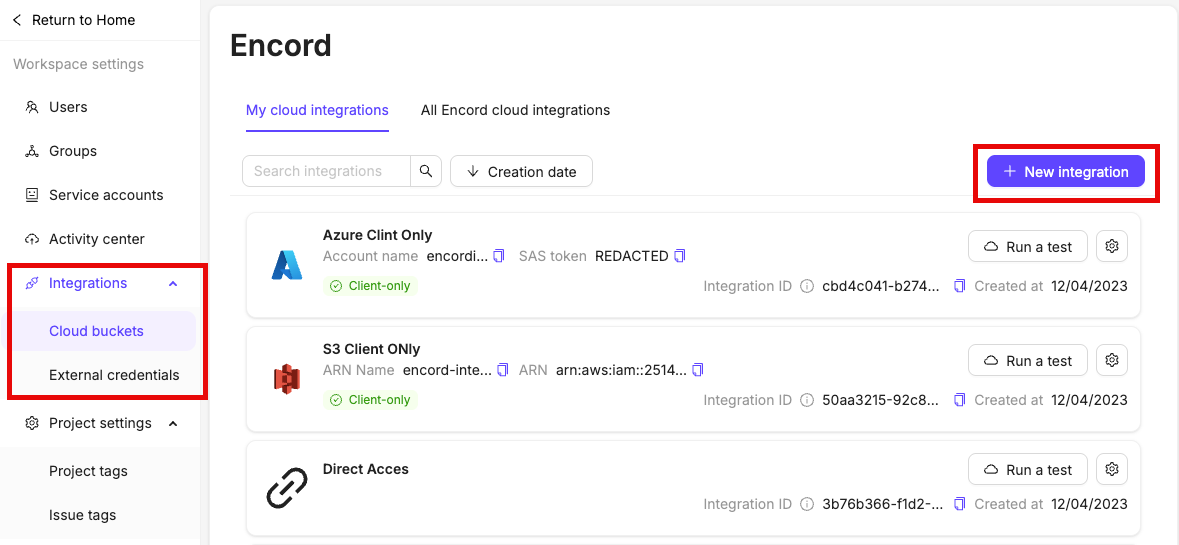
In the *Integrations* section of the Encord platform, click **+New integration** to create a new integration.
The integration dialog appears.

<div class="flex justify-center">
  <img src="https://storage.googleapis.com/docs-media.encord.com/static/img/create-integration-new.png" width="600" />
</div>

### Step 1: Create an IAM Policy

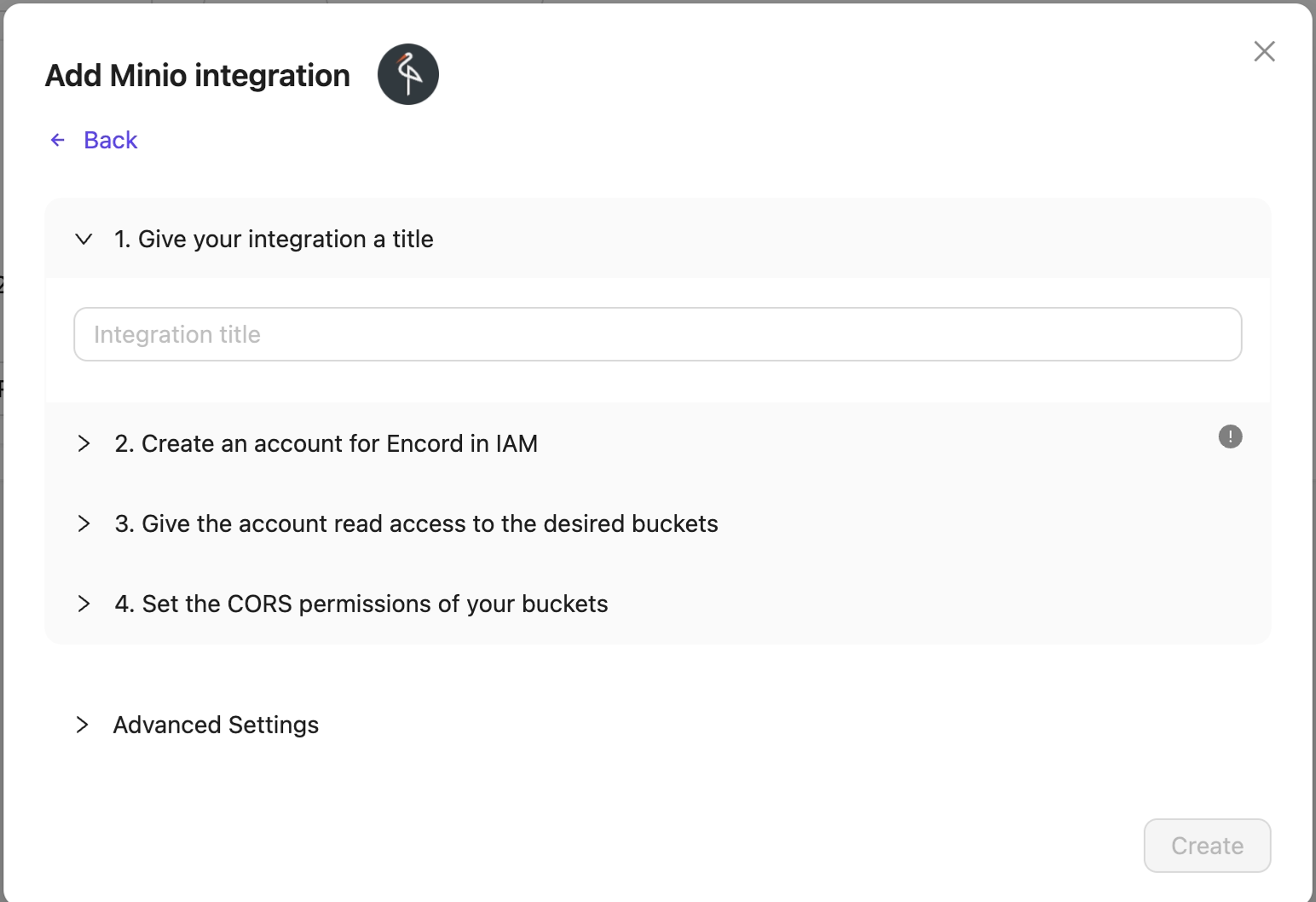
1. In the Encord platform click *MinIO* at the top of the integration dialog.

2. Give your integration a meaningful name.

<div class="flex justify-center">
  <img src="https://storage.googleapis.com/docs-media.encord.com/static/img/integrations/minio/integration-minio-create-policy-00.png" width="700" />
</div>

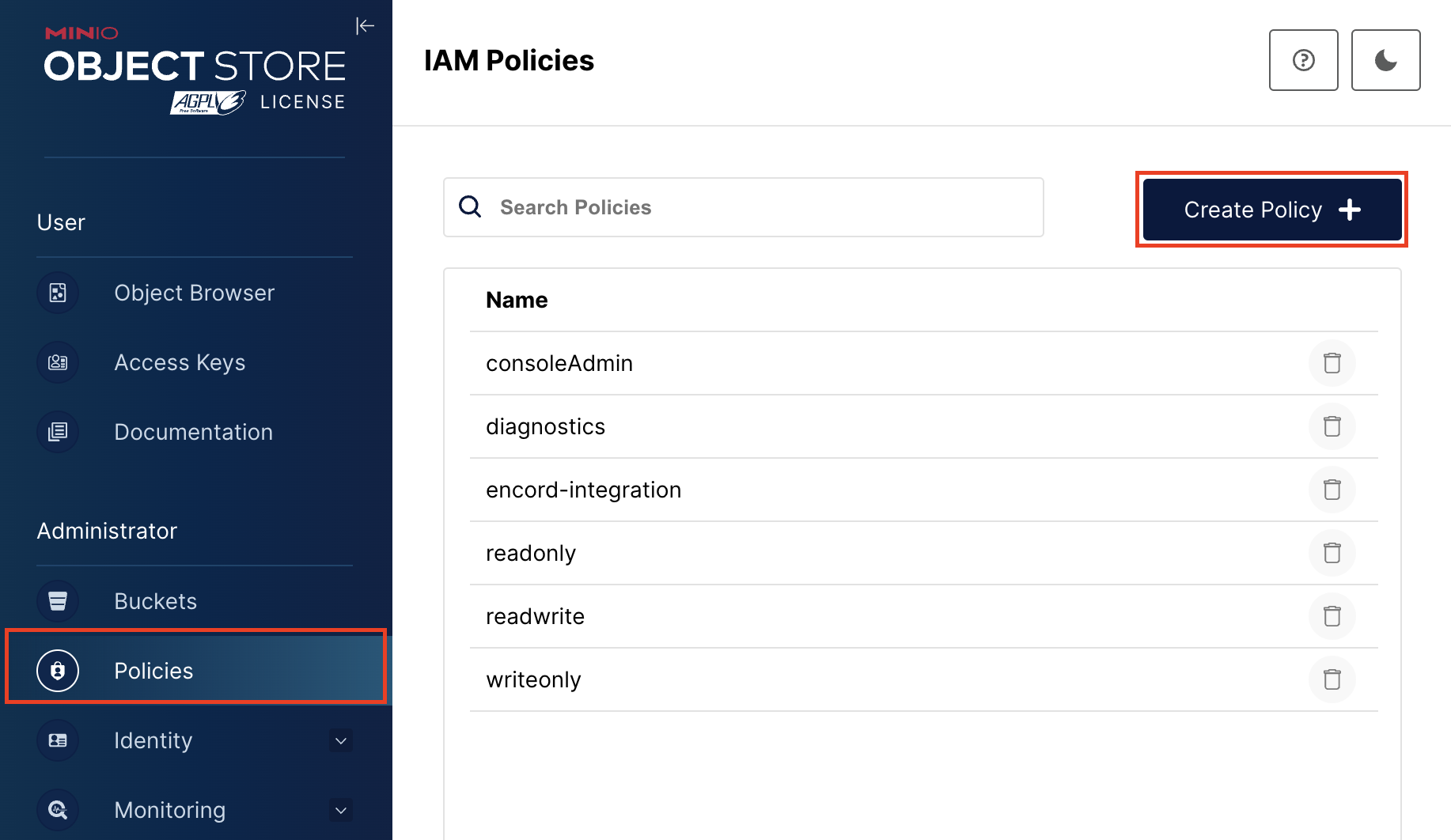
3. In MinIO, navigate to *Policies* and create a new policy.

<div class="flex justify-center">
  <img src="https://storage.googleapis.com/docs-media.encord.com/static/img/integrations/minio/integration-minio-create-policy-01.png" width="700" />
</div>

4. Click **Create policy**.

## 2. Create Users for Encord Integration Access

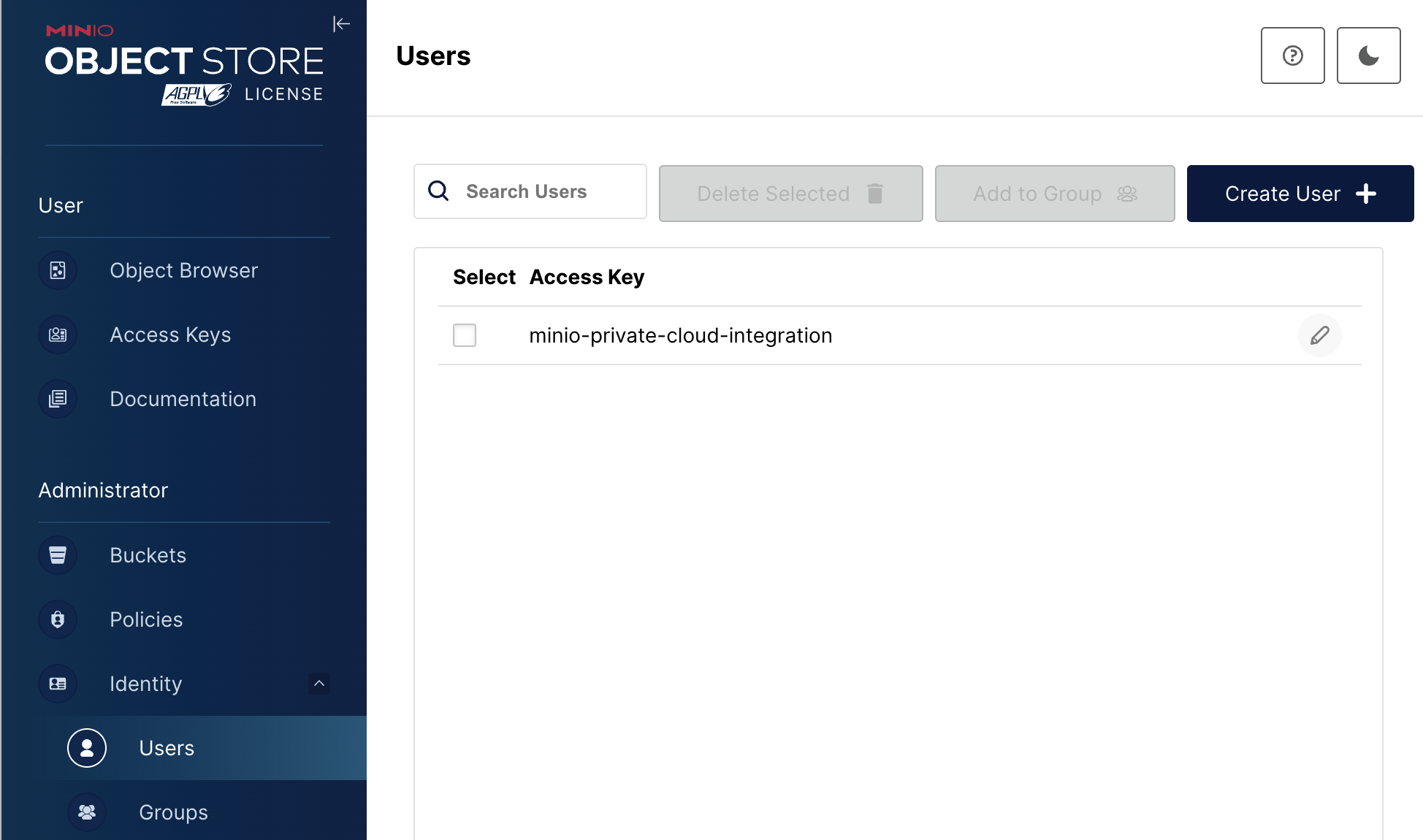
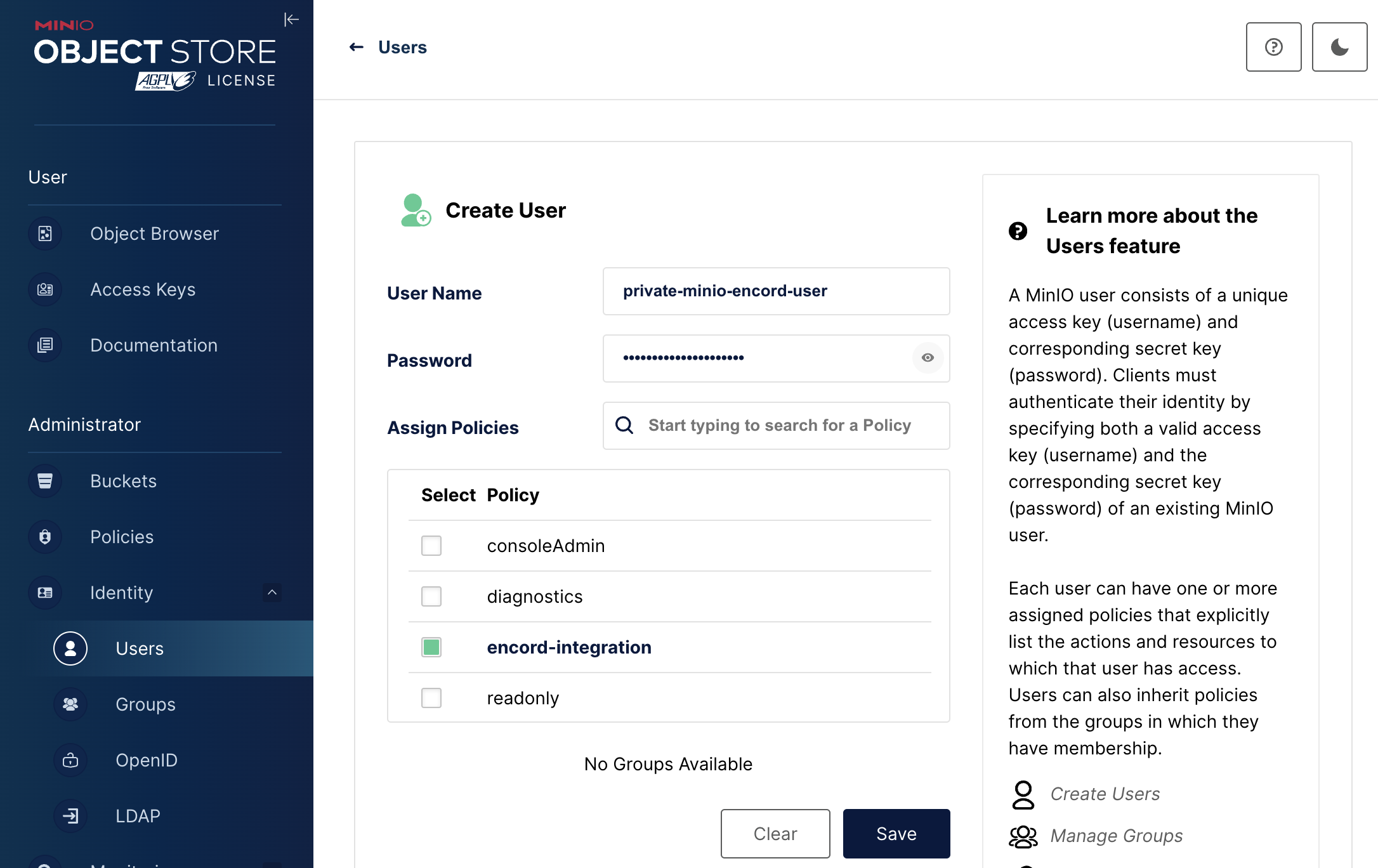
1. In MinIO, navigate to the *Users* section and click **Create user**.

<div class="flex justify-center">
  <img src="https://storage.googleapis.com/docs-media.encord.com/static/img/integrations/minio/integration-minio-create-user-01.png" width="700" />
</div>

2. Make sure to select the *Programmatic* access type. This generates an API Access Key for the newly created user.

3. Assign the policy created in Step 1 to the user.

4. Click **Create user**.

<div class="flex justify-center">
  <img src="https://storage.googleapis.com/docs-media.encord.com/static/img/integrations/minio/integration-minio-create-user-02.png" width="400" />
</div>

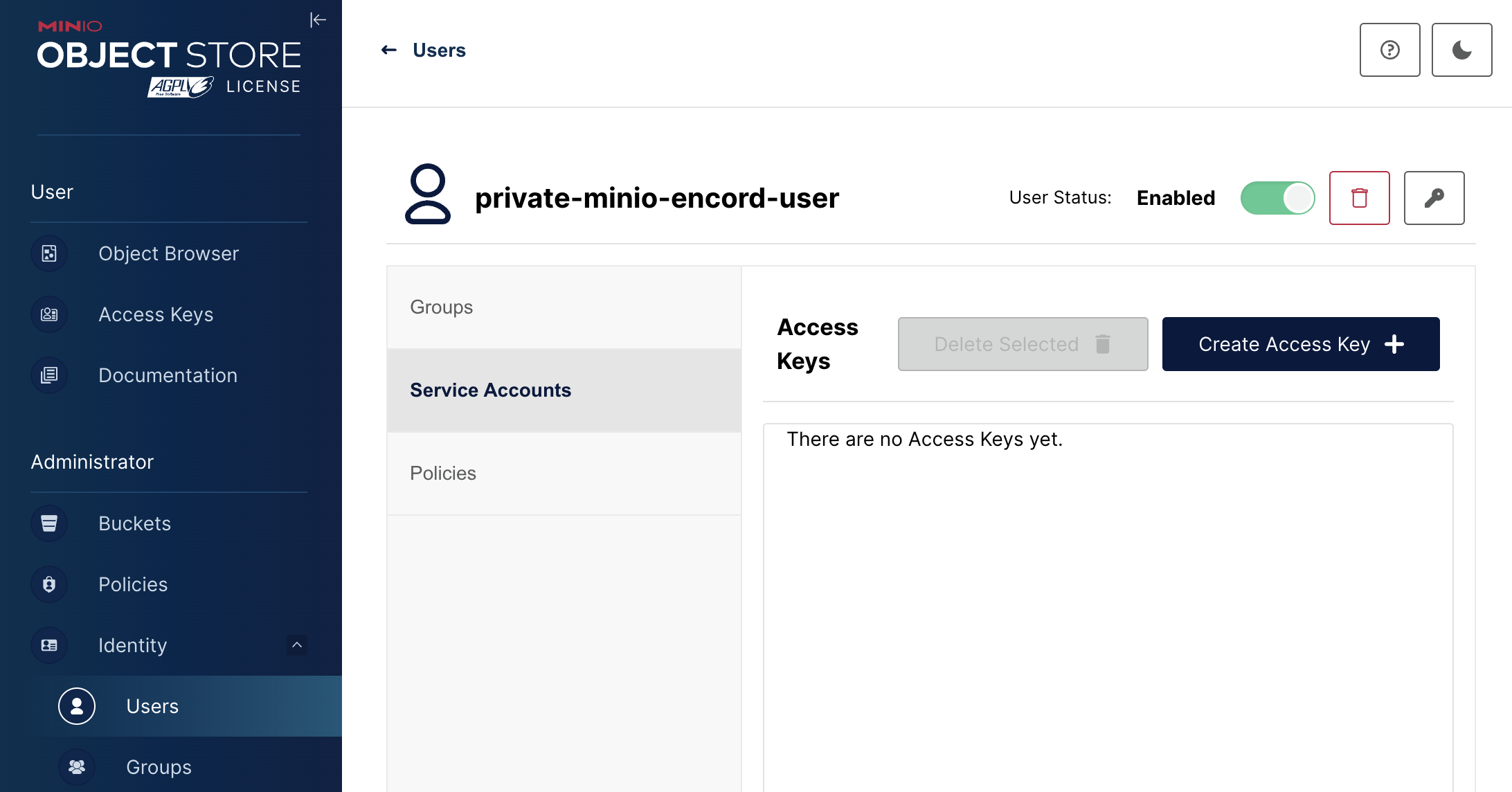
5. Create an *Access Key* for the account.

<div class="flex justify-center">
  <img src="https://storage.googleapis.com/docs-media.encord.com/static/img/integrations/minio/integration-minio-create-access-key-01.png" width="400" />
</div>

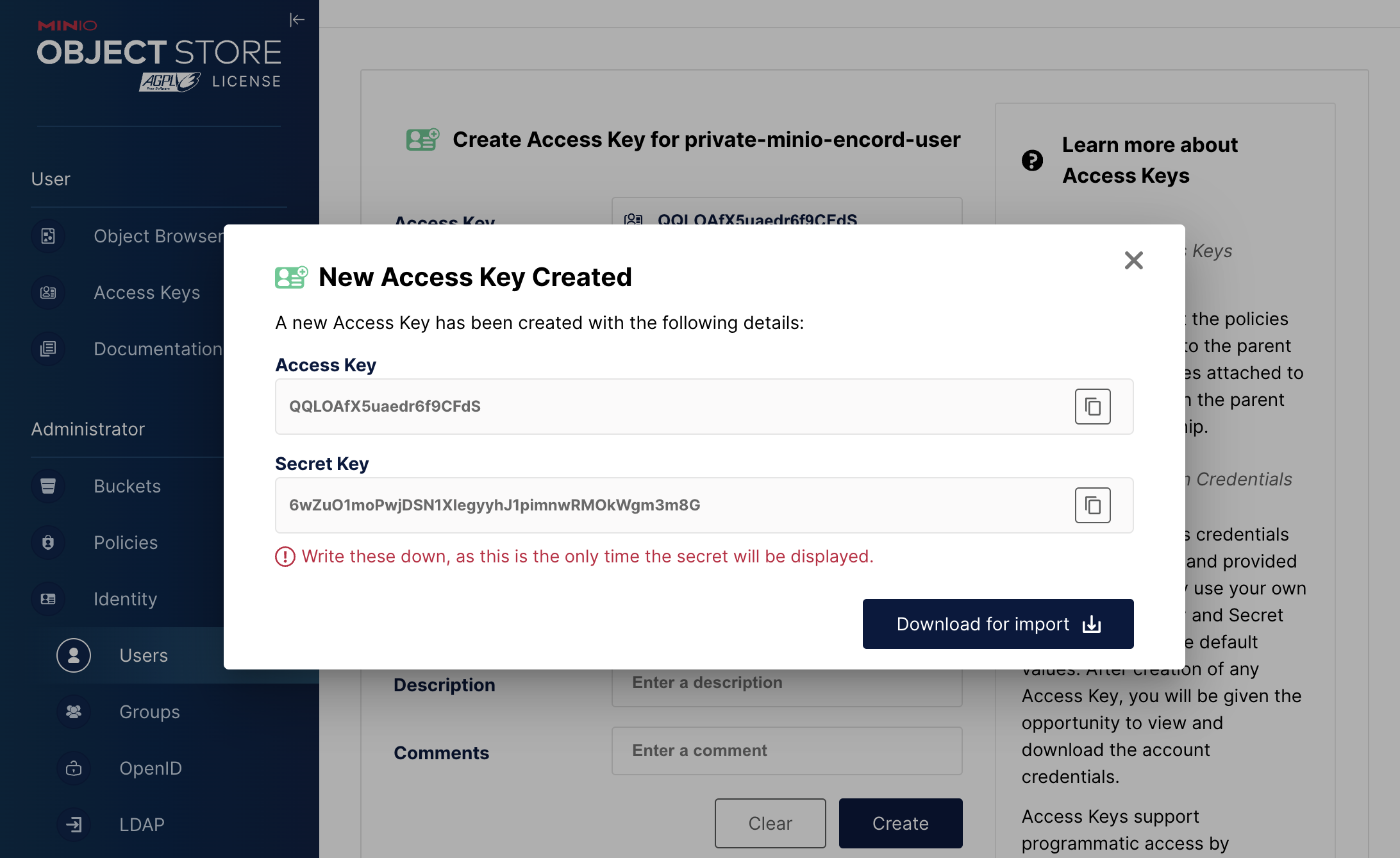
6. Download the Access Key as a CSV and save it in a secure location.
   The CSV contains the *Account access key ID* and *Account secret access key*.

<div class="flex justify-center">
  <img src="https://storage.googleapis.com/docs-media.encord.com/static/img/integrations/minio/integration-minio-create-access-key-02.png" width="400" />
</div>

## 3. Add the Access Key to Encord

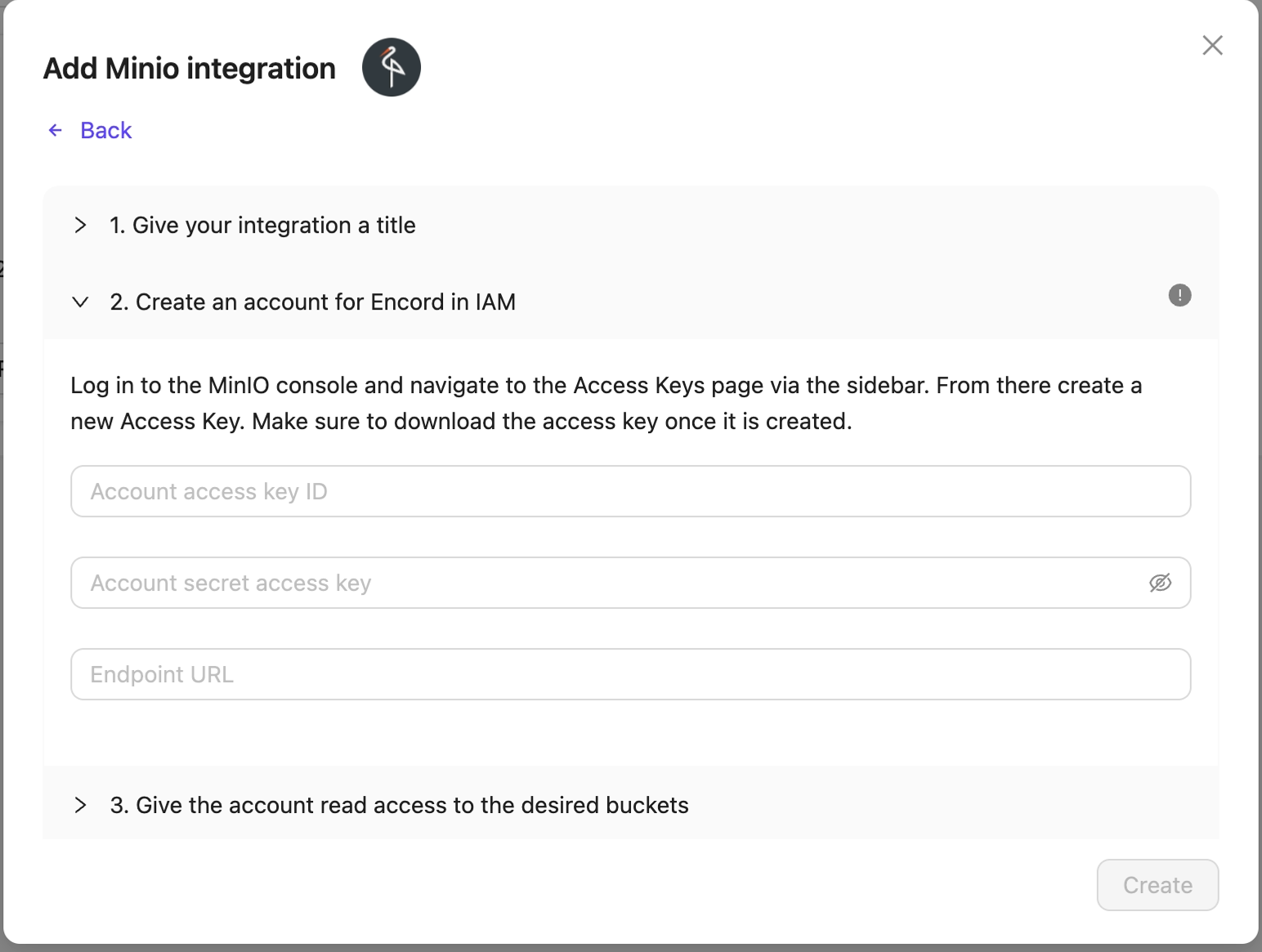
1. In the Encord platform, paste the *Account access key ID* and *Account secret access key* into Step 2 of the MinIO integration window.

<div class="flex justify-center">
  <img src="https://storage.googleapis.com/docs-media.encord.com/static/img/integrations/minio/integration-minio-create-access-key-03.png" width="400" />
</div>

2. Give the account read access to the desired buckets.

3. Set the CORS permissions of your buckets.

4. Click **Create** to create your MinIO integration.