> ## Documentation Index
> Fetch the complete documentation index at: https://docs.encord.com/llms.txt
> Use this file to discover all available pages before exploring further.
# AWS S3
Watch our video tutorial on creating AWS S3 integrations, or follow the step-by-step guide below for even more details.
***
In order to integrate with AWS S3, you must:
1. Create a new AWS integration in Encord.
2. [Create a permission policy](#2-create-a-permission-policy) for your resources to allow Encord the necessary access.
3. [Create a role for Encord](#3-create-a-role-for-encord) and attach the policy so that Encord can access those resources.
4. [Activate Cross-origin resource sharing](#4-allow-cross-origin-resource-sharing-cors) to allow Encord to access those resources from a web browser.
5. [Configure Cache-Control on your bucket or objects](#5-update-metadata-settings-in-aws)
6. [Test the integration](#6-test-the-integration) to ensure it works.
Create an S3 bucket to store your files if you have not done so already. The S3 bucket must have [STS available](https://docs.aws.amazon.com/IAM/latest/UserGuide/id_credentials_temp_enable-regions.html) and enabled.
* Set your bucket permissions to block all public access.
* Ensure that the [Storage Class](https://aws.amazon.com/s3/storage-classes/) of all files is set to 'S3 Standard'.
## 1. Start setting up the AWS integration
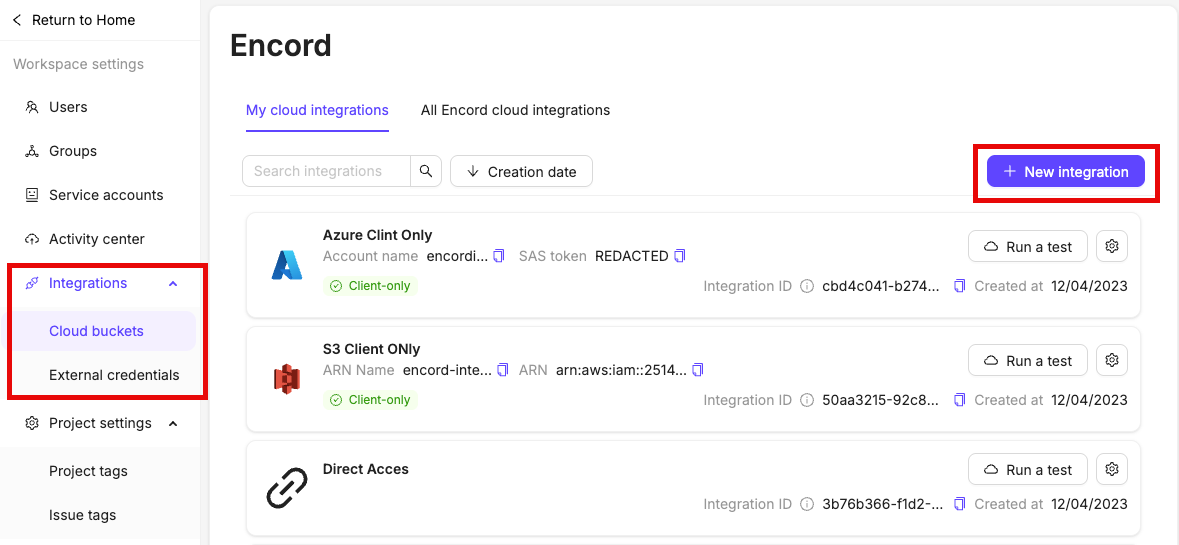
1. Navigate to [Workspace Settings](/platform-documentation/General/general-workspace-settings#workspace-settings) > Cloud Buckets and click **+New integration**.
Do not close this tab or window until you have finished the integration process. We advise opening AWS in a separate tab.
2. Select **AWS S3**.
3. Give your integration a meaningful title.

***
## 2. Create a Permission Policy
You can create a permission policy using the AWS cli or using the AWS Console UI.
### Use the AWS cli
Log in to AWS cli and run the following code.
```bash Linux and macOS theme={"dark"}
# 1) Set your variables
POLICY_NAME="S3ReadWriteYourBucket"
BUCKET="your-bucket" # Replace this with your AWS bucket name
# 2) Create the policy JSON (policy.json)
cat > policy.json <
### Use the AWS Console UI
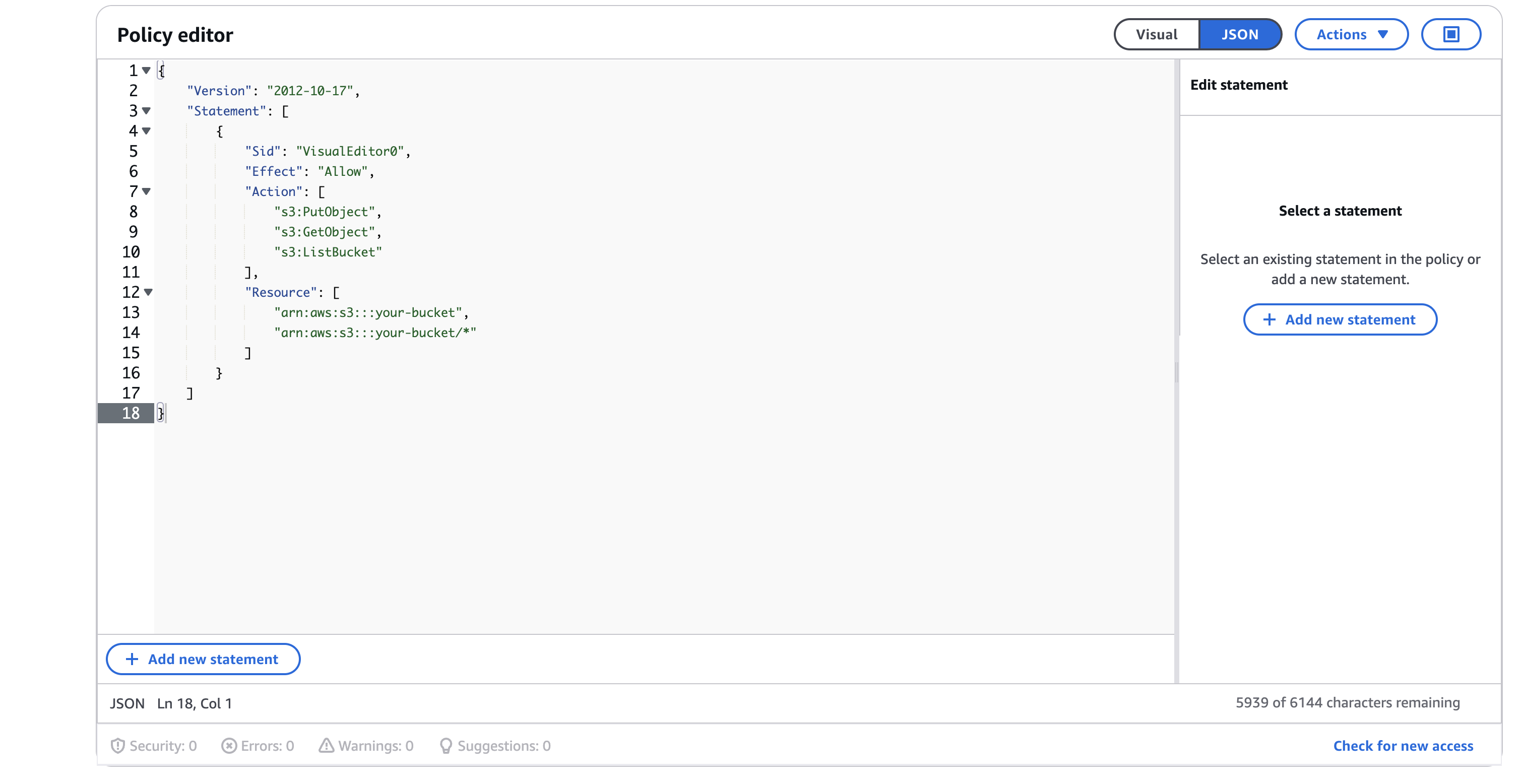
1. In Encord, copy the JSON from Step 2 of the integration.
For example:
```json theme={"dark"}
{
"Version": "2012-10-17",
"Statement": [
{
"Sid": "VisualEditor0",
"Effect": "Allow",
"Action": [
"s3:PutObject",
"s3:GetObject",
"s3:ListBucket"
],
"Resource": [
"arn:aws:s3:::your-bucket",
"arn:aws:s3:::your-bucket/*"
]
}
]
}
```
2. In AWS, navigate to Identity and Access Management (IAM) and select *Policies*.
3. Click **Create policy** to create a new policy.
4. Select **JSON** as the *Policy editor*
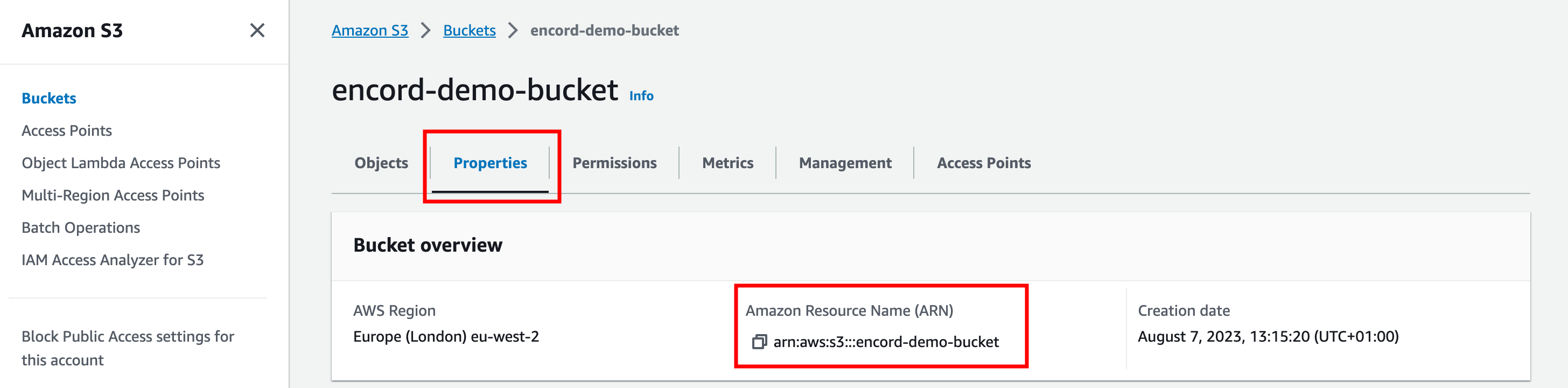
4. Paste the JSON you copied from Encord into the *Policy editor*, replacing the `arn:aws:s3YourBucket` value for *Resource* with your bucket's Amazon Resource Name (ARN). The ARN can be found in the *Properties* tab of your S3 bucket. When pasting your bucket ARN into the JSON policy editor, ensure that the *Resource* value ends in `/*`. Click the **Next** button to continue.
* `s3:PutObject` is needed for features that require write permissions, including [re-encoding data](/platform-documentation/General/general-supported-data#re-encode-videos) and creating [image sequences](/platform-documentation/General/general-supported-data#image-sequences).
* `s3:ListBucket` is OPTIONAL. **Cloud Synced Folders** requires `s3:ListBucket` read permissions to sync data stored in your buckets to Encord Cloud Synced Folders .
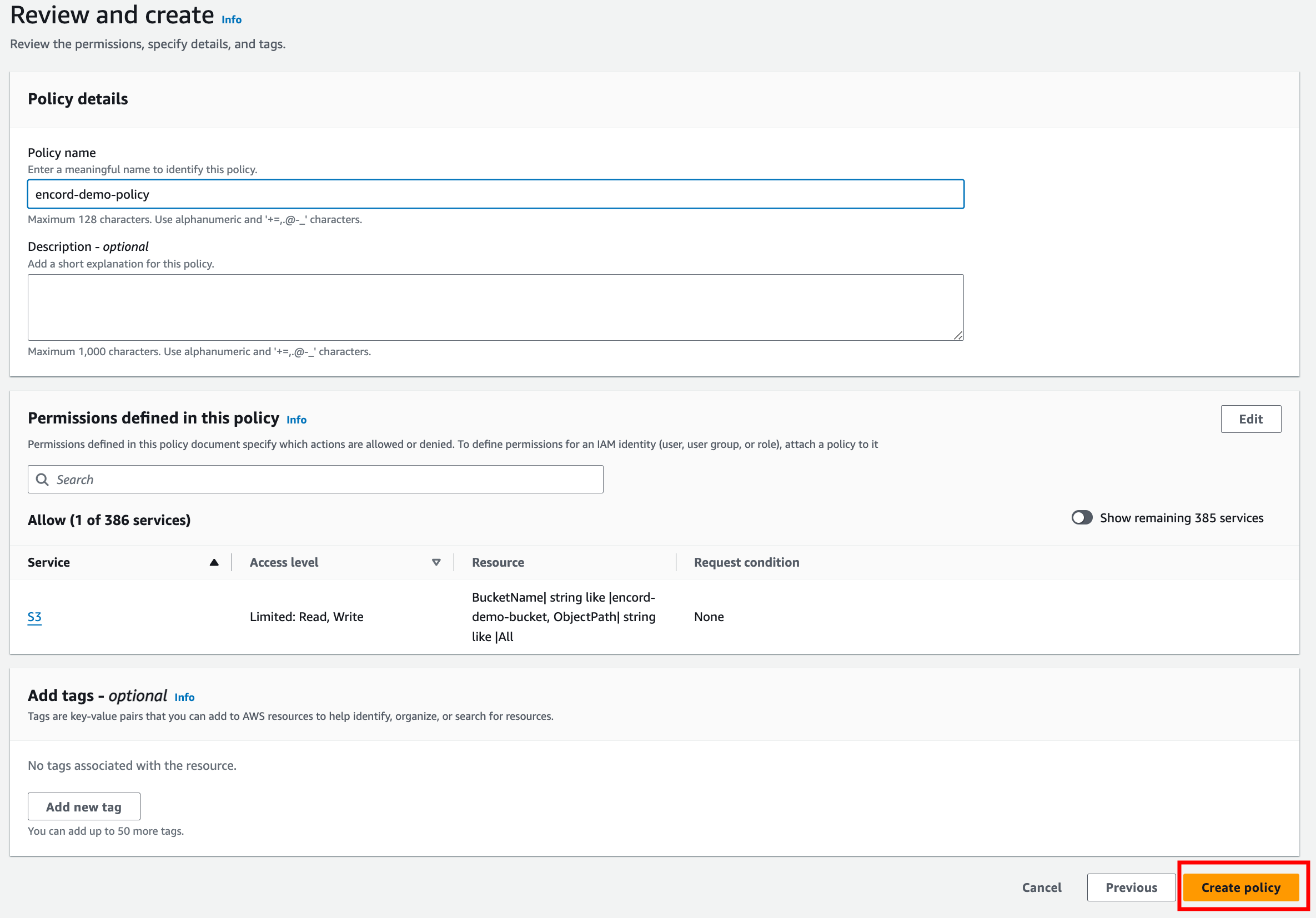
5. Add any tags according to your Workspace's resource tagging policy, and give your policy a descriptive name (used when creating a role for Encord). Click **Create policy** to finish creating your policy.
6. Click **Create policy** to finish creating your policy.
***
## 3. Create a Role for Encord
1. In AWS, navigate to *Roles* and click the **Create role** button.
2. For *Trusted entity type* select **AWS Account** and in the *An AWS Account* section select **Another AWS account**.
3. In Encord copy the *Encord AWS account ID* from Step 3 of the integration (shown below), and paste it into the *Account ID* field in AWS (shown above). In AWS, check *Require external ID* under *Options* to reveal the *External ID* field.
4. Navigate back to Encord and click **Generate and copy** to copy an External ID.
5. In AWS, paste the External ID you generated into the *External ID* field and click **Next**.
6. Select the IAM policy you created in Step 2 and click **Next** to attach it to the role.
7. Give your role a descriptive name and click the **Create role** button.
8. Copy the Role ARN and the name of the role you just created.
9. In Encord, paste the name of the role and the Role ARN into Step 3 of the integration.
***
## 4. Allow Cross-origin resource sharing (CORS)
If you use Infrastructure as Code tools like Terraform, they can overwrite your manual CORS settings. To prevent this, always include the correct CORS policy in your Terraform configuration file.
Applying Encord required CORS settings may overwrite existing configurations on your cloud storage bucket. If your bucket already has CORS settings, make sure to append Encord’s required settings instead of replacing them.
1. In Encord, expand Step 4 of the integration. Copy the CORS JSON policy.
```json Global theme={"dark"}
[
{
"AllowedHeaders": [
"*"
],
"AllowedMethods": [
"GET"
],
"AllowedOrigins": [
"https://app.encord.com",
"https://api.encord.com",
"https://api.us.encord.com",
"https://app.us.encord.com"
],
"ExposeHeaders": []
}
]
```
```json EU theme={"dark"}
[
{
"AllowedHeaders": [
"*"
],
"AllowedMethods": [
"GET"
],
"AllowedOrigins": [
"https://app.encord.com",
"https://api.encord.com"
],
"ExposeHeaders": []
}
]
```
```json US theme={"dark"}
[
{
"AllowedHeaders": [
"*"
],
"AllowedMethods": [
"GET"
],
"AllowedOrigins": [
"https://api.us.encord.com",
"https://app.us.encord.com"
],
"ExposeHeaders": []
}
]
```
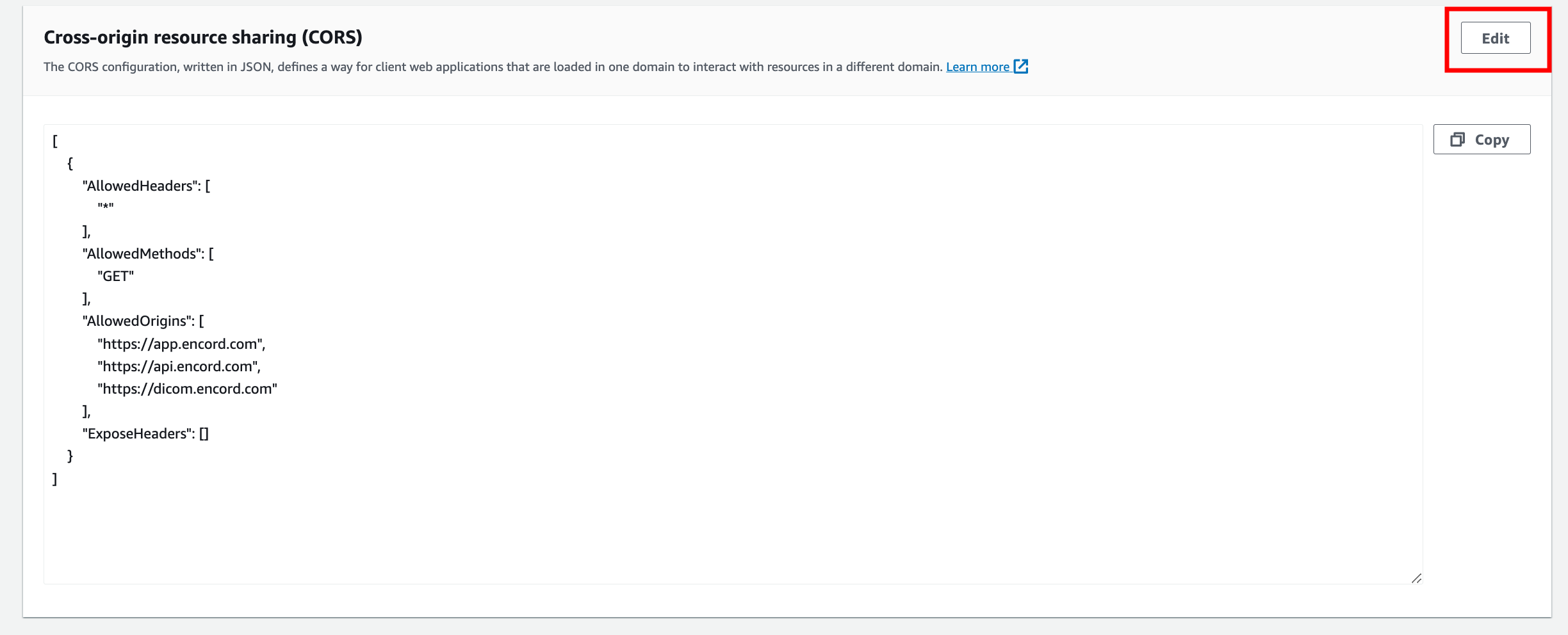
2. Navigate to the *Permissions* tab of your S3 bucket. Scroll to the bottom of the page and click **Edit** in the *Cross-origin resource sharing (CORS)* heading.
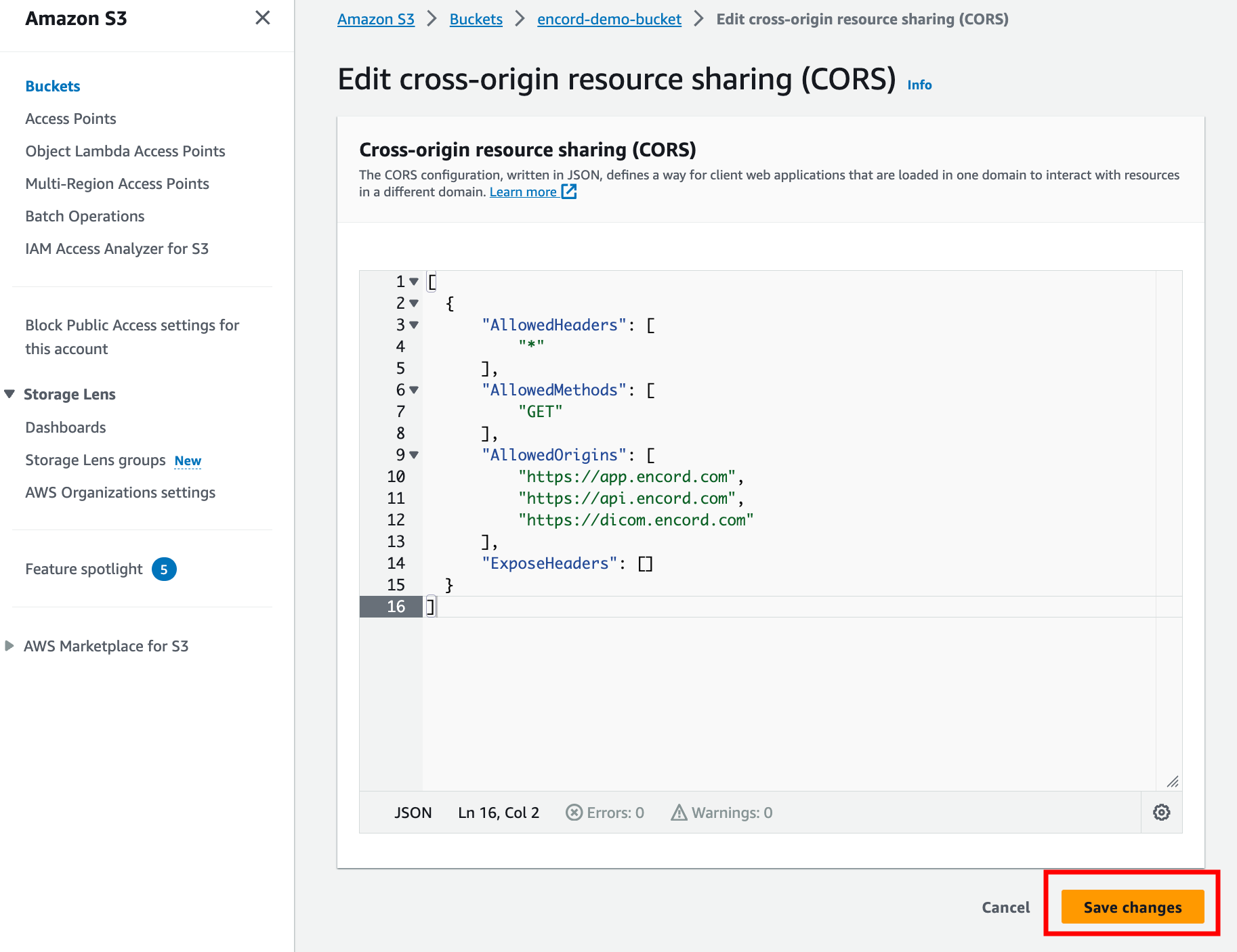
3. Paste the JSON into the editor that pops up. Click **Save changes** to finish settings up CORS.
4. Navigate back to Encord and click **Create** to finish the integration set up.
We have a few [helpful scripts and examples](/platform-documentation/Curate/add-files/index-register-cloud-data#helpful-scripts-and-examples) to get you started creating Datasets from your Amazon S3 bucket.
Integration tests might temporarily be unsuccessful due to AWS data processing delays after setup. These delays can take up to 24 hours to resolve, after which labeling can begin.
***
## 5. Update Metadata Settings in AWS
Add Cache-Control headers to your AWS folders or objects, following the AWS instructions [here](https://docs.aws.amazon.com/AmazonCloudFront/latest/DeveloperGuide/Expiration.html#ExpirationAddingHeadersInS3). Adding Cache-Control headers significantly increases the speed at which your files load in the Label Editor.
When you copy an object to change its cache control header, select "Specify Settings" to preserve the original content type.
## 6. Test the Integration
This test confirms Encord can assume the specified role, but does not guarantee bucket access. If data onboarding is unsuccessful despite passing the test, verify Encord's bucket permissions and the accuracy of your object URLs.
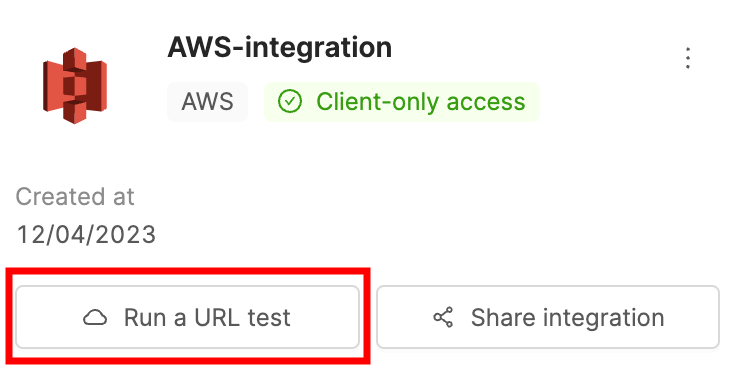
1. Click the **Run a test** button on the integration, to test the integration.
2. Paste the URL of any object in the bucket and click **Check Encord can access this URL**. If the test is successful a green tick appears next to *Encord infrastructure* and *This machine*.
Not setting up the cache-control header in Step 5 can result in the `Cache policy not set` error when testing the integration.
Integration tests might temporarily be unsuccessful due to AWS data processing delays after setup. These delays can take up to 24 hours to resolve, after which labeling can begin.
***
## Register AWS Data
We recommend [setting the expiration time for signed URLs](/platform-documentation/General/annotate-data-integrations#edit-custom-signed-url-expiration-times) to be greater than the time it takes to complete an annotation task.
Navigate to the Register cloud data page for guidance on how to register files stored in AWS.
***
## Create a Multi-Region Access Point Integration
Using Multi-Region Access Points requires you to do a few things differently when setting up an AWS integration.
1. [When creating a permission policy](#2-create-a-permission-policy) for your multi-region access point in AWS, make sure to list the ARN of the Multi-Region Access Point, as well as the ARNs of all constituent buckets in the JSON.
```json theme={"dark"}
{
"Version": "2012-10-17",
"Statement": [
{
"Sid": "VisualEditor0",
"Effect": "Allow",
"Action": [
"s3:PutObject",
"s3:GetObject",
"s3:ListBucket"
],
"Resource": [
"arn:aws:s3:::your-bucket",
"arn:aws:s3:::your-bucket/*",
"Bucket-1-ARN/*",
"Bucket-2-ARN/*",
"Bucket-3-ARN/*"
]
}
]
}
```
2. Make sure you [create a CORS policy](#4-allow-cross-origin-resource-sharing-cors) for every bucket that is included in your Multi-Region Access Point.
3. When uploading data to a dataset using the Multi-Region Access Point integration, make sure your JSON file is formatted correctly for use with a Multi-Region Access point - as documented [here](/platform-documentation/Curate/add-files/index-register-cloud-data#when-using-a-multi-region-access-point).
***
## Terraform your AWS S3 Integration
This guide is intended as a supplement to the Terraform documentation provided by Hashicorp [here](https://registry.terraform.io/providers/hashicorp/aws/latest/docs/resources/s3_bucket).
Terraforming must be performed in conjunction with the setting up your cloud integration. Do not simply copy and paste the example below. Use the example as a template for Terraforming your private cloud integration.
Terraforming your integration can overwrite your integration set up causing your integration to stop working. Always ensure your Terraform configuration file includes all necessary settings, especially for CORS policies.
To integrate with Encord, you must create:
1. An S3 Bucket
2. An IAM Policy
3. An IAM Role
4. A CORS Policy
Below are some examples of how this might look:
#### Declare your Terraform providers
In the below example, we're using Hashicorp's AWS provider `aws` and the `tfvars` utility that allows us to neatly define values to pass into variables.
We also define an alias as well as a Region for the AWS provider, which needs to match the location in which you want your bucket to be provisioned.
```markdown theme={"dark"}
terraform {
required_providers {
aws = {
source = "hashicorp/aws"
version = "~> 5.1.0"
}
tfvars = {
source = "innovationnorway/tfvars"
version = "0.0.1"
}
}
}
provider "aws" {
alias = "default"
region = var.aws_region
}
```
***
#### Declaring your variables
In your `variables.tf` file, you will need to define the variables into which you want to pass values. An example is below:
```markdown theme={"dark"}
variable "bucket_name" {
description = "Name of the AWS S3 Bucket"
type = string
}
variable "policy_name" {
description = "Name of the IAM Policy"
type = string
}
variable "role_name" {
description = "Name of the IAM Role"
type = string
}
variable "external_aws_account_id" {
description = "Account ID of the external AWS account you're connecting to - default value 312435012576 for Encord"
type = string
default = "312435012576"
}
variable "external_id" {
description = "External account id - this is unique to your integration and can be found in the integration setup modal"
type = string
}
variable "aws_region" {
description = "AWS Region in which bucket should be provisioned"
type = string
default = "eu-west-2"
}
```
***
#### Defining your variables in a `.tfvars` file to avoid having to manually edit the Terraform files
Since we've opted to use `tfvars` we need to create a corresponding `.tfvars` file and specify some values we wish to pass into the variables you just defined:
```markdown theme={"dark"}
bucket_name = "encord-test-bucket"
policy_name = "encord-test-policy"
role_name = "encord-test-role"
external_aws_account_id = "312435012576" # This is the same for every integration since it is Encord's AWS account ID
external_id = "external-id" # This comes from the integration setup modal within the Encord application and is unique for each integration you set up
aws_region = "eu-west-2" # Change this to the appropriate region in which your bucket is to be created
```
***
#### Creating the required resources
The resources you need to create include:
1. The AWS S3 bucket itself
2. The AWS Bucket CORS Policy to allow Cross Origin Resource Sharing with the Encord domains
3. The IAM Role
4. The IAM Policy
5. The IAM Policy attachment that binds the Role to the Policy
#### Defining the Bucket, Bucket ACL, and Bucket CORS Policy:
```markdown Global theme={"dark"}
resource "aws_s3_bucket" "bucket_name" {
bucket = var.bucket_name
}
resource "aws_s3_bucket_cors_configuration" "bucket_cors_policy" {
bucket = var.bucket_name
cors_rule {
allowed_headers = [
"*"
]
allowed_methods = ["GET",
"PUT"] # The PUT method here is not necessary unless you intend to re-encode videos or work with image sequences
allowed_origins = [
"https://app.encord.com",
"https://api.encord.com"
]
max_age_seconds = 3600
}
}
```
```markdown US theme={"dark"}
resource "aws_s3_bucket" "bucket_name" {
bucket = var.bucket_name
}
resource "aws_s3_bucket_cors_configuration" "bucket_cors_policy" {
bucket = var.bucket_name
cors_rule {
allowed_headers = [
"*"
]
allowed_methods = ["GET",
"PUT"] # The PUT method here is not necessary unless you intend to re-encode videos or work with image groups
allowed_origins = [
"https://app.us.encord.com",
"https://api.us.encord.com"
]
max_age_seconds = 3600
}
}
```
***
#### Defining the IAM Policy:
```markdown theme={"dark"}
resource "aws_iam_policy" "encord-test-policy" {
name = var.policy_name
path = "/"
description = "video testing S3 policy"
policy = <
```markdown Global theme={"dark"}
resource "aws_s3_bucket" "bucket_name" {
bucket = var.bucket_name
}
resource "aws_s3_bucket_cors_configuration" "bucket_cors_policy" {
bucket = var.bucket_name
cors_rule {
allowed_headers = [
"*"
]
allowed_methods = ["GET",
"PUT"] # The PUT method here is not necessary unless you intend to re-encode videos or work with image sequences
allowed_origins = [
"https://app.encord.com",
"https://api.encord.com",
"https://app.in.encord.com"
]
max_age_seconds = 3600
}
}
resource "aws_iam_policy" "encord-test-policy" {
name = var.policy_name
path = "/"
description = "video testing S3 policy"
policy = <