> ## Documentation Index
> Fetch the complete documentation index at: https://docs.encord.com/llms.txt
> Use this file to discover all available pages before exploring further.
# Keyframes in Data > Explore
Before reading any further, we recommend familiarizing yourself with [custom metadata](/platform-documentation/Curate/custom-metadata/import-custom-metadata).
## Format
You can specify key frames, but you can also specify custom metadata and embeddings on each frame.
* "config" is optional.
* Custom metadata and embeddings on each frame is optional.
* Custom metadata on the entire video is optional.
```python Boilerplate theme={"dark"}
{
"$encord": {
"config": {
"sampling_rate": "", # VIDEO ONLY (optional default = 1 sample/second)
"keyframe_mode": "frame" or "seconds", # VIDEO ONLY (optional default = "frame")
}
"frames": {
"": {
# You can also add custom metadata and embeddings
}
}
},
# Custom metadata across the entire video
"meta-str": "some-text"
"meta-datetime": "2024-07-18T16:04:26.686087+00:00",
"meta-bool": True,
"meta-number": 4.3,
}
```
```python Key frames SIMPLE theme={"dark"}
# If only keyframes need to be assigned and no frame level custom embeddings,
# this more compact variant of the representation can be used instead.
{
"$encord": {
"frames": [0, 3, 6, 9] # Set key frames directly without custom metadata or embeddings
},
}
```
```python Key frames ADVANCED theme={"dark"}
{
"$encord": {
"config": {
"sampling_rate": 2, # 1 sampled frame per second (VIDEO ONLY) (default is 1)
"keyframe_mode": "frame", # Key frames are set by frame (VIDEO ONLY) (default is "frame")
},
"frames": [0, 3, 6, 9] # Set key frames directly without custom metadata or embeddings
},
}
```
```python Key frames, Custom metadata, Embeddings 1 theme={"dark"}
{
"$encord": {
"config": {
"sampling_rate": 30, # 30 samples per second (VIDEO ONLY) (default is 1)
"keyframe_mode": "seconds", # Keyframes are set by seconds (VIDEO ONLY) (default is "frame")
}
"frames": {
"0.53": {
"$encord": {
"keyframe": False
}
},
"1.423": {
"embedding": [1.0, 2.0, 3.0], # custom embedding ("embedding") for frame at timestamp 1.423
},
"2.4232": {}, # implicitly a keyframe as its present in the dictionary
}
},
"bool-meta": True,
"numeric-meta": 2.42,
"datetime-meta": "2024-07-18T16:04:26.686087+00:00",
}
```
```python Key frames, Custom metadata, Embeddings 2 theme={"dark"}
{
"$encord": {
#"config": {
# "sampling_rate": 1, # 1 sampled frame per second (VIDEO ONLY) (default is 1)
# "keyframe_mode": "frame", # Keyframes are set by frame (VIDEO ONLY) (default is "frame")
#},
"frames": {
"0": { # not a keyframe, but if you still need to assign frame metadata
"$encord": {
"keyframe": False
}
},
"1": {
"embedding": [1.0, 2.0, 3.0], # embedding for frame at timestamp 1.423
},
"2": {}, # implicitly a keyframe as its present in the dictionary
}
},
"bool-meta": True,
"numeric-meta": 2.42,
"datetime-meta": "2024-07-18T16:04:26.686087+00:00",
}
```
### DEPRECATED FORMAT
`keyframes` is a reserved keyword, in custom metadata, for use with frames of interest in videos. Specifying `keyframes` on specific frames ensures that those frames import into Data > Explore and Project > Explore. That means frames specified using `keyframes` are available to filter your frames and for calculating embeddings on your data.
```python keyframes Format theme={"dark"}
client_metadata = {
"keyframes": [, , , , ]
}
```
```python Example theme={"dark"}
client_metadata = {
"keyframes": [13, 17, 19, 23, 127, 149, 307, 557]
}
```
You can include `keyframes` while importing your videos or after you import your videos.
***
## Import key frames to specific data units in a folder
This code allows you to import key frames on specific videos in Data > Explore. This code DOES NOT OVERWRITE all existing custom metadata on a data unit. It does overwrite custom metadata with existing values and adds new custom metadata to the data unit.
Frame 0 can never be excluded from a video. This is because frame 0 is the first frame in the video and all customizations are based on frame 0.
```python Boilerplate theme={"dark"}
# Import dependencies
from encord import EncordUserClient
# Authentication
SSH_PATH = ""
# Authenticate with Encord using the path to your private key
user_client: EncordUserClient = EncordUserClient.create_with_ssh_private_key(
ssh_private_key_path=SSH_PATH,
)
# Define a dictionary with item UUIDs and their client_metadata updates
updates = {
"": {
"$encord": {
"config": {
"sampling_rate": "", # VIDEO ONLY
"keyframe_mode": "frame", # or "seconds" based on your use case
}
"frames": {
"": {
# You can also add custom metadata and embeddings
}
}
},
"meta-text": "some-text"
},
"": {
"$encord": {
"frames": {
"1": {},
"2": {},
"3": {},
}
},
},
"": {
"$encord": {
"frames": [1, 2, 3],
},
}
}
# Update the storage items based on the dictionary
for item_uuid, metadata_update in updates.items():
item = user_client.get_storage_item(item_uuid=item_uuid)
# make a copy of the current metadata and update it with the new metadata
curr_metadata = item.client_metadata.copy()
curr_metadata.update(metadata_update)
# update the item with the new metadata
item.update(client_metadata=curr_metadata)
```
***
## Filter by keyframes
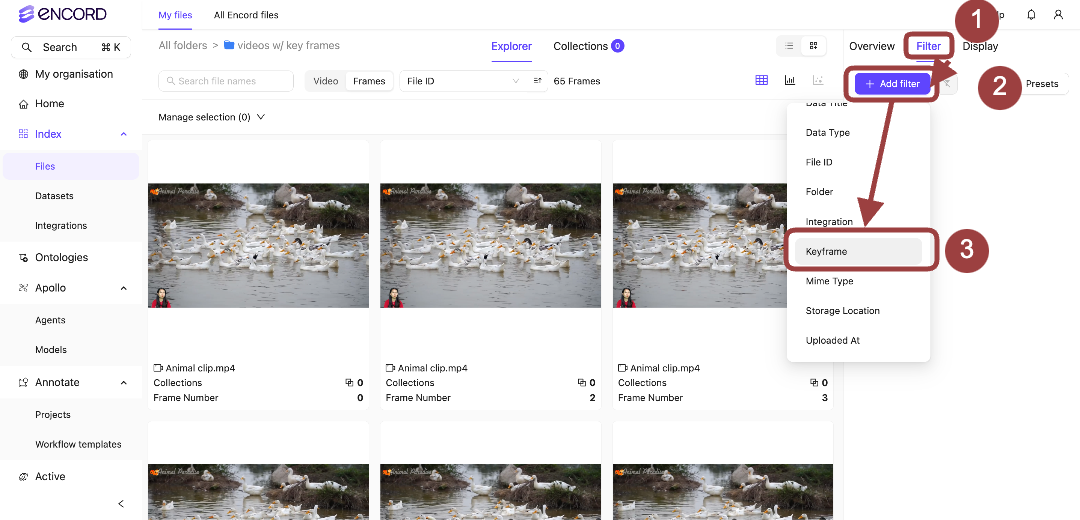
Data > Explore supports filtering video frames by key frames. This speeds up curation of your videos by focusing on frames of interest within your videos.
**To filter data by key frames:**
1. Log in to the Encord platform.\
The landing page for the Encord platform appears.
2. Navigate to **Data** > **Explore**.\
The *All folders* page appears with a list of all folders in Encord.
3. Open a folder.
4. Click **Filter**.
The *Filter* tab displays.
5. Click **Add filter**.
A menu appears.
6. Select **Keyframe** from the menu.
The Keyframe filter appears in the filter list.
7. Select **True**.
The video frames with `keyframes` specified appear in the Explorer workspace.
## Browse videos by keyframes
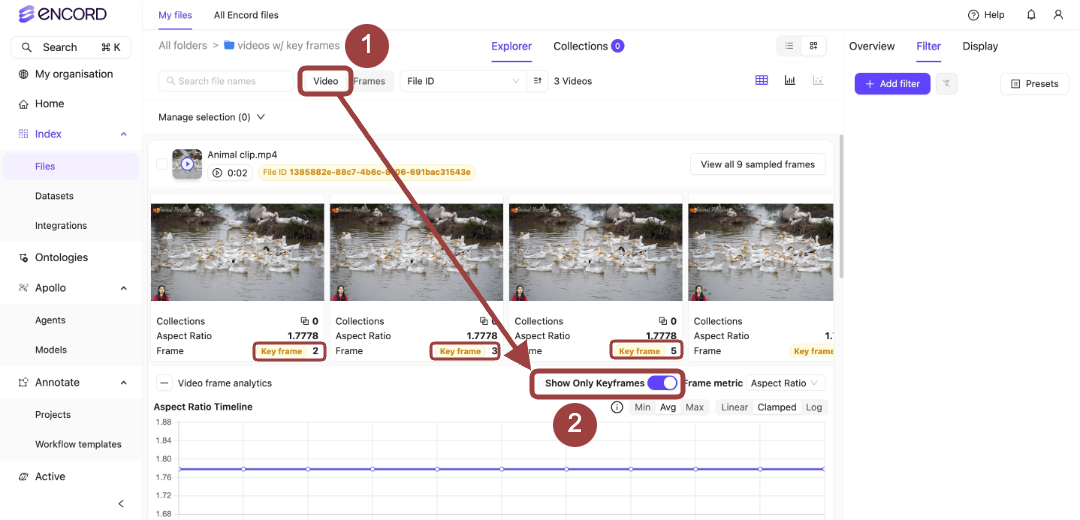
You can use key frames to sort your data in the *Frames Grid view*, but you can also use key frames to filter the frames displayed in the *Videos* view.
**To filter videos by keyframes:**
1. Log in to the Encord platform.\
The landing page for the Encord platform appears.
2. Navigate to **Data** > **Explore**.\
The *All folders* page appears with a list of all folders in Encord.
3. Open a folder.
4. Click **Video**.
All videos in the Folder/Folders appear as a grid of compact cards.
5. Click **+ N frames** on the video card you want to inspect.
The video expands in place into a full-width frame-strip row, with its controls in the row header.
6. Toggle **Show only Keyframes** in the expanded row header.
Only video frames with `keyframes` appear when moving through the video.
The **Show only Keyframes** toggle is only available once a video is expanded.