> ## Documentation Index
> Fetch the complete documentation index at: https://docs.encord.com/llms.txt
> Use this file to discover all available pages before exploring further.
# Collections
Collections are saved groups of data units or labels that let you curate subsets of your data and perform bulk actions on them. Rather than repeatedly re-applying the same filters, you save the results as a Collection and act on it directly — whether that means sending items to annotation, running bulk classifications, or exporting a curated dataset.
Collections are available in two places in Encord:
* **Data > Explore** — for organizing files in the Index
* **Project > Explore** — for organizing data units and labels within a project
## Collection types
The collection types available depend on where you are working:
| Context | Collection type | Used for |
| ----------------- | --------------- | ------------------------------------------------------------------------------------------------ |
| Data > Explore | **File** | Grouping files in the Index for export or dataset creation |
| Project > Explore | **Data** | Bulk workflow actions on tasks and frames (re-open, prioritize, bulk classify, model evaluation) |
| Project > Explore | **Label** | Bulk label actions (edit object class, delete labels) |
## Create a collection
The creation flow is the same in both Data > Explore and Project > Explore.
1. Go to **Data > Explore** or open a project and navigate to the **Explore** tab.
2. Search, sort, and filter your data until you have the subset you want to save.
3. Select one or more data units by clicking the checkbox on each data card. To select everything matching your current filters, click **Select all** in the action ribbon at the bottom of the screen.
4. Click **Actions** or press A.
5. Select **Add to collection**.
6. Click the **+ New Collection** tab.
7. Enter a **Collection Title** (required) and an optional **Collection Description**.
8. If working in a project, select the **Collection Type**:
* **Data** — for bulk workflow and task actions on frames.
* **Label** — for bulk label actions (not available in the prediction domain).
9. Click **Create & add** or press ⌘Enter (Mac) / CtrlEnter (Windows).
The collection is created and the selected items are added to it. A confirmation notification appears once the operation completes.
You can also type a name directly in the **Search collections...** field on the **Existing Collection** tab to create a collection inline without switching tabs.
## Add items to an existing collection
1. Select the data units you want to add.
2. Click **Actions** or press A, then select **Add to collection**.
3. On the **Existing Collection** tab, search for and select the target collection.
4. Click **Add**.
## Remove items from a collection
1. Apply a collection filter so you are viewing items within that collection.
2. Select the items you want to remove.
3. Click **Actions** or press A, then select **Remove from collection**.
4. Select the collection to remove the items from.
5. Click **Remove**.
## Manage a collection
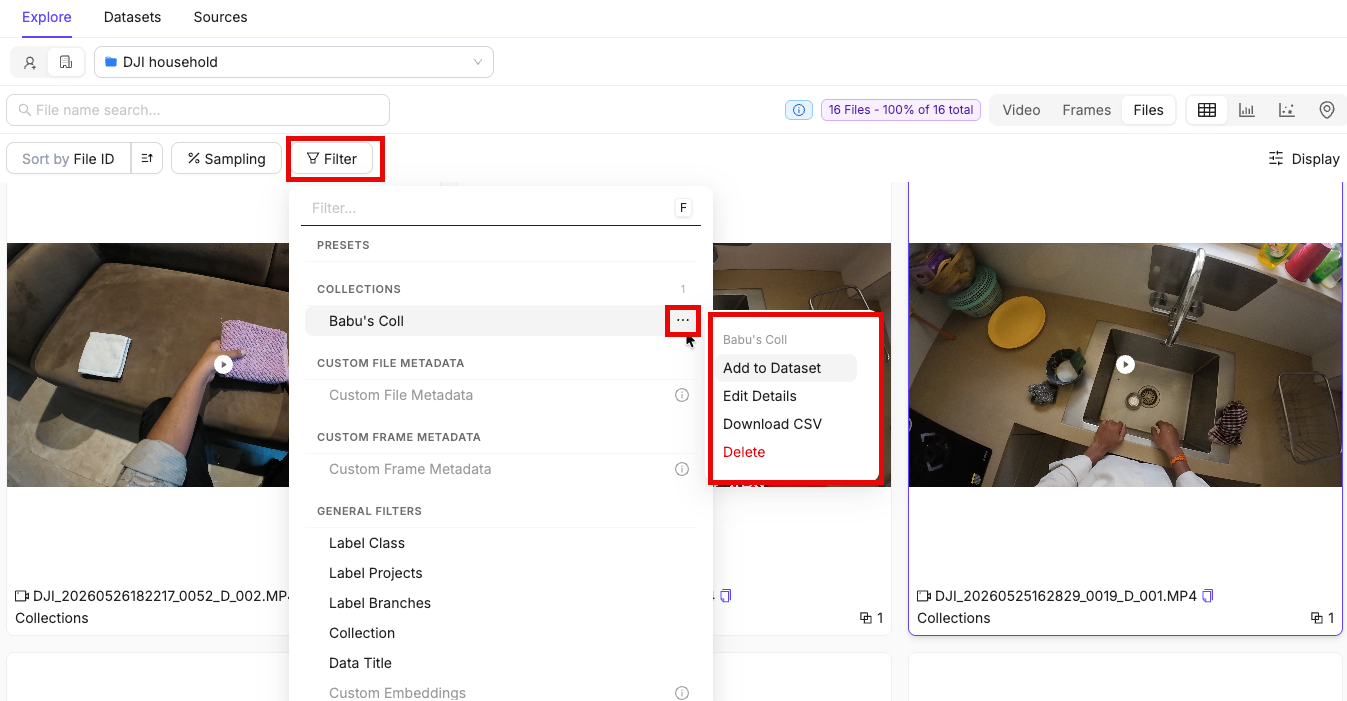
Once a collection exists, you can access management options from the **Filter** panel. Click the ellipsis icon (**...**) next to a collection name to see the available actions.
### Actions available in both Data > Explore and Project > Explore
| Action | Description |
| -------------------- | --------------------------------------------------------------------- |
| **View in Explorer** | Applies the collection as a filter and navigates to the filtered view |
| **Add to Dataset** | Adds the collection's items to a dataset |
| **Edit Details** | Renames the collection or updates its description |
| **Download CSV** | Downloads the collection contents as a CSV file |
| **Delete** | Permanently deletes the collection |
### Project > Explore only
| Action | Description |
| ---------------------- | ------------------------------------------------------------------------------- |
| **Task Actions** | Performs bulk task actions (re-open, prioritize, etc.) — Data collections only |
| **Bulk Classify** | Applies a classification to all items in the collection in bulk |
| **Convert Collection** | Converts a collection between Data and Label types |
| **Edit Object Class** | Edits label classes across all items in the collection — Label collections only |
## Edit collection details
1. Click **Filter** or press F.
2. Click the ellipsis icon next to the collection.
3. Select **Edit Details**.
4. Update the **Collection Title** or **Collection Description**.
5. Click **Submit**.
## Export a collection as CSV
1. Click **Filter** or press F.
2. Click the ellipsis icon next to the collection you want to export.
3. Click **Download CSV**.
## Delete a collection
Deleting a collection is permanent. The data units or labels within the collection are not deleted — only the collection grouping itself is removed.
1. Click **Filter** or press F.
2. Click the ellipsis icon next to the collection.
3. Select **Delete** and confirm.