> ## Documentation Index
> Fetch the complete documentation index at: https://docs.encord.com/llms.txt
> Use this file to discover all available pages before exploring further.
# MCAP Support
> Upload MCAP recordings, view synchronized sensor streams, configure layouts, and import or export labels.
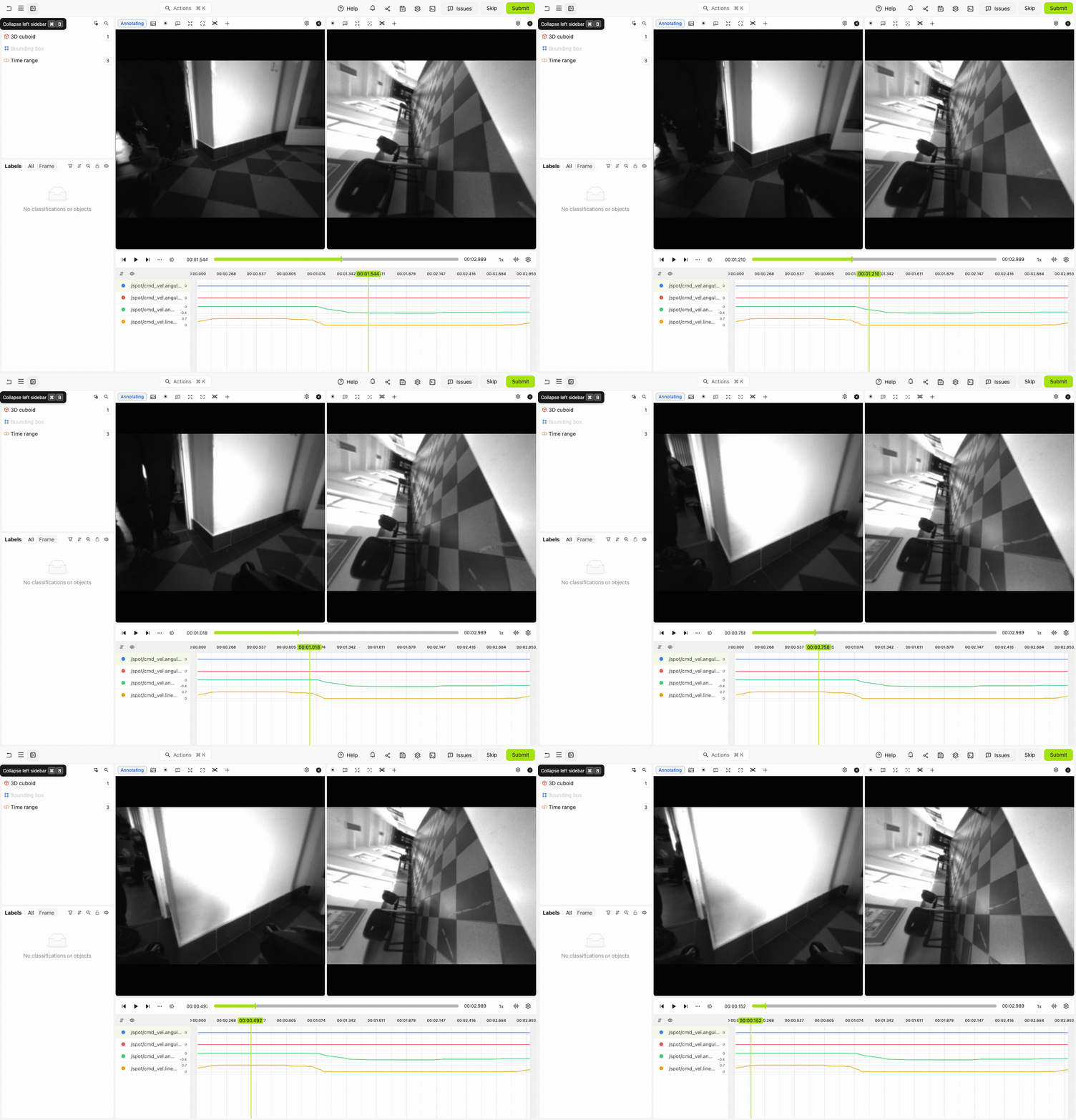
Upload an `.mcap` recording directly to Encord to work with its cameras, point clouds, transforms, and supported numeric signals in one Scene.
 ## At a Glance
* **One file, one Scene.** An uploaded `.mcap` recording becomes a continuous MCAP Scene. You do not need a Scene builder or Scene JSON.
* **The file must be chunked and include a summary with chunk indexes.** See [Summary and Chunking](#summary-and-chunking).
* **Only supported schemas are shown.** Check each topic against [Supported Streams](#supported-streams).
* **Sensors are placed by transforms, not topic names.** Supply a connected transform chain; see [Frames of Reference and Synchronization](#frames-of-reference-and-synchronization).
* **The timeline uses MCAP `log_time`, in nanoseconds.** There is no frame grid.
* **Labels embedded in the MCAP are not imported.** For example, Foxglove SceneUpdate annotations do not become editable Encord labels.
* **Labels are created and exported with the SDK against timestamps.** 3D objects use nanoseconds after the Scene start; point cloud segmentations use the absolute `log_time` of a message. See [MCAP Scene labels](/sdk-documentation/sdk-labels/sdk-labels-mcap).
## Upload an MCAP File
### Upload to Encord Cloud
In **Files & Folders**, open a folder, choose **Add files**, and upload your `.mcap` file. You can also upload a local recording with the Python SDK:
```python Upload an MCAP file to Encord expandable theme={"dark"}
# Import dependencies
from encord import EncordUserClient
from encord.storage import StorageFolder
# User input
SSH_PATH = "/Users/chris-encord/ssh-private-key.txt" # Replace with the file path to your SSH private key
FOLDER_ID = "00000000-0000-0000-0000-000000000000" # Replace with the unique ID for the folder in Files & Folders
MCAP_FILE_PATH = "/Users/chris-encord/recording.mcap" # Replace with the file path to your MCAP recording
SCENE_TITLE = "Robot recording" # Replace with the title for the Scene
# Create user client using ssh key
user_client: EncordUserClient = EncordUserClient.create_with_ssh_private_key(
ssh_private_key_path=SSH_PATH,
# For US platform users use "https://api.us.encord.com"
domain="https://api.encord.com",
)
# Get the folder
folder: StorageFolder = user_client.get_storage_folder(FOLDER_ID)
# Upload the MCAP recording as a Scene
scene_uuid = folder.upload_scene_file(file_path=MCAP_FILE_PATH, title=SCENE_TITLE)
print(f"Uploaded Scene item {scene_uuid}")
```
`upload_scene_file` returns the Scene item UUID. Add the item to a Dataset, then create a Project with an Ontology containing the annotation tools you need.
### Register from Cloud Storage
To keep the MCAP in your own cloud storage, register it through a [cloud integration](/platform-documentation/General/annotate-data-integrations-overview). The storage service must support [byte-range requests](#cloud-storage-range-requests) for Encord to load large `.mcap` files progressively.
```python Register an MCAP file from cloud storage expandable theme={"dark"}
# Import dependencies
from encord import EncordUserClient
from encord.orm.storage import DataUploadItems, DataUploadScene
from encord.storage import StorageFolder
# User input
SSH_PATH = "/Users/chris-encord/ssh-private-key.txt" # Replace with the file path to your SSH private key
FOLDER_ID = "00000000-0000-0000-0000-000000000000" # Replace with the unique ID for the folder in Files & Folders
INTEGRATION_ID = "00000000-0000-0000-0000-000000000000" # Replace with the unique ID for the cloud storage integration
MCAP_URI = "s3://my-bucket/recording.mcap" # Replace with the URI of the MCAP recording in your cloud storage
SCENE_TITLE = "Robot recording" # Replace with the title for the Scene
# Create user client using ssh key
user_client: EncordUserClient = EncordUserClient.create_with_ssh_private_key(
ssh_private_key_path=SSH_PATH,
# For US platform users use "https://api.us.encord.com"
domain="https://api.encord.com",
)
# Get the folder
folder: StorageFolder = user_client.get_storage_folder(FOLDER_ID)
# Register the MCAP recording as a Scene
upload_job_id = folder.add_private_data_to_folder_start(
integration_id=INTEGRATION_ID,
private_files=DataUploadItems(
scenes=[
DataUploadScene(
title=SCENE_TITLE,
scene={"url": MCAP_URI, "format": "mcap"},
),
],
),
)
# Wait for the registration to finish
result = folder.add_private_data_to_folder_get_result(upload_job_id)
print(result)
```
Set `MCAP_URI` to the URI of the recording in your storage provider.
You can also use a [Cloud-synced folder](/platform-documentation/Curate/add-files/index-register-cloud-data-cloud-sync) to discover files in your bucket and keep the folder in Encord up to date. You can also [create and sync the folder with the SDK](/sdk-documentation/index-sdk/sdk-files-and-folders).
### File Size and Performance
There is no hard Scene limit on file size, total size, or the number of cameras, streams, or frames. This does not mean that every recording will perform equally well: camera resolution, point count, compression, and the annotator's browser and hardware all affect playback.
The [Scene performance guidance](/platform-documentation/General/general-supported-data#point-cloud-data) recommends keeping merged views below approximately **10 million points per frame**. Above approximately **20 million points**, the merged point-cloud tool can freeze.
Message indexes improve seeking. Large decompressed chunks and many simultaneously displayed camera streams increase memory use. Time-series plots currently load the selected signals across the recording, so very long recordings with high-rate telemetry can also be expensive. Use hardware acceleration and test a representative file on annotators' machines. Contact support for help with large recordings or performance requirements.
### Cloud Storage Range Requests
Byte-range requests let Encord read the parts of a large MCAP recording it needs, instead of downloading the whole file before playback. Configure your bucket using the existing instructions for your provider:
* [AWS S3: allow cross-origin resource sharing](/platform-documentation/General/annotate-data-integrations/annotate-aws-integration#4-allow-cross-origin-resource-sharing-cors).
* [Google Cloud Storage: create a CORS configuration](/platform-documentation/General/annotate-data-integrations/annotate-gcp-integration#3-create-a-cors-configuration).
* [Cloudflare R2: configure Cloudflare](/platform-documentation/General/annotate-data-integrations/annotate-cloudflare-integration#1-configure-cloudflare).
* [Azure Blob Storage: create a CORS configuration](/platform-documentation/General/annotate-data-integrations/annotate-azure-blob-integration#5-create-a-cors-configuration-in-azure).
* [Direct Access: set up CORS](/platform-documentation/General/annotate-data-integrations/annotate-direct-access-integration#set-up-cors).
These sections cover the allowed methods, `Range` request header, and exposed response headers. If a recording is stuck loading, check these settings, the integration permissions, and the signed URL expiry.
## MCAP Requirements
### Summary and Chunking
To load in the Scene editor, an MCAP must be **chunked** and contain a **summary with chunk indexes**. Uncompressed chunks, Zstandard (`zstd`), and LZ4 (`lz4`) compression are supported. Per-channel message indexes are optional; including them makes seeking more efficient.
### Supported Streams
Support for different MCAP streams depends on the schema and encoding of each topic inside it. The following streams are available in Encord:
| Stream | Supported schemas | Details |
| ------------------- | ------------------------------------------------------------------------------------------------------------------------------------------------------------------------------------------------------------------------------------------------------------------------------------------------------------------------------------------------------------------------------------------------------------------------------------------------------------------------------------------------------------------------------------------------------------------------------------------------------------------------ | ---------------------------------------------------------------------------------------------------------------------- |
| Point clouds | [`foxglove.PointCloud`](https://docs.foxglove.dev/docs/sdk/schemas/point-cloud)
## At a Glance
* **One file, one Scene.** An uploaded `.mcap` recording becomes a continuous MCAP Scene. You do not need a Scene builder or Scene JSON.
* **The file must be chunked and include a summary with chunk indexes.** See [Summary and Chunking](#summary-and-chunking).
* **Only supported schemas are shown.** Check each topic against [Supported Streams](#supported-streams).
* **Sensors are placed by transforms, not topic names.** Supply a connected transform chain; see [Frames of Reference and Synchronization](#frames-of-reference-and-synchronization).
* **The timeline uses MCAP `log_time`, in nanoseconds.** There is no frame grid.
* **Labels embedded in the MCAP are not imported.** For example, Foxglove SceneUpdate annotations do not become editable Encord labels.
* **Labels are created and exported with the SDK against timestamps.** 3D objects use nanoseconds after the Scene start; point cloud segmentations use the absolute `log_time` of a message. See [MCAP Scene labels](/sdk-documentation/sdk-labels/sdk-labels-mcap).
## Upload an MCAP File
### Upload to Encord Cloud
In **Files & Folders**, open a folder, choose **Add files**, and upload your `.mcap` file. You can also upload a local recording with the Python SDK:
```python Upload an MCAP file to Encord expandable theme={"dark"}
# Import dependencies
from encord import EncordUserClient
from encord.storage import StorageFolder
# User input
SSH_PATH = "/Users/chris-encord/ssh-private-key.txt" # Replace with the file path to your SSH private key
FOLDER_ID = "00000000-0000-0000-0000-000000000000" # Replace with the unique ID for the folder in Files & Folders
MCAP_FILE_PATH = "/Users/chris-encord/recording.mcap" # Replace with the file path to your MCAP recording
SCENE_TITLE = "Robot recording" # Replace with the title for the Scene
# Create user client using ssh key
user_client: EncordUserClient = EncordUserClient.create_with_ssh_private_key(
ssh_private_key_path=SSH_PATH,
# For US platform users use "https://api.us.encord.com"
domain="https://api.encord.com",
)
# Get the folder
folder: StorageFolder = user_client.get_storage_folder(FOLDER_ID)
# Upload the MCAP recording as a Scene
scene_uuid = folder.upload_scene_file(file_path=MCAP_FILE_PATH, title=SCENE_TITLE)
print(f"Uploaded Scene item {scene_uuid}")
```
`upload_scene_file` returns the Scene item UUID. Add the item to a Dataset, then create a Project with an Ontology containing the annotation tools you need.
### Register from Cloud Storage
To keep the MCAP in your own cloud storage, register it through a [cloud integration](/platform-documentation/General/annotate-data-integrations-overview). The storage service must support [byte-range requests](#cloud-storage-range-requests) for Encord to load large `.mcap` files progressively.
```python Register an MCAP file from cloud storage expandable theme={"dark"}
# Import dependencies
from encord import EncordUserClient
from encord.orm.storage import DataUploadItems, DataUploadScene
from encord.storage import StorageFolder
# User input
SSH_PATH = "/Users/chris-encord/ssh-private-key.txt" # Replace with the file path to your SSH private key
FOLDER_ID = "00000000-0000-0000-0000-000000000000" # Replace with the unique ID for the folder in Files & Folders
INTEGRATION_ID = "00000000-0000-0000-0000-000000000000" # Replace with the unique ID for the cloud storage integration
MCAP_URI = "s3://my-bucket/recording.mcap" # Replace with the URI of the MCAP recording in your cloud storage
SCENE_TITLE = "Robot recording" # Replace with the title for the Scene
# Create user client using ssh key
user_client: EncordUserClient = EncordUserClient.create_with_ssh_private_key(
ssh_private_key_path=SSH_PATH,
# For US platform users use "https://api.us.encord.com"
domain="https://api.encord.com",
)
# Get the folder
folder: StorageFolder = user_client.get_storage_folder(FOLDER_ID)
# Register the MCAP recording as a Scene
upload_job_id = folder.add_private_data_to_folder_start(
integration_id=INTEGRATION_ID,
private_files=DataUploadItems(
scenes=[
DataUploadScene(
title=SCENE_TITLE,
scene={"url": MCAP_URI, "format": "mcap"},
),
],
),
)
# Wait for the registration to finish
result = folder.add_private_data_to_folder_get_result(upload_job_id)
print(result)
```
Set `MCAP_URI` to the URI of the recording in your storage provider.
You can also use a [Cloud-synced folder](/platform-documentation/Curate/add-files/index-register-cloud-data-cloud-sync) to discover files in your bucket and keep the folder in Encord up to date. You can also [create and sync the folder with the SDK](/sdk-documentation/index-sdk/sdk-files-and-folders).
### File Size and Performance
There is no hard Scene limit on file size, total size, or the number of cameras, streams, or frames. This does not mean that every recording will perform equally well: camera resolution, point count, compression, and the annotator's browser and hardware all affect playback.
The [Scene performance guidance](/platform-documentation/General/general-supported-data#point-cloud-data) recommends keeping merged views below approximately **10 million points per frame**. Above approximately **20 million points**, the merged point-cloud tool can freeze.
Message indexes improve seeking. Large decompressed chunks and many simultaneously displayed camera streams increase memory use. Time-series plots currently load the selected signals across the recording, so very long recordings with high-rate telemetry can also be expensive. Use hardware acceleration and test a representative file on annotators' machines. Contact support for help with large recordings or performance requirements.
### Cloud Storage Range Requests
Byte-range requests let Encord read the parts of a large MCAP recording it needs, instead of downloading the whole file before playback. Configure your bucket using the existing instructions for your provider:
* [AWS S3: allow cross-origin resource sharing](/platform-documentation/General/annotate-data-integrations/annotate-aws-integration#4-allow-cross-origin-resource-sharing-cors).
* [Google Cloud Storage: create a CORS configuration](/platform-documentation/General/annotate-data-integrations/annotate-gcp-integration#3-create-a-cors-configuration).
* [Cloudflare R2: configure Cloudflare](/platform-documentation/General/annotate-data-integrations/annotate-cloudflare-integration#1-configure-cloudflare).
* [Azure Blob Storage: create a CORS configuration](/platform-documentation/General/annotate-data-integrations/annotate-azure-blob-integration#5-create-a-cors-configuration-in-azure).
* [Direct Access: set up CORS](/platform-documentation/General/annotate-data-integrations/annotate-direct-access-integration#set-up-cors).
These sections cover the allowed methods, `Range` request header, and exposed response headers. If a recording is stuck loading, check these settings, the integration permissions, and the signed URL expiry.
## MCAP Requirements
### Summary and Chunking
To load in the Scene editor, an MCAP must be **chunked** and contain a **summary with chunk indexes**. Uncompressed chunks, Zstandard (`zstd`), and LZ4 (`lz4`) compression are supported. Per-channel message indexes are optional; including them makes seeking more efficient.
### Supported Streams
Support for different MCAP streams depends on the schema and encoding of each topic inside it. The following streams are available in Encord:
| Stream | Supported schemas | Details |
| ------------------- | ------------------------------------------------------------------------------------------------------------------------------------------------------------------------------------------------------------------------------------------------------------------------------------------------------------------------------------------------------------------------------------------------------------------------------------------------------------------------------------------------------------------------------------------------------------------------------------------------------------------------ | ---------------------------------------------------------------------------------------------------------------------- |
| Point clouds | [`foxglove.PointCloud`](https://docs.foxglove.dev/docs/sdk/schemas/point-cloud)
[`sensor_msgs/PointCloud2`](https://docs.ros.org/en/noetic/api/sensor_msgs/html/msg/PointCloud2.html)
[`sensor_msgs/PointCloud`](https://docs.ros.org/en/noetic/api/sensor_msgs/html/msg/PointCloud.html) | 3D points, with fields such as color or intensity where provided. |
| Raw images | [`foxglove.RawImage`](https://docs.foxglove.dev/docs/sdk/schemas/raw-image)
[`sensor_msgs/Image`](https://docs.ros.org/en/noetic/api/sensor_msgs/html/msg/Image.html) | `mono8`, `mono16`, `rgb8`, `rgba8`, `bgr8`, `bgra8`, `32FC1`; aliases `8UC1`, `16UC1`, and `8UC3` are also recognized. |
| Compressed images | [`foxglove.CompressedImage`](https://docs.foxglove.dev/docs/sdk/schemas/compressed-image)
[`sensor_msgs/CompressedImage`](https://docs.ros.org/en/noetic/api/sensor_msgs/html/msg/CompressedImage.html) | JPEG, PNG, WebP, and AVIF images. |
| Compressed video | [`foxglove.CompressedVideo`](https://docs.foxglove.dev/docs/sdk/schemas/compressed-video) | H.264, H.265/HEVC, VP9, and AV1. Playback depends on the browser and device supporting the codec. |
| Camera calibration | [`foxglove.CameraCalibration`](https://docs.foxglove.dev/docs/sdk/schemas/camera-calibration)
[`sensor_msgs/CameraInfo`](https://docs.ros.org/en/noetic/api/sensor_msgs/html/msg/CameraInfo.html) | Camera intrinsics and distortion used with the image stream. |
| Frame transforms | [`foxglove.FrameTransform`](https://docs.foxglove.dev/docs/sdk/schemas/frame-transform)
[`foxglove.FrameTransforms`](https://docs.foxglove.dev/docs/sdk/schemas/frame-transforms)
[`tf2_msgs/TFMessage`](https://docs.ros.org/en/noetic/api/tf2_msgs/html/msg/TFMessage.html)
[`geometry_msgs/TransformStamped`](https://docs.ros.org/en/noetic/api/geometry_msgs/html/msg/TransformStamped.html) | Parent/child frame relationships, translation, and rotation. |
| Numeric time series | [`geometry_msgs/Twist`](https://docs.ros.org/en/noetic/api/geometry_msgs/html/msg/Twist.html)
[`geometry_msgs/TwistWithCovarianceStamped`](https://docs.ros.org/en/noetic/api/geometry_msgs/html/msg/TwistWithCovarianceStamped.html)
[`sensor_msgs/Imu`](https://docs.ros.org/en/noetic/api/sensor_msgs/html/msg/Imu.html)
[`std_msgs/Float32`](https://docs.ros.org/en/noetic/api/std_msgs/html/msg/Float32.html)
[`std_msgs/Float64`](https://docs.ros.org/en/noetic/api/std_msgs/html/msg/Float64.html)
[`std_msgs/UInt8`](https://docs.ros.org/en/noetic/api/std_msgs/html/msg/UInt8.html) | Select the desired numeric sub-channels in a Scene layout. |
ROS names in the table use [ROS 1 message notation](https://wiki.ros.org/msg). The corresponding [ROS 2 message types](https://docs.ros.org/en/jazzy/Concepts/Basic/About-Interfaces.html), such as `sensor_msgs/msg/Image`, are also recognized. See the [ROS 1 Image definition](https://docs.ros.org/en/noetic/api/sensor_msgs/html/msg/Image.html) and [ROS 2 Image definition](https://docs.ros.org/en/jazzy/p/sensor_msgs/msg/Image.html) for examples of their fields.
A sequence of raw or compressed image messages acts as an image stream. Compressed video uses `foxglove.CompressedVideo` messages containing encoded frames, rather than an MP4 attachment inside the MCAP. Include keyframes and codec configuration in the recording so playback can start and seek correctly.
Recognition of a schema does not necessarily mean the editor will be able to annotate it. For example, embedded
Foxglove SceneUpdate annotations are not imported as editable Encord labels. See [MCAP Scene
labels](/sdk-documentation/sdk-labels/sdk-labels-mcap) to learn more about MCAP labels. Contact [support@encord.com](mailto:support@encord.com) for other
schemas or data types.
### Supported Encodings
Supported schema/message encoding pairs include Foxglove Protobuf (`protobuf` / `protobuf`), FlatBuffers (`flatbuffer` / `flatbuffer`), and JSON (`jsonschema` / `json`); ROS 1 (`ros1msg` / `ros1`); and ROS 2 (`ros2msg` or `ros2idl` / `cdr`). A supported encoding alone does not make an arbitrary custom schema viewable.
### Numeric Sub-channels
Use the topic followed by a dot and a supported field path:
| Message | Field paths | Example layout stream name |
| ------------------------------------- | ---------------------------------------------------------------------------- | -------------------------- |
| `Twist`, `TwistWithCovarianceStamped` | `angular.x`, `angular.y`, `angular.z`, `linear.x`, `linear.y`, `linear.z` | `/spot/cmd_vel.angular.x` |
| `Imu` | `angular_velocity.x/y/z`, `linear_acceleration.x/y/z`, `orientation.w/x/y/z` | `/imu.angular_velocity.z` |
| `Float32`, `Float64`, `UInt8` | `data` | `/battery.data` |
The slash shorthand in the table expands to individual fields: `angular_velocity.x`, `angular_velocity.y`, and `angular_velocity.z`. Covariance arrays are not exposed as numeric sub-channels. The `TwistWithCovarianceStamped` paths are normalized to `angular.*` and `linear.*`; do not include its nested `twist.twist` wrapper in the layout name. See [Define Time Series Channels](#define-time-series-channels) to inspect a message with the MCAP CLI and turn one field into a plot.
### Frames of Reference and Synchronization
A [frame of reference](/platform-documentation/Curate/add-files/scene-concepts#frame-of-reference-hierarchies) describes where a sensor is positioned and how it is oriented. Encord reads the sensor's `frame_id` (or ROS `header.frame_id`) and follows the parent/child transforms in the recording to place data in the shared 3D view.
* Supply a connected transform chain from each camera or LiDAR frame to your world or robot frame. A topic name alone does not establish its position.
* Transforms are identified by their message schemas, including batched TF messages. Encord composes the transforms along the frame chain and interpolates translation and rotation between available transform samples.
* The playback timeline uses MCAP `log_time`. Sensor pose lookup uses the publisher timestamp where available, falling back to `log_time` when the timestamp is zero. These clocks should agree: large clock offsets or delayed transforms can cause misalignment.
* Camera calibration is associated using topic pairing and frame IDs. Keep camera and calibration frame IDs consistent, and record calibration before the images that need it.
* MCAP world/body axes are interpreted as **X forward, Y left, Z up**; camera optical axes as **X right, Y down, Z forward**. Record data consistently with these conventions.
Camera streams can begin at different times. If a camera tile is blank at the very start, advance to a timestamp where that camera has published an image.
Open a representative recording before starting a labeling run. Check orientation, scale, and camera projection, then scrub through time to check that the transform chain remains valid. Missing transforms can leave sensors misplaced even when their individual streams load successfully.
## Layout
### Default Layout
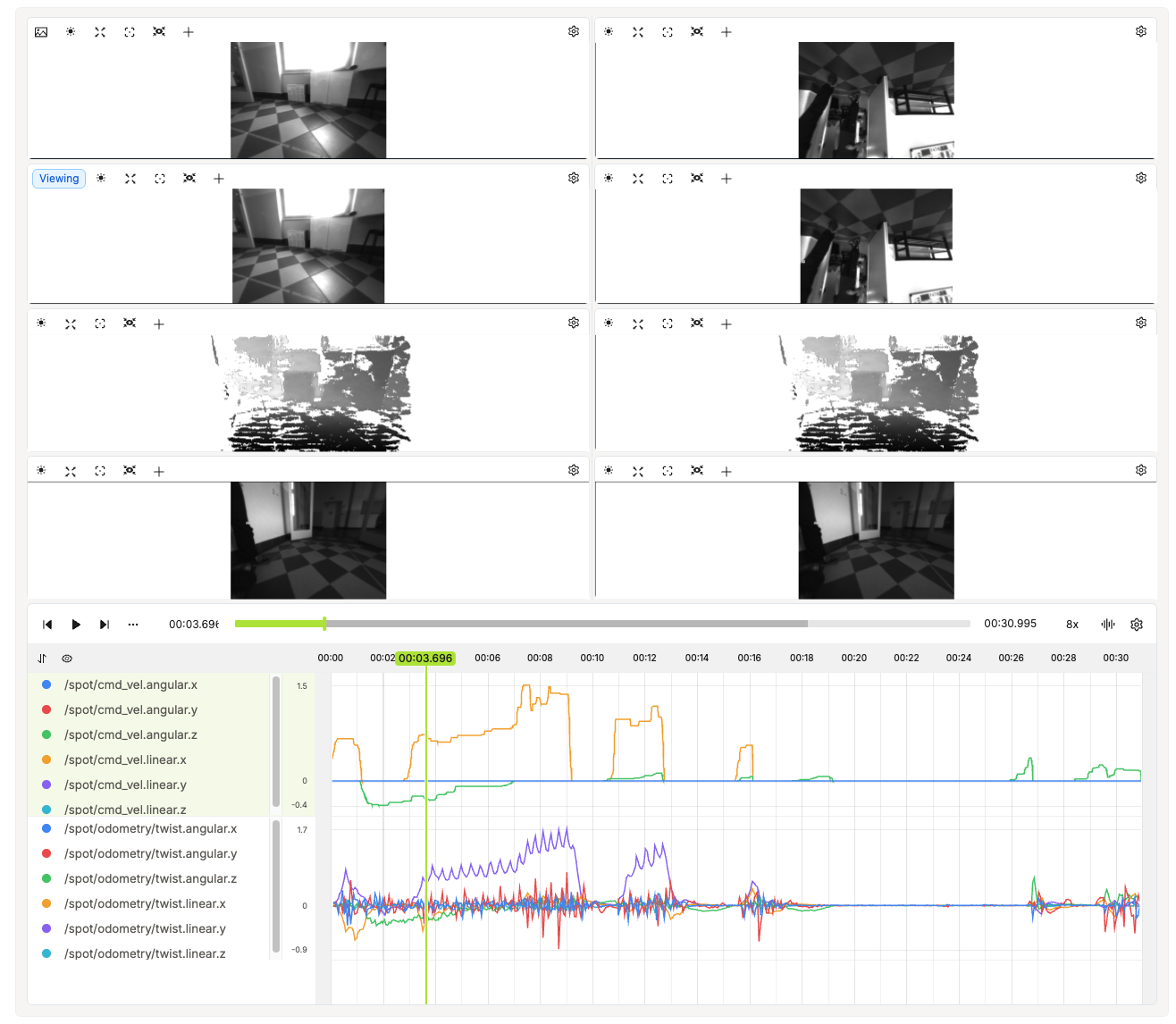
Encord builds a layout from the streams it finds:
* **Images or video without 3D channels:** up to eight camera tiles in rows of two. Matching `left`/`right` topic names are paired first, with the left view first. Pairs and remaining topics are ordered alphabetically; an odd final camera gets its own row. Matching respects word boundaries, such as `camera_left`/`camera_right` or `LeftCam`/`RightCam`, rather than any occurrence of the letters “left”.
* **With 3D channels:** a 3D view, with camera tiles below when camera tiles are enabled. The 3D view receives 70% of the available tile height when both are shown.
* **Numeric signals:** choose the sub-channels you want to plot through a configured layout; see [Define Time Series Channels](#define-time-series-channels) for a practical example.
 ### Custom Layouts
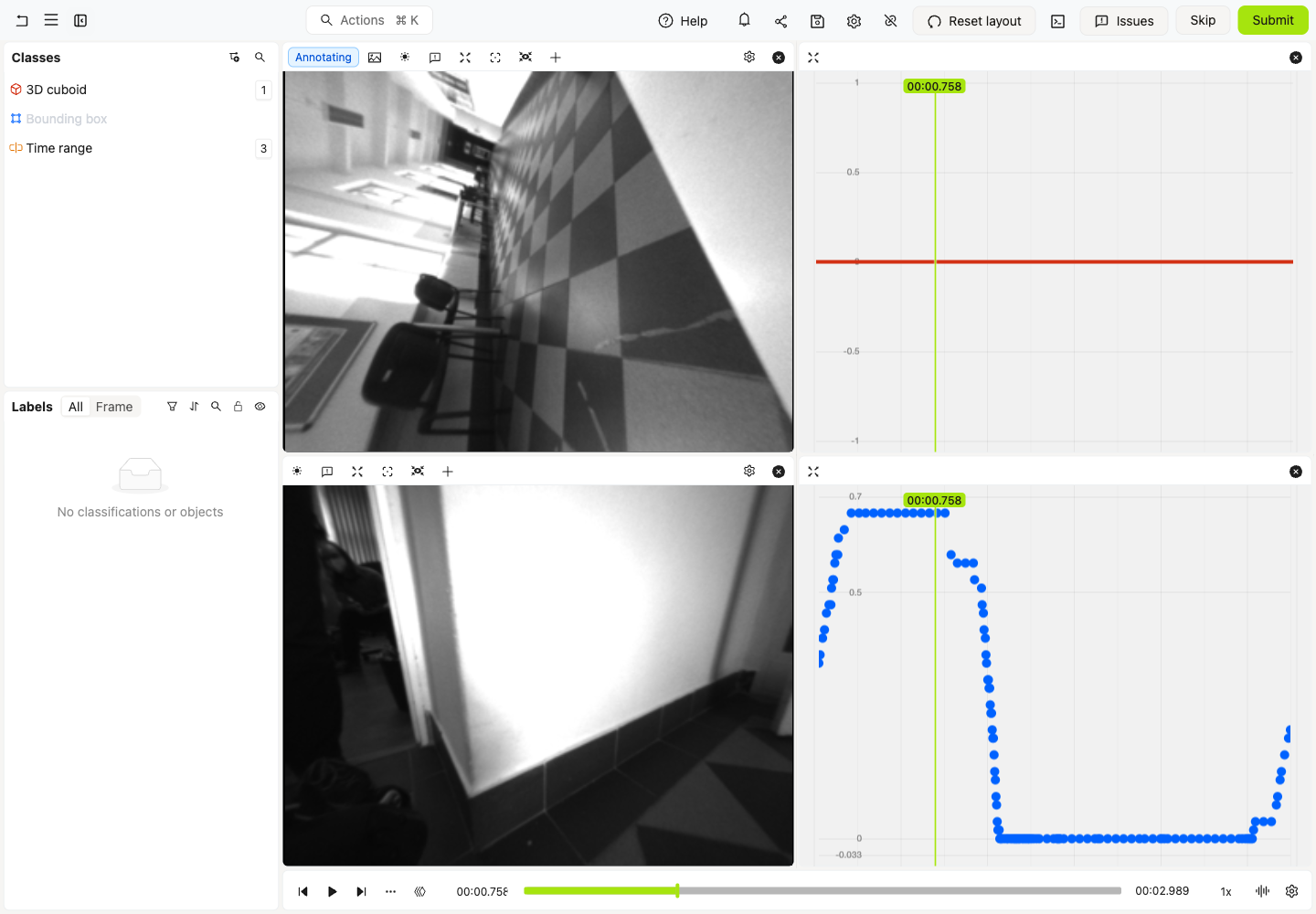
A layout chooses the camera views, 3D view, and timeseries presented to annotators. If the [default layout](#default-layout) does not fit your use case, you can use a layout to change how the recording is displayed without rewriting the MCAP.
```python Configure an MCAP layout expandable theme={"dark"}
# Import dependencies
from encord import EncordUserClient
from encord.beta.scene import (
SceneImageTile,
SceneLayout,
SceneTileLayout,
SceneTileLayoutDirection,
SceneTimeSeriesTile,
)
from encord.orm.storage import (
TimeSeriesLineChannelViewSettings,
TimeSeriesPointsChannelViewSettings,
TimeSeriesViewSettings,
)
from encord.storage import StorageItem
# User input
SSH_PATH = "/Users/chris-encord/ssh-private-key.txt" # Replace with the file path to your SSH private key
SCENE_ITEM_ID = "00000000-0000-0000-0000-000000000000" # Replace with the unique ID for the MCAP Scene item
# Create user client using ssh key
user_client: EncordUserClient = EncordUserClient.create_with_ssh_private_key(
ssh_private_key_path=SSH_PATH,
# For US platform users use "https://api.us.encord.com"
domain="https://api.encord.com",
)
# Get the MCAP Scene item
item: StorageItem = user_client.get_storage_item(SCENE_ITEM_ID)
# Define the tiles, using the exact camera topics and numeric sub-channel paths in your MCAP
layout = SceneLayout(
tiles={
"front": SceneImageTile(stream_name="/spot/camera/frontleft/image_downsampled"),
"back": SceneImageTile(stream_name="/spot/camera/back/image_downsampled"),
"angular": SceneTimeSeriesTile(
stream_name="/spot/cmd_vel.angular.x",
timeseries_settings=TimeSeriesViewSettings(channels={
"/spot/cmd_vel.angular.x": TimeSeriesLineChannelViewSettings(
label="Angular X", color="#D33115", line_width=4,
),
}),
),
"linear": SceneTimeSeriesTile(
stream_name="/spot/cmd_vel.linear.x",
timeseries_settings=TimeSeriesViewSettings(channels={
"/spot/cmd_vel.linear.x": TimeSeriesPointsChannelViewSettings(
label="Linear X", color="#0062FF", point_radius=5,
),
}),
),
},
# Arrange the tiles: cameras stacked on the left, plots stacked on the right
layout=SceneTileLayout(
direction=SceneTileLayoutDirection.ROW,
first=SceneTileLayout(
direction=SceneTileLayoutDirection.COLUMN,
first="front",
second="back",
),
second=SceneTileLayout(
direction=SceneTileLayoutDirection.COLUMN,
first="angular",
second="linear",
),
split_percentage=50,
),
# Optional: list time-series tile IDs to show them in the timeline
# timeline=[""],
)
# Apply the layout to the MCAP Scene item
item.update(scene_layout=layout)
```
Use the exact topics from your recording for image tiles and the numeric sub-channel paths described above for time-series tiles. `row` places panes side by side; `column` stacks them. `split_percentage` is the space assigned to the first pane.
To show a time-series tile in the timeline, list its tile ID in the optional `timeline` argument, as shown in the commented-out line in the example. Only time-series tiles can appear in `timeline`. Every tile in `tiles` must be referenced by `layout` or `timeline`; otherwise the layout is rejected. Check the configured topic and field paths if a plot is missing or the editor reports an unavailable channel.
### Custom Layouts
A layout chooses the camera views, 3D view, and timeseries presented to annotators. If the [default layout](#default-layout) does not fit your use case, you can use a layout to change how the recording is displayed without rewriting the MCAP.
```python Configure an MCAP layout expandable theme={"dark"}
# Import dependencies
from encord import EncordUserClient
from encord.beta.scene import (
SceneImageTile,
SceneLayout,
SceneTileLayout,
SceneTileLayoutDirection,
SceneTimeSeriesTile,
)
from encord.orm.storage import (
TimeSeriesLineChannelViewSettings,
TimeSeriesPointsChannelViewSettings,
TimeSeriesViewSettings,
)
from encord.storage import StorageItem
# User input
SSH_PATH = "/Users/chris-encord/ssh-private-key.txt" # Replace with the file path to your SSH private key
SCENE_ITEM_ID = "00000000-0000-0000-0000-000000000000" # Replace with the unique ID for the MCAP Scene item
# Create user client using ssh key
user_client: EncordUserClient = EncordUserClient.create_with_ssh_private_key(
ssh_private_key_path=SSH_PATH,
# For US platform users use "https://api.us.encord.com"
domain="https://api.encord.com",
)
# Get the MCAP Scene item
item: StorageItem = user_client.get_storage_item(SCENE_ITEM_ID)
# Define the tiles, using the exact camera topics and numeric sub-channel paths in your MCAP
layout = SceneLayout(
tiles={
"front": SceneImageTile(stream_name="/spot/camera/frontleft/image_downsampled"),
"back": SceneImageTile(stream_name="/spot/camera/back/image_downsampled"),
"angular": SceneTimeSeriesTile(
stream_name="/spot/cmd_vel.angular.x",
timeseries_settings=TimeSeriesViewSettings(channels={
"/spot/cmd_vel.angular.x": TimeSeriesLineChannelViewSettings(
label="Angular X", color="#D33115", line_width=4,
),
}),
),
"linear": SceneTimeSeriesTile(
stream_name="/spot/cmd_vel.linear.x",
timeseries_settings=TimeSeriesViewSettings(channels={
"/spot/cmd_vel.linear.x": TimeSeriesPointsChannelViewSettings(
label="Linear X", color="#0062FF", point_radius=5,
),
}),
),
},
# Arrange the tiles: cameras stacked on the left, plots stacked on the right
layout=SceneTileLayout(
direction=SceneTileLayoutDirection.ROW,
first=SceneTileLayout(
direction=SceneTileLayoutDirection.COLUMN,
first="front",
second="back",
),
second=SceneTileLayout(
direction=SceneTileLayoutDirection.COLUMN,
first="angular",
second="linear",
),
split_percentage=50,
),
# Optional: list time-series tile IDs to show them in the timeline
# timeline=[""],
)
# Apply the layout to the MCAP Scene item
item.update(scene_layout=layout)
```
Use the exact topics from your recording for image tiles and the numeric sub-channel paths described above for time-series tiles. `row` places panes side by side; `column` stacks them. `split_percentage` is the space assigned to the first pane.
To show a time-series tile in the timeline, list its tile ID in the optional `timeline` argument, as shown in the commented-out line in the example. Only time-series tiles can appear in `timeline`. Every tile in `tiles` must be referenced by `layout` or `timeline`; otherwise the layout is rejected. Check the configured topic and field paths if a plot is missing or the editor reports an unavailable channel.
 ### Define Time Series Channels
Numerical messages in MCAP files can be annotated by concatenating the **topic name** with the **field paths**.
For example, inspecting the numeric message fields in your recording with the [MCAP CLI](https://mcap.dev/guides/cli) to print the first two messages on the Spot velocity topic:
```bash theme={"dark"}
mcap cat recording.mcap --topics /spot/cmd_vel --json | head -n 2
```
Outputs (the timestamps and sequence number are omitted here):
```json theme={"dark"}
{
"topic": "/spot/cmd_vel",
"data": {
"linear": {"x": 0.3566676378250122, "y": 0, "z": 0},
"angular": {"x": 0, "y": 0, "z": 0}
}
}
```
Combine the topic `/spot/cmd_vel` with the field path `linear.x` to get the layout stream name **`/spot/cmd_vel.linear.x`**. Each message contributes a value at its MCAP timestamp. This is the signal rendered as blue points in the lower-right plot of the [custom layout](#custom-layouts) above.
## Import and Export Labels
An uploaded MCAP recording is a continuous MCAP Scene, which the SDK calls event-based (`LabelRowV2.is_event_based` is `True`). Encord stores 3D objects as events, point-cloud segmentation as point-index ranges for a specific topic and message timestamp, and time-series annotations against a numeric sub-channel. Exported Encord labels are separate from the original MCAP recording.
Follow [MCAP Scene labels](/sdk-documentation/sdk-labels/sdk-labels-mcap) for sample scripts covering all three label types and JSON round trips. Do not treat nanosecond offsets as sequential frame numbers or reuse point-index ranges after reordering a point cloud.
## Need Another Stream or Workflow?
Contact [Encord support](mailto:support@encord.com) if you need another schema, codec, layout, label workflow, or help with a large recording.
### Define Time Series Channels
Numerical messages in MCAP files can be annotated by concatenating the **topic name** with the **field paths**.
For example, inspecting the numeric message fields in your recording with the [MCAP CLI](https://mcap.dev/guides/cli) to print the first two messages on the Spot velocity topic:
```bash theme={"dark"}
mcap cat recording.mcap --topics /spot/cmd_vel --json | head -n 2
```
Outputs (the timestamps and sequence number are omitted here):
```json theme={"dark"}
{
"topic": "/spot/cmd_vel",
"data": {
"linear": {"x": 0.3566676378250122, "y": 0, "z": 0},
"angular": {"x": 0, "y": 0, "z": 0}
}
}
```
Combine the topic `/spot/cmd_vel` with the field path `linear.x` to get the layout stream name **`/spot/cmd_vel.linear.x`**. Each message contributes a value at its MCAP timestamp. This is the signal rendered as blue points in the lower-right plot of the [custom layout](#custom-layouts) above.
## Import and Export Labels
An uploaded MCAP recording is a continuous MCAP Scene, which the SDK calls event-based (`LabelRowV2.is_event_based` is `True`). Encord stores 3D objects as events, point-cloud segmentation as point-index ranges for a specific topic and message timestamp, and time-series annotations against a numeric sub-channel. Exported Encord labels are separate from the original MCAP recording.
Follow [MCAP Scene labels](/sdk-documentation/sdk-labels/sdk-labels-mcap) for sample scripts covering all three label types and JSON round trips. Do not treat nanosecond offsets as sequential frame numbers or reuse point-index ranges after reordering a point cloud.
## Need Another Stream or Workflow?
Contact [Encord support](mailto:support@encord.com) if you need another schema, codec, layout, label workflow, or help with a large recording.