> ## Documentation Index
> Fetch the complete documentation index at: https://docs.encord.com/llms.txt
> Use this file to discover all available pages before exploring further.
# Local Data
## Upload Local Data
You can upload up to 250 local files at a time.
Any files you upload to Encord must be stored in folders. [Click here](/platform-documentation/Curate/index-files#create-a-folder) to learn how to create a folder to store your files.
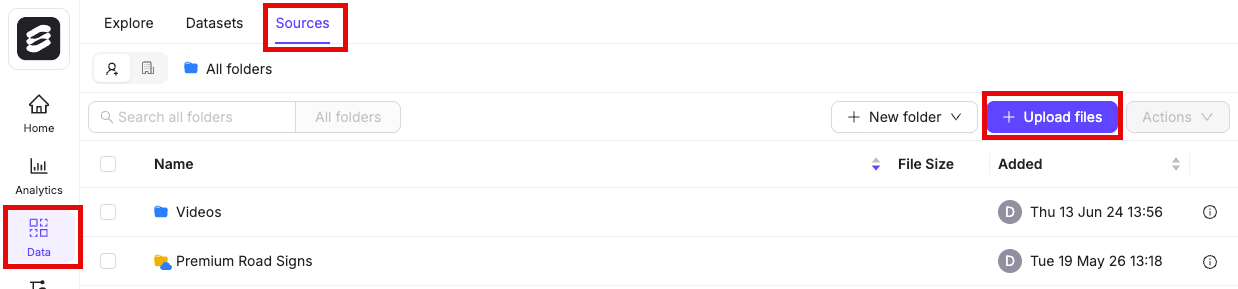
1. Navigate to **Data** > **Files & Folders**.
2. Click the **+ Upload files** button.
You can also right-click a folder to add data.
upload-files-new
3. Select a folder to upload your files to. You can click **+New folder** to create a new folder.
4. Select the type of data you want to add.
* **A** - *Upload* : Drag and drop local text, PDF, video, or image files. Click **Upload** to finish.
* **B** - *Batch images as* : Create an image group or image sequence from local images. See our section on [creating image groups and image sequences](/platform-documentation/Curate/index-files#create-image-groups-and-image-sequences) for more information. Click **Upload and batch images** to finish.
* **C** - *DICOM / NIfTI* : Create a DICOM series from local DICOM files, or upload NIfTI files. Click **Upload** to finish.
* **D** - *Import from private cloud* : Add any data stored in your cloud storage. At least one [data integration](/platform-documentation/General/annotate-data-integrations) is required to register cloud data. Learn how to upload private cloud data [here](/platform-documentation/Curate/add-files/index-register-cloud-data).
To import DICOM files, Encord requires the files to have the following [DICOM tags](https://www.dicomlibrary.com/dicom/dicom-tags/):
Rows
Columns
StudyInstanceUID
SeriesInstanceUID
SOPInstanceUID
PatientID
The following DICOM tags are required to render DICOM images in 3D:
ImagePositionPatient
ImageOrientationPatient
SliceThickness
PixelSpacing
## Custom metadata
Custom metadata for files uploaded locally can only be [added through the Encord SDK](/sdk-documentation/index-sdk/custom-metadata/sdk-import-custom-metadata).
Custom metadata, also known as client metadata, is supplementary information you can add to all data imported into, or registered with Encord. It is provided in the form of a Python dictionary, as shown in examples. Client metadata serves several key functions:
* Filtering and sorting in Index and Active.
* Creating [custom Label Editor layouts](/platform-documentation/Annotate/annotate-label-editor#editor-layout) based on metadata.
You can optionally add some custom metadata per data item in the `clientMetadata` field (examples show how this is done) of your JSON file.
We enforce a 10MB limit on the custom metadata for each data item. Internally, we store custom metadata as a PostgreSQL `jsonb` type. Read the [relevant PostgreSQL documentation](https://www.postgresql.org/docs/9.5/datatype-json.html) about the `jsonb` type and its behaviors. For example, `jsonb` type does not preserve key order or duplicate keys.
### Metadata schema
Metadata schemas, including custom embeddings, can only be imported through the Encord SDK.
Based on your Data Discoverability Strategy, you need to create a metadata schema. The schema provides a method of organization for your custom metadata. Encord supports:
* Scalars: Methods for filtering.
* Enums: Methods with options for filtering.
* Embeddings: Method for embedding plot visualization, similarity search, and natural language search.
Metadata Schema keys support letters (a-z, A-Z), numbers (0-9), and the following blank spaces ( ), hyphens (-), underscores (\_), and periods (.).
### Metadata schema table
Metadata Schema keys support letters (a-z, A-Z), numbers (0-9), and blank spaces ( ), hyphens (-), underscores (\_), and periods (.). Metadata schema keys are case sensitive.
Use `add_scalar` to add a scalar key to your metadata schema.
| Scalar Key | Description | Display Benefits |
| ---------- | ------------------------------------------------------------------------------------------------------------------------------------------------------------------------------------------ | ------------------------------------------------- |
| boolean | Binary data type with values "true" or "false". | Filtering by binary values |
| datetime | ISO 8601 formatted date and time. | Filtering by time and date |
| number | Numeric data type supporting float values. | Filtering by numeric values |
| uuid | UUIDv4 formatted unique identifier for a data unit. | Filtering by customer specified unique identifier |
| varchar | Textual data type. Formally `string`. `string` can be used as an alias for `varchar`, but we STRONGLY RECOMMEND that you use `varchar`. | Filtering by string. |
| text | Text data with unlimited length (example: transcripts for audio). Formally `long_string`. `long_string` can be used as an alias for `text`, but we STRONGLY RECOMMEND that you use `text`. | Storing and filtering large amounts of text. |
Use `add_enum` and `add_enum_options` to add an enum and enum options to your metadata schema.
| Key | Description | Display Benefits |
| ---- | ---------------------------------------------- | ----------------------------------------------------- |
| enum | Enumerated type with predefined set of values. | Facilitates categorical filtering and data validation |
Use `add_embedding` to add an embedding to your metadata schema.
| Key | Description | Display Benefits |
| --------- | ------------------------------------------ | --------------------------------------------------------------------------------------- |
| embedding | 1 to 4096 for Index. 1 to 2000 for Active. | Filtering by embeddings, similarity search, 2D scatter plot visualization (Coming Soon) |
Use `add_geospatial` to add a new geospatial type to the metadata schema.
| Key | Description | Display Benefits |
| ---------- | ---------------------------------------------------------------------------------------------------------------------------------------------------------------------------------- | ----------------------------------------- |
| geospatial | Geospatial data that contains latitude and longitude information. Latitude values are between +90 (North) to -90 (South). Longitude values are between +180 (West) to -180 (East). | Filtering data by using a geospatial map. |
* Geospatial custom metadata is supported only in Index.
* Geospatial custom metadata can be applied to all data unit types and on individual frames in videos.
Incorrectly specifying a data type in the schema can cause errors when filtering your data in Index or Active. If you encounter errors while filtering, verify your schema is correct. If your schema has errors, correct the errors, re-import the schema, and then re-sync your Active Project.
### Import your metadata schema to Encord
```python Import schema template theme={"dark"}
# Import dependencies
from encord import EncordUserClient
from encord.metadata_schema import MetadataSchema
SSH_PATH = ""
# Authenticate with Encord using the path to your private key
user_client: EncordUserClient = EncordUserClient.create_with_ssh_private_key(
ssh_private_key_path=SSH_PATH
)
# Create the schema
metadata_schema = user_client.metadata_schema()
# Add various metadata fields
metadata_schema.add_scalar("metadata_1", data_type="boolean")
metadata_schema.add_scalar("metadata_2", data_type="datetime")
metadata_schema.add_scalar("metadata_3", data_type="number")
metadata_schema.add_scalar("metadata_4", data_type="uuid")
metadata_schema.add_scalar("metadata_5", data_type="varchar")
metadata_schema.add_scalar("metadata_6", data_type="text")
# Add an enum field
metadata_schema.add_enum("my-enum", values=["enum-value-01", "enum-value-02", "enum-value-03"])
# Add embedding fields
metadata_schema.add_embedding("my-test-active-embedding", size=512)
metadata_schema.add_embedding("my-test-index-embedding", size=)
# Add geospatial
metadata_schema.add_geospatial("geo-point")
# Save the schema
metadata_schema.save()
# Print the schema for verification
print(metadata_schema)
```
```python Example theme={"dark"}
# Import dependencies
from encord import EncordUserClient
from encord.metadata_schema import MetadataSchema
SSH_PATH = "/Users/chris-encord/ssh-private-key.txt"
# Authenticate with Encord using the path to your private key
user_client: EncordUserClient = EncordUserClient.create_with_ssh_private_key(
ssh_private_key_path=SSH_PATH
)
# Create the schema
metadata_schema = user_client.metadata_schema()
# Add various metadata fields
metadata_schema.add_scalar("G2G", data_type="boolean")
metadata_schema.add_scalar("Date", data_type="datetime")
metadata_schema.add_scalar("Cost", data_type="number")
metadata_schema.add_scalar("Priority", data_type="number")
metadata_schema.add_scalar("ID-Sys-01", data_type="uuid")
metadata_schema.add_scalar("ID-Sys-02", data_type="uuid")
metadata_schema.add_scalar("Description", data_type="varchar")
metadata_schema.add_scalar("Location", data_type="varchar")
metadata_schema.add_scalar("Address", data_type="varchar")
metadata_schema.add_scalar("Translation en-gb", data_type="text")
metadata_schema.add_scalar("Translation en-ca", data_type="text")
metadata_schema.add_scalar("Translation en-us", data_type="text")
metadata_schema.add_scalar("Translation zh-tw", data_type="text")
metadata_schema.add_scalar("Translation zh-hk", data_type="text")
metadata_schema.add_scalar("Translation zh-cn", data_type="text")
# Add an enum field
metadata_schema.add_enum("ready", values=["ripe", "partially-ripe", "unripe"])
metadata_schema.add_enum("Fruit", values=["Blueberries", "Cherries", "Apples", "Kiwi"])
# Add embedding fields
metadata_schema.add_embedding("active-embedding-01", size=512)
metadata_schema.add_embedding("active-embedding-02", size=512)
metadata_schema.add_embedding("index-embedding-100", size=100)
metadata_schema.add_embedding("index-embedding-1000", size=1000)
# Add geospatial
metadata_schema.add_geospatial("Coordinates")
# Save the schema
metadata_schema.save()
# Print the schema for verification
print(metadata_schema)
```
### Verify your schema
After importing your schema to Encord we recommend that you verify that the import is successful. Run the following code to verify your metadata schema imported and that the schema is correct.
```python Verify schema template theme={"dark"}
# Import dependencies
from encord import EncordUserClient
from encord.metadata_schema import MetadataSchema
SSH_PATH = ""
# Authenticate with Encord using the path to your private key
user_client: EncordUserClient = EncordUserClient.create_with_ssh_private_key(
ssh_private_key_path=SSH_PATH
)
# Create the schema
metadata_schema = user_client.metadata_schema()
# Print the schema for verification
print(metadata_schema)
```
```python Verify your schema example theme={"dark"}
# Import dependencies
from encord import EncordUserClient
from encord.metadata_schema import MetadataSchema
SSH_PATH = "/Users/chris-encord/ssh-private-key.txt"
# Authenticate with Encord using the path to your private key
user_client: EncordUserClient = EncordUserClient.create_with_ssh_private_key(
ssh_private_key_path=SSH_PATH
)
# Create the schema
metadata_schema = user_client.metadata_schema()
# Print the schema for verification
print(metadata_schema)
```