> ## Documentation Index
> Fetch the complete documentation index at: https://docs.encord.com/llms.txt
> Use this file to discover all available pages before exploring further.
# Time Series Customization
> Customize time series channel labels, colors, visibility, and rendering through upload JSON, the SDK, or the Label Editor.
Customize how [time series data](/platform-documentation/Annotate/annotate-label-editor/annotate-time-series) appears in the Label Editor. Configure its initial appearance during upload, update saved settings with the SDK, or use the editor controls.
## Customize Channels in the Editor
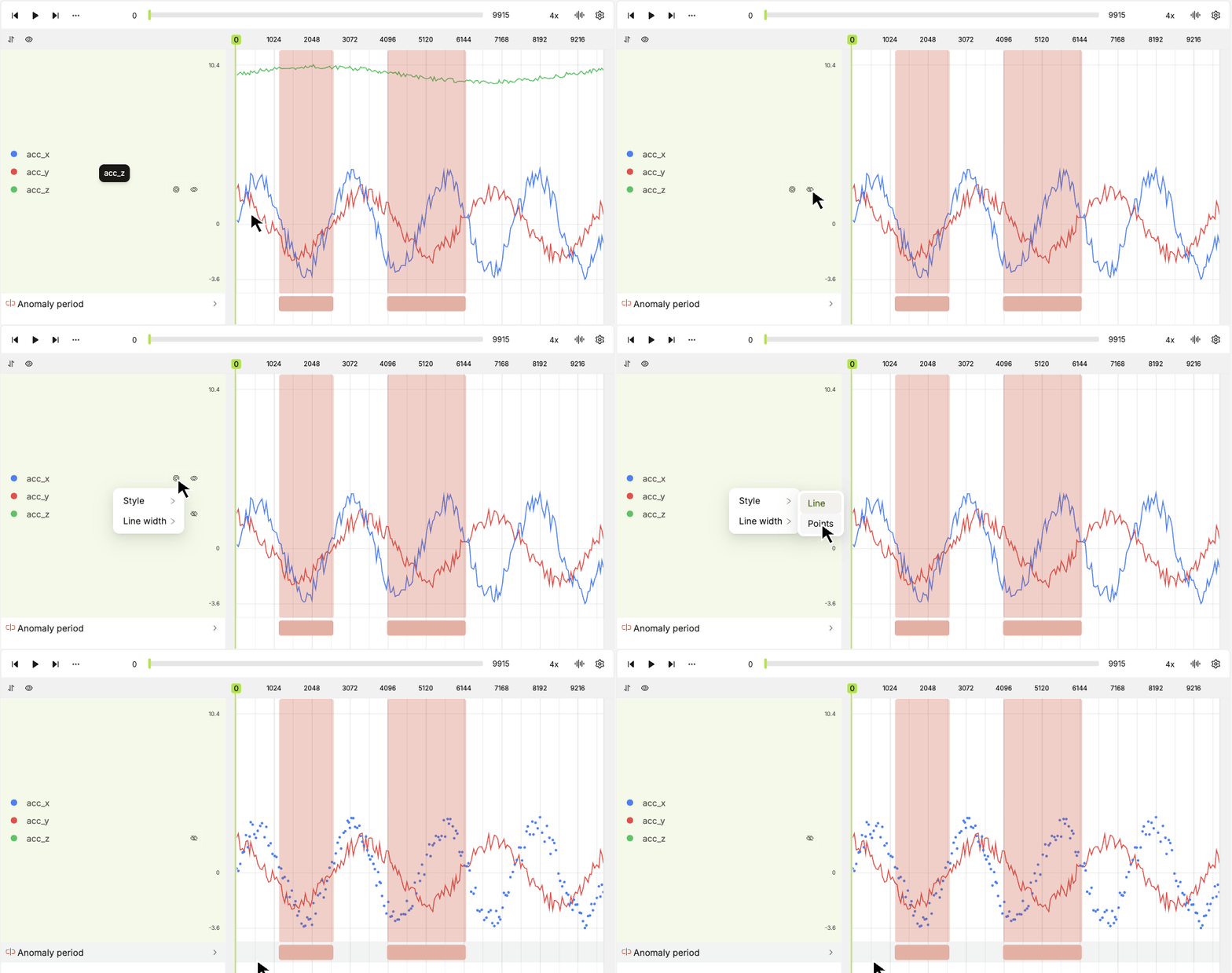
Use the channel controls to show or hide channels, choose colors, switch between lines and points, and adjust line width or point size. For a chart tile, open **Time series style settings** in its toolbar.
 ## Configure Channels in Upload JSON
Register CSV files with the `time_series` top-level key in your [upload JSON](/platform-documentation/Curate/add-files/index-register-cloud-data#json-format). Add optional `settings` to set channel labels, colors, visibility, and rendering styles before annotators open the file.
```json Time series upload JSON theme={"dark"}
{
"time_series": [
{
"objectUrl": "s3://my-bucket/robot-arm/pick-and-place/accelerometer.csv",
"title": "Robot arm — pick-and-place accelerometer",
"clientMetadata": {
"robot_type": "robot_arm",
"task": "pick_and_place"
},
"settings": {
"channels": {
"acc_x": {
"label": "Acceleration X",
"color": "#2563eb",
"hidden": false,
"style": "line",
"lineWidth": 2
},
"acc_y": {
"label": "Acceleration Y",
"color": "#f97316",
"hidden": false,
"style": "points",
"pointRadius": 3
}
}
}
}
]
}
```
The `settings` object is optional, and channels you omit use the default appearance. Use CSV header names such as `acc_x` as channel keys. With SDK v0.1.205 or later, `label` and `color` are optional; omitted values use the header name and the editor's palette. See [channel view settings](/sdk-documentation/index-sdk/sdk-time-series#how-channel-view-settings-work) for defaults.
Use `lineWidth` from `0.5` to `6` for a `line` channel, or `pointRadius` from `1` to `8` for a `points` channel. Set `hidden` to `true` to hide a channel initially.
Register the JSON through [Manual Data Registration](/platform-documentation/Curate/add-files/index-register-cloud-data) or the [SDK registration flow](/sdk-documentation/getting-started-sdk/sdk-register-data).
### Build the Upload with SDK Classes
You can build the same registration payload with SDK classes instead of writing JSON. Replace the private key, folder, and integration placeholders with your own values. See [SDK authentication](/sdk-documentation/general-sdk/authentication-sdk) for client setup.
```python theme={"dark"}
from encord import EncordUserClient
from encord.storage import (
DataUploadItems,
DataUploadTimeSeries,
TimeSeriesLineChannelViewSettings,
TimeSeriesPointsChannelViewSettings,
TimeSeriesViewSettings,
)
client = EncordUserClient.create_with_ssh_private_key(
ssh_private_key_path=""
)
folder = client.get_storage_folder("")
settings = TimeSeriesViewSettings(
channels={
"acc_x": TimeSeriesLineChannelViewSettings(
label="Acceleration X",
color="#2563eb",
hidden=False,
line_width=2,
),
"acc_y": TimeSeriesPointsChannelViewSettings(
label="Acceleration Y",
color="#f97316",
hidden=False,
point_radius=3,
),
}
)
upload = DataUploadItems(
time_series=[
DataUploadTimeSeries(
object_url="s3://my-bucket/robot-arm/pick-and-place/accelerometer.csv",
title="Robot arm — pick-and-place accelerometer",
client_metadata={"robot_type": "robot_arm", "task": "pick_and_place"},
settings=settings,
)
]
)
job_id = folder.add_private_data_to_folder_start(
integration_id="",
private_files=upload,
)
result = folder.add_private_data_to_folder_get_result(job_id, timeout_seconds=60)
print(result)
```
The line and points classes set the corresponding `style` value automatically. Inspect the returned status and any upload errors. If registration is still pending, poll the same job again.
## Update Channel Settings with the SDK
Use `StorageItem.update(timeseries_settings=...)` to change the saved settings of an existing time series file. To retain other configured channels, include their existing settings in the update:
```python theme={"dark"}
from encord import EncordUserClient
from encord.storage import TimeSeriesLineChannelViewSettings, TimeSeriesViewSettings
client = EncordUserClient.create_with_ssh_private_key(
ssh_private_key_path=""
)
item = client.get_storage_item("")
channels = dict(item.timeseries_settings.channels) if item.timeseries_settings else {}
channels["acc_x"] = TimeSeriesLineChannelViewSettings(
label="Acceleration X",
color="#2563eb",
hidden=False,
line_width=2,
)
item.update(timeseries_settings=TimeSeriesViewSettings(channels=channels))
```
For a local CSV upload, pass the same `TimeSeriesViewSettings` object as `settings` to `StorageFolder.upload_time_series()`. See the [SDK upload and configuration guide](/sdk-documentation/index-sdk/sdk-time-series#upload-and-configure-time-series-data) for a complete example.
This documentation is built and hosted on [Mintlify](https://mintlify.com), a developer documentation platform.
## Configure Channels in Upload JSON
Register CSV files with the `time_series` top-level key in your [upload JSON](/platform-documentation/Curate/add-files/index-register-cloud-data#json-format). Add optional `settings` to set channel labels, colors, visibility, and rendering styles before annotators open the file.
```json Time series upload JSON theme={"dark"}
{
"time_series": [
{
"objectUrl": "s3://my-bucket/robot-arm/pick-and-place/accelerometer.csv",
"title": "Robot arm — pick-and-place accelerometer",
"clientMetadata": {
"robot_type": "robot_arm",
"task": "pick_and_place"
},
"settings": {
"channels": {
"acc_x": {
"label": "Acceleration X",
"color": "#2563eb",
"hidden": false,
"style": "line",
"lineWidth": 2
},
"acc_y": {
"label": "Acceleration Y",
"color": "#f97316",
"hidden": false,
"style": "points",
"pointRadius": 3
}
}
}
}
]
}
```
The `settings` object is optional, and channels you omit use the default appearance. Use CSV header names such as `acc_x` as channel keys. With SDK v0.1.205 or later, `label` and `color` are optional; omitted values use the header name and the editor's palette. See [channel view settings](/sdk-documentation/index-sdk/sdk-time-series#how-channel-view-settings-work) for defaults.
Use `lineWidth` from `0.5` to `6` for a `line` channel, or `pointRadius` from `1` to `8` for a `points` channel. Set `hidden` to `true` to hide a channel initially.
Register the JSON through [Manual Data Registration](/platform-documentation/Curate/add-files/index-register-cloud-data) or the [SDK registration flow](/sdk-documentation/getting-started-sdk/sdk-register-data).
### Build the Upload with SDK Classes
You can build the same registration payload with SDK classes instead of writing JSON. Replace the private key, folder, and integration placeholders with your own values. See [SDK authentication](/sdk-documentation/general-sdk/authentication-sdk) for client setup.
```python theme={"dark"}
from encord import EncordUserClient
from encord.storage import (
DataUploadItems,
DataUploadTimeSeries,
TimeSeriesLineChannelViewSettings,
TimeSeriesPointsChannelViewSettings,
TimeSeriesViewSettings,
)
client = EncordUserClient.create_with_ssh_private_key(
ssh_private_key_path=""
)
folder = client.get_storage_folder("")
settings = TimeSeriesViewSettings(
channels={
"acc_x": TimeSeriesLineChannelViewSettings(
label="Acceleration X",
color="#2563eb",
hidden=False,
line_width=2,
),
"acc_y": TimeSeriesPointsChannelViewSettings(
label="Acceleration Y",
color="#f97316",
hidden=False,
point_radius=3,
),
}
)
upload = DataUploadItems(
time_series=[
DataUploadTimeSeries(
object_url="s3://my-bucket/robot-arm/pick-and-place/accelerometer.csv",
title="Robot arm — pick-and-place accelerometer",
client_metadata={"robot_type": "robot_arm", "task": "pick_and_place"},
settings=settings,
)
]
)
job_id = folder.add_private_data_to_folder_start(
integration_id="",
private_files=upload,
)
result = folder.add_private_data_to_folder_get_result(job_id, timeout_seconds=60)
print(result)
```
The line and points classes set the corresponding `style` value automatically. Inspect the returned status and any upload errors. If registration is still pending, poll the same job again.
## Update Channel Settings with the SDK
Use `StorageItem.update(timeseries_settings=...)` to change the saved settings of an existing time series file. To retain other configured channels, include their existing settings in the update:
```python theme={"dark"}
from encord import EncordUserClient
from encord.storage import TimeSeriesLineChannelViewSettings, TimeSeriesViewSettings
client = EncordUserClient.create_with_ssh_private_key(
ssh_private_key_path=""
)
item = client.get_storage_item("")
channels = dict(item.timeseries_settings.channels) if item.timeseries_settings else {}
channels["acc_x"] = TimeSeriesLineChannelViewSettings(
label="Acceleration X",
color="#2563eb",
hidden=False,
line_width=2,
)
item.update(timeseries_settings=TimeSeriesViewSettings(channels=channels))
```
For a local CSV upload, pass the same `TimeSeriesViewSettings` object as `settings` to `StorageFolder.upload_time_series()`. See the [SDK upload and configuration guide](/sdk-documentation/index-sdk/sdk-time-series#upload-and-configure-time-series-data) for a complete example.
This documentation is built and hosted on [Mintlify](https://mintlify.com), a developer documentation platform.