> ## Documentation Index
> Fetch the complete documentation index at: https://docs.encord.com/llms.txt
> Use this file to discover all available pages before exploring further.
# FAQ
# General
## Login
* Ensure you are using the Chrome browser, and that it is up-to-date.
* Try clearing your browser's cache, refresh the page and try again.
* If you are still stuck, contact [support@encord.com](mailto:support@encord.com) so can help you resolve this issue.
1. Click **Forgot password** on the [Encord Global login page](https://app.encord.com/login) or [Encord US login page](https://app.us.encord.com/login).
2. Enter the email address you used to sign up to Encord.
3. Click **Reset password**.
An email containing a secure link for resetting your password is sent to the email address you provided.
4. Open your email inbox and open the email with the subject *Reset your Encord password* sent by [info@encord.com](mailto:info@encord.com).
5. Click the **Reset my password** button in the email.
A new page opens in your browser.
6. Enter a new password for your Encord account. Re-enter the password to confirm your new password.
7. Click **Submit**.
You can now log into your Encord account using your new password.
Your DNS settings might not be configured correctly.
**Windows 10**
1. Go to the **Control Panel**.
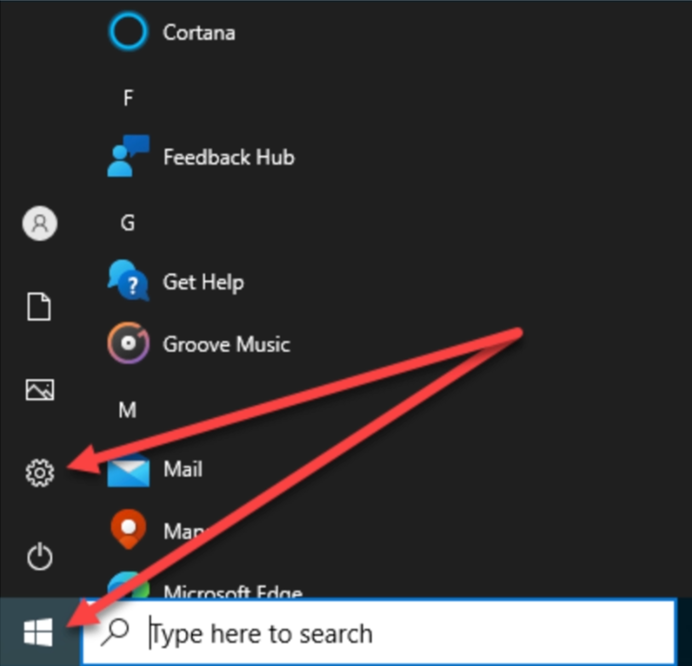
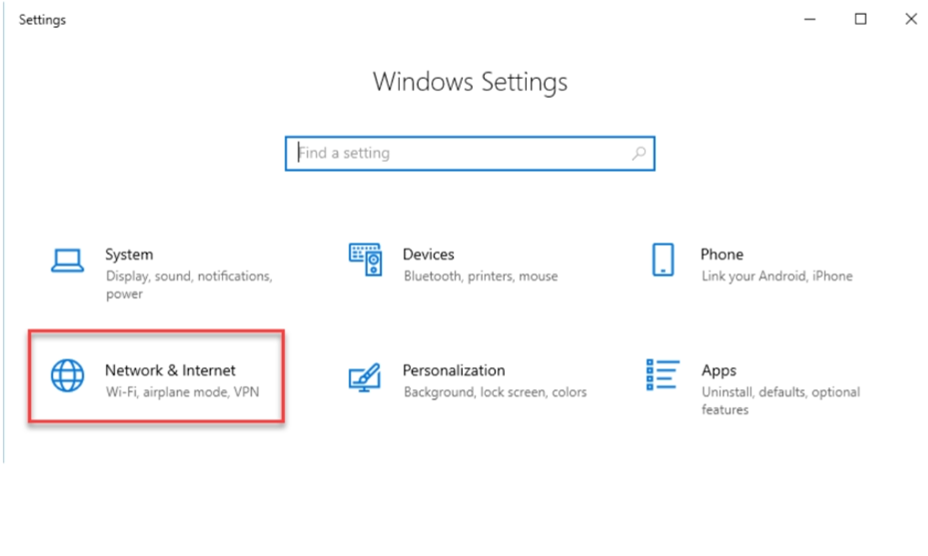
2. Click **Network and Internet > Network and Sharing Center > Change adapter settings**.
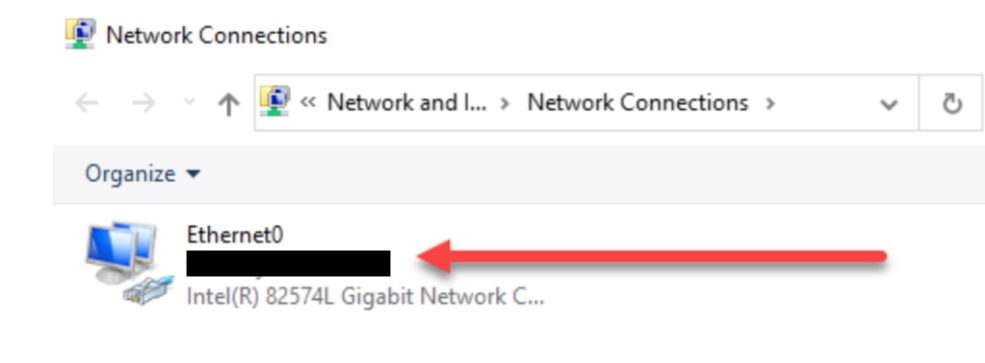
3. Select the connection for which you want to configure Google Public DNS. For example:
* To change the settings for an Ethernet connection, right-click the Ethernet interface and select Properties.
* To change the settings for a wireless connection, right-click the Wi-Fi interface and select Properties.
4. If you are prompted for an administrator password or confirmation, type the password or provide confirmation.
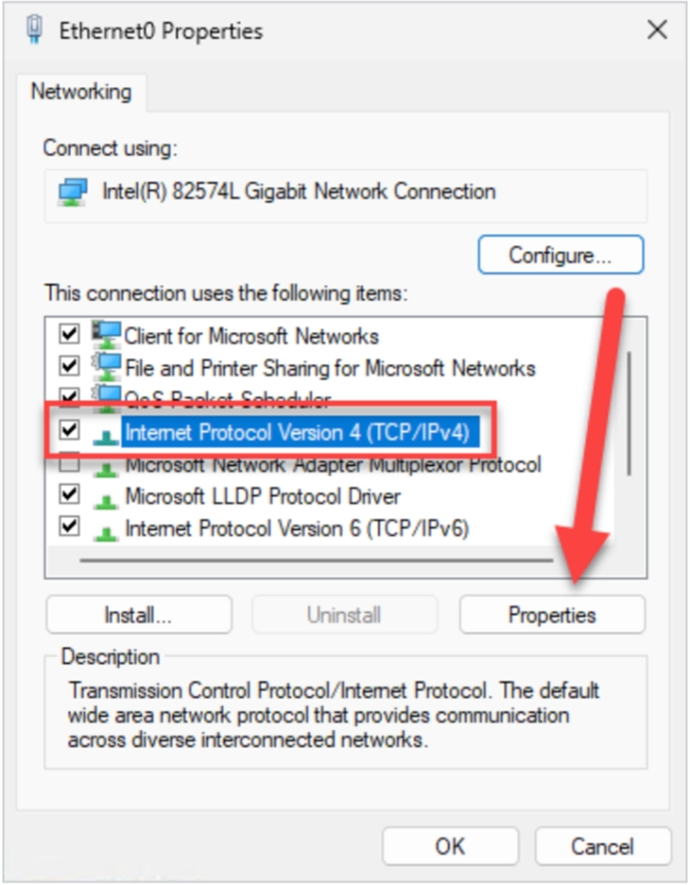
5. Select the Networking tab. Under This connection uses the following items, select Internet Protocol Version 4 (TCP/IPv4) then click Properties.
6. Select **Use the following DNS server addresses**. If there are any IP addresses listed in the *Preferred DNS server* or *Alternate DNS server*, write them down for future reference.
Replace those addresses with the IP addresses of the Google DNS servers:
* For IPv4: 8.8.8.8 and/or 8.8.4.4.
7. Click **OK**.
**Windows 11**
1. Go to **Settings**.
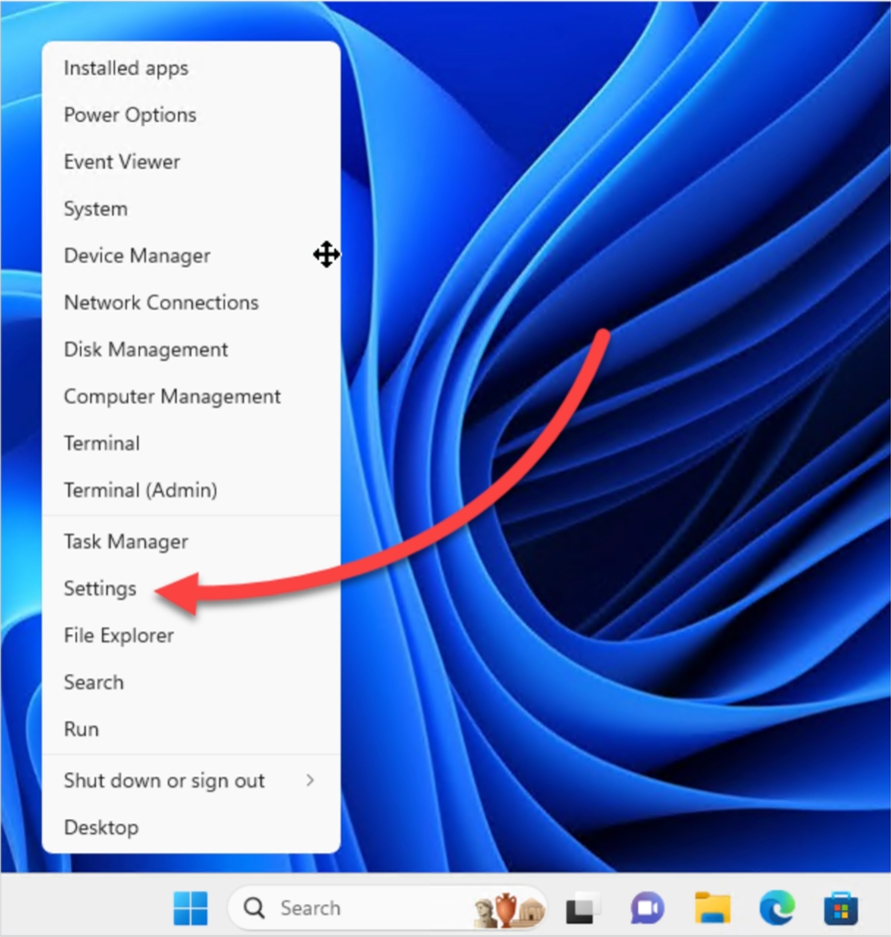
2. Select the connection for which you want to configure Google Public DNS. For example:
* If you are using Wi-Fi, click **Wi-Fi**, click **Hardware properties**, then click **Edit** next to *DNS server assignment*.
* If you are using an ethernet connection, click **Ethernet**, then click **Edit** next to *DNS server assignment*.
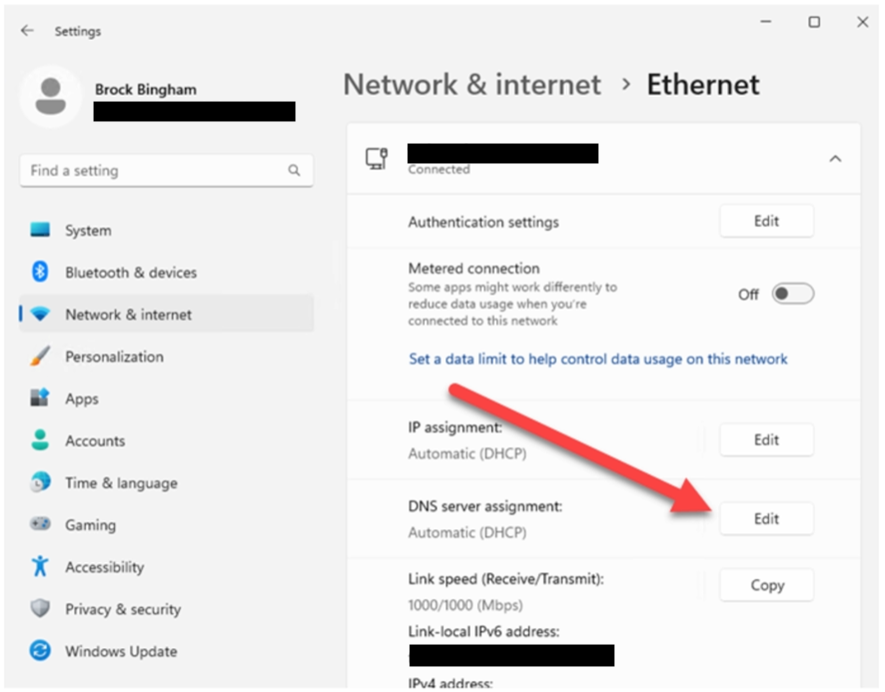
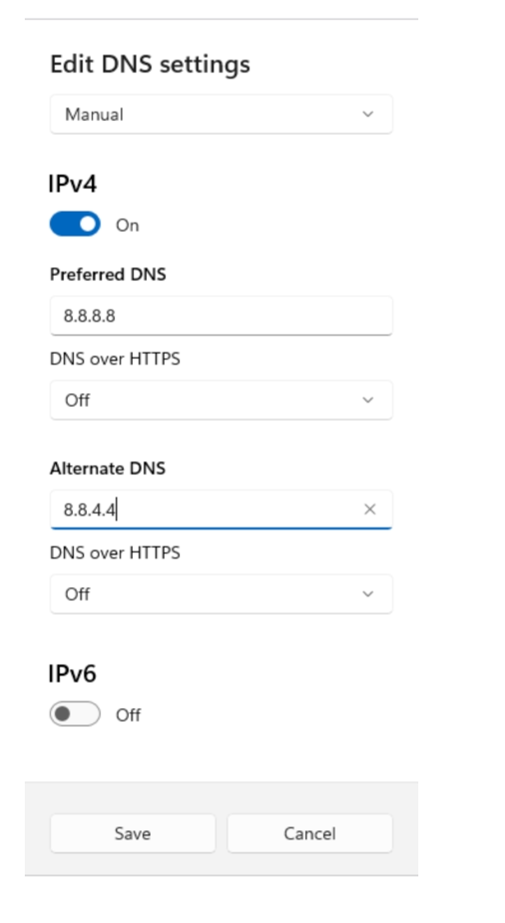
3. Using the drop-down menu, select **Manual**, then toggle **IPv4** to **On**. If there are any IP addresses listed in the *Preferred DNS server* or *Alternate DNS server*, write them down for future reference.
Replace those addresses with the IP addresses of the Google DNS servers:
* For IPv4: 8.8.8.8 and/or 8.8.4.4.
Your DNS settings might not be configured correctly.
**macOS Sequoia, Sonoma, Ventura or later**
1. Click the Apple logo and select **System Settings** in the menu.
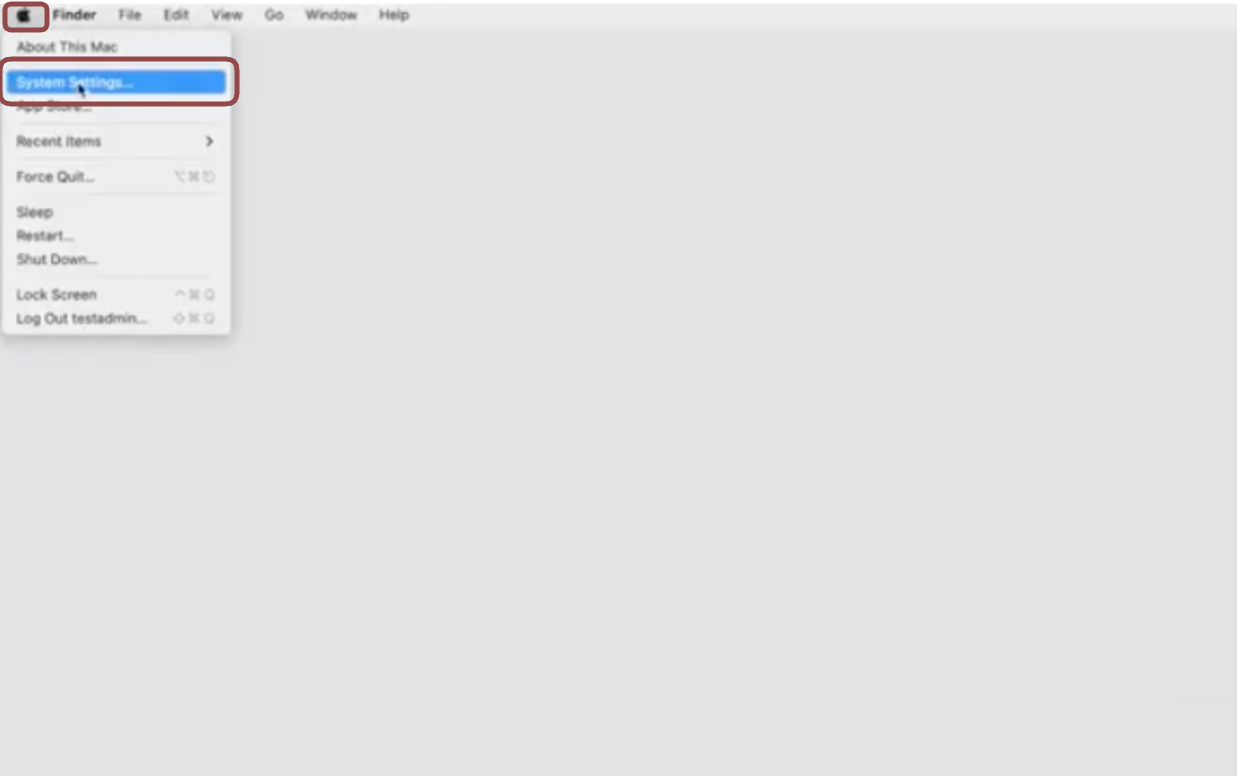
2. Click **Network**.
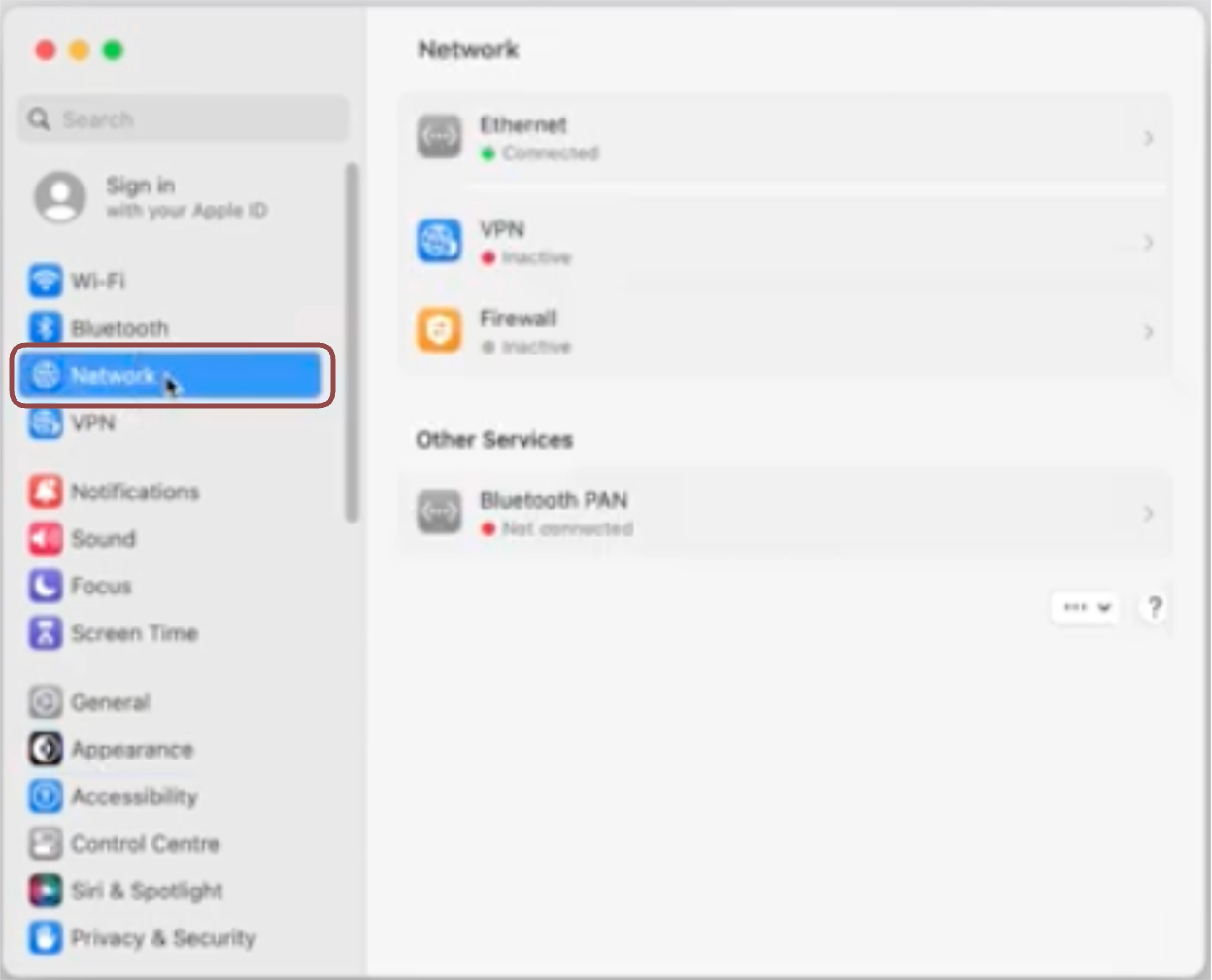
3. Select the first **Wi-Fi** or **Ethernet**connection in the list (the connection you are using).
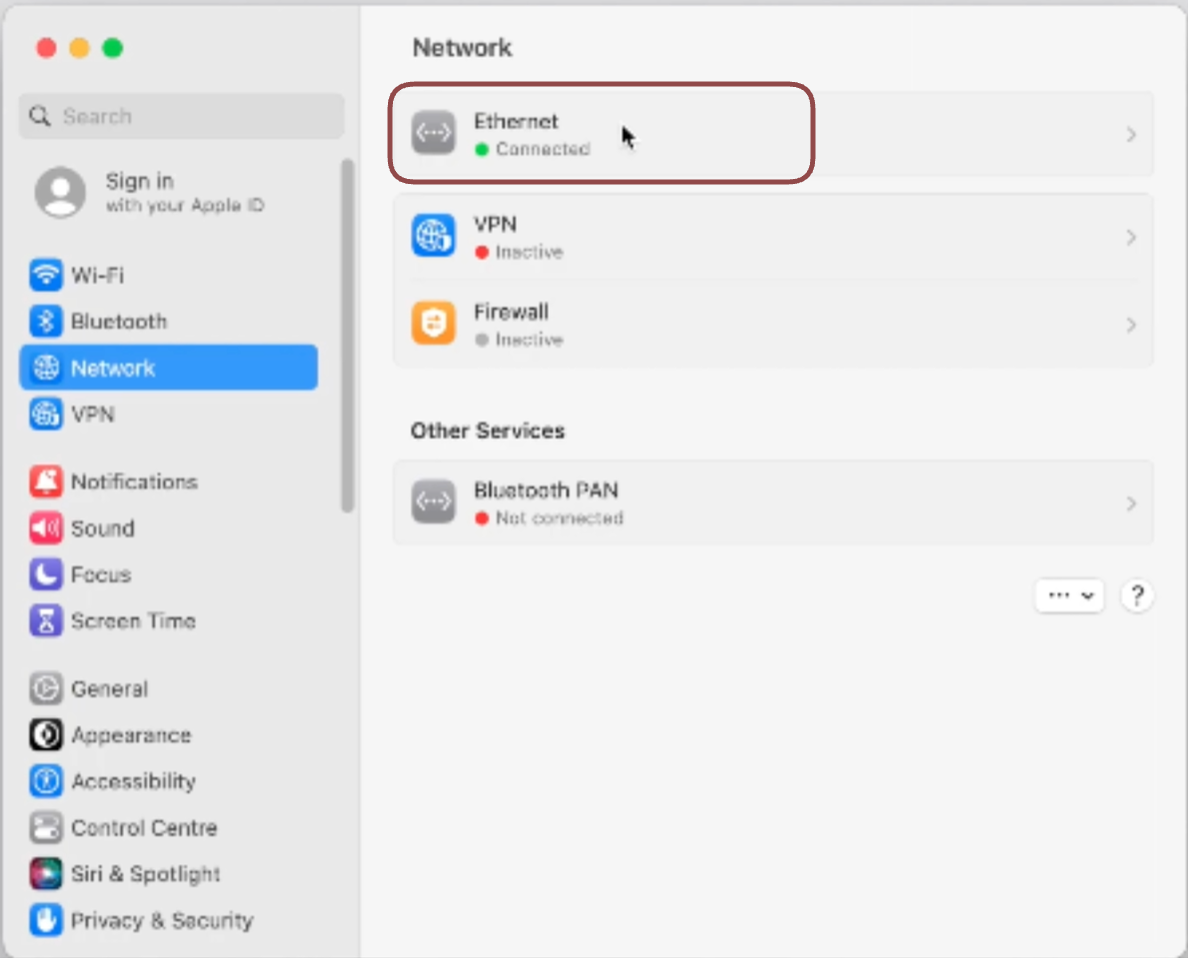
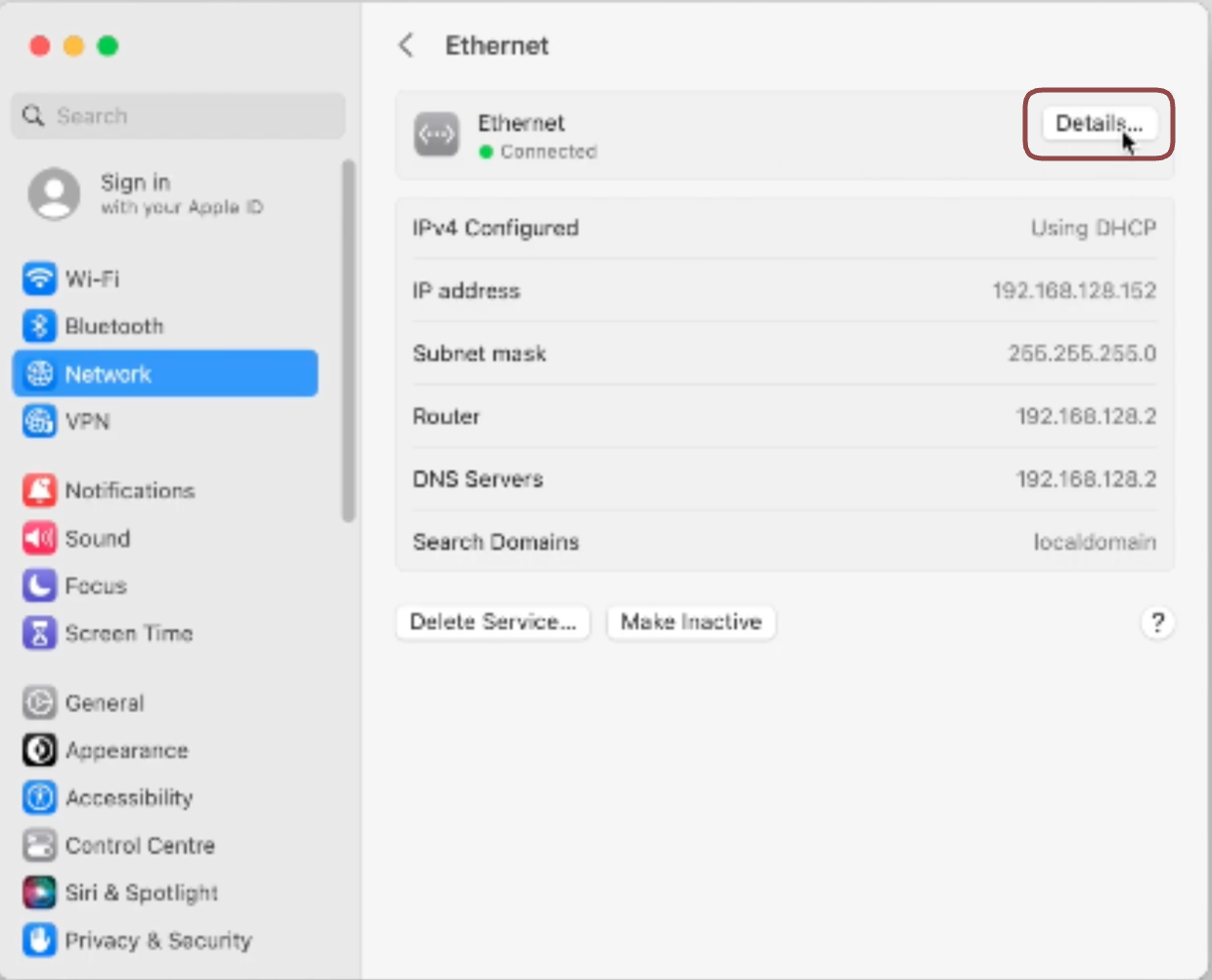
4. Click the **Details** button.
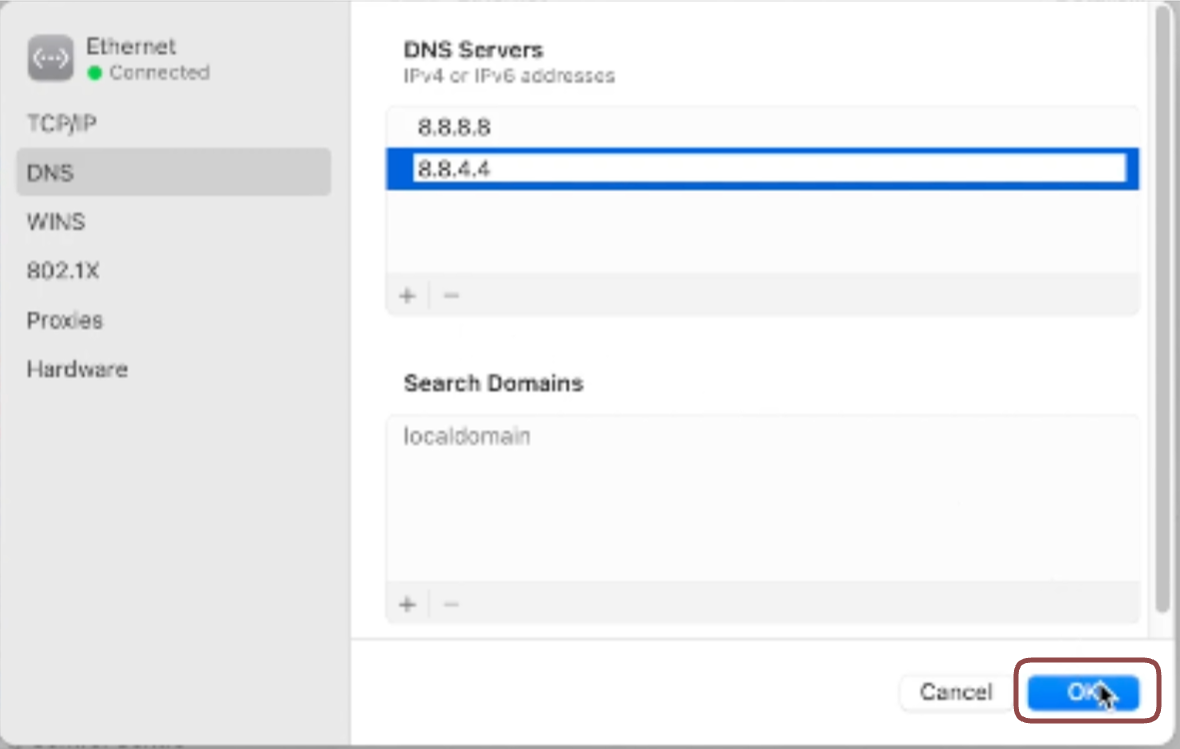
5. Click **DNS**.
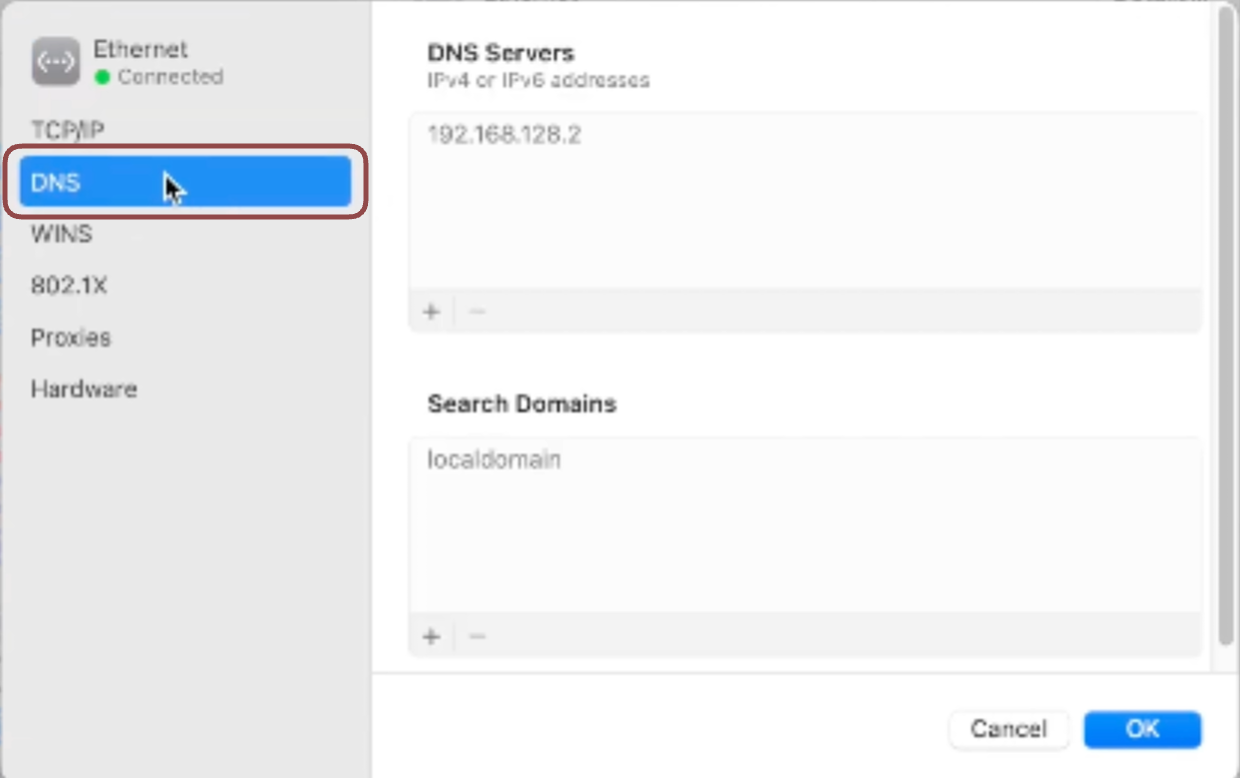
6. Click the **+** button in the **DNS servers** section.
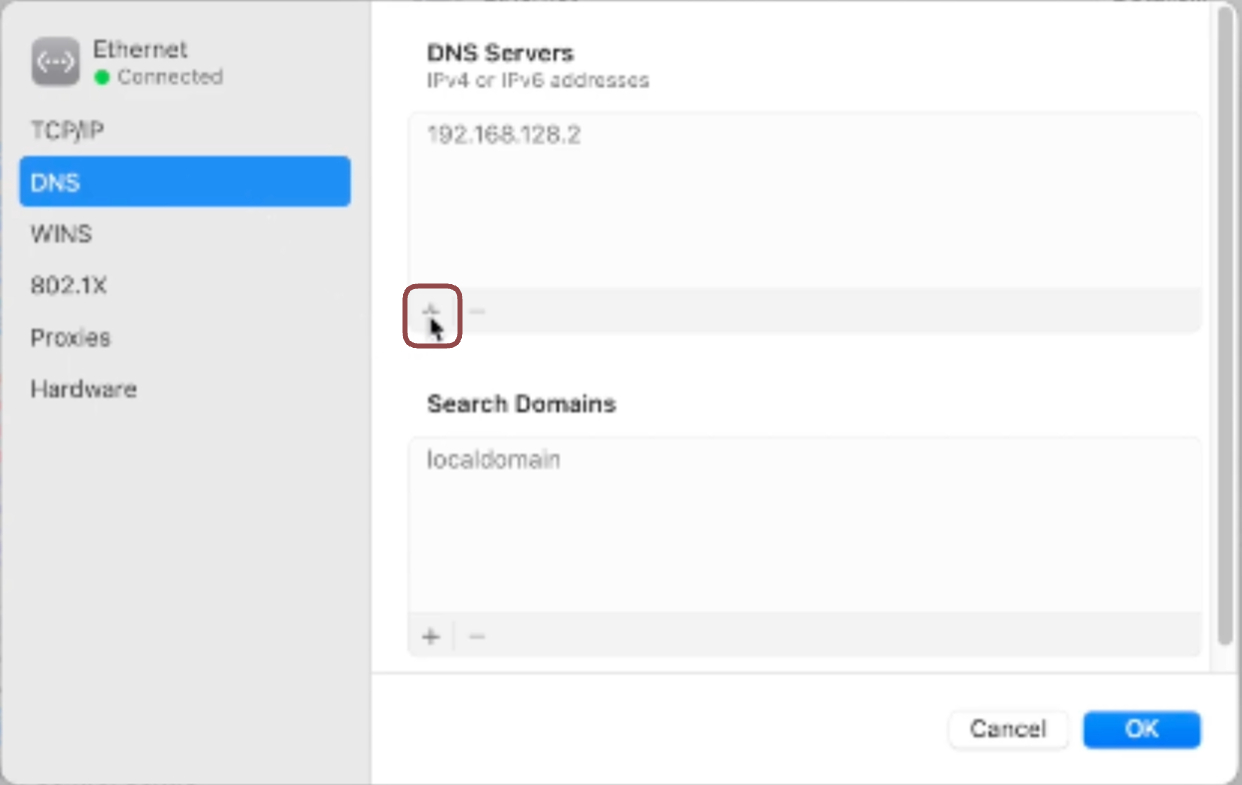
7. Type **8.8.8.8** in the text field.
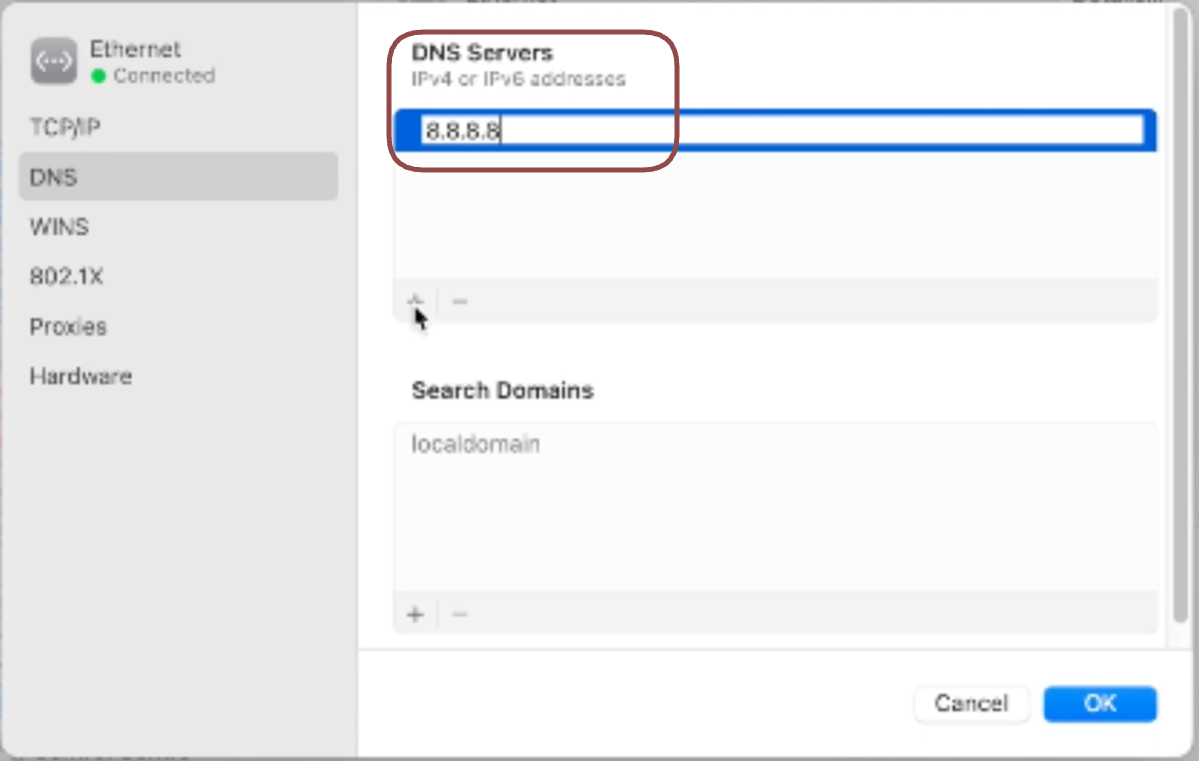
8. Click the **+** button again.
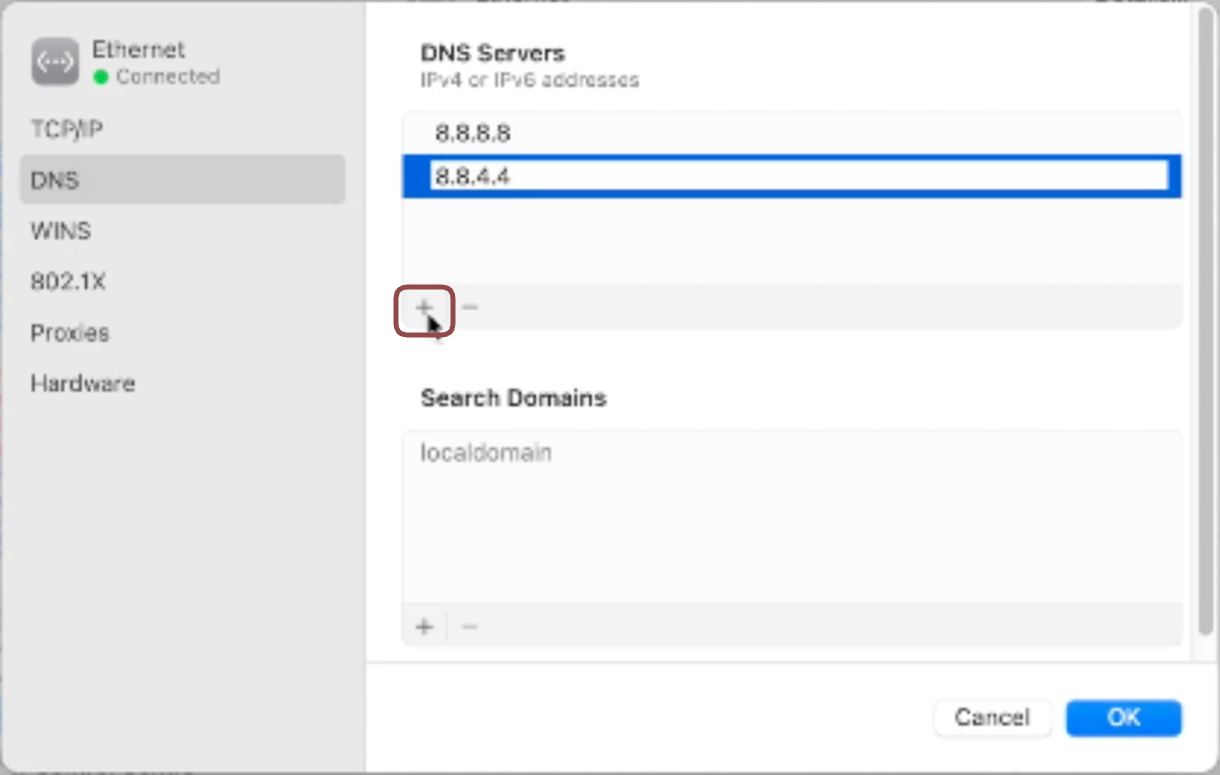
9. Type **8.8.4.4** in the text field.
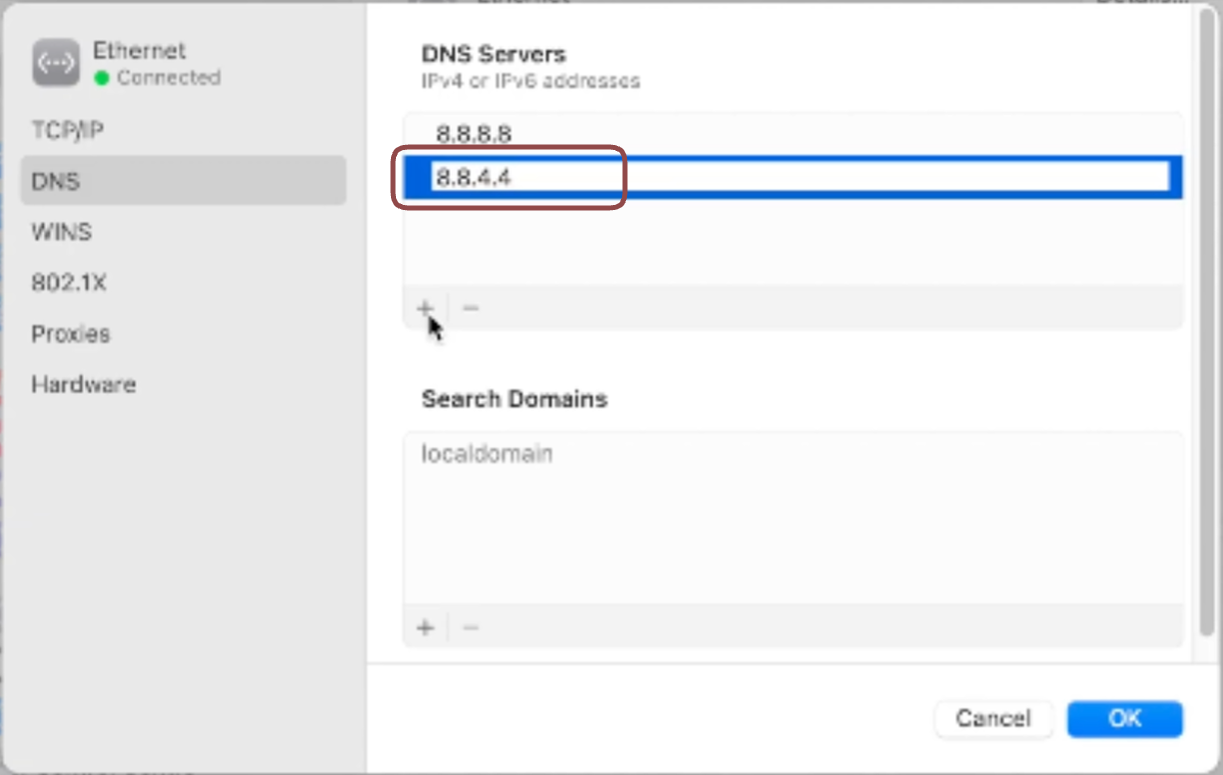
10. Click **OK**.
11. Restart your Mac for the changes to take immediate effect.
**macOS Monterey, Big Sur, Catalina, Mojave, High Sierra, Sierra, El Capitan, Yosemite**
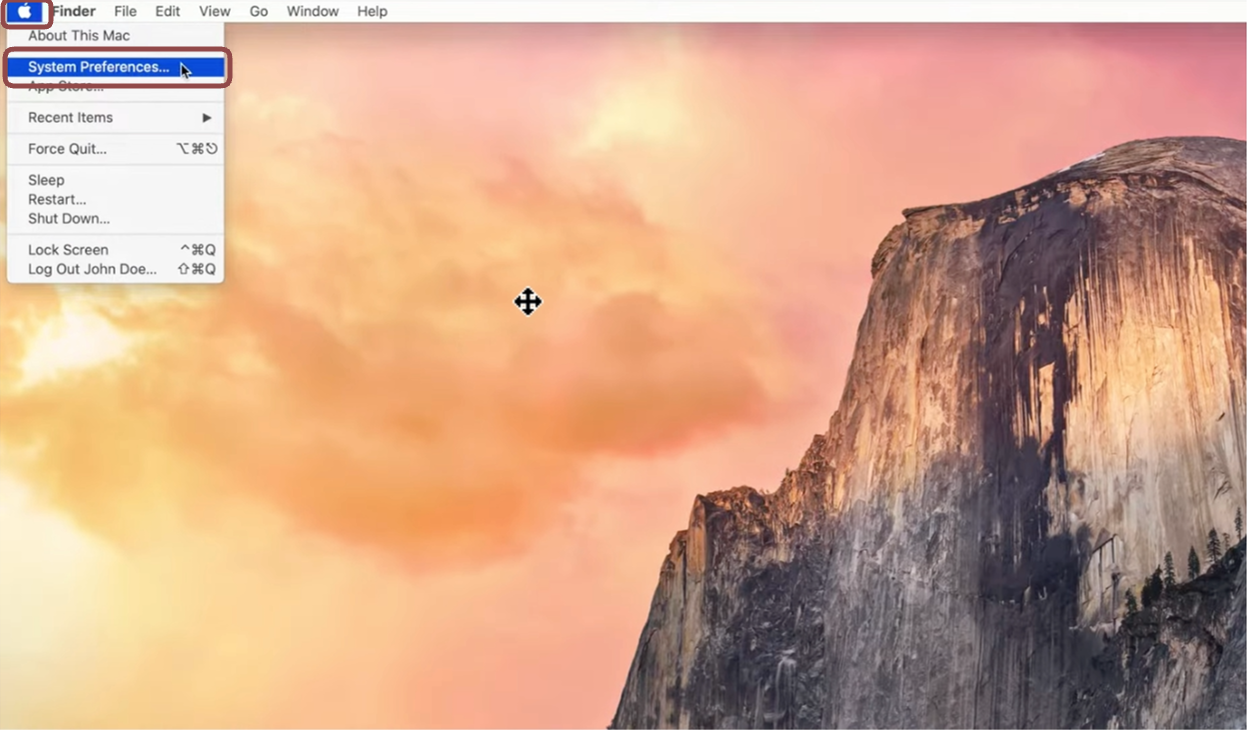
1. Click the Apple logo and select **System Preferences** in the menu.
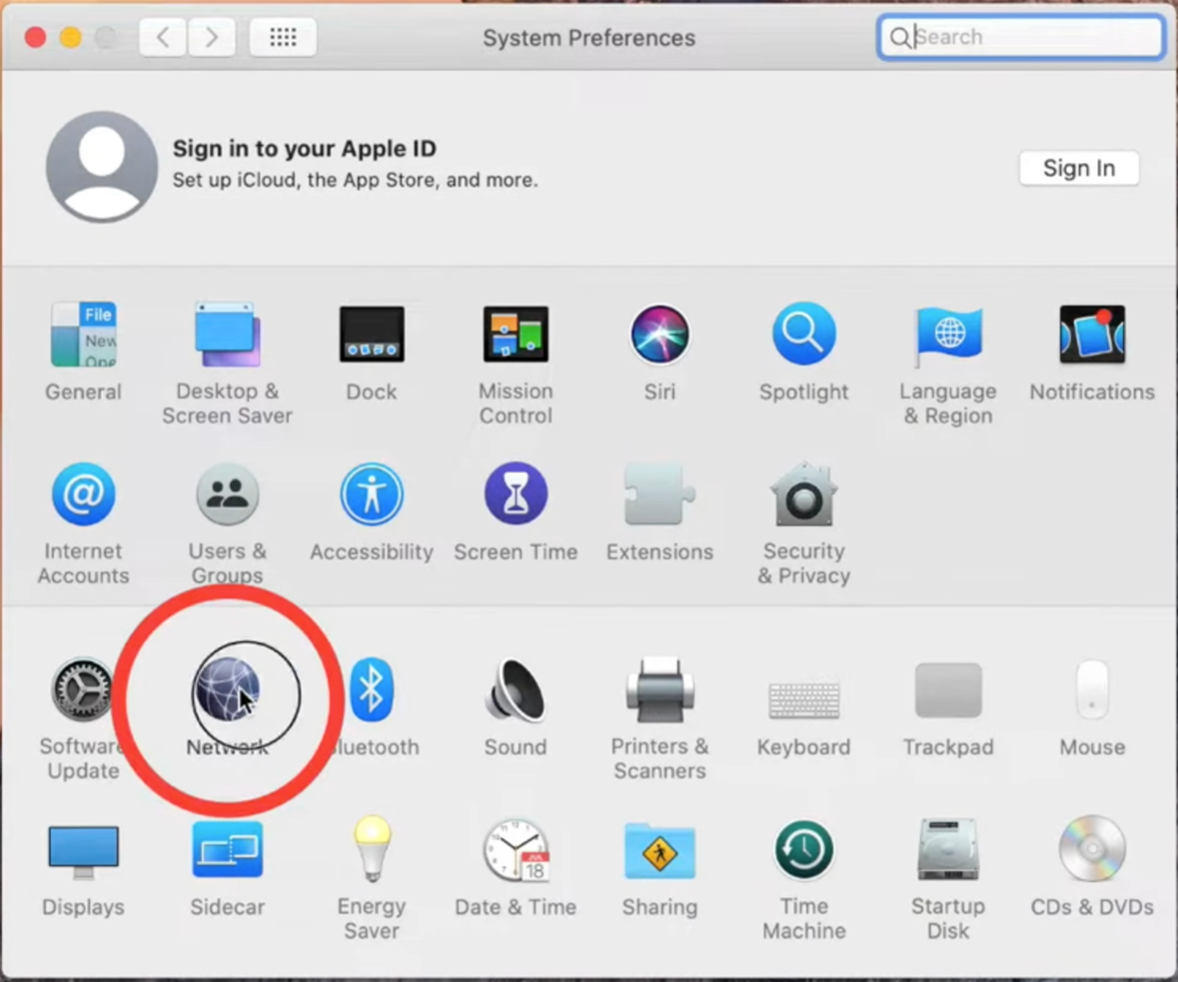
2. Click **Network**.
3. Select the first **Wi-Fi** or **Ethernet**connection in the list (the connection you are using).
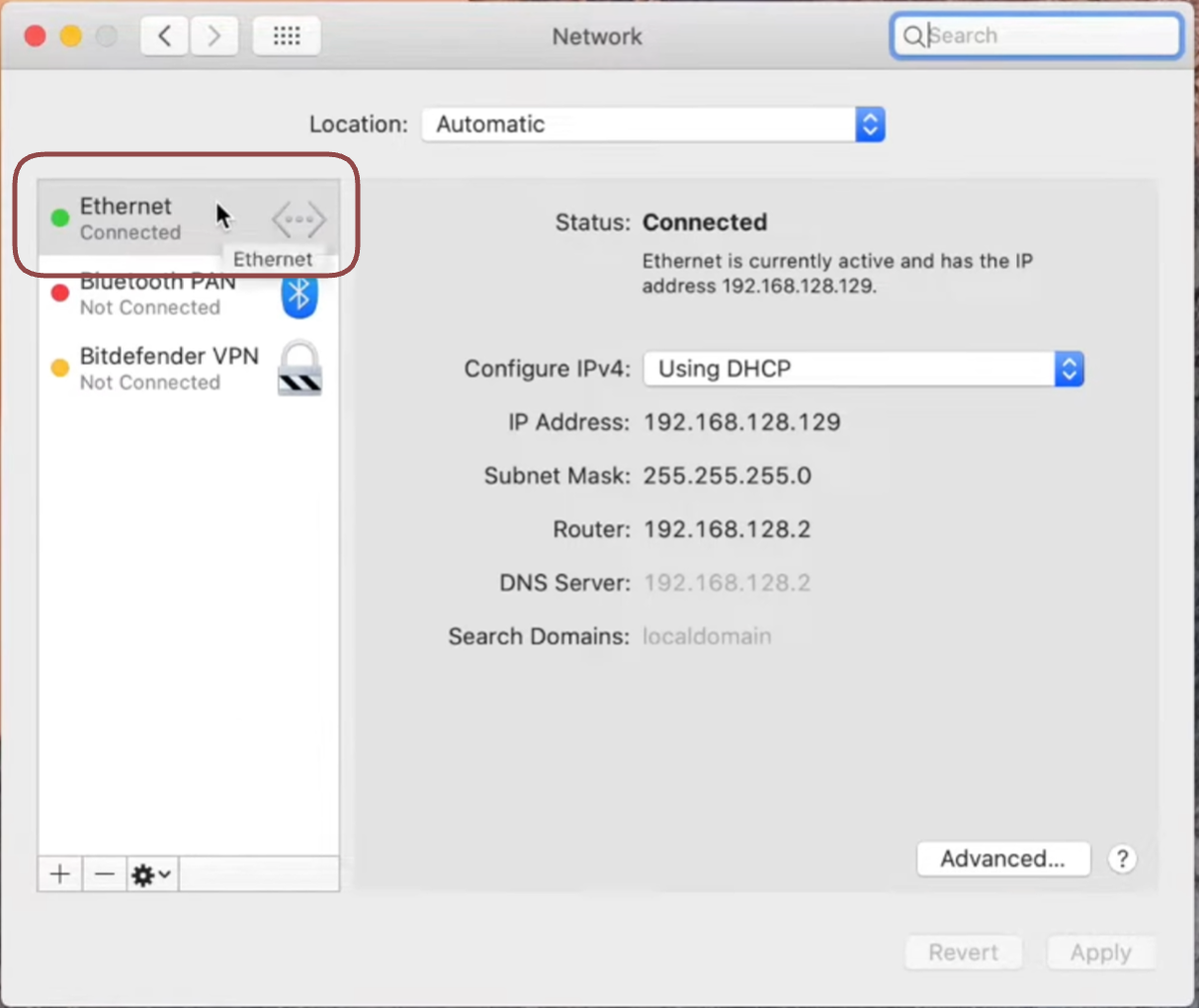
4. CLick the **Advanced** button.
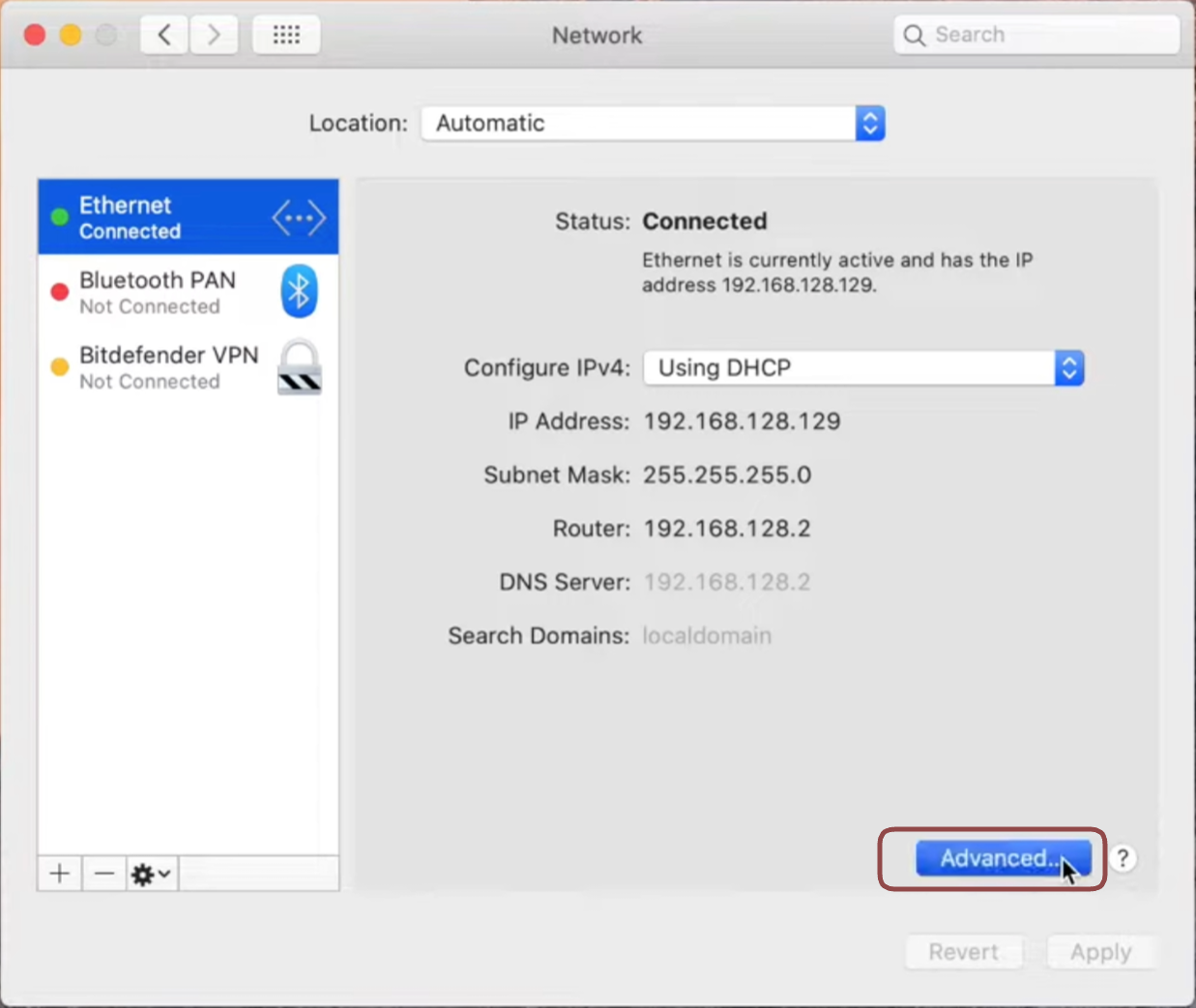
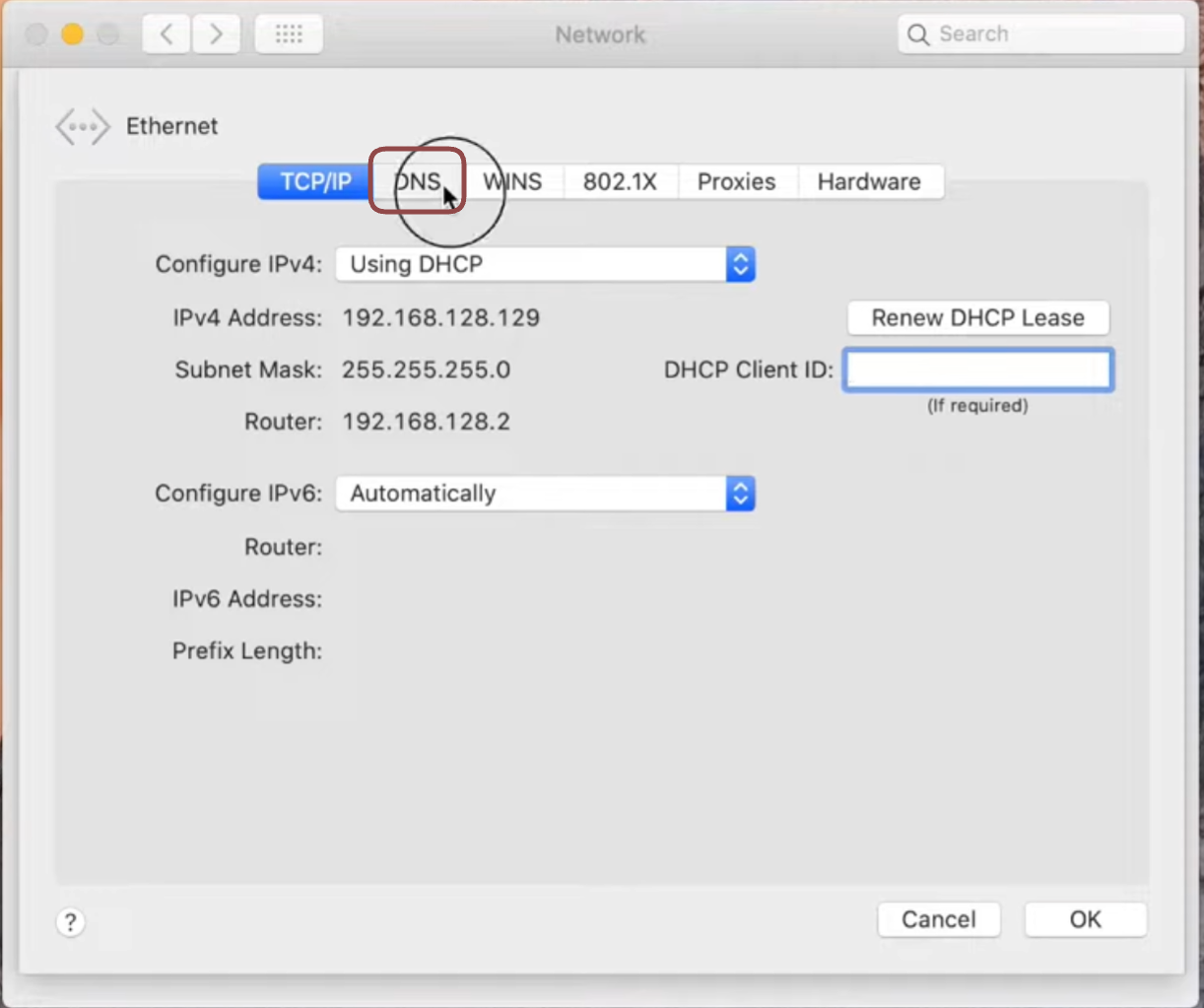
5. Click the **DNS** tab.
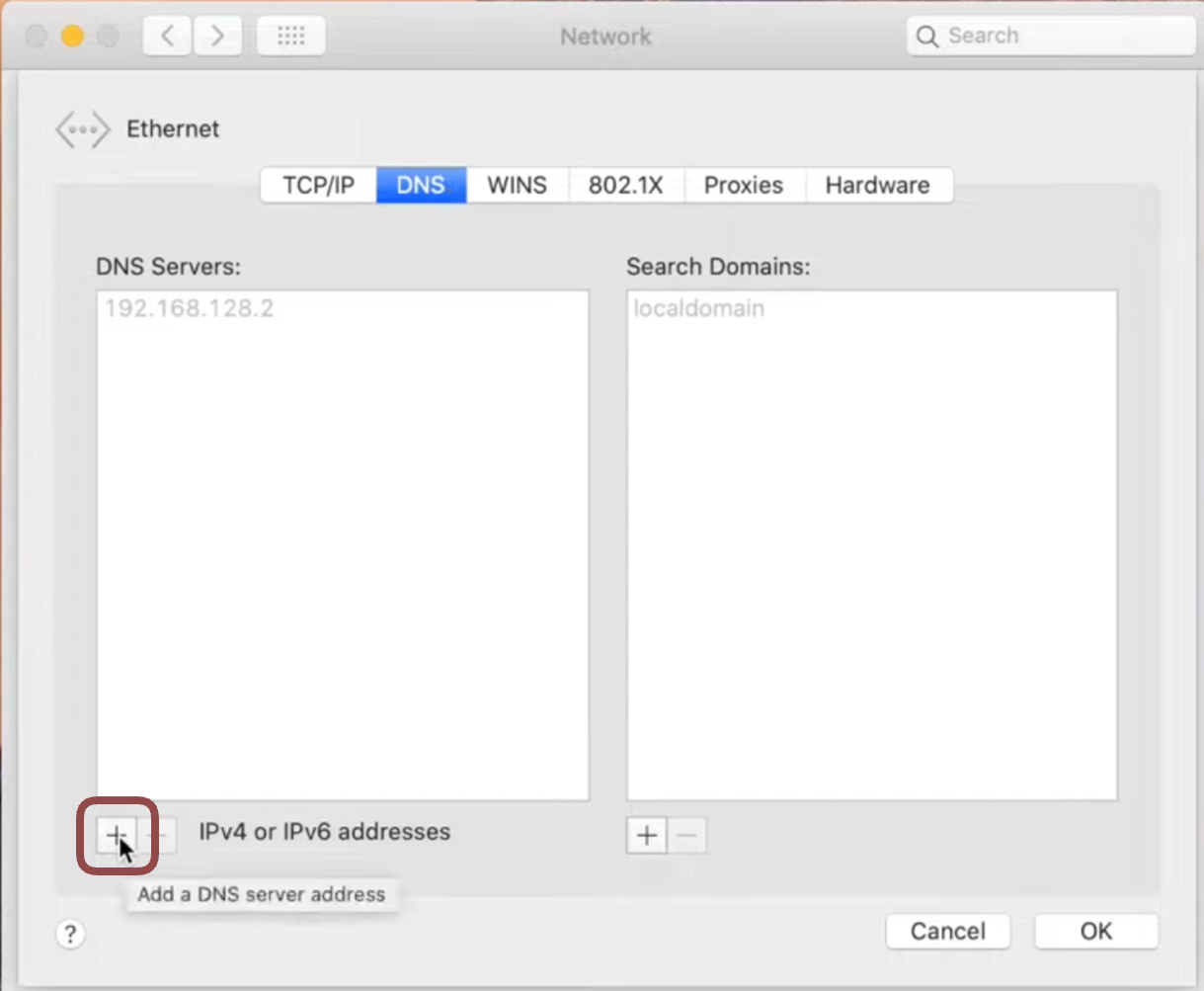
6. Click the **+** button in the *DNS servers* section.
7. Type **8.8.8.8** in the text field.
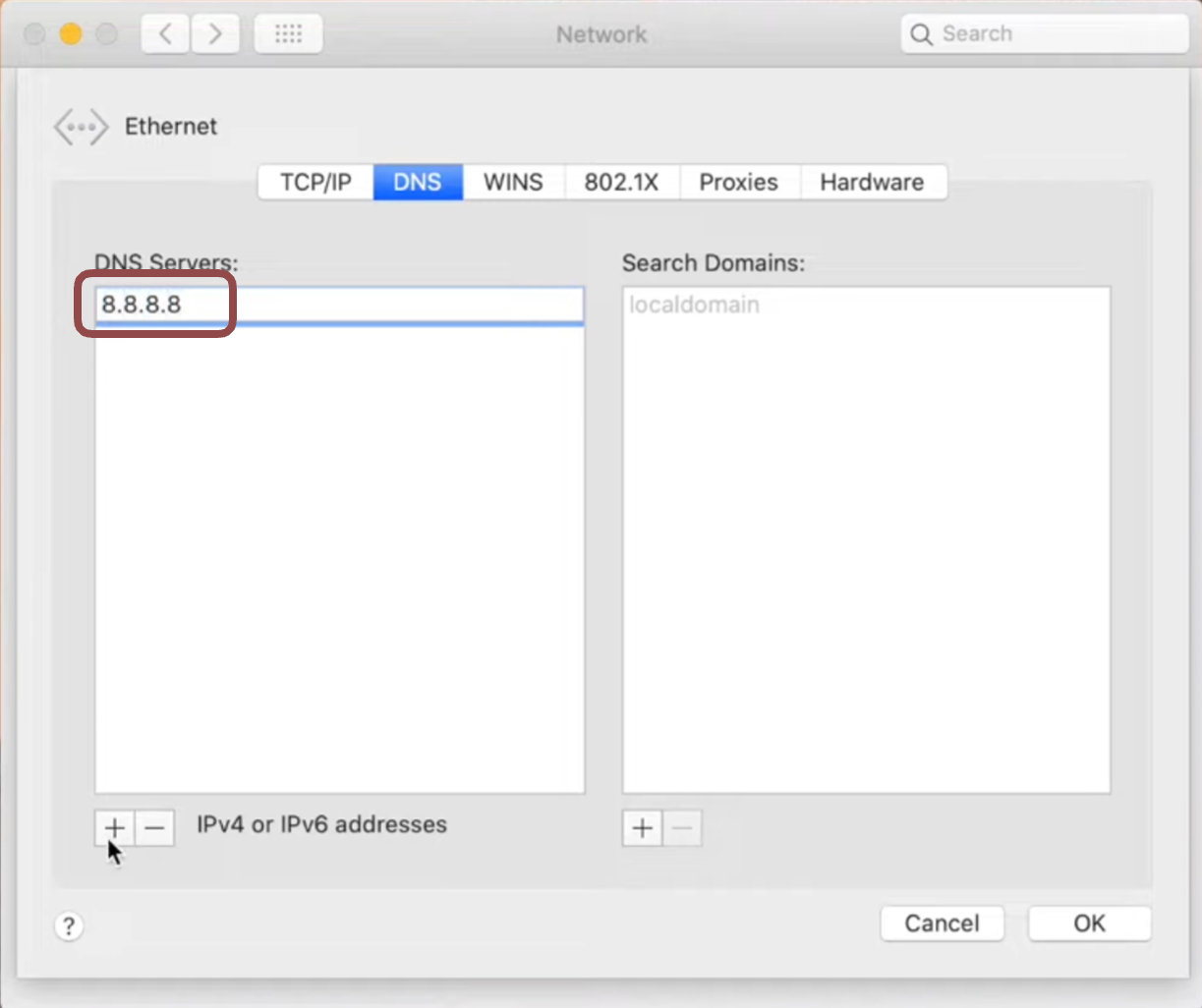
8. Click the **+** button again.
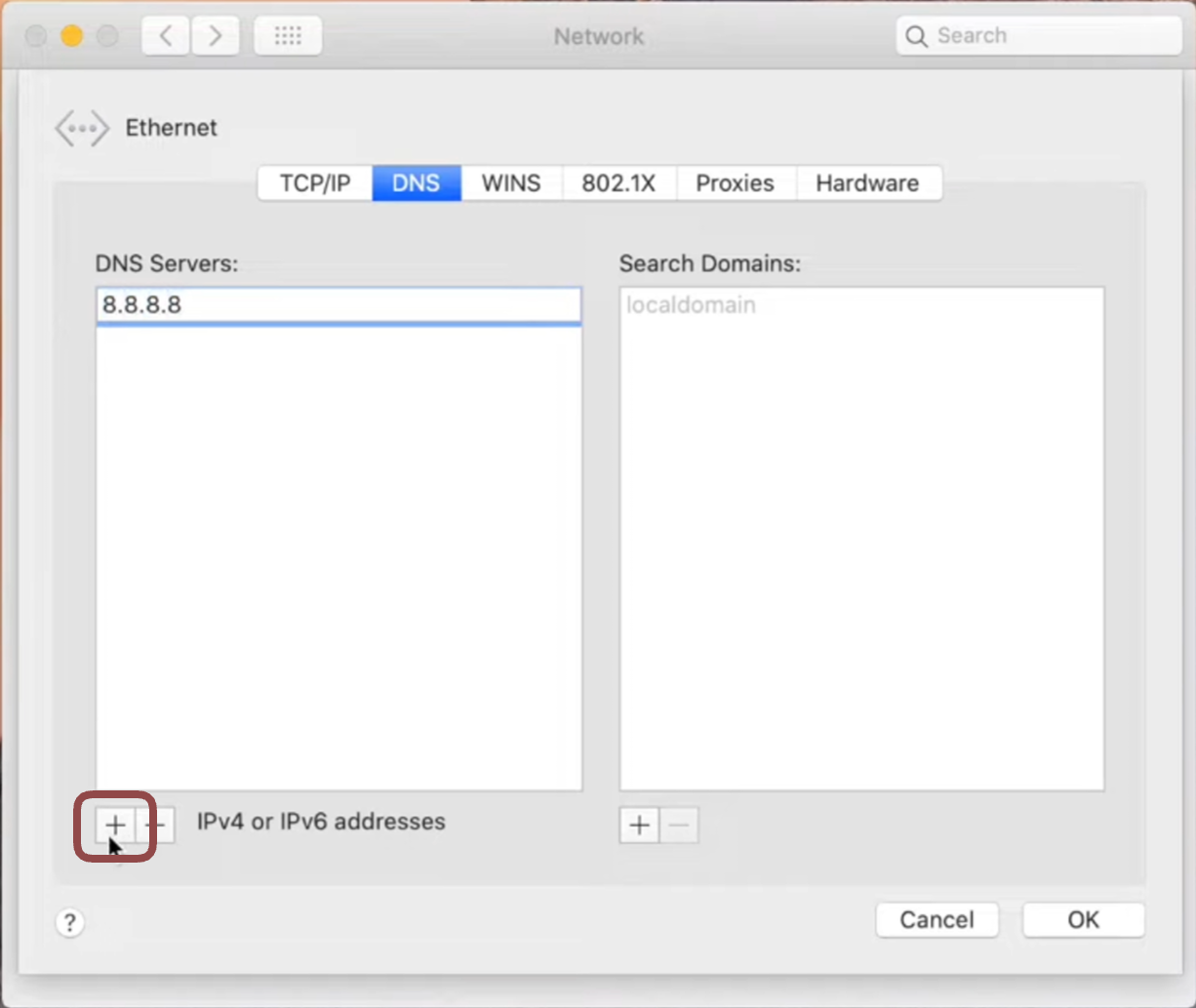
9. Type **8.8.4.4** in the text field.
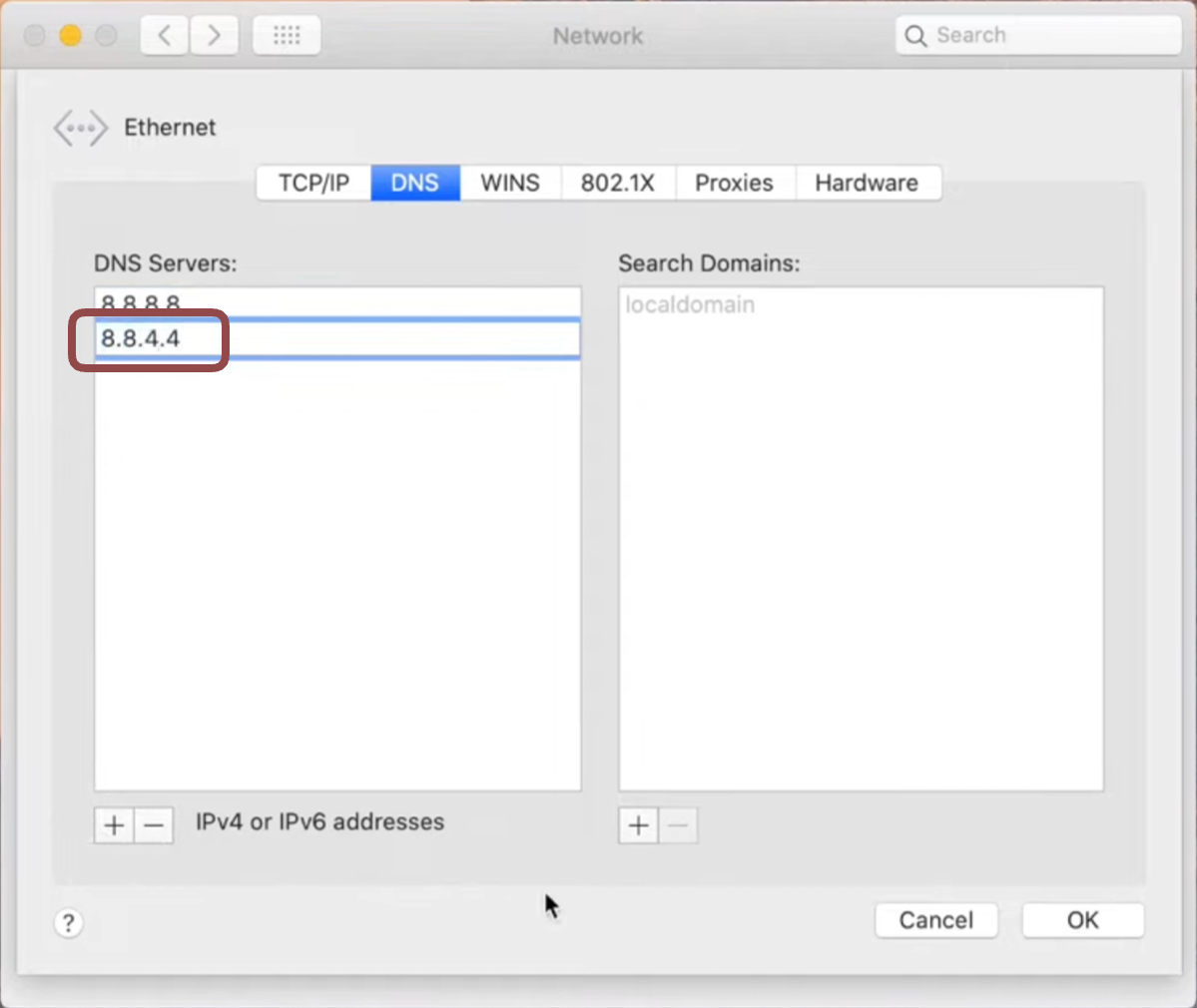
10. Click **OK**.
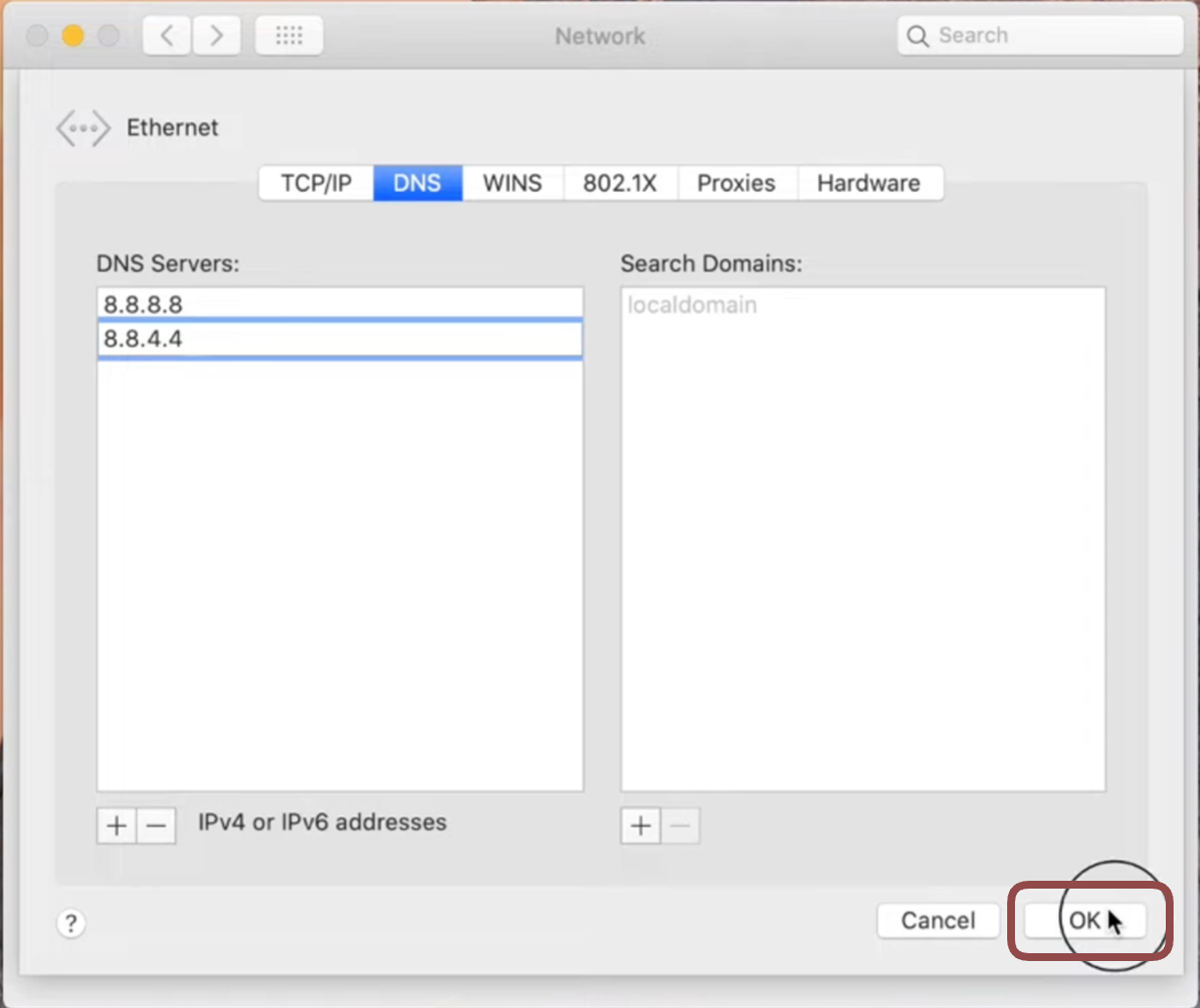
11. Click **Apply**.
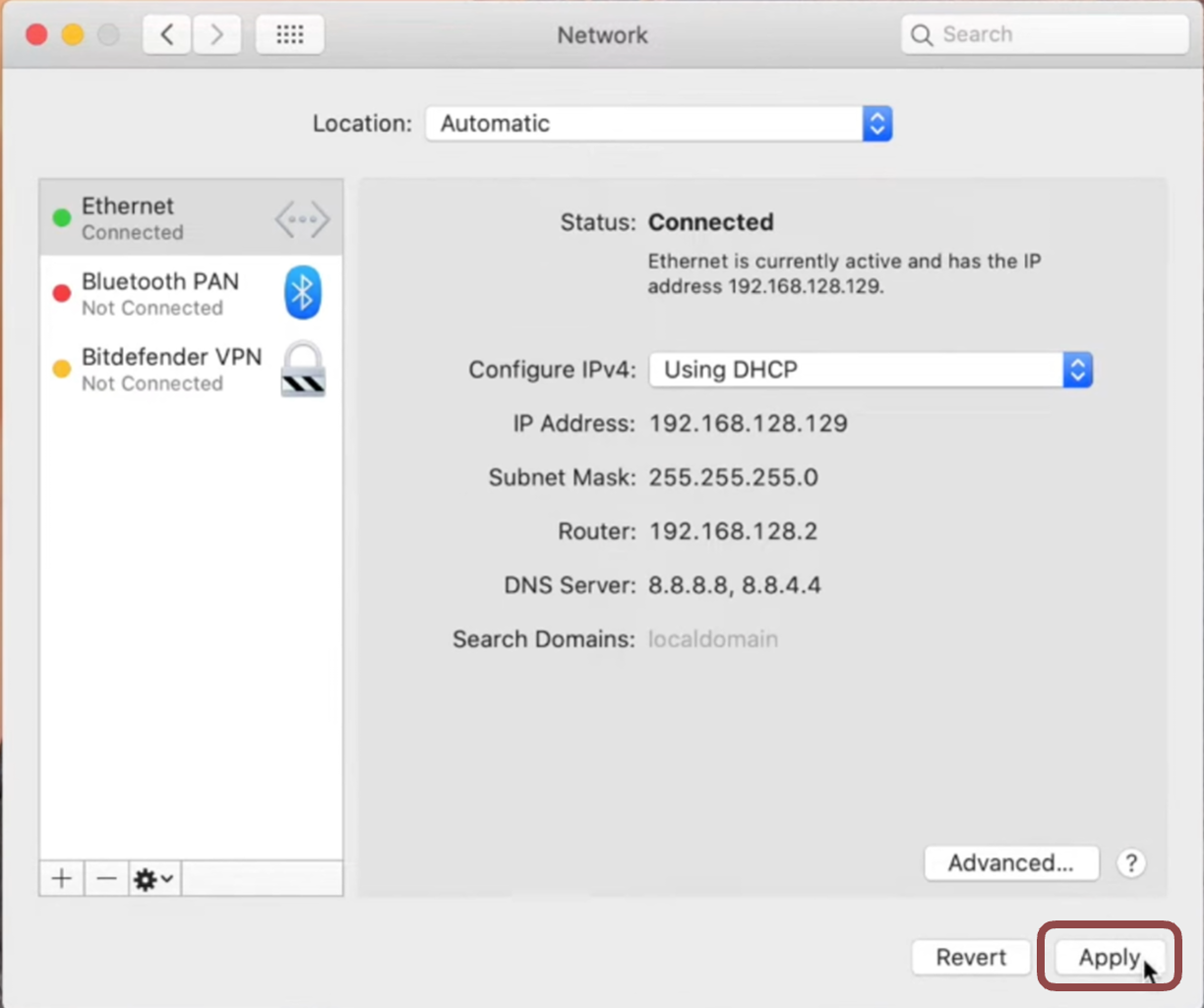
12. Restart your Mac for the changes to take immediate effect.
# Annotation
## 3D Data
* Ensure you are using the Chrome browser, and that it is up-to-date.
* Enable [graphics acceleration](https://www.howtogeek.com/412738/how-to-turn-hardware-acceleration-on-and-off-in-chrome/#:~:text=In%20the%20Settings%20menu%2C%20expand,Relaunch%E2%80%9D%20to%20apply%20the%20changes) in Chrome.
* If you are still stuck, contact [support@encord.com](mailto:support@encord.com) so can help you resolve this issue.
## Analytics
Yes, Workspace Admins can subscribe to receive an overview of your Workspace's analytics by email. Workspace Analytics emails are sent to the same address you use to log in to Encord. Workspace Analytics emails are sent from [insights@encord.com](mailto:insights@encord.com) and are labeled with the subject `insights`.
**To start receiving Workspace analytics emails**:
1. Navigate to the [Workspace Analytics page](/platform-documentation/General/general-workspace-analytics) in the Encord app.
2. Click the **Subscribe** button in the top-right corner of the Workspace Analytics page.
3. Set the frequency at which you want to receive Workspace Analytics emails.
4. Click **Subscribe**.
## Projects
As a Workspace admin you can search for any Project, including those without any collaborators, in the section [showing all the Projects in your Workspace](https://docs.encord.com/platform-documentation/Annotate/annotate-projects/annotate-manage-annotation-projects#join-projects-in-your-workspace).
You can create user groups within your organization. These can be added to specific Projects as teams.
* Documentation on user groups can be found [here](/platform-documentation/General/general-workspace-settings#creating-user-groups).
* For information on how to create teams for a given Project see the [Team Management section](/platform-documentation/Annotate/annotate-gettingstarted/curation-management-annotation#4-team-management) in our documentation.
Don't worry, no data has been lost! This is a warning from our system (known as the "editor lock") it occurs when:
* Two different people are editing a task at the same time.
* Or, that one individual has the task open in two different tabs, or browser windows.
In both cases we recommend to click 'cancel' to prevent any unexpected data overwrites.
See [our documentation here](/platform-documentation/Annotate/annotate-label-editor#editor-lock) for more details.
A warning symbol is displayed when a project is too large - meaning it contains too much data. When selecting the project you should encounter the following message:
> ⚠️
> "This project has exceeded the recommended number of tasks. To avoid performance issues, you need Admin access to manage and reduce the amount of data in this project".
The diagram below illustrates the steps you should take to fix the issue.
Learn how to [resize your videos here](/platform-documentation/General/general-supported-data#resizing-videos).
Apply this solution when your audio files are stored in a cloud storage bucket.
Create a JSON file with your waveform data and add the JSON file to the folder with your audio file. Learn how to do that [here](/platform-documentation/Curate/index-audio#long-audio-files).
## Datasets
Both image groups and image sequences are file types you can create in Encord to make labeling your images easier and more efficient. Both are created by taking multiple single images as an input, and compressing these into a single data unit. The difference lies in the resulting data unit.
* Image groups can contain images of varying orientations and are best thought of as a collection of images.
* Image sequences can only contain images of the same orientation - which allows them to be treated the same way that videos are in which each input image constitutes a single frame of the resulting image sequence.
See our [documentation here](/platform-documentation/General/general-supported-data#image-groups) for more details.
How to upload you DICOM data depends on whether you plan on using files stored in a private cloud, or locally.
* Local files can be dragged-and-dropped when [creating a new Dataset](/platform-documentation/Annotate/annotate-datasets/annotate-datasets#creating-datasets).
* Files from your private cloud are uploaded using [JSON files](/platform-documentation/Curate/add-files/index-register-cloud-data#json-format). We do not support upload via the CSV file format.
For information on uploading your DICOM files using the Encord SDK, see the relevant documentation [here](/sdk-documentation/getting-started-sdk/sdk-register-data-aws).
Client metadata can be updated by including the `"upsert_metadata": true` flag in the upload JSON file. An example JSON file is provided [here](/platform-documentation/Curate/add-files/index-register-cloud-data#update-client-metadata).
1. Navigate to *Datasets* on our platform from [https://app.encord.com](https://app.encord.com) or [https://app.us.encord.com](https://app.us.encord.com).
2. Re-name both datasets to make them distinguishable.
3. Open up both cases in the editor, and see which one is which (e.g. which one is annotated and which is not).
For information on how to delete a dataset see our documentation [here](/platform-documentation/Annotate/annotate-datasets/annotate-datasets#danger-zone-deleting-datasets).
1. An annotator’s download speed from private cloud storage has to be at least 3-4 times the video bitrate.
2. Make sure the videos have enough keyframes for smooth frame-by-frame navigation (roughly every 50 frames for high-resolution videos).
Re-encoding is only available to Enterprise customers. Contact [sales@encord.com](mailto:sales@encord.com) for more information.
See the [re-encoding data](/platform-documentation/General/general-supported-data#re-encode-videos) section in our documentation for more information.
We support the following formats and codecs:
* **`.mp4` with `H.264`** – We recommend using H.264 as the default codec, unless you have specific requirements that necessitate H.265. H.265 may present compatibility issues in some cases.
* **`.mp4` with `VP9`**.
Visit our [documentation on compatibility](/platform-documentation/General/general-supported-data) for more information on data compatibility.
This could be browser issue. To resolve:
1. Ensure you are using the Chrome browser.
2. [Turn hardware acceleration off](https://www.howtogeek.com/412738/how-to-turn-hardware-acceleration-on-and-off-in-chrome/).
3. If you are still stuck, contact [support@encord.com](mailto:support@encord.com) for assistance.
Updates to the display name take up to five minutes to appear in the UI.
1. Go to **User Profile > Settings**.
The *Settings* page appears.
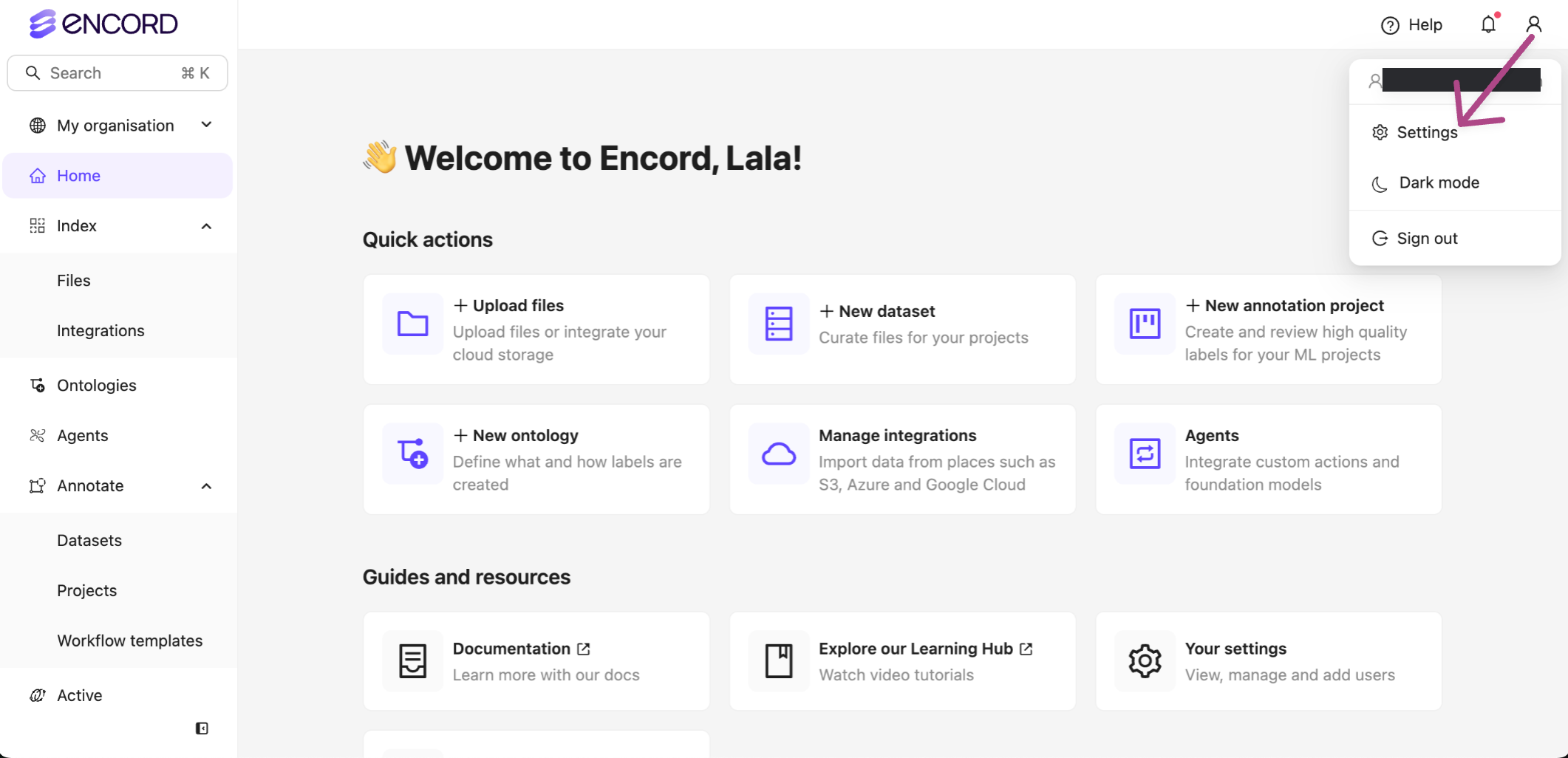
2. Click the **Edit** button in the *Name* row.
The *Name* field becomes editable.
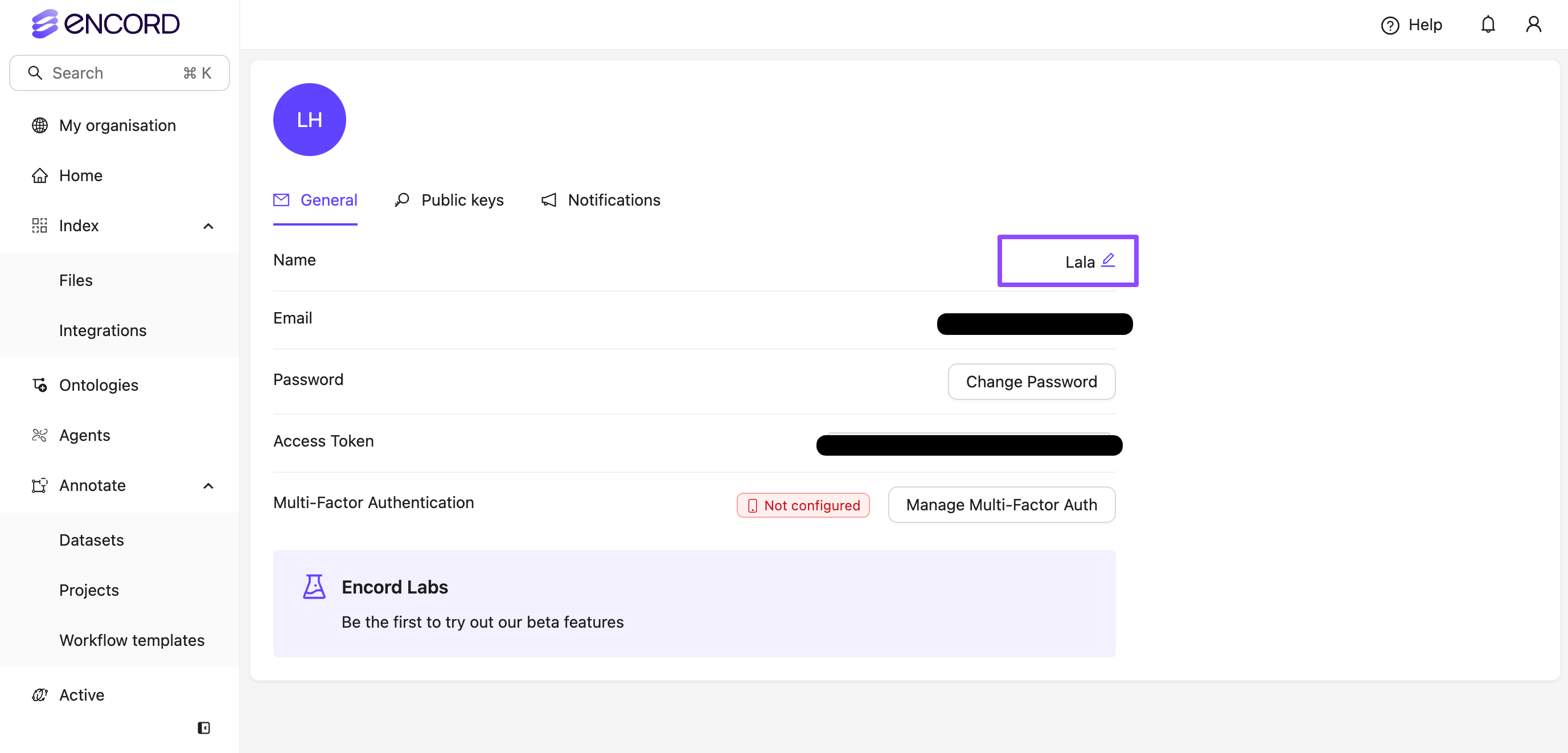
3. Provide the display name you want to use.
4. Press ENTER.
## Label Editor
Check the [sampling rate](/platform-documentation/Annotate/annotate-projects/annotate-manage-annotation-projects#sampling-rate).
It's possible that you are seeing a different number of classifications/annotations than expected because you have the sampling rate set too high/low.
There might be several possible causes if you see a "Something Went Wrong" error message in the Label Editor:
1. CORS issues - when rendering an image or video from remote storage solutions (AWS S3, GCP, Azure) it is important to set up a valid Cross-Origin Request Sharing (CORS) Policy and failure to do so will result in errors when trying to load that remote content in the Encord application.
To resolve these, check that a valid CORS policy is applied to the remote storage bucket, which allows Encord's domains. This varies between providers. For AWS the corresponding JSON looks like this:
```json Global theme={"dark"}
[
{
"AllowedHeaders": [
"*"
],
"AllowedMethods": [
"GET",
"PUT"
],
"AllowedOrigins": [
"https://app.encord.com",
"https://api.encord.com"
],
"ExposeHeaders": []
}
]
```
```json US theme={"dark"}
[
{
"AllowedHeaders": [
"*"
],
"AllowedMethods": [
"GET",
"PUT"
],
"AllowedOrigins": [
"https://app.us.encord.com",
"https://api.us.encord.com"
],
"ExposeHeaders": []
}
]
```
2. Connectivity issues - Check that your local connection is fast and performant. We also recommend that, when configuring your remote storage, you choose a location geographically proximate to your annotators to ensure the smoothest loading experience.
3. Occasionally, you might notice an error loading from remote storage if the remote storage bucket itself is newly provisioned. This is because the cloud provider sometimes provisions in any region first (to improve provisioning speed) then moves it to the requested region afterwards. If the issue is not resolver after \~1hr, contact Encord support.
If the Label Editor crashes after attempting to load your cloud data file, it is likely that the signed URL is expiring. Refreshing the Label Editor re-signs the URL.
We recommend [increasing the expiration time for signed URLs on your integration](/platform-documentation/General/annotate-data-integrations#edit-custom-signed-url-expiration-times).
Your DNS settings might not be configured correctly.
**Windows 10**
1. Go to the **Control Panel**.

2. Click **Network and Internet > Network and Sharing Center > Change adapter settings**.

3. Select the connection for which you want to configure Google Public DNS. For example:
* To change the settings for an Ethernet connection, right-click the Ethernet interface and select Properties.
* To change the settings for a wireless connection, right-click the Wi-Fi interface and select Properties.
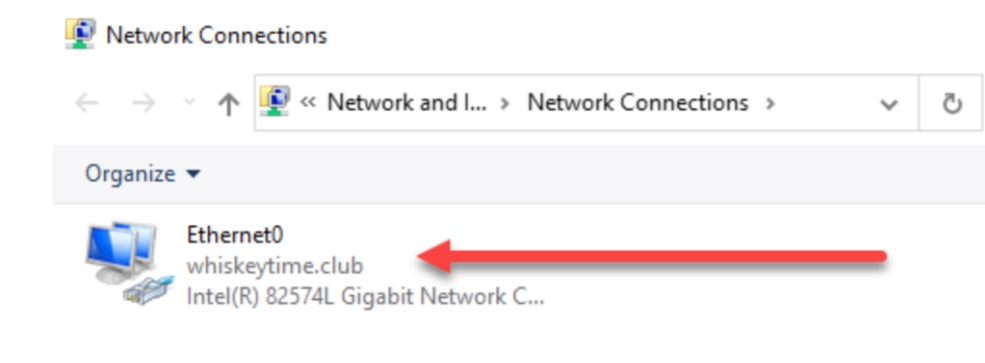
4. If you are prompted for an administrator password or confirmation, type the password or provide confirmation.
5. Select the Networking tab. Under This connection uses the following items, select Internet Protocol Version 4 (TCP/IPv4) then click Properties.

6. Select **Use the following DNS server addresses**. If there are any IP addresses listed in the *Preferred DNS server* or *Alternate DNS server*, write them down for future reference.
Replace those addresses with the IP addresses of the Google DNS servers:
* For IPv4: 8.8.8.8 and/or 8.8.4.4.
7. Click **OK**.
**Windows 11**
1. Go to **Settings**.

2. Select the connection for which you want to configure Google Public DNS. For example:
* If you are using Wi-Fi, click **Wi-Fi**, click **Hardware properties**, then click **Edit** next to *DNS server assignment*.
* If you are using an ethernet connection, click **Ethernet**, then click **Edit** next to *DNS server assignment*.
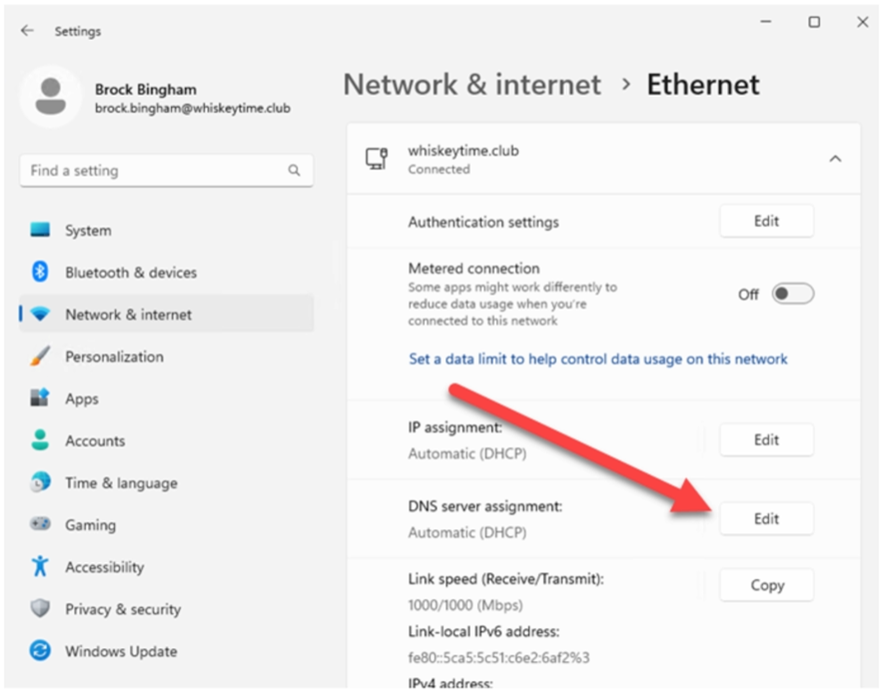
3. Using the drop-down menu, select **Manual**, then toggle **IPv4** to **On**. If there are any IP addresses listed in the *Preferred DNS server* or *Alternate DNS server*, write them down for future reference.
Replace those addresses with the IP addresses of the Google DNS servers:
* For IPv4: 8.8.8.8 and/or 8.8.4.4.

***
# Data Curation & Label Validation
A quality metric is a function that can be applied to your data, labels, and model predictions to assess their quality and rank them accordingly.
Encord uses these metrics to analyze and decompose your data, labels, and predictions.
Encord supports the active learning process by allowing you to
1. Explore your data to select what to label next
2. Employ acquisition functions to automatically select what to label next
3. Find label errors that potentially harm your model performance
4. Sending data to Encord's Annotation module for labeling
5. Automatically decompose your model performance to help you determine where to put your focus for the next model iteration
6. Tag subsets of data to set aside test sets for specific edge cases for which you want to maintain your model performance between each production model
Encord supports importing predictions in the following ways:
* [Use the Encord UI](/platform-documentation/Validation/active-how-to/active-import-model-predictions-cloud) to import your model predictions.
* [Use the Encord API](/sdk-documentation/api-active/active-api-import-model-predictions-cloud) to import your model predictions.
[Use Collections](/platform-documentation/Curate/curation-basics) in your Projects to handle all your Project data (not just Dataset) needs.
Once you've created a Collection, you can send the Collection to Annotate in the following ways:
* Apply the Collection directly to your existing Annotate Projects
* Create a new Dataset and attached Annotate Project off of your Collection
* Apply classifications to all frames/images in your Collections directly to your existing Annotate Projects
While you can version your data and labels using Active, Annotate supports [data versioning](/platform-documentation/Annotate/annotate-projects/annotate-manage-annotation-projects#save-label-version) and [label versioning](/platform-documentation/Annotate/annotate-projects/annotate-manage-annotation-projects#saved-versions).
You can use [Collections](/platform-documentation/Curate/curation-basics) to version your Projects using Active.
**Yes!**
If your data is stored in cloud storage (AWS, GCP, Azure, OTC), your data remains there.
If you come across an error, don't worry! We're here to assist you.
Reach out to [support@encord.com](mailto:support@encord.com), and we'll promptly address your concern.
Additionally, we'd greatly appreciate it if you could [report the issue](https://github.com/encord-team/encord-active/issues/new/choose) on GitHub. Your feedback and bug reports help us improve Encord Active for everyone.
***
## Ontologies
Re-ordering an Ontology is only possible using the SDK. We are looking to add a more user-friendly version of this functionality into our UI in the future.
The following example is used to re-order the first two objects, and attributes in an existing Ontology using the SDK. Pass the `` into the `user_client`'s `get_ontology` method, perform the relevant changes, and call `ontology.save()` to commit the changes:
```python theme={"dark"}
# Import dependencies
from encord import EncordUserClient
# Authenticate with Encord using the path to your private key
user_client = EncordUserClient.create_with_ssh_private_key(
ssh_private_key_path=""
)
ontology = user_client.get_ontology("")
# Re-arrange first and second objects in the Ontology.
first_object = ontology.structure.objects[0]
second_object = ontology.structure.objects[1]
ontology.structure.objects[0] = second_object
ontology.structure.objects[1] = first_object
#Re-arrange attributes in the Ontology
first_att = ontology.structure.objects[0].attributes[0]
second_att = ontology.structure.objects[0].attributes[1]
ontology.structure.objects[0].attributes[1] = first_att
ontology.structure.objects[0].attributes[0] = second_att
ontology.save()
```
You cannot add images directly to an Ontology's descriptions. Instead, reference images to help annotators can be added to the [annotation instructions](/platform-documentation/Annotate/annotate-projects/annotate-project-settings#upload-annotation-instructions).
***
## Cloud Integrations
There are two methods to set up an Azure integration.
1. By generating an account-level shared access signature (SAS).
2. By using a service principal. Your user needs to be the admin of your Azure tenants for this method.
Both methods are described in detail in our documentation [here](/platform-documentation/General/annotate-data-integrations/annotate-azure-blob-integration)
The use of special characters in object names should generally be avoided.
See the AWS docs [here](https://docs.aws.amazon.com/AmazonS3/latest/userguide/object-keys.html) for more information.
In the interest of keeping your data secure we do not offer downloading via internet URLs.
A video needing to fetch data even though it has buffered implies that your AWS objects do not have caching enabled.
When [setting up a permission policy for your AWS bucket](https://docs.aws.amazon.com/AmazonCloudFront/latest/DeveloperGuide/Expiration.html#ExpirationAddingHeadersInS3) ensure that all AWS objects used in Encord have the 'S3 standard' [storage class](https://aws.amazon.com/s3/storage-classes/).
## Buffering issues
See our [documentation here](/platform-documentation/General/annotate-data-integrations#fix-buffering-issues) on tips to fixing buffering issues.
A video needing to fetch data even though it has buffered implies that your AWS objects do not have caching enabled.
When [setting up a permission policy for your AWS bucket](https://docs.aws.amazon.com/AmazonCloudFront/latest/DeveloperGuide/Expiration.html#ExpirationAddingHeadersInS3) ensure that all AWS objects used in Encord have the 'S3 standard' [storage class](https://aws.amazon.com/s3/storage-classes/).
***
## API and SDK
Find instructions for uploading the labels [here](/sdk-documentation/sdk-labels/sdk-import-labels-annotations-visual) in our documentation. We support JSON and COCO formats.
The review metadata is exported in the JSON format. The 'status' allows you to see which files were reviewed.
Increase the [timeout](/sdk-documentation/general-sdk/network-configurations-sdk) of your Encord client, given the size of the project this is a long-running query.
Yes, you can!
To do so, add an extra feature in the Ontology naming it, for example: `Selected` -> `Yes`.
Share the ontology tree with Encord Support [support@encord.com](mailto:support@encord.com) to allow us to match the import script with the feature uuid (`featureNodeHash`).
You cannot upload your own model - but you are able to import your model predictions using the [SDK](/sdk-documentation/sdk-labels/sdk-import-labels-annotations-visual).
See our CVAT documentation [here](/sdk-documentation/projects-sdk/sdk-import-cvat).
The object hash provides an efficient and convenient mechanism to store and retrieve data with ease. Each has serves as a unique lookup key within the platform.


