> ## Documentation Index
> Fetch the complete documentation index at: https://docs.encord.com/llms.txt
> Use this file to discover all available pages before exploring further.
# Import Local Data - UI - Images and Videos
## Why do it this way?
**Quickest and dirtiest way to get going with Encord.**
Typically importing LOCAL data using the UI is done when testing Encord's capabilities or when you intend to import a relatively small amount of data, into Encord, for annotation.
If you only need Encord for annotation/annotation services and you know exactly what data you want to annotate, you might not need to use Curate. This means importing your data to a mirrored Dataset, and then creating an Annotate Project.
### Pros and Cons
Pros
Cons
* Simplest import
* Quicker Project set up
* Lack of flexibility for data usage in Projects
* No data management or curation
* No cloud integration
## Import Data
We're going to import our dataset of fruit using the UI. The dataset is a mixture of images and videos of the following types of fruit:
* Apples
* Bananas
* Blueberries
* Cherries
* Kiwi
* Persimmons
* Strawberries
Download and extract the contents of [Fruit-images-videos.zip file](https://storage.googleapis.com/docs-media.encord.com/E2E%20Artifacts/Fruit-images-videos.zip).
Create the mirrored Dataset `E2E Fruit Dataset` using the UI. Using mirrored Datasets is the simplest way get data into Encord for annotation. Mirrored Datasets provide no method of curating or managing your data.
Mirrored datasets sync all the data to your Dataset automatically. This means if you want to add more data to your Dataset, you can add more data to the Dataset and then data automatically gets added to your Annotate Project.
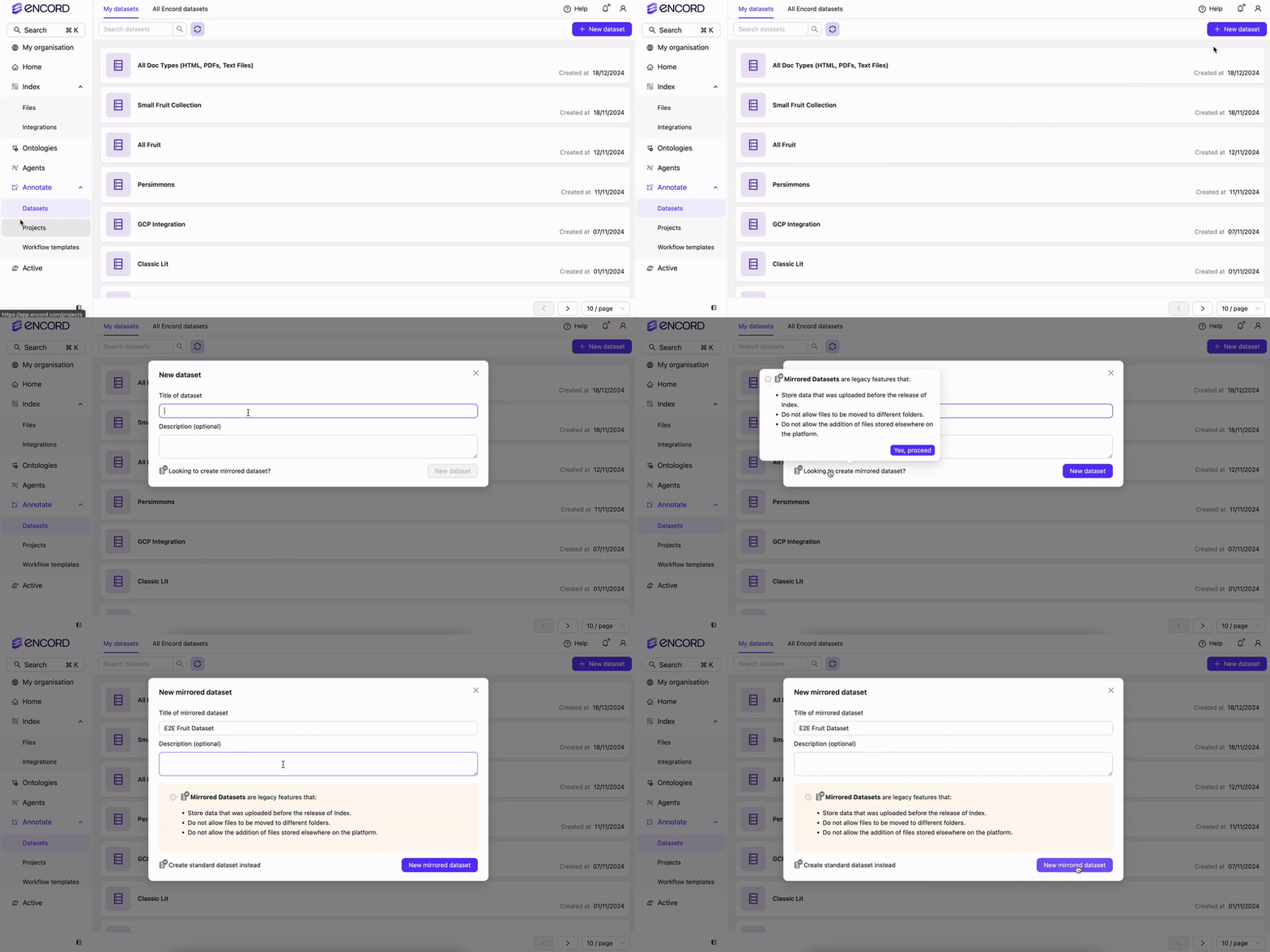
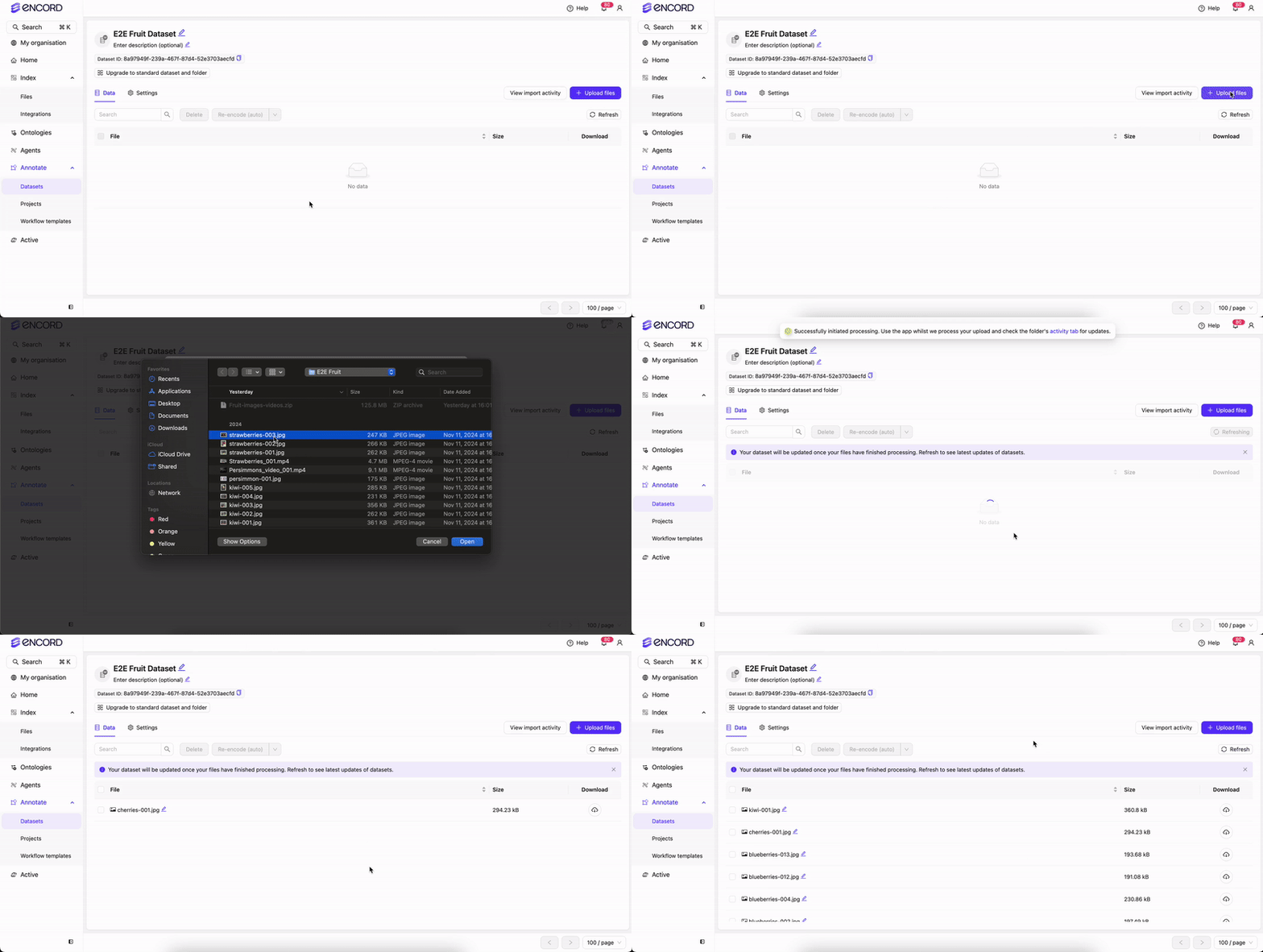
Import the data from `Fruit-images-videos.zip` to the mirrored Dataset `E2E Fruit Dataset`.
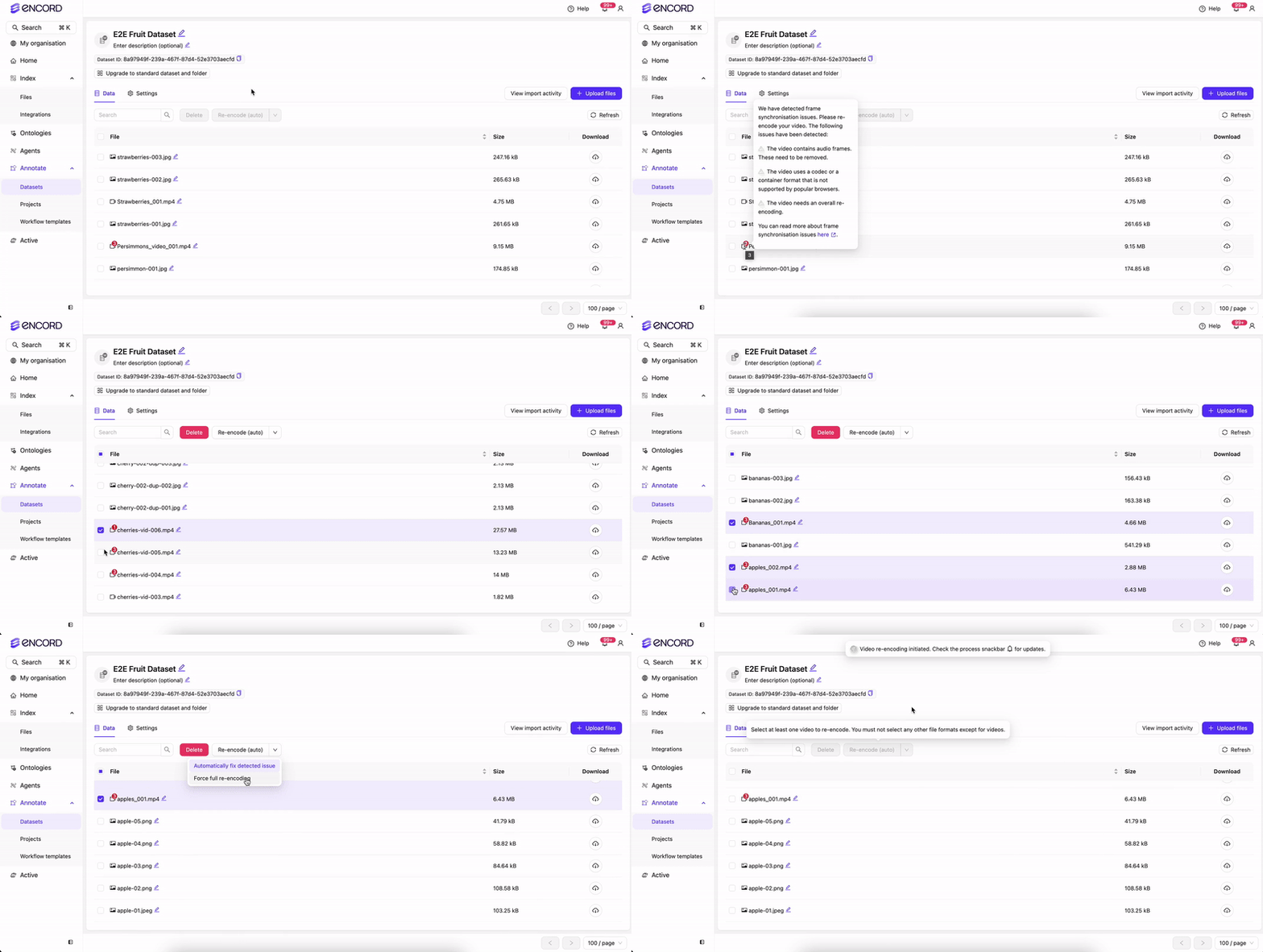
The dataset we provided has some videos with audio and some other issues. We want to re-encode those videos with issues so our annotators have the best experience possible when labeling the videos.
We strongly recommend re-encoding any imported videos with issues. Re-encoding your videos ensures the best performance when annotating your data.
Once all the videos are re-encoded you are ready to create an Annotate Project. Once you create a Project and you and your team are ready to begin annotating the data.
Performing ANY of these tasks results in creating the Project `E2E Fruit Project` to annotate.
* The Ontology is the same for ALL tasks.
* The Workflow varies depending on the task.
Create Projects (Ontologies, Workflows, and Projects) using the Encord UI.
Create Projects (Ontologies, Workflows, and Projects) using the SDK.
Create Consensus Projects (Ontologies, Workflows, and Projects) using the UI.
Create Consensus Projects (Ontologies, Workflows, and Projects) using the UI.
Create Projects (Ontologies, Workflows, and Projects) for use with your own labels.
Create Projects (Ontologies, Workflows, and Projects) for use with your own model predictions.
This documentation is built and hosted on [Mintlify](https://mintlify.com), a developer documentation platform.