> ## Documentation Index
> Fetch the complete documentation index at: https://docs.encord.com/llms.txt
> Use this file to discover all available pages before exploring further.
# Annotating Audio Files
This guide assumes your audio files are stored in AWS. To learn how to create integrations with other cloud providers [click here](/platform-documentation/General/annotate-data-integrations).
## STEP 1: Import Your Audio Files
Before you can do anything with the Encord platform and cloud storage, you need to configure your cloud storage to work with Encord. Once the integration between Encord and your cloud storage is complete, you can then use your data in Encord.
In order to integrate with AWS S3, you need to:
1. Create a permission policy for your resources that allows appropriate access to Encord.
2. Create a role for Encord and attach the policy so that Encord can access those resources.
3. Activate Cross-origin resource sharing which allows Encord to access those resources from a web browser.
4. Test the integration to make sure it works.
See our [AWS integration documentation](/platform-documentation/General/annotate-data-integrations/annotate-aws-integration) for a detailed explanation of setting up AWS to work with Encord.
You have the following options to integrate AWS and Encord:
Create an S3 bucket to store your files if you haven't already. Your S3 bucket permissions should be set to be blocking all public access.
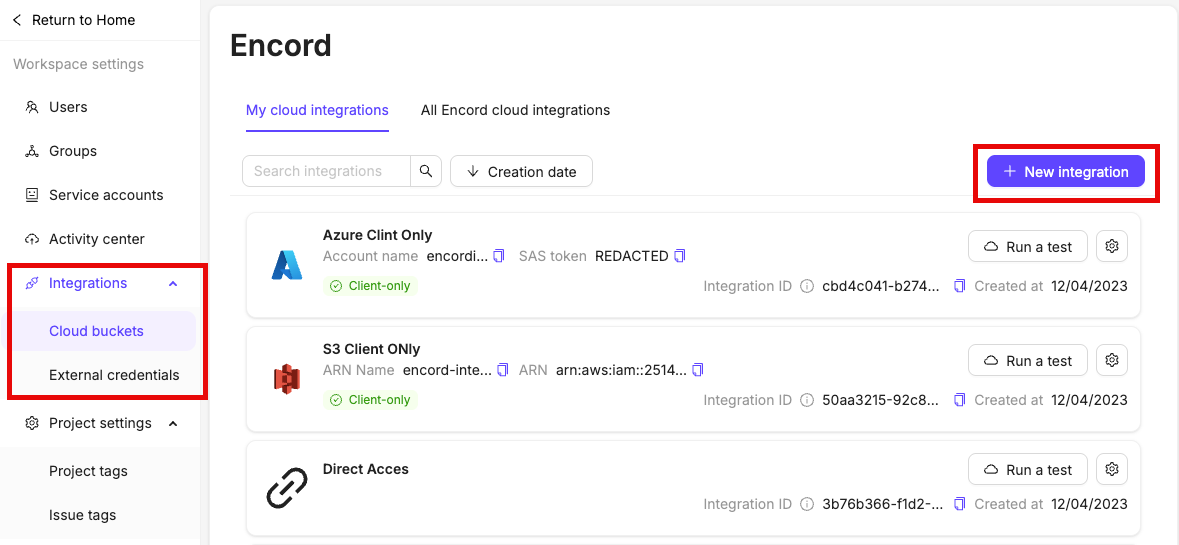
In the *Integrations* section of the Encord platform, click **+New integration** to create a new integration.
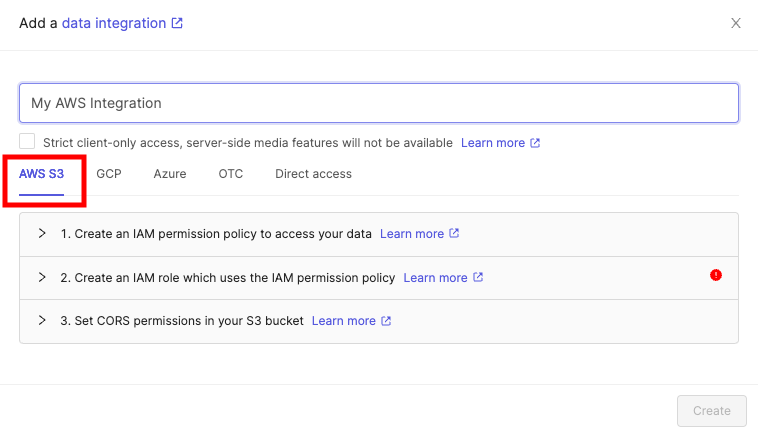
Select *AWS S3* at the top of the chooser.
It is essential you do not close this tab or window until you have finished the whole integration process. If you use the AWS UI for integration, we advise opening the AWS console in a separate tab.
See our [AWS integration documentation](/platform-documentation/General/annotate-data-integrations/annotate-aws-integration) for a detailed explanation of how to set up the AWS integration.
See our documentation [here](/platform-documentation/Curate/add-files/index-register-cloud-data#json-format) for more comprehensive information
Create a JSON file based on the templates provided below. `audioMetadata` is optional unless you are using a [client-only access integration](/platform-documentation/General/annotate-data-integrations#strict-client-only-access).
The `title` field is optional. If omitted, the audio file path and name are used as the default title. For example, if the file is located at `https://encord-solutions-bucket.s3.eu-west-2.amazonaws.com/path/to/my/bucket/song2.mp3`, the title defaults to `/path/to/my/bucket/song2.mp3`.
| Key or Flag | Required? | Default value |
| ---------------- | --------- | ----------------------- |
| "objectUrl" | Yes | |
| "title" | No | The file's path + title |
| "audioMetadata" | No | |
| "clientMetadata" | No | |
| "createVideo" | No | false |
`audioMetadata` must be specified when a [Strict client-only access](/platform-documentation/General/annotate-data-integrations#strict-client-only-access) integration is used. In all other cases, `audioMetadata` is optional, but including it significantly reduces import times.
Keys / Flags that are not required can be omitted from the JSON file entirely.
```json Standard integration theme={"dark"}
{
"audio": [
{
"objectUrl": "/path/to/my/bucket/song.mp3",
"audioMetadata": {
"duration": 180.98,
"file_size": 2900000,
"mime_type": "audio/mpeg",
"sample_rate": 44100,
"bit_depth": 24,
"codec": "mp3",
"num_channels": 2
},
"clientMetadata": {"artist": "Miles Davis"}
},
{
"objectUrl": "/path/to/my/bucket/song2.mp3",
"audioMetadata": {
"duration": 153.28,
"file_size": 2900000,
"mime_type": "audio/mpeg",
"sample_rate": 44100,
"bit_depth": 24,
"codec": "mp3",
"num_channels": 2
},
"clientMetadata": {"artist": "Atomic Kitten"}
}
]
}
```
```json Multi-region access point (AWS) theme={"dark"}
{
"audio": [
{
"objectUrl": "Multi-Region-Access-Point-ARN + /path/to/my/bucket/song2.mp3",
"audioMetadata": {
"duration": 180.98,
"file_size": 2900000,
"mime_type": "audio/mpeg",
"sample_rate": 44100,
"bit_depth": 24,
"codec": "mp3",
"num_channels": 2
},
"clientMetadata": {"artist": "Miles Davis"}
},
{
"objectUrl": "Multi-Region-Access-Point-ARN + /path/to/my/bucket/song2.mp3",
"audioMetadata": {
"duration": 153.28,
"file_size": 2900000,
"mime_type": "audio/mpeg",
"sample_rate": 44100,
"bit_depth": 24,
"codec": "mp3",
"num_channels": 2
},
"clientMetadata": {"artist": "Atomic Kitten"}
}
],
"skip_duplicate_urls": true
}
```
```json MRAP Example theme={"dark"}
{
"audio": [
{
"objectUrl": "https://arn:aws:s3::123123123:accesspoint/frf28frarf9.mrap.s3-accesspoint.amazonaws.com/Music/2022/song_1.mp3",
"audioMetadata": {
"duration": 180.98,
"file_size": 2900000,
"mime_type": "audio/mpeg",
"sample_rate": 44100,
"bit_depth": 24,
"codec": "mp3",
"num_channels": 2
},
"clientMetadata": {"artist": "Miles Davis"}
},
{
"objectUrl": "https://arn:aws:s3::123123123:accesspoint/frf28frarf9.mrap.s3-accesspoint.amazonaws.com/Music/2022/song_2.mp3",
"audioMetadata": {
"duration": 153.28,
"file_size": 2900000,
"mime_type": "audio/mpeg",
"sample_rate": 44100,
"bit_depth": 24,
"codec": "mp3",
"num_channels": 2
},
"clientMetadata": {"artist": "Atomic Kitten"}
}
],
"skip_duplicate_urls": true
}
```
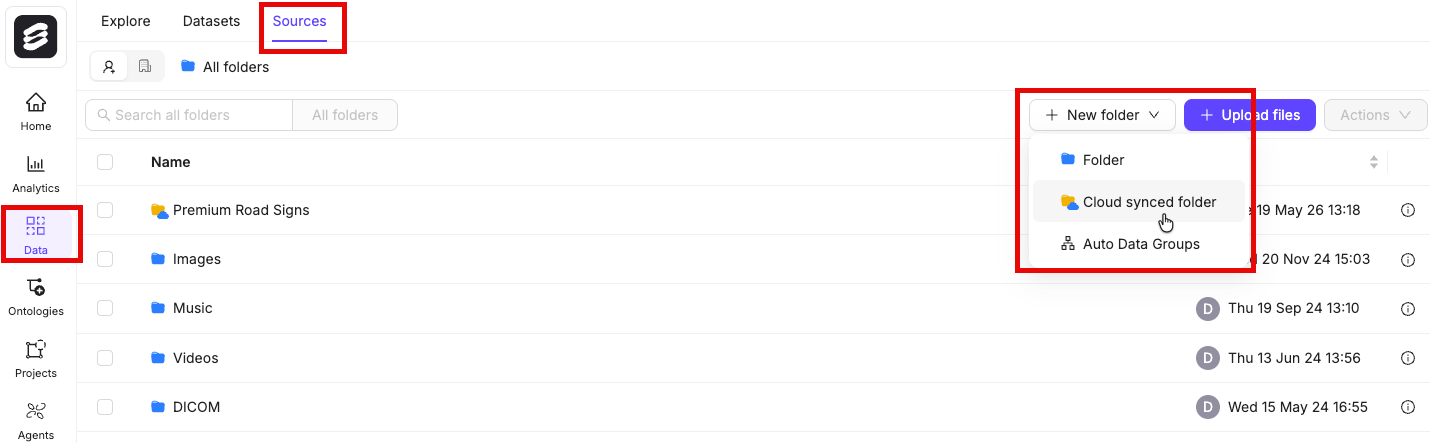
All files in Encord must be stored within folders. Therefore, you need to create a folder before registering any data with Encord. To create a folder:
1. Navigate to **Data** > **Files & Folders**
2. Click the **+ New folder** button to create a new folder. Select the type of folder you want to create.
3. Give the folder a meaningful name and description.
4. Click **Create** to create the folder.
The folder is listed in **Files & Folders**.
To ensure smoother uploads and faster completion times, and avoid hitting absolute file limits, we recommend adding smaller batches of data. Limit uploads to 100 videos or up to 1,000 images at a time. You can also create multiple Datasets, all of which can be linked to a single Project. Familiarize yourself with our [limits and best practices for data import/registration](/platform-documentation/General/best-practices#import-into-encord) before adding data to Encord.
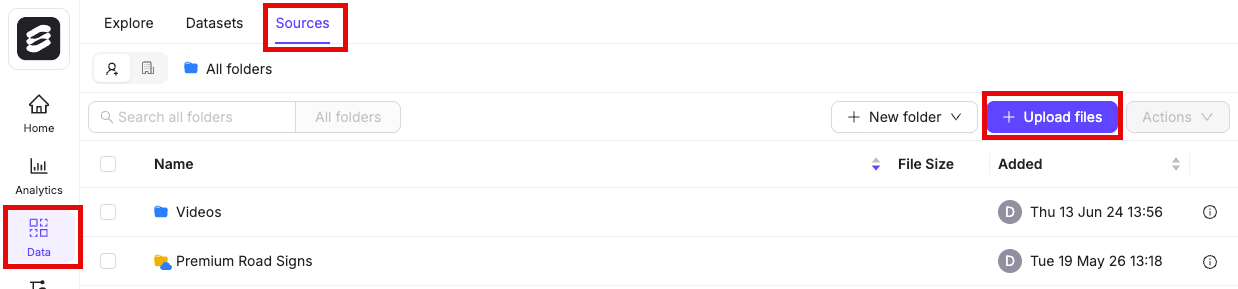
1. Navigate to **Data** > **Files & Folders** in the Encord platform.
2. Click into a Folder.
3. Click **+ Upload files**.
A dialog appears.
4. Click **Import from cloud data**.
We recommend turning on the **Ignore individual file errors** feature. This ensures that individual file errors do not lead to the whole upload process being aborted.
6. Click **Add JSON or CSV files** to add a [JSON](/platform-documentation/Curate/add-files/index-register-cloud-data#json-format) or [CSV](/platform-documentation/Curate/add-files/index-register-cloud-data#csv-format) file specifying cloud data that is to be added.
## STEP 2: Set Up Your Project
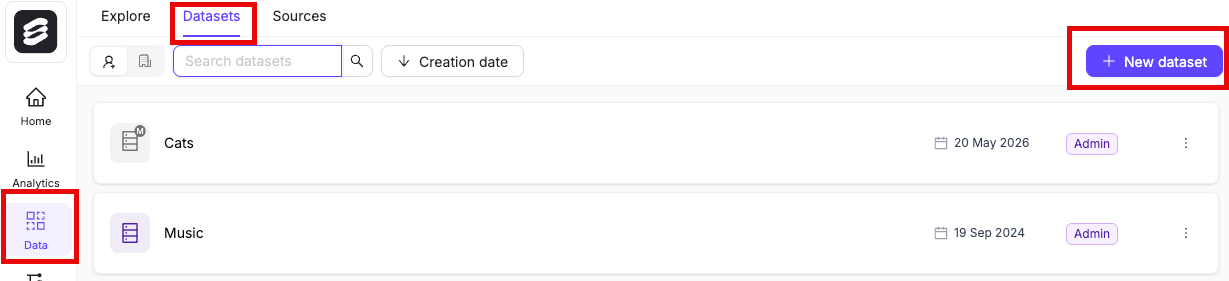
1. Click the **New dataset** button in the *Datasets* section in *Annotate*.
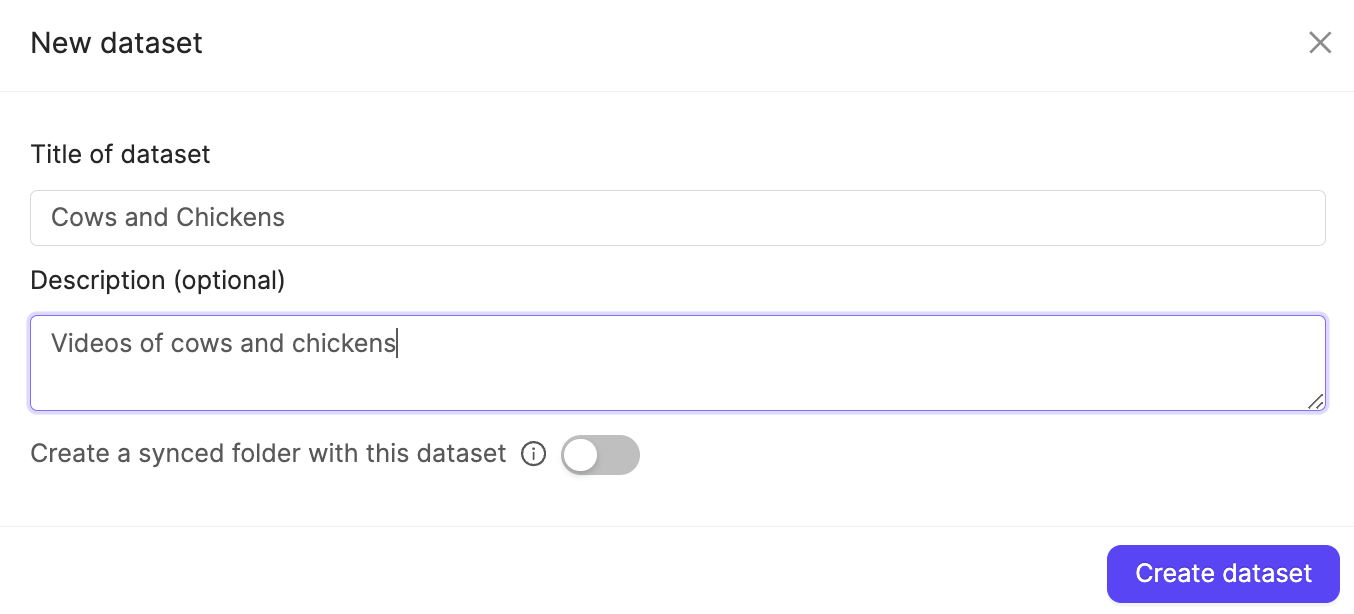
2. Give your Dataset a meaningful title and description. A clear title and description keeps your data organized.
Toggle **Looking to create a mirrored dataset?** to create a [Mirrored Dataset](/platform-documentation/Annotate/annotate-datasets/annotate-datasets#mirrored-datasets).
3. Click **Create dataset** to create the Dataset.
### Attach files
[You can add data to Datasets from the **Files & Folders** or the *Datasets* screens](/platform-documentation/Curate/index-files#add-data-to-datasets).
To ensure smoother uploads and faster completion times, and avoid hitting absolute file limits, we recommend adding smaller batches of data. Limit uploads to 100 videos or up to 1,000 images at a time. You can also create multiple Datasets, all of which can be linked to a single Project. Familiarize yourself with our [limits and best practices for data import/registration](/platform-documentation/General/best-practices#import-into-encord) before adding data to Encord.
1. Navigate to the *Datasets* section under the *Annotate* heading.
2. Click the Dataset you want to attach data to.
3. Click **+Attach existing files**.
4. Select the folders containing the files you want to attach to the Dataset. To select individual files, double-click a folder to see its contents, and select the files you want to add to the Dataset.
5. Click **Attach data** to attach the selected files to the Dataset.
We recommend learning about [Ontology structure](/platform-documentation/Annotate/annotate-ontologies/annotate-ontologies) before creating Ontologies.
Ensure that Ontologies used for audio annotations only include Classifications and *Audio Region* objects
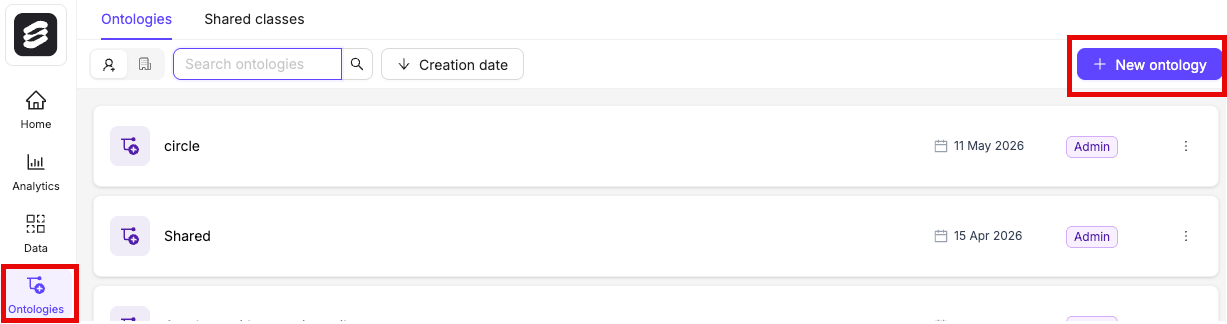
1. Click the **New ontology** button in the *Ontologies* section to create a new Ontology.
2. Give your Ontology a meaningful title and description. A clear title and description keeps your Ontologies organized.
3. Click **Next** to continue.
4. Define your Ontology structure. Audio files are labeled using the Audio Region object type and Classifications.
**To add an Audio Region object**:
1. Click **+ Add object** to create a new object.
2. Give the object a name, for example "Male Vocals".
3. Select the *Audio Region* object type.
4. Optionally, configure the object to add any attributes.
5. Optionally, enable the **Required** toggle to mark the object as *Required*.
6. Repeat these steps for as many Audio Region objects as necessary.
**Configure Objects**:
Objects can be configured to add attributes.
1. Click the arrow button next to the object to start configuring.
2. Click **+ Add attribute** to add an attribute.
3. Select the attribute type: Text, radio button, or checklist. Select Text and check *Transcription* to transcribe audio files.
4. Give the attribute a name, for example "Pitch", or "Lyrics".
5. If your attribute is a radio button or a checklist click **Add option**.
6. Add the options you want your attribute to have. For "Pitch" this can be "High" and "Low".
7. Optionally mark the object as [*Required*](/platform-documentation/Annotate/annotate-ontologies/annotate-ontologies#mark-as-required) and / or [*Dynamic*](/platform-documentation/Annotate/annotate-ontologies/annotate-ontologies#dynamic-attributes).
8. Click the **Back to parent** button to return the Ontology creation view.
**To add a Classification**:
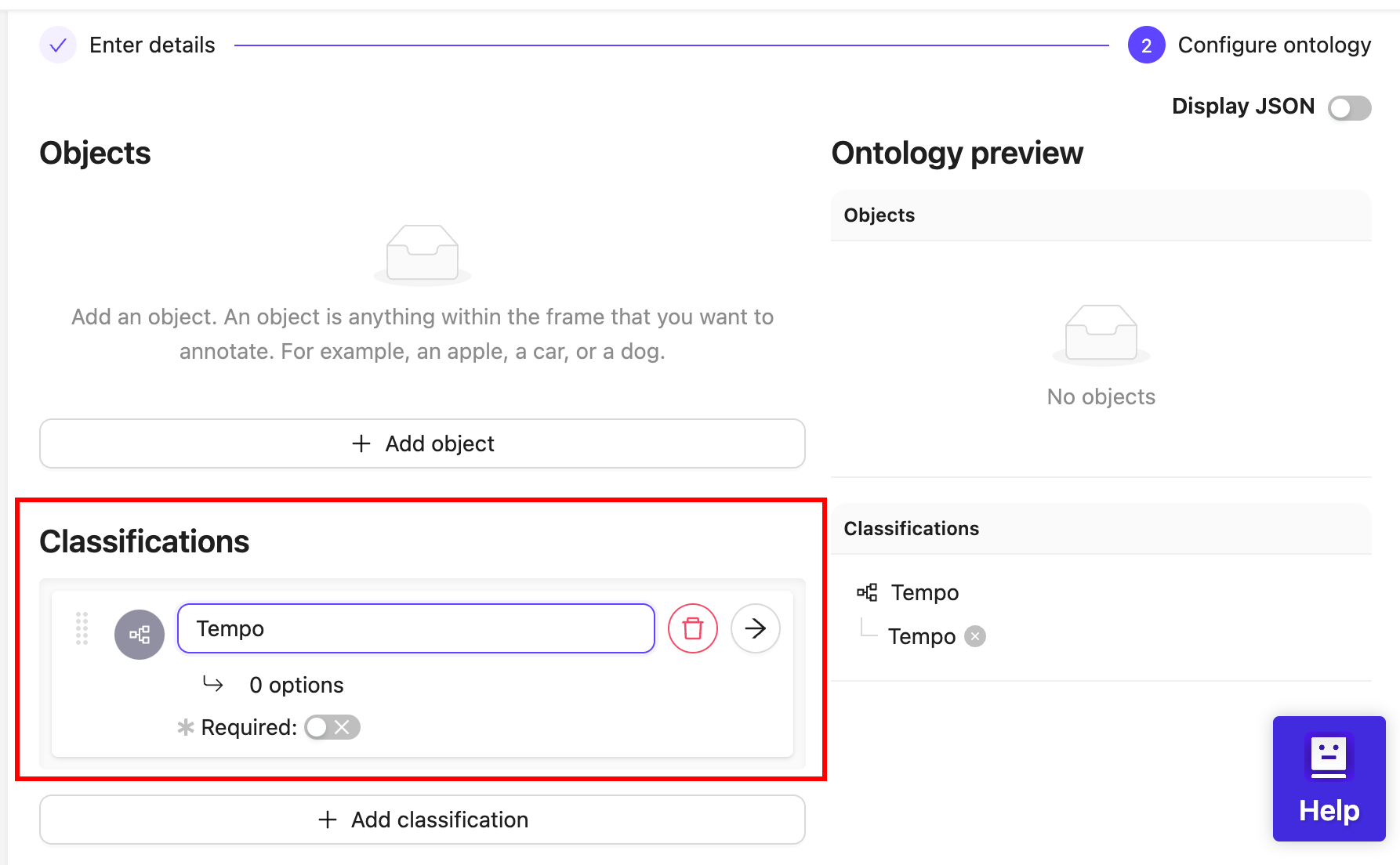
1. Click **+ Add classification** to create a new classification.
2. Give the classification a name. For example, "Tempo".
3. Optionally, configure the classification to change the classification type. The default classification type is a text field.
4. Optionally, enable the **Required** toggle to mark the classification as *Required*.
5. Repeat these steps for as many classifications as necessary.
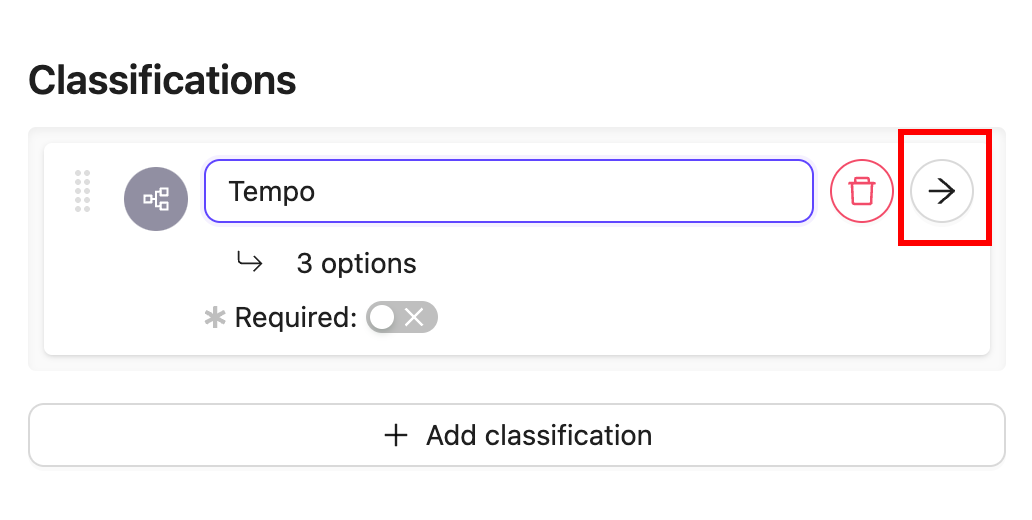
**Configure classifications**:
Classifications can be configured to change the classification type, and to add classification options to radio buttons and check lists.
1. Click the arrow icon next to an object to configure the classification.
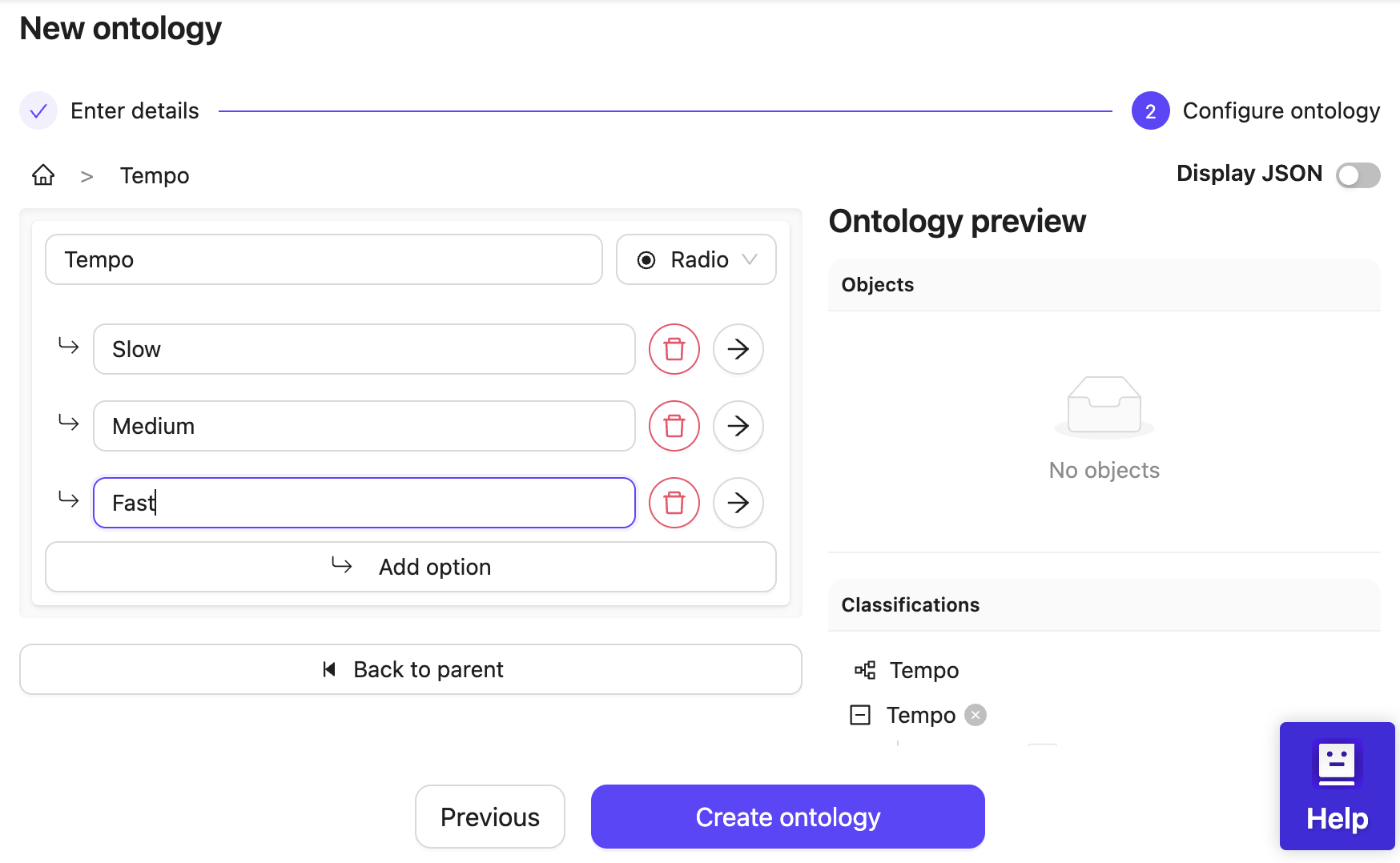
2. Click the classification type to change the classification type. The default classification type is a text field.
3. Click **Add option** to add an option if you have selected a radio button or check list classification.
4. Enter a name for the classification option. For example, the classification "Tempo" can have the options "Slow", "Medium", and "Fast".
5. Click the **Back to parent** button to return the Ontology creation view.
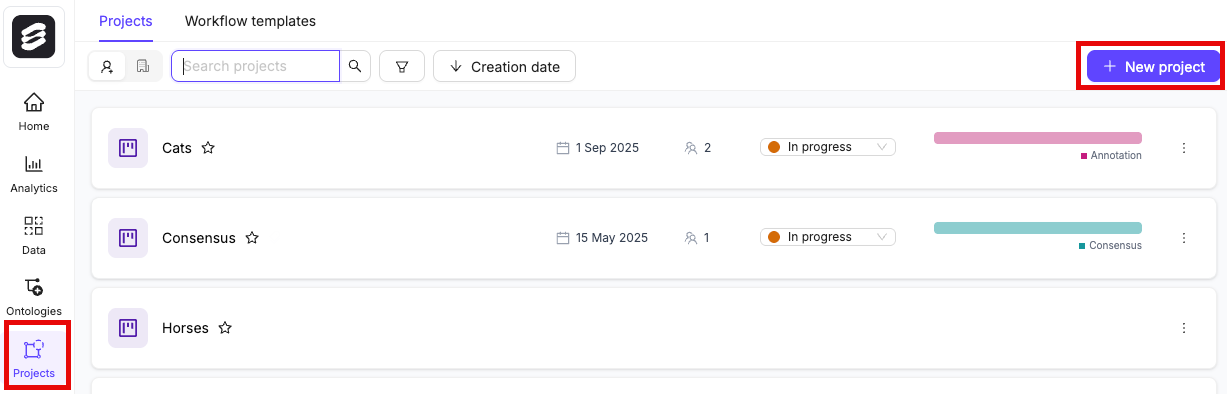
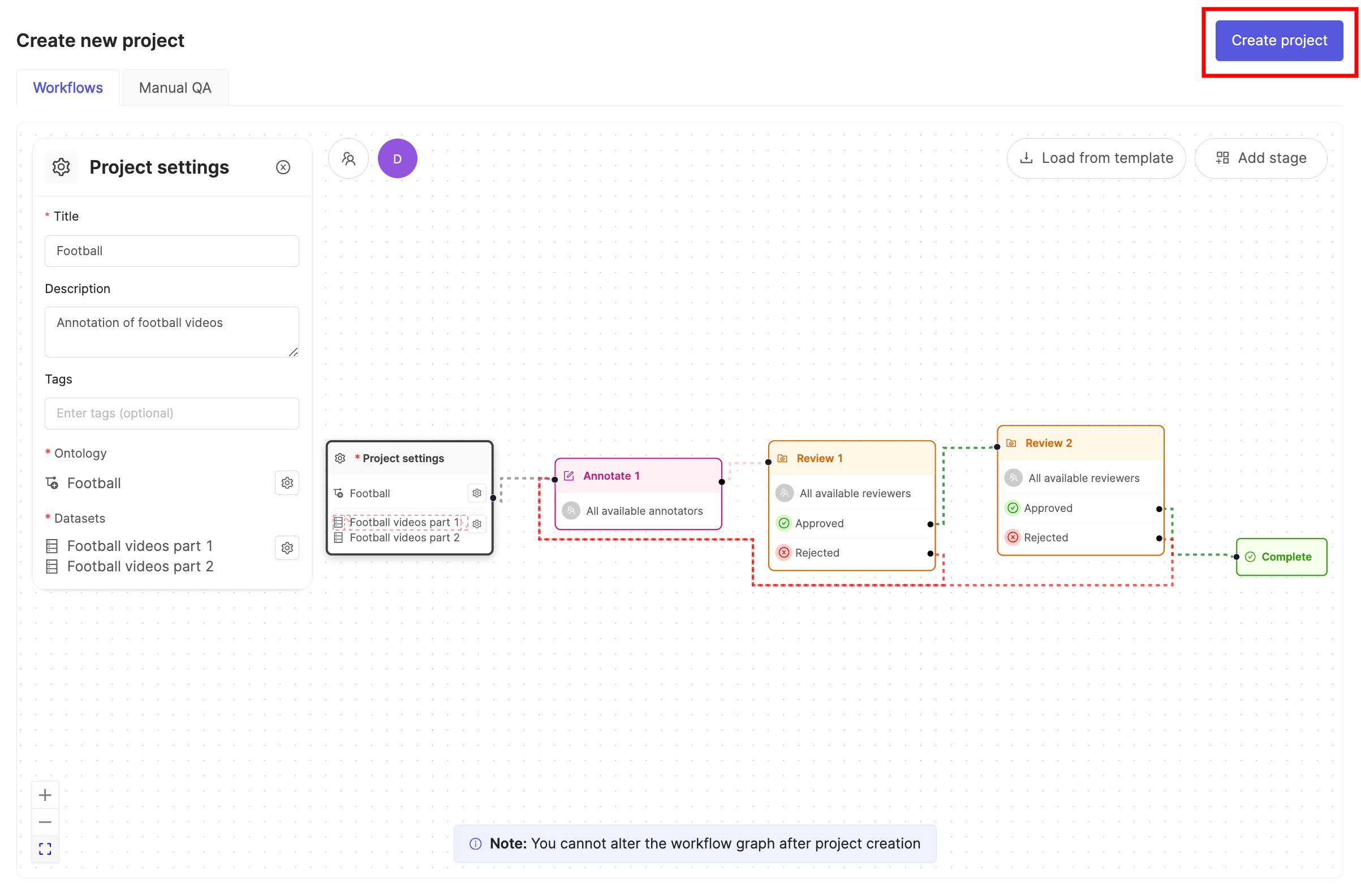
1. In the Encord platform, navigate to **Projects**.
2. Click the **+ New annotation project** button to create a new Project.
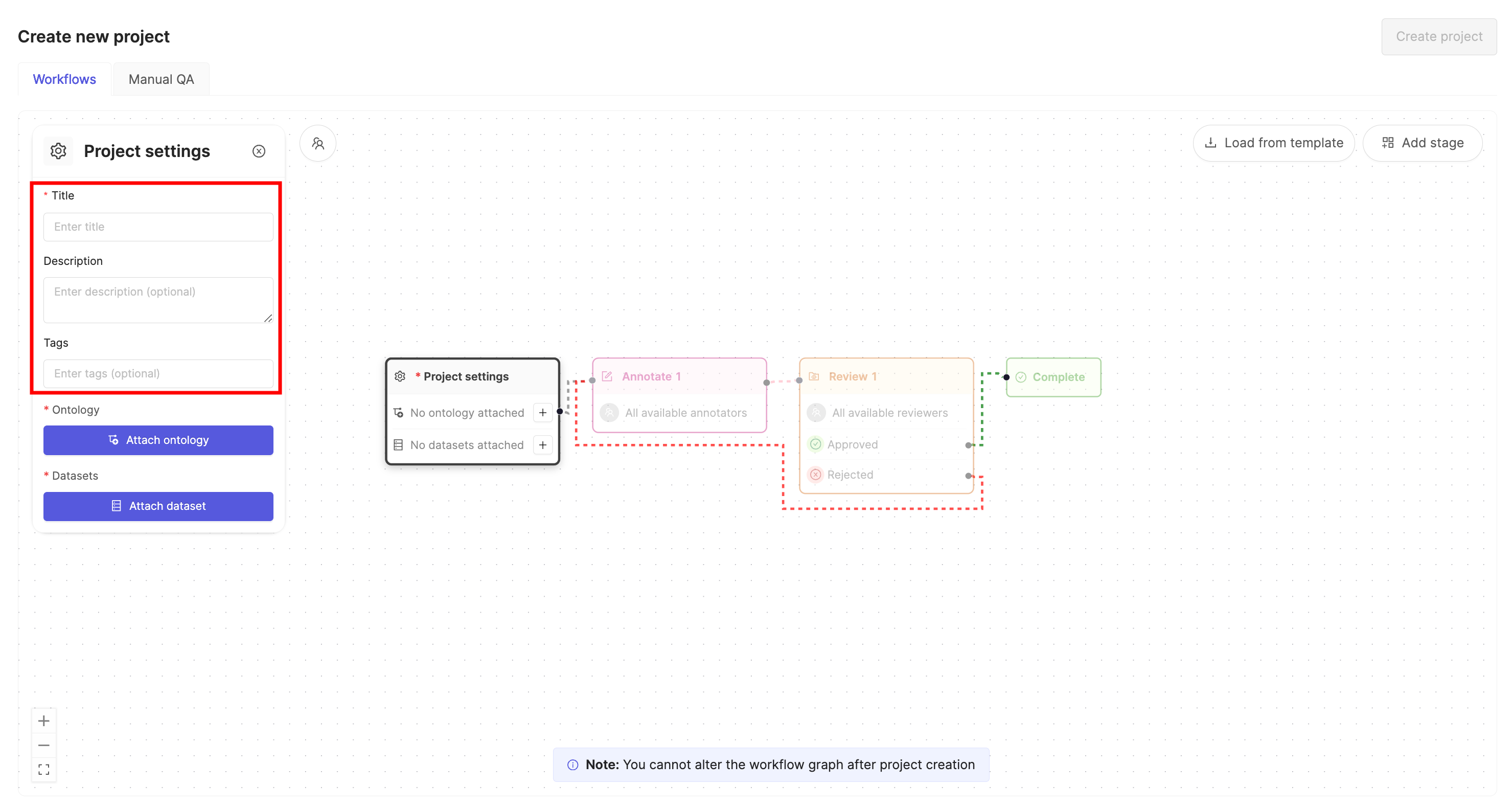
3. Give the Project a meaningful title and description.
If you are part of an [Workspace](/platform-documentation/General/general-workspace-settings), an optional [Project tags](/platform-documentation/Annotate/annotate-projects/annotate-project-settings#project-tags) drop-down is visible. Project tags are useful for categorizing and finding your Projects. Select as many tags as are relevant for your Project.
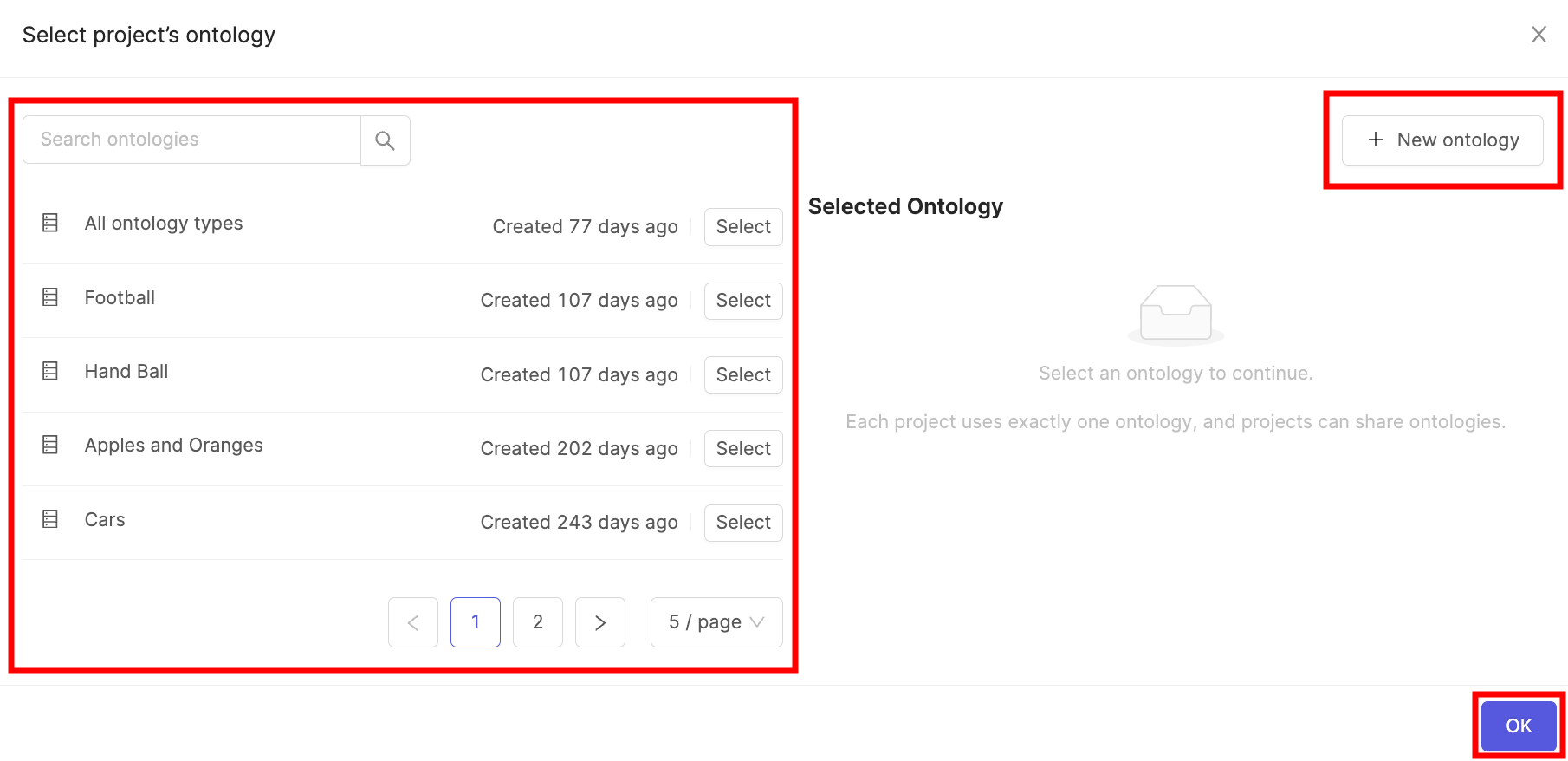
4. Click the **Attach ontology** button.
5. Select the [Ontology](/platform-documentation/Annotate/annotate-ontologies/annotate-ontologies) you created previously from the list using the **Select** button.
6. Click **OK** to attach the Ontology to the Project.
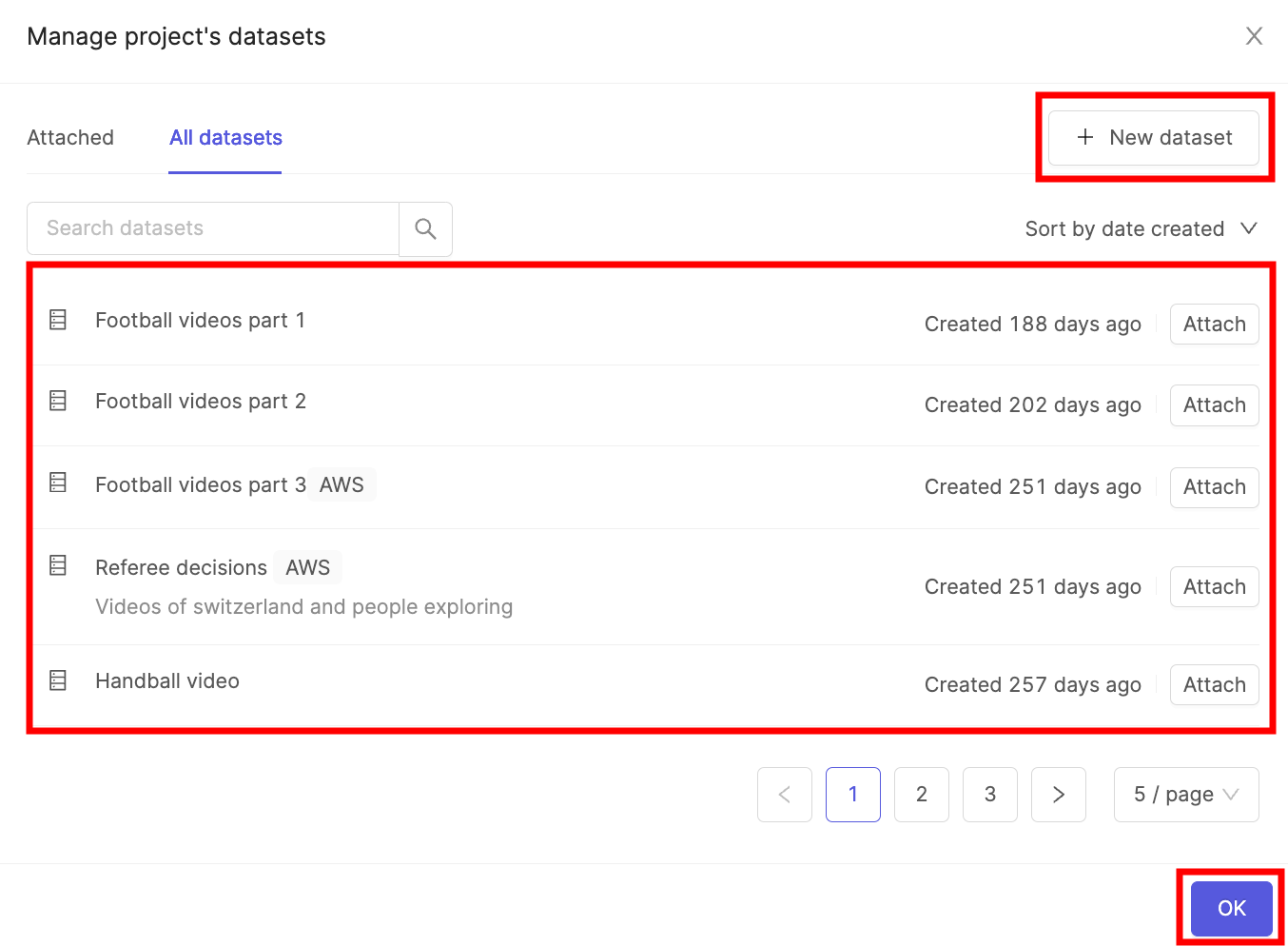
7. Click the **Attach datasets** button.
8. Select the [Dataset](/platform-documentation/Annotate/annotate-datasets/annotate-datasets) you created previously from the list using the **Attach** button.
9. Click **OK** to attach the Dataset(s) to the Project.
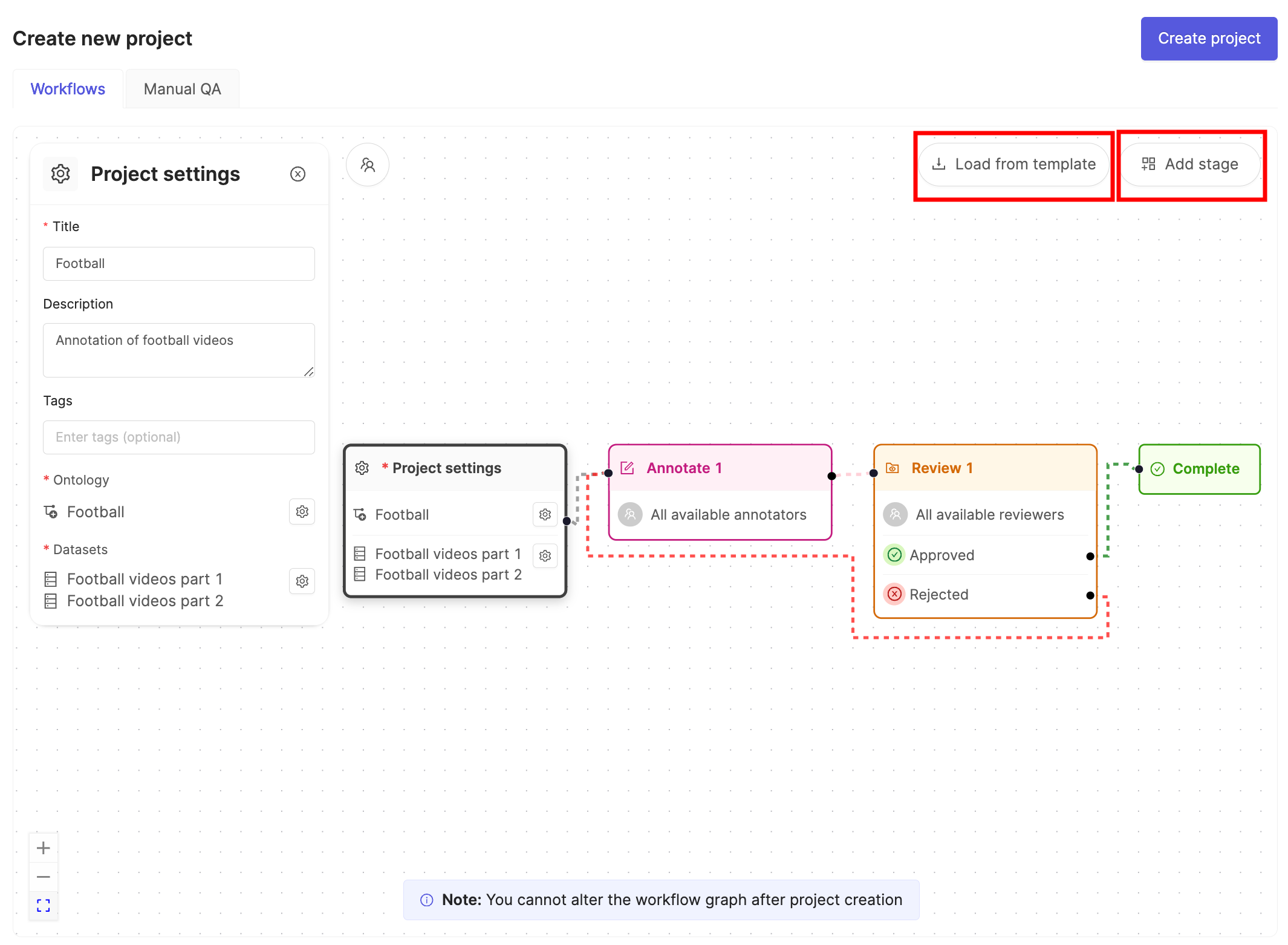
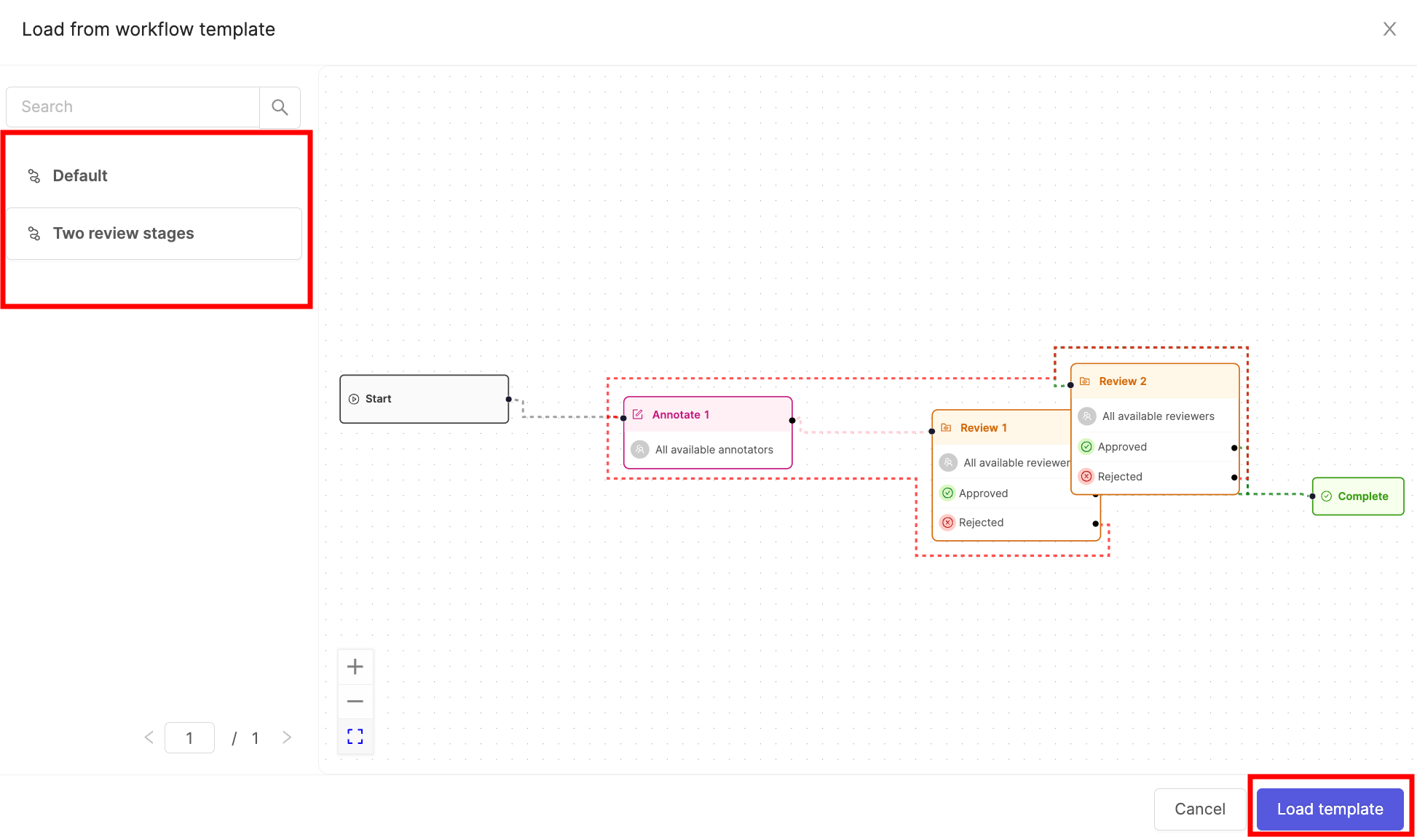
10. Click the **Load from template** button to use a [Workflow template](/platform-documentation/Annotate/annotate-projects/annotate-workflows-and-templates#templates).
11. Select the template you want to use and click **Load template**.
12. Click **Create project** to finish creating the Project.
## STEP 3: Label Your Audio Files
Navigate to the *Queue* tab of your Project and select the data unit you want to label.
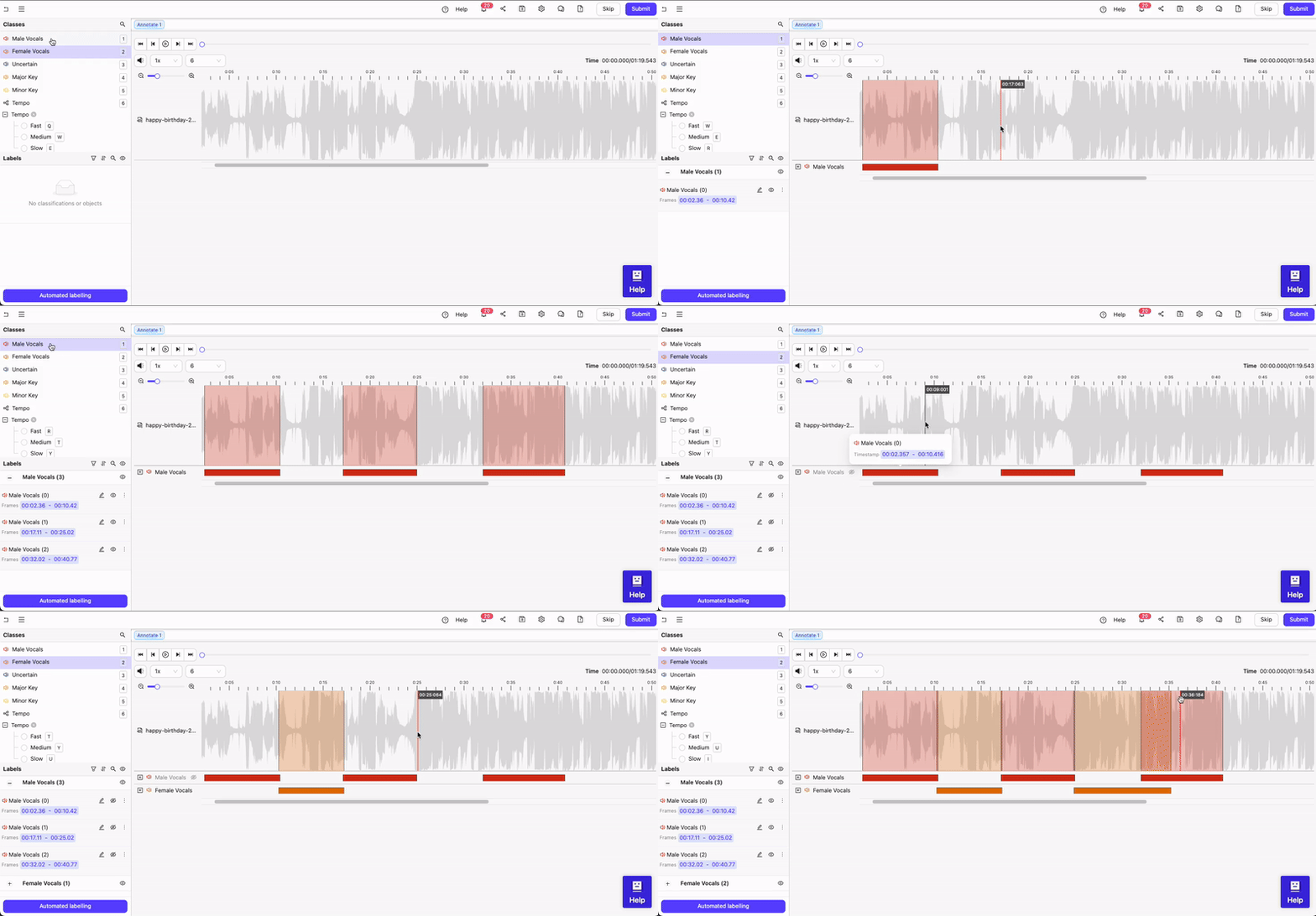
**To label an audio region**:
1. Select a *Audio Region* class from the left side menu.
2. Click and drag your cursor along the waveform to apply the label between the desired start and end points. Repeat this as many times as necessary while the class is selected.
3. If required, apply any attributes to the region.
4. Repeat these steps for as many regions as necessary.
Audio regions can be copy-pasted using CMD / CTRL + C and CMD CTRL + V.
When assigning multiple *Audio Region* class labels to the same section of an audio file, hide overlapping labels.
**To apply the classification to the entire audio file**:
1. Select the Classification from the left side menu.
2. For radio buttons and checklists, select the value(s) you want to classification to have. For text classifications, enter the desired text.