> ## Documentation Index
> Fetch the complete documentation index at: https://docs.encord.com/llms.txt
> Use this file to discover all available pages before exploring further.
# AWS Lambda Functions
Before you start, ensure that you can [authenticate](/agents-documentation/Basics/Authentication) with Encord and your [AWS CLI is authenticated](https://docs.aws.amazon.com/cli/latest/userguide/cli-chap-authentication.html).
The following example shows the general structure of how to build an AWS Lambda function. For concrete implementations of agents with specific abilities, see the [examples section](/agents-documentation/Custom-Agents/Examples).
There are two different ways in which you can create lambda functions.
1. [Using a zip upload](#building-a-lambda-function-using-zip-upload)
2. [Using a Docker container](#building-a-lambda-function-with-docker)
They have different applications and properties.
Before you dive into one of the examples, please consider the properties in the table below.
| Type | File size limits | Ease of use |
| :--------------------------------------------------------- | :-------------------: | :---------: |
| [Zip upload](#building-a-lambda-function-using-zip-upload) | 50MB (250MB unzipped) | `easier` |
| [Docker](#building-a-lambda-function-with-docker) | NA | `harder` |
AWS Lambda zip deployments have a 50MB (250MB uncompressed) size limit. This often forces the use of Docker for agents with larger dependencies, such as computer vision libraries (`pip install encord-agents[vision]`). Additionally, dependencies relying on C/C++ code require specific CPU architecture installations, often making testing only possible after deployment.
More detailed AWS Documentation on python lambda functions can be found [here](https://docs.aws.amazon.com/lambda/latest/dg/lambda-python.html).
## Building a lambda function using zip upload
The full AWS lambda documentation for zip files is available [here](https://docs.aws.amazon.com/lambda/latest/dg/python-package.html).
### STEP 1: Create a local Project
To begin, set up your local project structure. This includes creating two directories, a virtual environment (for example `venv`), and a package directory for CPU-architecture-specific dependencies tailored to your cloud infrastructure.
1. Create your virtual environment and install `encord-agents`. Refer to the [installation docs](/agents-documentation/Basics/Installation) for detailed instructions.
```shell theme={"dark"}
mkdir my_project
cd my_project
python -m venv venv
source venv/bin/activate
pip install encord-agents
deactivate
```
2. Create the "mirror" package directory for the upload.
We recommend explicitly installing `boto3`, the AWS SDK, even though it's typically present in Lambda environments. This ensures consistent dependency versions and avoids unexpected changes when AWS updates its infrastructure.
```shell theme={"dark"}
mkdir package
pip install \
--platform manylinux2014_x86_64 \
--target=package \
--implementation cp \
--python-version 3.12 \
--only-binary=:all: --upgrade \
encord-agents boto3
```
### STEP 2: Define the agent
1. Create a `lambda_function.py` file using the following template:
```python title="lambda_function.py" theme={"dark"}
from encord.objects.ontology_labels_impl import LabelRowV2
from encord_agents.core.data_model import FrameData
from encord_agents.aws import editor_agent
@editor_agent()
def lambda_handler(frame_data: FrameData, label_row: LabelRowV2) -> None:
print(frame_data.model_dump_json())
# label_row.save()
```
Make sure to name your file `lambda_function.py` and your function `lambda_handler` if you are following this example, as these names are referenced in the `--handler` argument in [Step 6](#step-6-upload-the-zip).
2. Complete the `lambda_handler` function with the logic you want to execute when the agent is triggered.
For more Custom Agent examples, see the [examples section](/agents-documentation/Custom-Agents/Examples).
You can inject multiple different [dependencies](/agents-documentation/Reference/Custom-Agents/Agents-Reference-Custom-Agents#Dependencies) into the function if necessary.
### STEP 3: (Optional) Test the Agent Locally
We are testing against the `venv` and not the `package` that is uploaded to AWS, so we might see slight differences in the outcome.
1. In order to test your agent locally, you can add an `if __name__ == "__main__"` declaration in the end of the file as follows:
```python title="lambda_function.py" theme={"dark"}
# ... imports from before
@editor_agent()
def lambda_handler(frame_data: FrameData):
print(frame_data.model_dump_json())
if __name__ == '__main__':
event = {
"body": {
"projectHash": "aaaaaaaa-bbbb-cccc-dddd-eeeeeeeeeeee",
"dataHash": "00000000-1111-2222-3333-444444444444",
"frame": 0,
"objectHashes": []
}
}
lambda_handler(event, None)
```
2. Make sure to update the Project and data hash to correspond to one of your data units.
If you open the label editor in your browser and look at the url, it has this pattern:
```
https://app.encord.com/label_editor/{projectHash}/{dataHash}
```
3. Run the file:
```shell theme={"dark"}
source venv/bin/activate
export ENCORD_SSH_KEY_FILE='/path/to/your/private-key-file'
python lambda_function.py
```
### STEP 4: Create the ZIP file
1. Create the zip file by first zipping what is in the `package` directory:
```shell theme={"dark"}
cd package
zip -r ../package.zip .
cd ..
```
2. Add your lambda function to the zip file:
```shell theme={"dark"}
zip package.zip lambda_function.py
```
### STEP 5: Set up an execution role
Your Lambda function requires an execution role to define the permissions it needs to run.
1. Create the configuration file `trust-policy.json` to be uploaded to AWS.
```json title="trust-policy.json" theme={"dark"}
{
"Version": "2012-10-17",
"Statement": [
{
"Effect": "Allow",
"Principal": {
"Service": "lambda.amazonaws.com"
},
"Action": "sts:AssumeRole"
}
]
}
```
2. Create a role with the trust policy:
```shell theme={"dark"}
aws iam create-role \
--role-name lambda-execute-encord-agents \
--assume-role-policy-document file://trust-policy.json
```
It should output a JSON similar to the following. Make sure to take a note of the `Arn`.
```json theme={"dark"}
{
"Role": {
"Path": "/",
"RoleName": "lambda-execute-encord-agents",
"RoleId": "AROAQ7BEARV2DSFT2E3PI",
"Arn": "arn:aws:iam::061234567890:role/lambda-execute-encord-agents",
"CreateDate": "2025-05-09T10:39:35+00:00",
"AssumeRolePolicyDocument": {
"Version": "2012-10-17",
"Statement": [
{
"Effect": "Allow",
"Principal": {
"Service": "lambda.amazonaws.com"
},
"Action": "sts:AssumeRole"
}
]
}
}
}
```
4. Attach the basic lambda execution role to the role.
```shell theme={"dark"}
aws iam attach-role-policy \
--role-name lambda-execute-encord-agents \
--policy-arn arn:aws:iam::aws:policy/service-role/AWSLambdaBasicExecutionRole
```
### STEP 6: Upload the zip
1. To upload the zip file to AWS, use the following command. Make sure to insert the `` you want to use and the proper role `Arn` from STEP 5.
```shell theme={"dark"}
aws lambda create-function --function-name \
--runtime python3.12 \
--handler lambda_function.lambda_handler \
--role arn:aws:iam::061234567890:role/lambda-execute-encord-agents \
--zip-file fileb://package.zip
```
If you want to modify your lambda, follow the steps above again but call the update method rather than the `create-function` from the AWS CLI.
```shell theme={"dark"}
aws lambda update-function-code \
--function-name \
--zip-file fileb://package.zip
```
2. Proceed to [Step A](#step-a-configure-public-endpoint) below to complete the setup.
## Building a Lambda Function with Docker
The full AWS documentation for building docker images for lambda functions with Python is available [here](https://docs.aws.amazon.com/lambda/latest/dg/python-image.html).
### STEP 1: Create a Local Project
Start by creating a local project directory.
```shell theme={"dark"}
mkdir my_project
cd my_project
```
Then add a `requirements.txt` file.
```text title="requirements.txt" theme={"dark"}
boto3
encord-agents
```
#### (Optional) local environment
If you want, you can create a local environment for testing before building the docker image.
```
python -m venv venv
source venv/bin/activate
pip install -r requirements.txt
```
### STEP 2: Define the Agent
1. Create a `lambda_function.py` file using the following template:
```python title="lambda_function.py" theme={"dark"}
from encord.objects.ontology_labels_impl import LabelRowV2
from encord_agents.core.data_model import FrameData
from encord_agents.aws import editor_agent
@editor_agent()
def lambda_handler(frame_data: FrameData, label_row: LabelRowV2) -> None:
print(frame_data.model_dump_json())
# label_row.save()
```
Make sure to name your file `lambda_function.py` and your function `lambda_handler` if you're following this example, as these names are referenced in the Docker image in [the next step](#step-3-build-the-docker-image).
Complete the `lambda_handler` function with the logic you want to execute when the agent is triggered.
For more Custom Agent examples, see the [examples section](/agents-documentation/Custom-Agents/Examples).
You can inject multiple different [dependencies](/agents-documentation/Reference/Custom-Agents/Agents-Reference-Custom-Agents#Dependencies) into the function if necessary.
You can find multiple examples of what can be done with Custom Agents [here](/agents-documentation/Custom-Agents/Examples).
### STEP 3: Build the Docker Image
1. Create a `Dockerfile` with the following content.
```Dockerfile title="Dockerfile" theme={"dark"}
FROM public.ecr.aws/lambda/python:3.12
# Install the specified packages
COPY requirements.txt ${LAMBDA_TASK_ROOT}
RUN pip install -r requirements.txt
# Copy function code
COPY lambda_function.py ${LAMBDA_TASK_ROOT}
# Set the CMD to your handler
# (could also be done as a parameter override outside of the Dockerfile)
CMD [ "lambda_function.lambda_handler" ]
```
2. Build the image locally.
You need to have `docker` and `buildx` installed.
```shell theme={"dark"}
docker buildx build \
--platform linux/amd64 \
--provenance=false \
-t encord-agents-my-agent-name:latest \
.
```
### STEP 4: (Optional) Test the agent locally
To test the agent locally, you can spin up the container with the following command.
```shell theme={"dark"}
docker run \
-e ENCORD_SSH_KEY="$(cat /path/to/your/private-key-file)" \
-p 9000:8080 \
--platform linux/amd64 \
-t encord-agents-my-agent-name:latest
```
The respective lines ensures that we
* Add the `ENCORD_SSH_KEY` env variable
* Map the port 8080 to your own local port (9000 in this example)
* AWS architecture needs to be `amd64` (or `arm64` [see aws docs](https://docs.aws.amazon.com/lambda/latest/dg/python-image.html#python-image-clients))
* Run the latest built image (`encord-agents-example:latest` in this example)
You can "hit" the function endpoint with a `curl` command. The `functions/function/invocation` path is required by Amazon.
```shell theme={"dark"}
curl "http://localhost:9000/2015-03-31/functions/function/invocations" \
-X "POST" \
-d '{
"body": {
"projectHash": "aaaaaaaa-ed79-4a1b-a0c1-b1b38ffb523c",
"dataHash":"659c3a38-737f-4f56-a709-26ce01f5fd0b",
"frame": 0,
"objectHashes": []
}
}'
```
There is a long-standing issue with Lambda Docker containers where the API differs between local and cloud execution. In this case, two relevant distinctions exist.
* `Content-Type`: Locally, the container expects a post request with `Content-Type: application/x-www-form-urlencoded` while the public url hosted by AWS expects `Content-Type: application/application-json`.
* `POST` data: Locally, the post data needs to be `{"body": {... content dict}}` while the public url expects `{... content dict}`.
As a consequence, the equivalent `curl` request for a publicly hosted lambda function would be:
```
curl "https://.lambda-url.eu-west-1.on.aws/" \
-X "POST" \
-H "Content-Type: application/json" \
-d '{
"projectHash": "aaaaaaaa-ed79-4a1b-a0c1-b1b38ffb523c",
"dataHash":"659c3a38-737f-4f56-a709-26ce01f5fd0b",
"frame": 0,
"objectHashes": []
}'
```
See [the Function URL section](#step-a-configure-public-endpoint) for more information on how to get the public endpoint.
### Step 5: Prepare ECR Container Repository
To associate a Lambda function with your container, the container must first be uploaded to the AWS Elastic Container Registry (ECR). For this, a container repository is required.
1. Run the `aws get-login-password` command to authenticate the Docker CLI to your Amazon ECR registry.
* Set the `--region` value to the AWS Region where you want to create the Amazon ECR repository (we use `eu-west-1` in this example).
* Replace 111122223333 with your AWS account ID.
```shell theme={"dark"}
aws ecr get-login-password --region eu-west-1 | docker login --username AWS --password-stdin 111122223333.dkr.ecr.eu-west-1.amazonaws.com
```
2. Create a repository in Amazon ECR using the create-repository command.
```shell theme={"dark"}
aws ecr create-repository \
--repository-name \
--region us-east-1 \
--image-scanning-configuration scanOnPush=true \
--image-tag-mutability MUTABLE
```
If successful, you see a response with the following format:
```
{
"repository": {
"repositoryArn": "arn:aws:ecr:us-east-1:111122223333:repository/",
"registryId": "111122223333",
"repositoryName": "",
"repositoryUri": "111122223333.dkr.ecr.us-east-1.amazonaws.com/",
"createdAt": "2025-05-12T10:39:01+00:00",
"imageTagMutability": "MUTABLE",
"imageScanningConfiguration": {
"scanOnPush": true
},
"encryptionConfiguration": {
"encryptionType": "AES256"
}
}
}
```
Copy the `repositoryUri` from the output.
### Step 6: Upload the Local Docker Image
1. To tag your local Docker image for Amazon ECR as the latest version, use the `docker tag` command:
* `encord-agents-my-agent-name:latest` is the name and tag of your local Docker image. This is the image name and tag that you specified in the `docker build` command [above](#step-3-build-the-docker-image).
* Replace `` with the `repositoryUri` that you copied [above](#step-5-prepare-ecr-container-repository). Make sure to include `:latest` at the end of the URI.
```shell theme={"dark"}
docker tag encord-agents-my-agent-name:latest :latest
```
2. Run the `docker push` command to deploy your local image to the Amazon ECR repository. Ensure you include `:latest` at the end of the repository URI.
```shell theme={"dark"}
docker push 111122223333.dkr.ecr.us-east-1.amazonaws.com/hello-world:latest
```
### STEP 7: Set up an Execution Role
Your Lambda function requires an execution role to define the permissions it needs to run.
1. Create the configuration file `trust-policy.json` to be uploaded to AWS.
```json title="trust-policy.json" theme={"dark"}
{
"Version": "2012-10-17",
"Statement": [
{
"Effect": "Allow",
"Principal": {
"Service": "lambda.amazonaws.com"
},
"Action": "sts:AssumeRole"
}
]
}
```
2. Create a role with the trust policy.
```shell theme={"dark"}
aws iam create-role \
--role-name lambda-execute-encord-agents \
--assume-role-policy-document file://trust-policy.json
```
It should output a JSON similar to the following. Make sure to take a note of the `Arn`.
```json theme={"dark"}
{
"Role": {
"Path": "/",
"RoleName": "lambda-execute-encord-agents",
"RoleId": "AROAQ7BEARV2DSFT2E3PI",
"Arn": "arn:aws:iam::061234567890:role/lambda-execute-encord-agents",
"CreateDate": "2025-05-09T10:39:35+00:00",
"AssumeRolePolicyDocument": {
"Version": "2012-10-17",
"Statement": [
{
"Effect": "Allow",
"Principal": {
"Service": "lambda.amazonaws.com"
},
"Action": "sts:AssumeRole"
}
]
}
}
}
```
3. Attach the basic lambda execution role to the role.
```shell theme={"dark"}
aws iam attach-role-policy \
--role-name lambda-execute-encord-agents \
--policy-arn arn:aws:iam::aws:policy/service-role/AWSLambdaBasicExecutionRole
```
### STEP 8: Creating a Lambda Function
For `ImageUri`, specify the repository URI from [Step 5](#step-5-prepare-ecr-container-repository). Ensure you include `:latest` at the end of the URI.
```shell theme={"dark"}
aws lambda create-function \
--function-name \
--package-type Image \
--code ImageUri=111122223333.dkr.ecr.us-east-1.amazonaws.com/:latest \
--role arn:aws:iam::061234567890:role/lambda-execute-encord-agents
```
To update the container image, rebuild it (as in [Step 3](#step-3-build-the-docker-image)), then tag it with the repository URI and upload it again (as in [Step 6](#step-6-upload-the-local-docker-image)).
Instead of the `create-function` call in the end, you do the following.
```shell theme={"dark"}
aws lambda update-function-code \
--function-name pdf-qa \
--image-uri 111122223333.dkr.ecr.us-east-1.amazonaws.com/:latest \
--publish
```
The URL stays the same, so there is no need to reconfigure CORS or anything else.
Now, proceed to [Step A](#step-a-configure-public-endpoint) below to complete the setup.
## Communication with Encord
### STEP A: Configure Public Endpoint
Now the function is live but not publicly available to the internet.
To make it accessible to the Encord platform, follow these steps:
To make your live Lambda function publicly accessible to the Encord platform, follow these steps:
1. Go to [https://console.aws.amazon.com/lambda](https://console.aws.amazon.com/lambda) and navigate to your newly created function.
2. Go to the **Configuration** tab and choose the **Function URL** section.
3. Click the **Create function URL** button.
4. Choose `NONE` for **Auth type**.
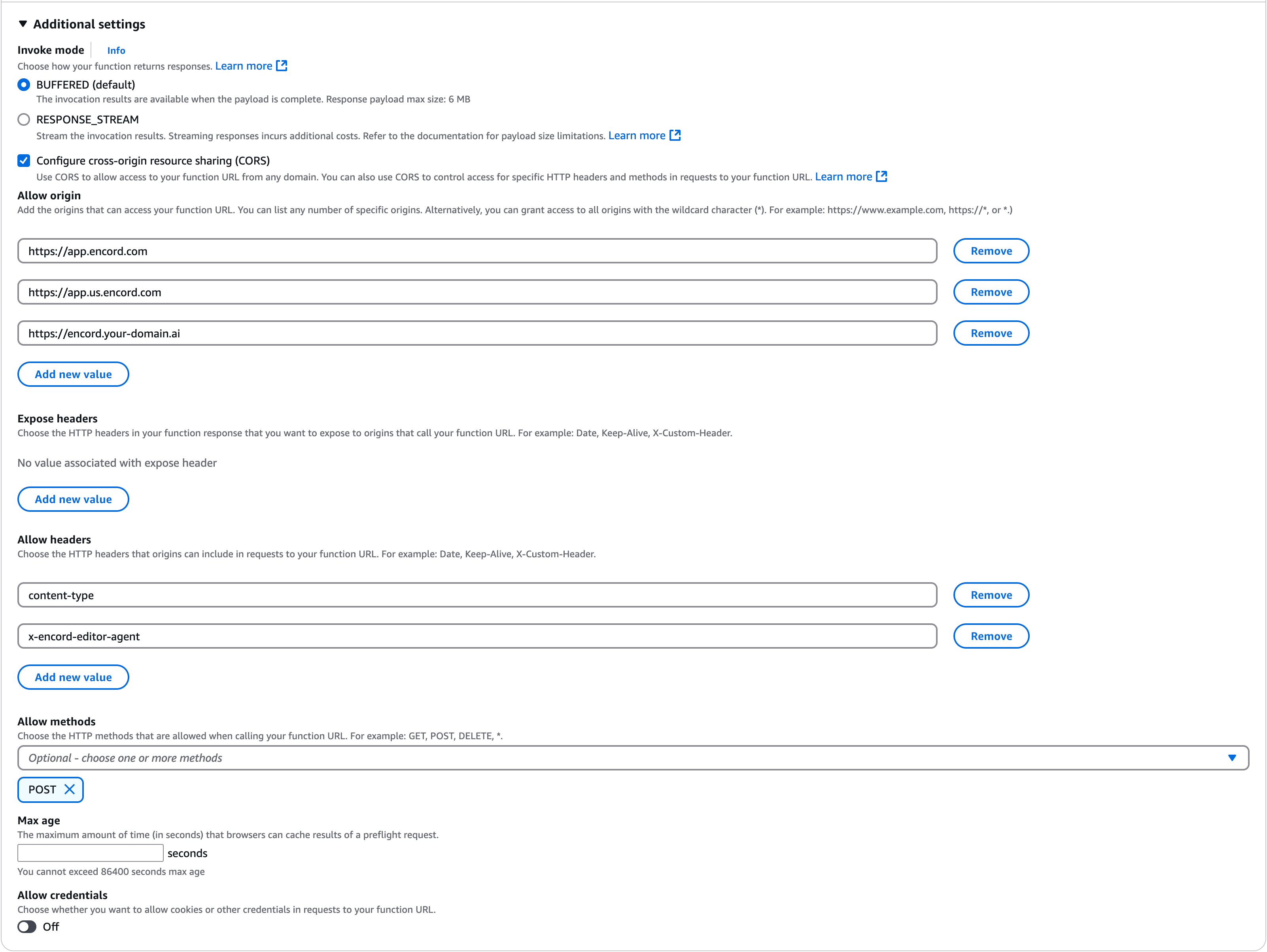
5. Expand the **Additional settings** panel and check the **Configure cross-origin resource sharing (CORS)** box.
6. In the **Allow origin** section, add `https://app.encord.com`, `https://app.us.encord.com`, or your custom (VPC) domain.
7. Under the **Allow headers** section, add both `content-type` and `x-encord-editor-agent` values.
8. In the **Allow methods** section, choose `POST`.
9. Click **Save**.
The configuration should look similar to the following image (potentially with fewer allowed origins).
You can click the image to expand it.
### STEP B: Adding Secrets
Your agent requires an access key secret. In the AWS console where you configured the function URL, click the **Environment variables** tab on the left. Add the `ENCORD_SSH_KEY` variable, along with any other necessary credentials (for example, HuggingFace, OpenAI, or Gemini).
We recommend creating an Encord service account and using an associated access key. This ensures you provide only the necessary access permissions.
### STEP C: Associating the URL with Encord
Now that your AWS setup is complete, copy the Function URL displayed at the top of your AWS Lambda function's web page. Then, navigate to the Encord app.
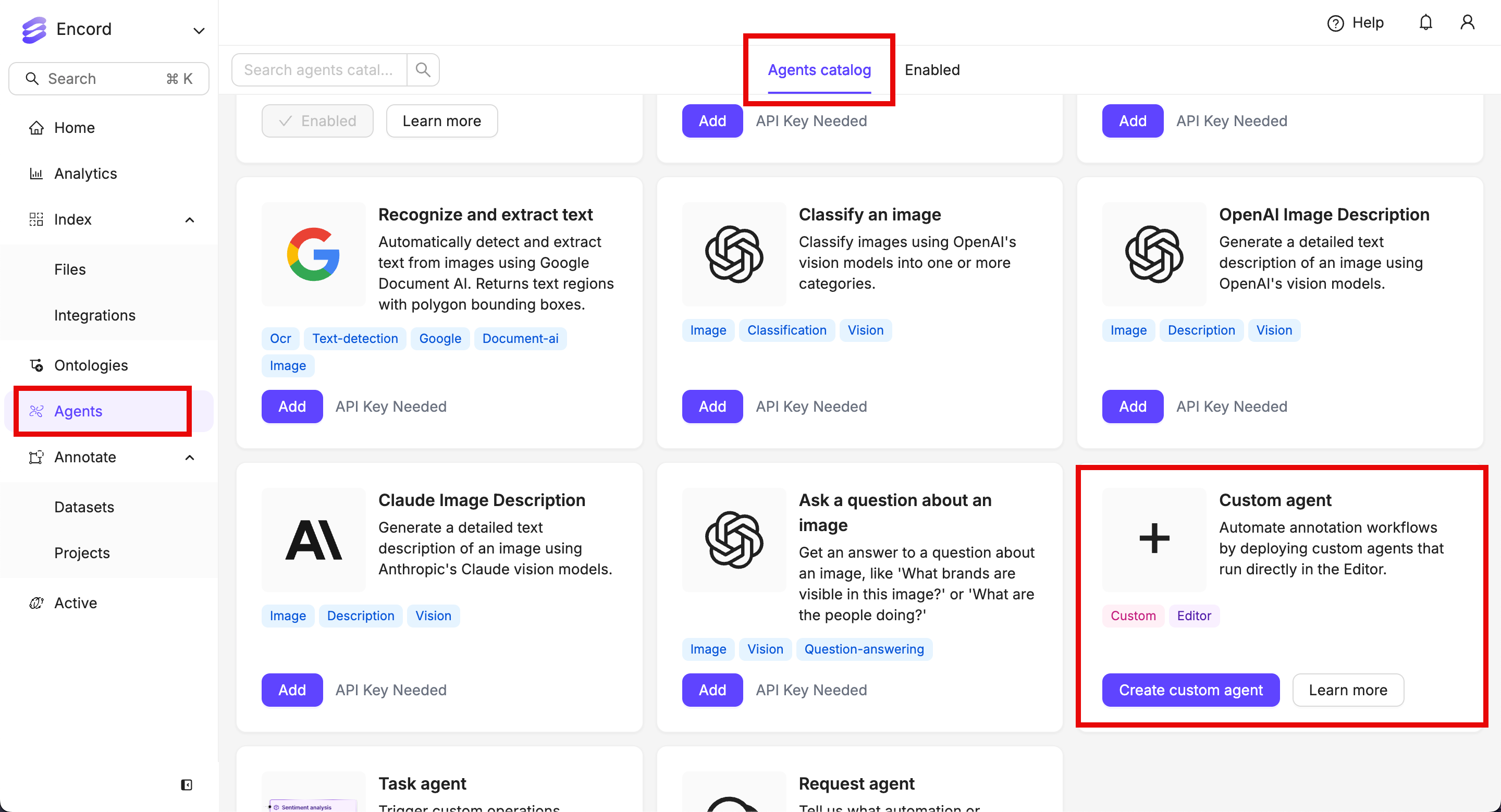
1. Click the **Agents** section on the left. The **Agents catalog** tab opens.
2. Click **Create custom agent** on the **Custom agent** tile.
3. Give the agent a meaningful name and description.
4. Paste the function URL into the **Agent endpoint** field.
5. Click **Create custom agent**.